Make a cash payment receipt by entering the merchant name, payment date, receipt number, and each paid item into Receipt Maker, then printing or downloading the result. A cash payment receipt records that money has already changed hands between a payer and a payee, not that money is being requested. The tool is designed for that single moment: after the cash is handed over, you list what was bought, what was paid, what was given back as change, and you walk away with a readable paper or HTML file. Receipt Maker only generates a paid receipt when the entered amount tendered is at least equal to the calculated total, which prevents an unpaid or partially paid transaction from being labeled as completed. All calculations happen in the current browser, the values are never uploaded, and the file you print or download carries a compliance disclaimer so it is never mistaken for an authenticated fiscal document. The sections below walk through every field, the exact calculation order, and the steps to produce the receipt on paper or as a portable HTML file.
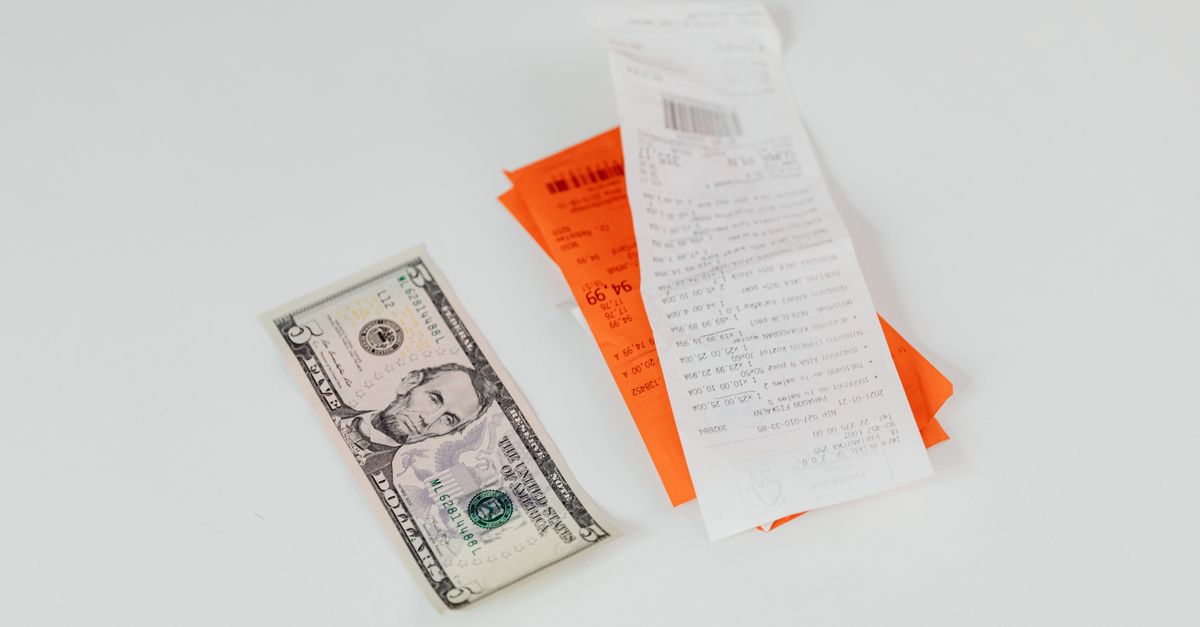
What a Cash Payment Receipt Must Contain
A clear cash payment receipt answers six practical questions at a glance: who sold the goods or services, when the payment happened, what was bought, what the agreed price was, how much cash changed hands, and how much change was returned. Optional fields such as tax, discount, and tip are added when the transaction includes them. The table below separates the fields Receipt Maker actually collects from optional extras you can leave blank for a simple hand-to-hand payment.
| Field | Status | Purpose on the receipt |
|---|---|---|
| Merchant name | Required | Identifies who received the cash |
| Payment date | Required | Records when the cash changed hands |
| Receipt number | Required | Uniquely identifies this receipt for later lookup |
| Display currency | Required | Sets the currency symbol shown on every total |
| Line item, quantity, unit price | Required | Itemizes what was paid for, up to 100 lines |
| Flat discount | Optional | Subtracted once from the subtotal |
| Percentage tax rate | Optional | Applied to the discounted subtotal only |
| Flat tip | Optional | Added after tax |
| Amount tendered | Required | Cash handed over by the payer |
| Change due | Auto-calculated | Tendered minus total; zero when exact |
Two practical limits govern the line-item fields: each unit price accepts no more than two decimal places, and each quantity accepts up to three. A receipt is limited to 100 line items, and totals above the supported amount range are reported rather than silently truncated. Blank, negative, non-finite, malformed, or excessive values are rejected instead of being replaced with zero.
Receipt or Invoice for a Cash Payment?
An invoice is a request to pay; a receipt is proof that payment has already happened. Mixing the two creates confusion, especially when a customer tries to reconcile a personal or business ledger. Receipt Maker is intentionally built only for the second case. Generation stops when the amount tendered is less than the calculated total, so the tool will not label an unpaid or partially paid request as a paid receipt. If you need to send a bill, set a due date, or show an outstanding balance, switch to the Invoice Generator instead. If you need to record a partial payment against an existing balance, use bookkeeping software that supports payment allocation and an audit trail, because Receipt Maker is designed around one completed cash payment and does not maintain customer accounts, sequential ledgers, inventory, refunds, or voids.
Build the Cash Payment Receipt in Five Steps
The flow below matches the verified operating steps of the tool. Each field is validated as you type, and totals only appear in the preview after you generate the receipt.
- Enter merchant and receipt header. Type the merchant name, set the payment date, assign a receipt number, and choose the display currency. These four values identify the receipt and are required before totals can be generated.
- Add each paid item. For every good or service paid for, enter a description, the quantity, and the unit price. The line amount shown for each row is the quantity multiplied by the unit price, rounded to the nearest minor unit.
- Enter discount, tax, tip, and tendered amount. Fill the optional flat discount, the percentage tax rate, the flat tip, and the cash amount handed over by the payer. Leave any optional field blank if the transaction does not include it.
- Generate the receipt and verify every total. Press the generate action and read the preview carefully. Check the subtotal, the discount, the discounted subtotal, the tax, the tip, the final total, and the change due. Generation fails if the tendered amount is below the calculated total.
- Print or download the standalone HTML file. Use Print receipt to open the browser print dialog, or use Download HTML to save a self-contained file that opens in any browser and can be printed later.
How Receipt Maker Calculates the Totals
The calculation order is explicit and fixed. First, every validated line amount is added to form the subtotal. Second, a flat discount is subtracted from that subtotal; the discount cannot exceed the subtotal itself. Third, the entered tax percentage is applied to the discounted subtotal, with the result rounded to the nearest minor unit. Fourth, a flat tip is added. The final total therefore equals the discounted subtotal plus tax plus tip. Tax treatment varies by location and transaction, so you must enter a rate appropriate for your own situation and confirm whether this order matches your requirements. The tool does not contain tax tables, product exemptions, rounding mandates, or jurisdiction-specific compliance logic.
To avoid the classic 0.10 plus 0.20 binary floating-point tail, every two-decimal monetary input is first converted to integer minor units before any addition or subtraction. For currencies displayed with two decimal places, one major unit is converted to one hundred minor units, so 0.10 becomes 10 and 0.20 becomes 20, producing an exact 30-minor-unit result. Each line amount is rounded to the nearest minor unit only after multiplying the validated quantity by the integer unit price.
| Step | Formula |
|---|---|
| 1. Line totals | Integer unit price × validated quantity |
| 2. Subtotal | Sum of every validated line amount |
| 3. Discount | Subtotal minus the flat discount |
| 4. Tax | Discounted subtotal × tax rate, rounded to the nearest minor unit |
| 5. Tip | Add the flat tip after tax |
| 6. Tendered | Amount of cash handed over by the payer |
| 7. Change | Tendered minus total; generation stops when tendered is below total |
A single worked example makes the chain concrete. Suppose a buyer purchases one item at $10.00 with a quantity of 2, and a second item at $5.50 with a quantity of 1, then receives a $5.00 flat discount, pays 8 percent tax, leaves a $2.00 tip, and hands over $30.00 in cash. Writing the arithmetic out step by step: line one is 2 × $10.00 = $20.00, line two is 1 × $5.50 = $5.50. The subtotal is $20.00 + $5.50 = $25.50. Subtracting the flat discount gives $25.50 − $5.00 = $20.50 as the discounted subtotal. The 8 percent tax is $20.50 × 0.08 = $1.6400, which rounds to $1.64. Adding the tip gives $20.50 + $1.64 + $2.00 = $24.14 as the final total. The change due is $30.00 − $24.14 = $5.86. The same totals appear in the preview and on every printed or downloaded copy.
Print the Receipt or Save It as HTML
After generation, the preview is the source of truth for the receipt. The Print receipt control opens the browser's print dialog, where you can print paper or save a PDF if your operating system provides that option. The browser print dialog itself is documented on MDN's Window.print reference and behaves the same way as for any other page. The Download HTML control saves a standalone HTML file containing the validated values visible in the preview plus a compliance disclaimer. The file opens in any ordinary browser and can be printed later, but it is editable on disk, so it is not a tamper-evident record.
One safety property to be aware of: changing any field clears the last generated result, so an old receipt cannot be mistaken for output based on new inputs. Create a fresh receipt after every edit, and compare each new receipt with the original payment evidence (the cash register journal, bank entry, signed agreement, or other source document required for the transaction) before giving it to another person.
Practical Checks Before You Hand Over the Receipt
A cash payment receipt is a convenience record, not an authenticated fiscal document. A few habits reduce mistakes and disputes:
- Confirm the receipt number is unique. Receipt Maker accepts whatever number you type; it does not enforce a sequential ledger. Pick your own scheme, write it down, and never reuse a number.
- Match the line items to the goods or services actually paid for. Round quantities to whole units where possible so the buyer and seller agree on what the receipt itemizes.
- Use the tax rate that matches your transaction. The tool does not ship tax tables or jurisdiction-specific rules, so the rate you enter is the rate that appears.
- Keep the original payment evidence alongside the receipt. A printed or saved receipt can be edited, so it should not be treated as independent proof against fraud. Keep the authoritative cash register journal, payment processor record, or signed agreement.
- Regenerate after every edit. Field changes clear the previous generated result, so an old preview cannot silently reappear as the final document.
For reimbursements, warranties, insurance claims, or any situation where a receipt must satisfy legal, tax, or regulated recordkeeping requirements, consult a qualified professional or the relevant authority. Receipt Maker is a general-purpose convenience tool, not an accounting system or a compliance service.
If you're weighing options, How to Make a Receipt for Payment With Correct Totals covers this in detail.
If you're weighing options, How to Make a Receipt in Excel Without Fragile Formulas covers this in detail.