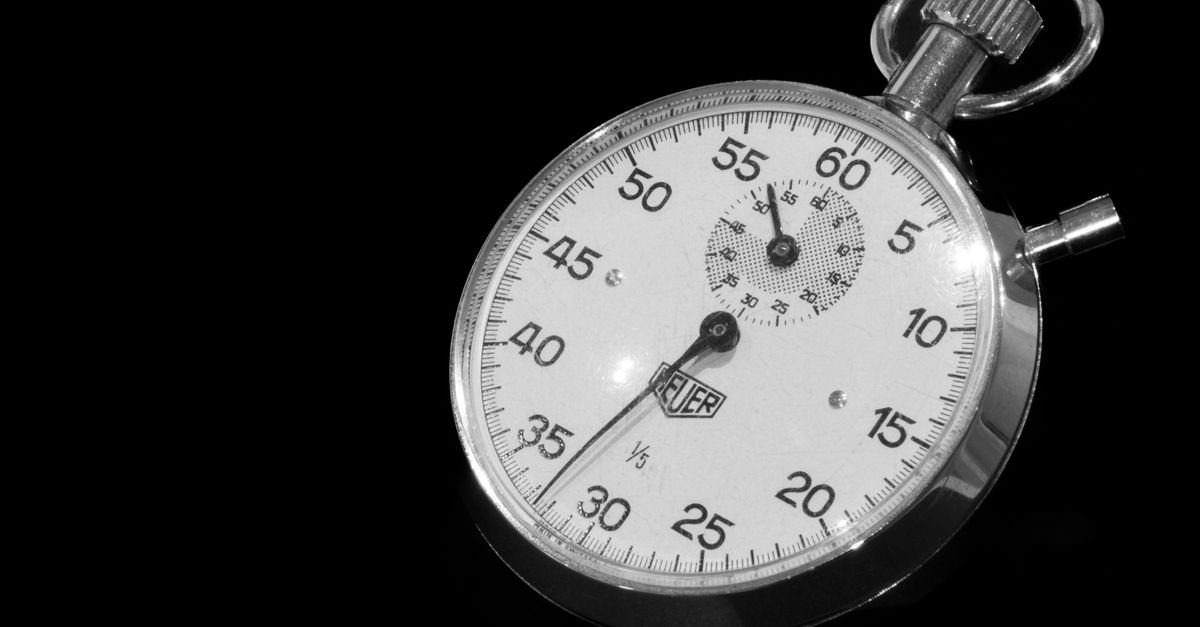
An online stopwatch is a browser-based timer that counts upward from zero in minutes, seconds, and hundredths of a second, recording elapsed time for as long as the user keeps it running. The word "online" simply means it runs inside a web page rather than as installed software, so it needs no download, no account, and no sign-in to use. A stopwatch is distinct from a clock or a countdown timer because it measures how long an activity actually takes rather than telling the time of day or running from a fixed duration down to zero. That makes it the natural choice whenever the end time is unknown in advance — a workout, a study session, a cooking task, a speech rehearsal, or any interval where you want to compare segments side by side. Modern browser stopwatches, like the Online Stopwatch, also anchor timing to a high-resolution clock reference so the display stays correct even when the tab is backgrounded or the device throttles background activity. Most stopwatches include a Lap button that captures a split time without stopping the count, and that single feature is what turns a plain timer into a measurement instrument.
What "Online Stopwatch" Actually Means
The phrase "online stopwatch" is really two ideas stacked together. Understanding each half separately makes the whole meaning easier to grasp.
Stopwatch. A stopwatch is a count-up timer with no preset duration. Press Start and the display begins at 00:00.00, then climbs for as long as you let it. There is no target time, no alarm, and no automatic stop — the measurement simply ends when you press Pause or Reset. That is the defining trait: it answers the question "how long did that take?" rather than "what time is it now?" or "how long until I do X?"
Online. "Online" in this phrase means the stopwatch is delivered through a web page and runs inside the browser, not as a phone app or a dedicated device. Opening the page is enough. There is nothing to download, no installer, no account creation, and no sign-in. The timer, the controls, and any recorded laps all live in the current browser tab on the current device. That is why the Online Stopwatch can be opened on any borrowed laptop, work computer, friend's phone, or kitchen tablet without leaving any personal data behind.
Put together, an online stopwatch is just a count-up timer you can open in any browser. The "online" part changes where it lives; the "stopwatch" part changes what it measures.
Stopwatch vs. Countdown vs. Pomodoro
Three timer-shaped tools often appear in the same search results, but they mean different things and serve different jobs. A clear distinction helps pick the right one for the task at hand.
| Tool | Direction | Preset duration | Best when |
|---|---|---|---|
| Online stopwatch | Counts up from zero | None — open-ended | You do not know in advance how long the task will take |
| Online countdown timer | Counts down to zero | You set the duration | You know exactly how long you need (boil an egg, take a break, finish a segment) |
| Pomodoro timer | Cycles through fixed blocks | Built-in (for example, 25/5/15) | You want pre-structured focus and break intervals without choosing durations |
A practical example illustrates the split. A runner timing an unfamiliar press wants to know the actual elapsed time of a recovery jog, so a stopwatch is the right tool. A runner planning to rest for exactly 90 seconds between sprints should reach for a countdown timer instead. Someone who wants to settle into a 25-minute focus block followed by a 5-minute break without thinking about durations is better served by a Pomodoro timer. The shapes look similar on screen, but the meaning of the number you are watching is different in each case.
Key Features and What They Mean
Beyond the basic count-up, several features carry specific meanings worth understanding before you trust a reading.
Lap and split
A lap is a snapshot of the current moment, captured without stopping the clock. Each lap records two numbers: the split (how long that individual segment took since the previous lap) and the cumulative total (how long the whole session has been running since Start). For comparison work — fastest lap in a run, longest phase of a task, the moment a rehearsal ran long — the split is usually the number you actually want.
Hundredths of a second
Many browser stopwatches display centiseconds, or hundredths of a second. The extra digit is the difference between "about 11 seconds" and "11.43 seconds," and that resolution matters for sprints, reaction drills, breathing exercises, and any interval under a minute where a rounded reading would hide real differences.
Anchored timing
Naive timers add up ticks once per second or once per refresh and quietly fall behind on slow devices. Anchored timing instead records a precise start reference and, on every display refresh, recomputes elapsed time as the accumulated total plus the true clock gap since that reference. The reading cannot drift, and if you switch to another tab and return later, the display corrects itself to the genuine elapsed time rather than to whatever a frozen counter happens to show.
Hours switchover
Once the elapsed time passes one hour, the display automatically switches from minutes:seconds:hundredths to hours:minutes:seconds so a long session stays readable. The underlying precision is unchanged.
Local-only operation
A browser-based stopwatch can run entirely on the device: no account, no network request, no upload. Timing data and recorded splits stay on your device, which is meaningful for workplace timing, exam proctoring, coaching sessions, or any context where the measured data is sensitive.
How to Time an Activity in Your Browser
To time an activity with a browser stopwatch, follow these steps.
- Open the Online Stopwatch in any browser tab.
- Press Start the instant the activity begins. The large display immediately begins counting up from zero in minutes, seconds, and hundredths.
- If the activity has natural phases, press Lap at the end of each phase. Each lap freezes that moment without stopping the timer and adds a row showing the segment time and the running total.
- When the activity ends, press Pause to freeze the elapsed time exactly at that moment. The clock holds its reading until you decide what to do next.
- Press Resume to continue from the paused value, or press Reset to clear the elapsed time and every recorded lap back to zero for a fresh measurement.
That is the complete working cycle. Most measurements fit into one Start-to-Reset run; for tasks that pause and resume naturally (a recipe with rest periods, a meeting with breaks), the Pause and Resume buttons cover the gap without losing the accumulated time.
When an Online Stopwatch Is the Right Tool
Because a stopwatch has no preset duration, it fits any task where the end is open-ended. The table below matches common situations to the tool that gives the cleanest answer.
| Situation | Why a stopwatch fits |
|---|---|
| Timing sprints, laps, or intervals in training | End time depends on the performance, not on a schedule |
| Measuring focused study or work blocks | You want the actual elapsed minutes to plan the next session |
| Cooking tasks like rests, brews, or boils | The duration is approximate and you want to glance at a large display |
| Rehearsing a speech or interview answer to a target length | You watch the climb rather than count down |
| Holding a plank, breath, or timed exercise | You want centisecond resolution to compare attempts |
| Tracking how long a multi-step task really takes | Lap splits expose which phase is the bottleneck |
The pattern across all of these is the same: the user does not know in advance how long the activity will last, so a count-down timer would force a guess. A stopwatch leaves that guess out and measures what actually happens.
Reading Lap Splits Correctly
Lap splits are easy to misread the first time. The display shows two numbers per row, and only one of them tells you how long that segment took.
The split is the time between this lap and the previous one (or between this lap and Start for the first row). It answers "how long did this segment last on its own?"
The total is the time from Start to this row's moment. It answers "how long have I been running in total?"
Laps are usually listed newest-first, so the most recent split sits at the top and earlier splits scroll below. To find a personal best, scan the splits only — totals grow on every row by definition. If two splits are equal, the runner held pace; if a split jumps, that lap was slower than the one before it.
For readers who want a deeper look at how the underlying timing is computed in modern engines, the guide Online Stopwatch Explained: How Browser Timing Works walks through the anchoring logic in detail. For a focused look at what hundredth-of-a-second resolution actually delivers on short intervals, the guide on browser online stopwatch accuracy is the natural next read.
If you only need to measure how long something took, open the Online Stopwatch, press Start, and let the elapsed time do the rest.