An online stopwatch is a browser-based timing tool that counts up from zero with hundredth-of-a-second precision, recording lap splits so you can see how long an open-ended activity actually takes. Unlike a physical watch that you wind up or a phone app you have to download, an online stopwatch opens in any modern browser with one click — Start, Lap, Reset — and nothing else is needed.
For everyday tasks where you don't know the duration in advance, this is the simplest way to measure elapsed time. You press Start when the activity begins, press Lap to mark checkpoints without stopping the clock, and press Reset when you want a fresh measurement. The display updates in real time, showing minutes, seconds, and hundredths of a second for any interval shorter than an hour, then automatically switches to hours, minutes, and seconds once you pass the one-hour mark.
Because the entire timing logic runs locally in your browser, there is no account to create, no app to install, and nothing uploaded to a server. Your timing and lap data never leave the device you're using, and once the page has loaded it continues to work even if your internet connection drops. This combination — instant access, precision to the hundredth of a second, lap recording, and complete privacy — is what separates an online stopwatch from a wall clock, a phone timer, or a downloaded stopwatch app.
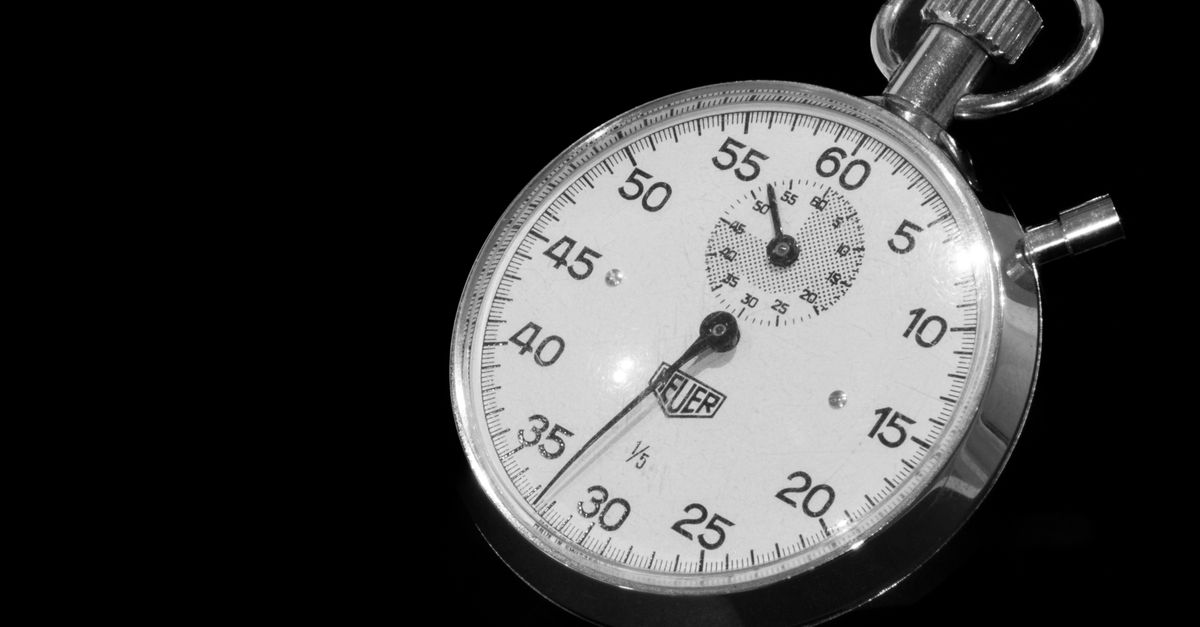
What an Online Stopwatch Actually Does
A stopwatch is fundamentally different from a clock or a timer. A clock tells you what time it is right now; a timer usually counts down from a preset duration to zero; a stopwatch counts up from zero and keeps going until you tell it to stop. That single distinction — open-ended counting rather than a fixed window — is what makes a stopwatch the right tool whenever you don't know in advance how long an activity will take.
Think about the difference in practical terms. If you want to know how long a pasta boil takes, you set a countdown timer for ten minutes. If you want to know how long the boil actually takes — including the time it took to bring the pot to a boil — you start a stopwatch when you put the pot on the stove and stop it when the pasta is done. The first measurement tells you what you planned; the second tells you what really happened.
An online stopwatch adds three things to that basic idea: it runs in your browser so you don't need a physical device, it shows hundredths of a second for precision on short intervals, and it records laps so you can compare segments against each other. Those three features turn a simple "how long did this take?" question into a richer measurement tool.
How an Online Stopwatch Works
Under the hood, an online stopwatch looks simple but uses a clever technique called anchored timing to stay accurate. Most people assume that a browser timer just adds one tick every hundredth of a second — and that works fine on paper. The problem is that browsers aggressively throttle background tabs to save battery, so a naive counter can fall behind when you switch away and come back.
Anchored timing fixes this. The stopwatch records a high-resolution start timestamp the moment you press Start, and on every refresh of the display it calculates the actual elapsed time by subtracting that anchor from the current real clock time. Each frame is recomputed from truth rather than added up from individual ticks, so the reading never drifts and never falls behind.
This approach has a few practical consequences worth knowing:
- Tab switching is safe. If you move to another tab to read instructions or take a call, the display corrects itself the moment you return.
- Pausing is exact. Pressing Pause freezes the accumulated elapsed time at the click of a button, and Resume continues from that exact value rather than estimating.
- Reset is total. Pressing Reset clears both the elapsed time and every recorded lap back to zero, so a new measurement starts from a clean slate.
Because all of this runs in JavaScript on the page, the stopwatch doesn't send anything to a server. There's no account, no sign-in, no telemetry, and no upload. Your timing data stays on the device, and once the page has loaded it continues to work without an internet connection.
How to Use an Online Stopwatch in Your Browser
The whole interface is designed around four actions: Start, Lap, Pause/Resume, and Reset. Here is the exact sequence for a typical measurement.
- Open an online stopwatch in your browser and press Start to begin counting up from zero. The large display will show minutes, seconds, and hundredths of a second.
- While the stopwatch is running, press Lap whenever you want to mark a checkpoint. Each press freezes that moment without stopping the clock and records two numbers: the split (how long that segment took) and the cumulative total since Start. New laps appear at the top of the list.
- If you need to step away or interrupt the activity, press Pause to freeze the elapsed time exactly where it is, then Resume to continue from that same value.
- When the measurement is done, press Reset to clear the elapsed time and every recorded lap back to zero so you can start a fresh measurement.
For most use cases that is the entire workflow. The first press of Start begins the measurement, the last press of Reset ends it, and Lap is optional — useful when you want to compare segments but skippable when you just need a single total.
When an Online Stopwatch Beats a Countdown Timer
Because the three timer types look similar, it helps to lay their behaviors side by side. The following table compares the basic model of a stopwatch, a countdown timer, and a Pomodoro timer so you can pick the right tool for the task at hand.
| Feature | Online Stopwatch | Countdown Timer | Pomodoro Timer |
|---|---|---|---|
| Counting direction | Up from zero | Down from a preset | Cycles: focus then break |
| Preset duration | None | Required | Fixed (e.g. 25/5/15) |
| Lap splits | Yes, with split and total | Usually no | Usually no |
| Best for measuring | Open-ended activities | Fixed-window tasks | Structured work/break cycles |
| Typical use | Sprints, rehearsals, cooking, study blocks | Boil an egg, time a presentation | Sustained focused work sessions |
A stopwatch is the right pick whenever you don't know how long the activity will take and you want the real, measured answer rather than a planned estimate. A countdown timer is better when you have a target duration and want an alert when it ends. A Pomodoro timer is the choice when you want enforced cycles of focus and rest rather than an open measurement.
Precision, Laps, and What Happens When You Switch Tabs
Two design choices are worth highlighting because they show up in everyday use.
First, the display shows hundredths of a second (centiseconds) for any interval under an hour. That extra resolution matters more than people expect. For a 50-meter sprint, a plank hold, or a reaction drill, the difference between 7.43 seconds and 7.51 seconds is real information, not noise. A stopwatch that rounds to whole seconds loses that detail, and a clock you read off the wall loses even more. For longer sessions the format automatically switches to hours, minutes, and seconds once the elapsed time crosses one hour, so a multi-hour rehearsal or a long study block stays easy to read.
Second, laps are the feature that turns a stopwatch from a clock into an analysis tool. Each lap records two values — the split and the cumulative total — so you can answer questions like "Which lap of my run was fastest?", "Which step in this recipe took the longest?", or "How long did the second half of my presentation run compared to the first?". Laps appear newest-first, so the most recent split is always at the top of the list.
If you'd like a deeper look at the precision question, our guide on online stopwatch accuracy walks through the timing math in more detail. For anyone using a phone rather than a desktop, the steps work the same way — open the page, tap Start, tap Lap — and the dedicated guide on how to use a stopwatch on a mobile phone covers the small layout differences you'll see on a touch screen.