A browser-based stopwatch on your phone is a webpage you load in mobile Chrome, Safari, or any other mobile browser that counts up from zero with hundredth-of-a-second precision, records lap splits, and lets you pause, resume, and reset without installing anything from an app store. You tap Start and the large display begins ticking through minutes, seconds, and centiseconds; tap Lap while the timer runs to freeze a split without stopping the clock; tap Pause to hold the elapsed time at the exact moment you pressed it; tap Resume to continue from that frozen value; and tap Reset to clear the elapsed time and every recorded lap back to zero. Because the timer runs entirely on your device, no app download is required, no account is needed, and your timing data never leaves the phone — and it keeps working even after you switch to another tab and come back. For runners timing sprints, students measuring study blocks, cooks watching a boil, or speakers rehearsing a target length, that combination of precision, privacy, and zero-install convenience is exactly what a mobile stopwatch should feel like.
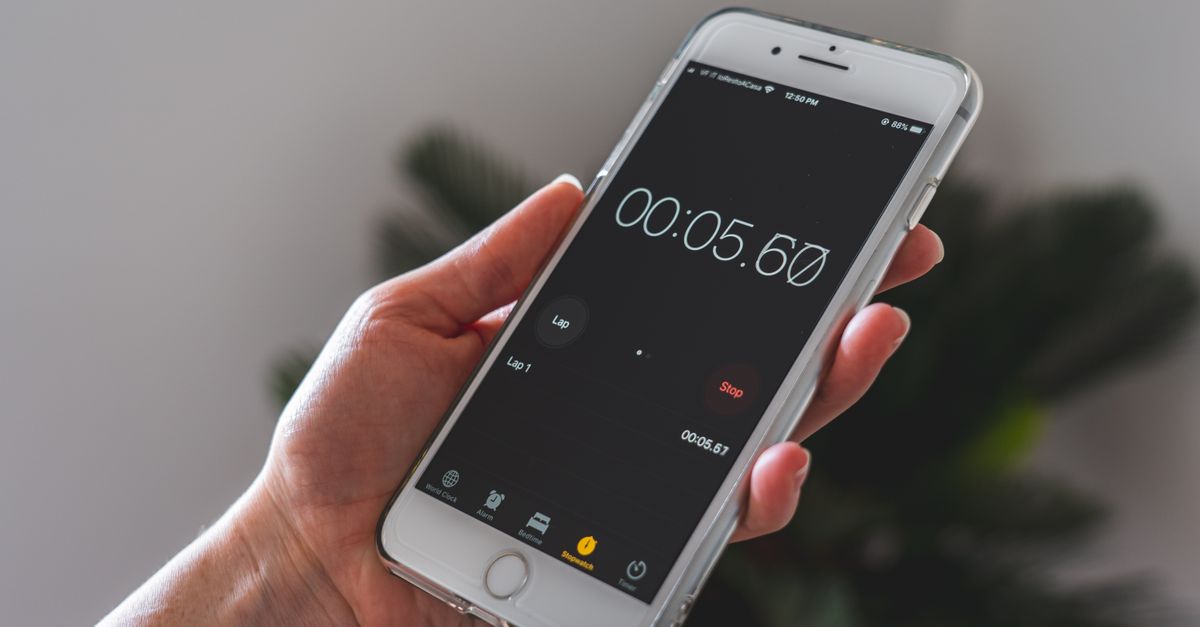
When a Browser Stopwatch Beats Your Phone's Built-in Clock
Most phones ship with a Clock app that includes a basic stopwatch, and it works fine for a single one-off measurement. The moment you need more than a running total — multiple laps, pause and resume without losing the count, a display big enough to read from across the kitchen — the built-in tool starts to feel cramped. Browser stopwatches built for measurement tasks typically offer a larger, higher-contrast display, dedicated Lap buttons that record both segment time and cumulative total, and on-screen controls that are easier to hit accurately with a thumb. They also avoid the friction of unlocking an app, granting permissions, or dismissing pop-up ads just to time a plank hold. And because they run as a regular browser tab, you can bookmark them alongside your other daily tools and pull one up in a single tap from your home screen.
How to Open and Start the Stopwatch on Your Phone
Open your phone's browser and load the Online Stopwatch page. Once the display is visible, you have a full-featured count-up timer ready to use. The exact sequence is:
- Open your mobile browser — Chrome, Safari, Firefox, and Samsung Internet all work.
- Navigate to the Online Stopwatch and wait for the large 00:00:00 display to load.
- Tap Start to begin counting up; the digits update every hundredth of a second.
- Tap Lap any time you want to record a split without interrupting the running timer.
- Tap Reset when you want to clear the elapsed time and the lap list for a fresh measurement.
The first time you load the page, add it to your home screen or bookmark it so the next session is a single tap. From then on the tool opens as quickly as your phone's Clock app, with no login, no splash screen, and no waiting for a download to finish.
Recording Lap Splits While the Clock Runs
The Lap button is what separates a stopwatch from a plain clock. While the timer keeps running, tapping Lap captures the current moment as a frozen row in the lap list, showing two numbers side by side: the split (how long that individual segment took) and the total (the cumulative elapsed time since you pressed Start). Each new tap adds a row above the previous one, so the most recent split is always at the top.
For example, suppose you press Start and then hit Lap at 12.45 seconds. Lap 1 records a split of 12.45 and a total of 12.45. Keep running and hit Lap again at 26.77. Lap 2 records a split of 14.32 (26.77 − 12.45) and a total of 26.77. Those two numbers answer two different questions at once: "how fast was that lap?" from the split, and "where am I in the overall session?" from the total. If you want exact lap figures for a longer run, let the Online Stopwatch record them for you and read the splits directly off the lap list rather than calculating them by hand.
Pause, Resume, and Reset Without Losing Time
Pause and Resume behave like a freeze frame. When you tap Pause, the display locks at the exact elapsed value at the moment of the tap — not a rounded version, not the value from a fraction of a second earlier. Tapping Resume picks up from that same frozen number, so the recorded total is continuous even if you took a break in the middle.
Reset is a clean slate. It zeroes the elapsed display and removes every lap from the list, returning the tool to the state it was in before you pressed Start. Use it whenever you finish one measurement and want to start another without leftover splits polluting the new run.
One subtle but useful behavior: if you switch to a different tab on your phone to take a call, answer a text, or check a recipe, the stopwatch does not fall behind. It uses anchored timing rather than naive tick counting, so when you return to the tab the display corrects itself to the genuine elapsed time instead of catching up in a fast-forward blur.
Stopwatch, Countdown, or Pomodoro — Picking the Right Tool
Not every timing job is the same. The table below shows when each tool fits, based on the kind of question you are actually asking.
| Tool | What it measures | Has a preset duration? | Best for |
|---|---|---|---|
| Stopwatch | Open-ended elapsed time | No | Activities where you don't know in advance how long they will take — sprints, study blocks, rehearsals, brews |
| Countdown timer | Time remaining until zero | Yes | Fixed-length tasks such as boiling an egg for six minutes, parking for thirty minutes, or a timed exam |
| Pomodoro timer | A repeating focus and break cycle | Yes (25/5/15 cycle) | Sustained deep-work sessions where you want the tool to manage the work and break rhythm for you |
If your activity has no fixed end, reach for a stopwatch. If you know the target duration ahead of time, use a countdown. If you want alternating focus and break phases on a fixed cycle, use a Pomodoro timer.
Timing Tips That Hold Up on a Phone
A few habits make mobile timing more reliable. First, give the timer a stable home: pin the Online Stopwatch tab or add it to your home screen so a single tap launches it from a locked home screen. Second, use Airplane mode if you want absolute certainty nothing is being sent — the timer keeps working offline once the page has loaded, so no signal is required. Third, read the lap list from the top down; the newest split is always listed first, so the most recent measurement is the easiest one to find. Fourth, for short intervals — anything under a minute — trust the hundredths: a 0.04-second difference between two sprints is meaningful at this resolution and would be invisible at one-second precision. Fifth, hit Reset between unrelated measurements so laps from the previous run do not contaminate the new one. With those habits in place, a browser tab on your phone handles the same timing tasks a dedicated stopwatch app does, with none of the install friction.
Related reading: How to Keep a Work Phone Screen On During a Task.
Related reading: Online Stopwatch Accuracy: How Precise Can a Browser Get?.