An online alarm clock is a free, browser-based tool that displays your device's local time as a live ticking clock and plays a sound plus a bold on-screen alert at the exact minute you choose, with nothing to install and no account to create. The page reads the current time directly from your browser, compares it against the alarm time you set, and generates the ring entirely on your own device. That single combination — a live local clock, a chosen target minute, a sound, and an on-screen alert — is the entire feature set, and it is what makes an online alarm clock a fast, private way to turn any browser tab into a dependable reminder. Because the clock uses your device's own time zone, the alarm you set matches the time on your phone and wall clock with no time-zone math to do, and because the audio is generated locally, it works on any computer that can open a webpage.
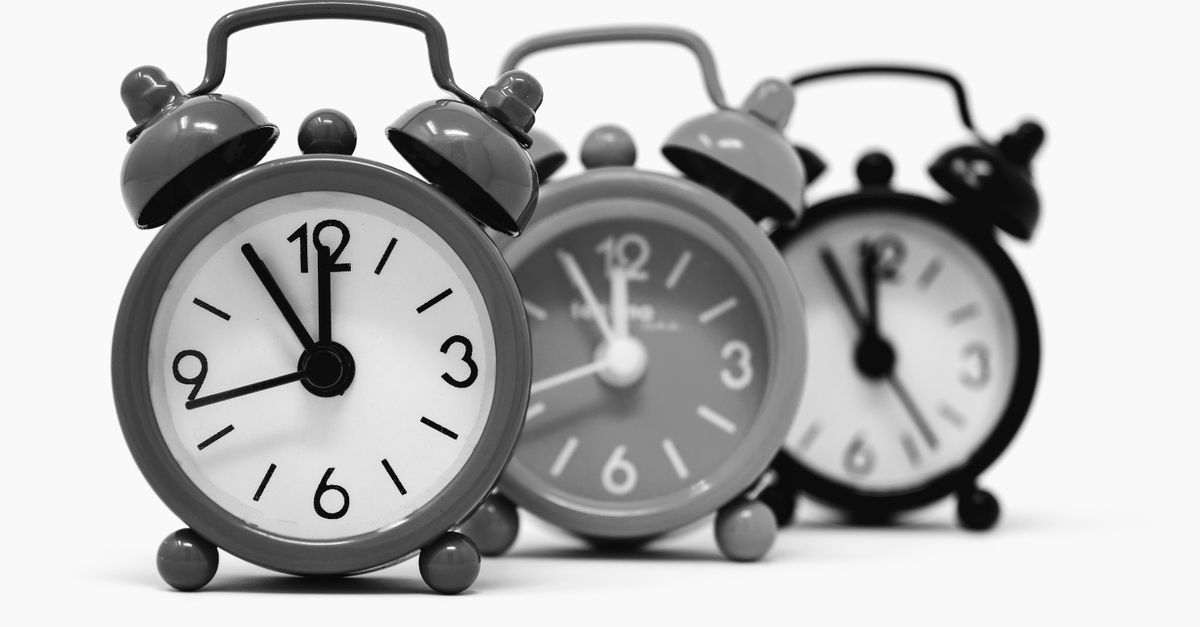
What an Online Alarm Clock Actually Does
An online alarm clock does two simple jobs, and it does them in your browser. First, it shows the current time. The live clock at the top of the tool refreshes every second in HH:MM:SS format, drawn from your device's local clock, which means the page is useful as a large glanceable desk clock even when no alarm is set. Second, it watches that clock for a target minute. Once you arm an alarm, the tool keeps comparing the live reading to your chosen time and triggers an alert the moment the two match.
The alert itself is two-layered. A bold on-screen banner flashes so you can see the alarm even with the sound muted or in a noisy room, and a repeating beep plays so you can hear it across a room or through headphones. You can read more about the exact behavior in the Online Alarm Clock tool page, but the contract is the same: live display, single trigger per minute, sound plus visual alert, and full control over dismissing or snoozing.
The Three Inputs You Give It
Every interaction with an online alarm clock can be reduced to three inputs: a target time, an optional label, and a confirmation click. There is no repeat schedule to design, no recurrence rule to set, and no account profile to populate. The page is intentionally narrow so that arming it takes a moment rather than a configuration session.
The first input is the target minute, selected through a native browser time picker. The picker stores the same wall-clock minute that the live HH:MM:SS display at the top of the page is reading, which is why the alarm you arm lines up with whatever your phone or wall clock says without any conversion on your part. The second input is an optional label — a short string such as "Standup meeting" or "Take the bread out" — that is echoed back inside the on-screen banner so the moment the alarm fires you immediately see why it rang. The third input is the click on Set alarm, which both arms the target minute and serves as the user gesture that lets your browser play audio at the target moment.
That third input is worth pausing on. Browsers refuse to play sound until a page has received a user interaction, and that interaction has to be the kind that registers as intentional — a click, a tap, a key press. The click on Set alarm satisfies that requirement, which is why the beep is allowed to ring when the alarm fires and why the tool is intentionally a click-to-arm design rather than a silent pre-armed one.
How to Set an Online Alarm Clock
Setting an alarm in a browser tab takes three inputs and one click. The exact steps mirror the tool's verified operating flow, and they are the only steps the tool supports — there is no repeat schedule, no multi-alarm queue, and no account to log into.
- Read the current time from the live clock at the top of the tool so you know exactly what minute your device thinks it is. The display updates every second.
- Pick your alarm time with the time picker, and optionally type a short label such as "Standup meeting" or "Take the bread out" so the on-screen banner reminds you why it rang.
- Press Set alarm to arm it; the status line confirms the target time so you can verify the minute is correct.
- Keep this tab open and your device awake. When the alarm rings, press Dismiss to stop it or Snooze to ring again in five minutes.
If you want to change a running alarm, turn it off and set a new one. The tool does not let you edit a target time in place; it only lets you replace the active alarm with a fresh one.
Why the Live Clock Updates Every Second
The clock at the top of the page is not a server feed. It is a JavaScript timer that reads your device's clock once per second and re-renders the HH:MM:SS string. Because the source is your own machine, the clock reflects your time zone automatically, follows daylight-saving transitions without configuration, and stays accurate as long as your device's clock is correct. That is also why the alarm matches your phone and wall clock without any conversion: the picker stores the same minute the live clock is reading.
For a quick refresher on the same one-second refresh pattern applied to a full analog or digital face, the Online Clock works the same way and is a useful reference when you want a bigger display without the alarm controls.
What Happens When the Alarm Rings
When the live clock reaches the minute you armed, the tool fires the alarm once. It does not re-trigger within the same minute, so you will not see the banner double-flash or hear the beep stutter if the page does an extra check 30 seconds later. The sound loops until you act, and the visual alert stays on screen for the same window, which means even a half-attentive glance catches it. Two buttons resolve the alert:
- Dismiss — stops the sound and banner immediately and leaves the alarm off.
- Snooze — stops the sound and banner now and arms a new ring five minutes later at the same label.
If you snooze repeatedly, each press pushes the alarm another five minutes forward. To set a different time while a snooze is pending, dismiss first and then arm a fresh alarm.
Common Uses Across a Working Day
Because the tool is a single reminder at a single minute, it fits any task where the trigger is "at HH:MM" rather than "after N minutes". The table below matches common situations to the kind of setting that works well.
| Situation | How to set it | Why an online alarm clock fits |
|---|---|---|
| Standup meeting | Set two minutes before the meeting starts | Visual banner doubles as a label so you know what you are late for |
| Short nap | Set for the wake-up minute, then dismiss | Single trigger per minute avoids the jolting double-ring pattern |
| Cooking or oven timer | Set the minute you expect the dish to be done | Snooze gives a quick extra nudge if you are not ready |
| Timeboxing focused work | Set the block-end minute, label with the task name | Label carries context across the screen so you do not have to remember |
| Parking meter or laundry | Set two minutes before expiry | Local-clock reading means no math across time zones |
For tasks that are "after N minutes" instead of "at HH:MM", pair the alarm with an Online Countdown Timer running in another tab and let the countdown hand off to the alarm at the end.
The One Limitation You Need to Know
The single hard rule for any browser-based alarm is that the page must stay open and the device must stay awake. Close the tab, quit the browser, lock the screen, or let the machine sleep and the alarm cannot sound because the JavaScript timer stops running. The tool has no background mode, no notification fallback, and no push to your phone — it is a webpage, so it can only act while that webpage is actively loaded.
For critical wake-ups, keep the tab visible, disable system sleep if you can, and use a phone or bedside alarm as a backup. For everyday reminders during a working session, the limitation rarely matters because the tab is already open in front of you. A practical workaround for long sessions is a dedicated Keep Screen On request in a companion tab, which reduces the chance of the device dimming into a sleep state that would mute the alarm.
Privacy and How the Sound Is Generated
Everything that makes the alarm work happens locally. The current time is read from your browser, the comparison between live time and target time runs in your browser, and the beep is produced by your browser's built-in audio output. Nothing you type, no label, and no target time is uploaded, logged, or shared, and there is no sign-up. Because browsers refuse to play audio until a user gesture has happened on the page, the click that arms the alarm is also the gesture that unlocks sound — that is why the click on Set alarm is what gives the browser permission to ring the beep at the target minute.
This local-only model is the same pattern used by other single-purpose browser tools, and it is part of why an online alarm clock is a reasonable choice when you want a quick reminder without installing another app or creating another account.
Alarm Clock vs. Countdown vs. Stopwatch
Three browser tools cover most everyday timing, and each one answers a different question. The table below compares them by the kind of trigger they are built for, so you can pick the right one for the moment.
| Tool | Trigger style | Best for | Output when it fires |
|---|---|---|---|
| Online Alarm Clock | At a specific clock minute | Meetings, naps, cooking end-times, parking meters | Banner plus repeating beep, with Dismiss or 5-minute Snooze |
| Online Countdown Timer | After N minutes and seconds from now | Egg timers, study sprints, break reminders that start the moment you press go | Visible countdown reaching zero, often with a sound |
| Online Stopwatch | Elapsed time since you pressed start | Lap splits, workout duration, measuring how long a task actually took | Live count-up with lap times, no preset target |
Pairing them is normal: a 25-minute Pomodoro block can use a countdown, an online alarm clock can fire at the end of a meeting, and a stopwatch can measure how long a focused task actually took. Each tool stays simple on its own, and together they cover most timing work without any extra software.
When an Online Alarm Clock Is the Right Tool
An online alarm clock is the right tool when the trigger is "at this minute on the wall clock" and you are already at a computer with a browser open. It is the wrong tool for wake-up alarms you cannot afford to miss, for triggers that should keep firing when the device sleeps, or for situations where you need a calendar or a list of repeating events. Within those bounds it is fast, private, and accurate: three inputs to arm, one banner plus one beep to alert you, and one click to dismiss.