The Online Clock is a free browser page that displays the current time reported by your device, formatted as both an analog face and a digital readout, alongside the English local date and the time zone your browser resolved. When you search for "Kronos time clock online," you are usually trying to do one of three things: log in to the Kronos portal to submit a punch, find a clock you can actually see at your desk while you work, or verify that the device you intend to clock in from shows the correct date and zone. The Online Clock handles the second and third jobs cleanly because it lives in any browser tab, never asks for credentials, and never uploads a single value to a server. The widget reads the same Date object your Kronos punch would be stamped with, formats it in either 12-hour or 24-hour mode, optionally renders seconds, and draws an analog face whose hand angles come from the same Date reading. That makes it a reliable reference while your actual Kronos session is loading, while your shift is running, and while you decide whether to trust the minute you are about to submit.
Kronos is an enterprise workforce-management system that tracks when employees start, stop, and break from work. Most Kronos setups still rely on the device clock — whether you punch in from a wall-mounted terminal, a desktop browser at the office, or a personal laptop at home — to stamp the moment. That means a mis-set device clock, an off-by-one-hour time zone, or a missed daylight-saving change can push every punch into the wrong pay period. A simple browser clock that visibly shows the date, zone, and time in your chosen format gives you a sanity check before you submit hours, which is precisely the gap a browser clock fills.
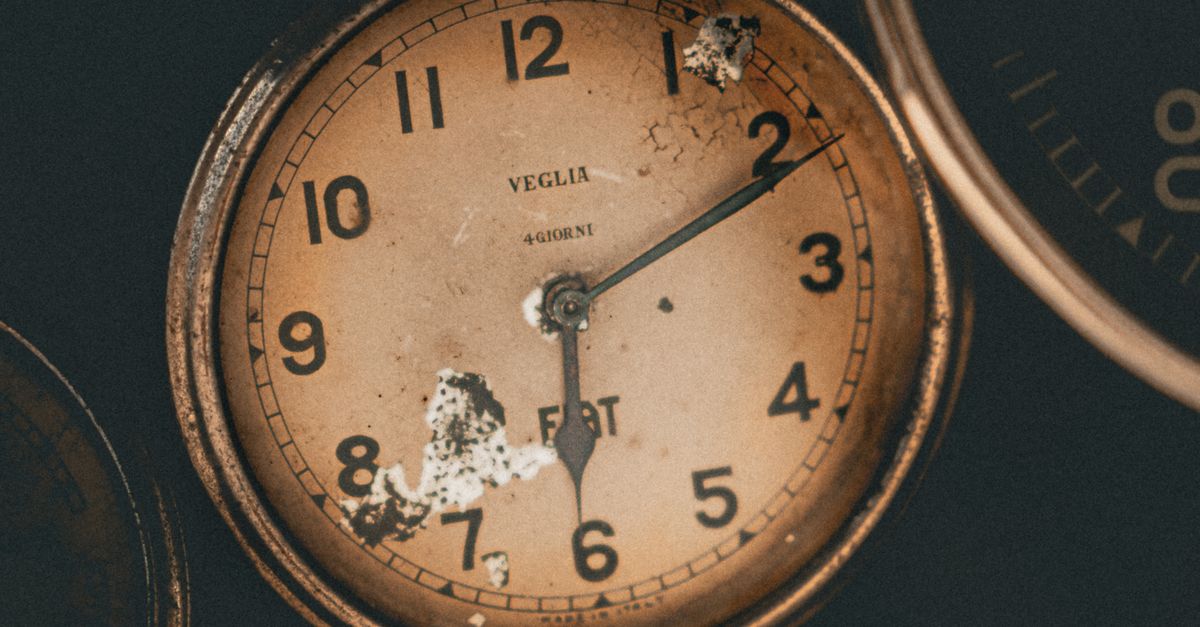
What the page shows
The main panel combines four readable elements that together answer the question, "What time does this device think it is right now?"
An analog face with three hands sits at the top of the panel, a digital readout underneath, the English local date below that, and the browser-resolved time-zone name at the bottom. You can pick 12-hour or 24-hour digital output, and you can choose to show or hide the seconds field and the analog second hand. The page updates about four times per second so the analog second hand moves smoothly even though the digital readout only redraws when its visible numbers actually change.
The 24-hour format pads hours from 00 through 23 with a leading zero, so 09:05:00 reads as a clean morning entry and 14:30 as a clean afternoon entry. The 12-hour format treats midnight as 12:00 AM, noon as 12:00 PM, and every other hour with an AM or PM suffix — for example 1:05:00 PM rather than 13:05:00. Minutes and seconds always use two digits in both modes. The date is rendered in English with the weekday name, the month name, the day number, and the year, in the form Friday, March 14, 2025.
Why a browser clock helps with Kronos time tracking
Kronos time tracking rewards consistency. Every punch you submit carries the timestamp your device reports, and the system usually reconciles that stamp against the time-zone rules of the location you are clocking in from. Three practical situations come up over and over:
- Before clocking in, you want a fast, readable confirmation that the device is on the right zone and the right date — particularly on Monday mornings after a daylight-saving change or when you are working from a different city.
- During a shift, you want a distraction-free clock visible across the desk, on a second monitor, or projected to a meeting-room screen so you can pace breaks without unlocking your phone.
- After a long shift, you want to glance at the analog hand sweep and the digital readout together to confirm the minute you are about to clock out is exactly what you expect.
A fullscreen browser clock handles each of those situations because it never hides system controls, never forces a screen saver, and never claims to override your device's clock. It simply reflects what your device already believes, which is the same value Kronos will read when you submit your punch.
How to set up the browser clock for Kronos work
The following steps walk through the practical workflow of pairing the Online Clock with your Kronos routine.
- Open the page and confirm that the displayed local date and the browser-resolved time zone match the device settings you intend to clock in from. If the zone label is wrong, correct it in your operating system first.
- Choose 24-hour time if your Kronos environment logs hours in 24-hour format, or stay on 12-hour time if your payroll team reads AM and PM. Toggle seconds on or off depending on whether the sweeping second hand helps or distracts you.
- Click Enter fullscreen for a larger display once you have verified the date and zone. The browser will usually only grant fullscreen as a direct response to your click, so this step must happen from your interaction with the page.
- Press the browser's normal Escape key or use its on-screen fullscreen control to leave the mode when your shift ends or when you need to switch back to your Kronos timesheet.
- Leave the tab open during your shift, or close it when you clock out — closing the tab ends the display because the widget stores nothing on a server.
Reading the digital and analog displays correctly
The digital readout and the analog face always come from the same Date object. That means if the digital clock reads 09:42:15, the analog second hand should sit at the 15-second mark (the 3 o'clock position), the minute hand should sit just past the 42-minute mark (between the 8 and 9 on the dial), and the hour hand should sit most of the way from the 9 toward the 10 — not parked exactly on any of those numbers.
The hand positions follow fixed angles. The second hand covers a full 360° every 60 seconds, so each second is 6° and the current second plus its millisecond fraction determine the angle. The minute hand covers a full 360° every 60 minutes, also at 6° per minute, but the angle includes the fractional contribution of the seconds so it drifts smoothly between minute ticks. The hour hand covers a full 360° every 12 hours, at 30° per hour, and includes the fractional contribution of minutes so it moves between hour numbers instead of jumping.
A worked example: at 09:42:15.000, the hour hand sits at 9 plus the fraction 42/60 of an hour. That fraction is 0.7. Multiplied by 30° per hour, the hour hand sits at 9 × 30° + 0.7 × 30° = 270° + 21° = 291° from the 12 o'clock position. The minute hand at 42 minutes and 15 seconds sits at 42 × 6° + 15 × 0.1° = 252° + 1.5° = 253.5°. The second hand at exactly 15 seconds sits at 15 × 6° = 90°, which is exactly the 3 o'clock mark. These angles are calculated from the same Date object as the digital field, so a mismatch between the analog face and the digital readout would indicate a rendering bug rather than a time-setting problem.
Display choices for different Kronos workflows
| Workflow | Recommended mode | Seconds | Fullscreen | Why this fits |
|---|---|---|---|---|
| Office desktop shift | 24-hour | hidden | optional | Matches payroll format and gives a calmer reading between calls |
| Hybrid work from home | 12-hour | shown | yes | Sanity-check the date and zone before clocking in from a new location |
| Meeting-room wall display | 24-hour | hidden | yes | Visible from across the room with no distracting flicker |
| Pomodoro-style focus block | 12-hour | hidden | yes | Pairs with a timer for clear break and session boundaries |
| Presentation timer reference | 24-hour | shown | yes | Lets the speaker confirm elapsed seconds without checking a phone |
If the displayed time looks wrong
The Online Clock does not correct drift, does not contact a network time server, and does not maintain its own offset dataset. If the time on the page does not match a trusted clock, the discrepancy is in your device, not in the widget. Review the operating-system date and time, confirm that automatic time synchronization is enabled, and check that the time-zone selection matches the location you intend to clock in from.
On most platforms, changing the operating-system zone while the page is open will affect later Date objects as the browser exposes the change, but a refresh may be needed on some browsers. The widget does not embed a country list, a city-to-zone map, or a daylight-saving table, so any zone change must happen at the device level before you start relying on the displayed time for payroll.
When you need more than a display
The Online Clock is built for one job: rendering your device's local time consistently in two digital formats and one analog geometry. For alerts at a target time, use a dedicated alarm tool. For elapsed timing across a shift, use a stopwatch. For tracking how long until a meeting or a deadline, use a countdown timer. None of those tools substitute for Kronos, but together they form a complete time-tracking workspace that runs in plain browser tabs. The display you build around your Kronos session stays simple, private, and entirely under your own control.
Related reading: Audio Reaction Time Test Explained: A Visual Tool Guide.
Related reading: How to Document Chess Clock Steps During Practice.