The Chess Clock tool documents the steps of using a chess clock by writing every completed clock press into a device-local daily history, turning each timed move into a discrete, undoable event that can be exported as a private PNG or CSV. Each press stops the active side, starts the opponent, credits the configured Fischer increment to the player who completed it, and increments a count for the current calendar day on this device. That count is what becomes your record — a 1080 by 1350 PNG showing today's total next to recent days, or a CSV with one Date and Completed clock presses row per saved day, both produced by the browser's native Blob and canvas APIs without an upload. Undo last press is part of the documentation contract: it restores the full prior clock snapshot and removes the associated press from the day's count, so an accidental tap does not contaminate the archive. Because the history lives under a single local browser key and never leaves the device, the resulting documentation stays a personal practice record rather than a published score, an arbiter log, or a tournament submission.
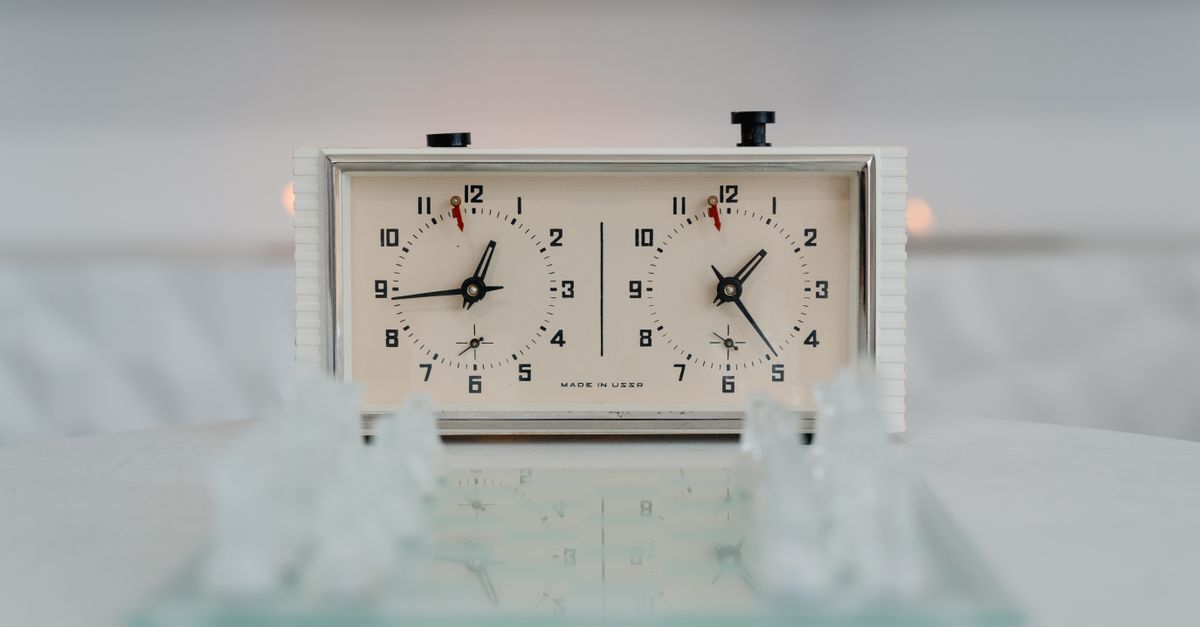
What gets recorded when you document chess clock steps
A chess clock has two states worth keeping: the remaining time on each side, and how many presses have happened. The Chess Clock captures both. The internal snapshot stored under the local browser key counter:chess-clock holds separate white and black timers, an active side, a Fischer increment, and a timestamp anchor; every completed press also bumps a counter for the device-local calendar day. That day-level counter is the smallest unit the documentation exports, which is why it answers the question "how do I document the steps I use to use chess clock" with a single number per day, derived from the same action that already runs the clock.
The increment behaves the way FIDE's electronic-clock specifications describe: the increment is shown before move one and credited to the player who completes the clock press. The initial seconds you choose are therefore displayed with the increment already added, which is what you see the moment you start White or Black. The Laws of Chess define a press as stopping the mover and starting the opponent, and the clock writes exactly that into the snapshot. If you want a deeper explanation of how that increment lands in the displayed time, the Fischer increment walkthrough covers the same logic from a different angle.
How to document the steps of using a chess clock
The recording is automatic once you start pressing. The only deliberate step is choosing what to export. Use this sequence for a clean, replayable record:
- Choose the initial seconds and the Fischer increment before pressing start; the displayed initial time already includes the increment required before move one.
- Start White or Black, then press the clock after each move to credit that player, switch the active side, and add one entry to today's local daily count.
- Use Undo last press the moment you tap accidentally; it restores the full prior clock snapshot and removes the press from the day's count so the archive stays accurate.
- Press Pause when the practice game stops; it materializes the currently running time on both clocks without changing the day's count.
- Open the local daily press history to see how many moves were timed on this device for the current calendar day and the surrounding days.
- Export PNG or CSV only when you want a private copy; PNG produces a 1080 by 1350 image of the day's total alongside recent days, and CSV writes one Date and Completed clock presses row per saved day.
That sequence is also what to follow when you sit down to actually play. The tool is a local chess clock built around that exact add-after press model, and the documentation falls out of using it normally rather than from a separate logging step.
Documentation methods compared
Plain tallies and notebook entries have been the traditional answer, but they handle mistakes and time data very differently. The table below shows how each method behaves for the parts of a chess clock session you would actually want to preserve.
| Method | What it captures | Privacy | Recoverable from a mistake |
|---|---|---|---|
| Plain tally on paper | Only a running number; no per-side time | Local | No — you must scratch out and rewrite |
| Spreadsheet note | Press count plus your own commentary | Local file | Depends on manual editing |
| Chess Clock local history | One count per completed press, tied to a saved snapshot | Local, under one browser key | Yes — Undo last press restores the prior snapshot |
| Online chess server | Presses plus full game state and opponent | Cloud, visible to others | Server-side rules and corrections |
The middle row is the practical answer for most practice scenarios. You keep the privacy of a notebook, the structure of a spreadsheet, and the recoverability that neither offers — and you do not pay for it with an account, a tournament submission, or a public game record.
What the record includes and what it leaves out
The Chess Clock's documentation is intentionally narrow. It includes the initial seconds and Fischer increment you selected, the active side at every completed press, the count of completed presses per device-local calendar day, and the export files you choose to produce. It does not include the chess moves themselves, the position on the board, a result, an opponent's name, a tournament round, an arbiter signature, or any score beyond the press count. The FIDE Laws of Chess describe what a clock press means in a rated game (FIDE Laws of Chess), and the tool mirrors that mechanical definition while declining to take on any of the surrounding scoring work.
That boundary is the reason the record stays honest. A documentation aid that tried to also be a move recorder, a result service, and an arbiter workflow would either need an account or would silently lose fidelity. The Chess Clock refuses both trade-offs and exports only what it actually wrote — a daily total, in PNG or CSV, scoped to this browser.
Working with undo, pause, and a flagged clock
Three controls shape the documentation you end up with at the end of a session. Undo last press is the correction tool: it rewinds both timers to the moment before the most recent completed press, switches the active side back, and removes the associated count for the day. That is why a stray tap does not pollute the saved record — the snapshot and the day-level counter are restored together. Pause is the snapshot tool: it materializes the currently running time on both clocks and leaves them stopped, which is useful for stepping away from the board without recording a press. A flagged clock is the boundary tool: when a side reaches 00:00, the clock marks that side as flagged and stops accepting new clock presses until you set a new local time control, so the day-level count cannot grow past the moment the game ended.
Once a session is finished, exports are point-in-time snapshots. Undo after an export does not edit the file you already saved; the next export simply reflects the corrected state. If browser storage is unavailable, the clock still runs during the current page session but the page clearly indicates that it cannot retain history, and no export will be able to save anything that was not preserved. Clearing browser data removes the saved record under counter:chess-clock, and another device begins empty — which is itself a useful property of the documentation, because it means the record cannot leak to a future owner of the same browser profile without your action.
For everyday use, that is all the documentation you need. Pick a time control, start a side, press after each move, undo an accidental tap, pause when you stop, and export a PNG or CSV only on the days you decide are worth keeping. The rest of the answer to documenting the steps you use to run a chess clock is built into the clock itself.
Related reading: Use an Online Clock for Your Part-Time Algonquin Program.