Using a chess clock correctly means pressing the clock on the side of the player who just moved, which stops that player's clock, starts the opponent's, and credits the configured Fischer increment to the player who completed the press. The clock must be set up before the first move, with both an initial time and an optional increment chosen in advance, because the displayed starting value already includes the increment that FIDE requires to be credited before move one. A correct workflow checks three signals at every press: only one side reads as active, only the active side ever counts down, and the credited increment only lands on the side that pressed, not on both sides. The simplest way to confirm you are using a chess clock correctly is to open a two-sided local timer such as the Chess Clock, choose an initial time and increment that match the format you intend to play, press the correct side after each move, and use Undo for any tap that did not match a real move, then consult the private daily press history afterwards to verify how many moves were actually timed.
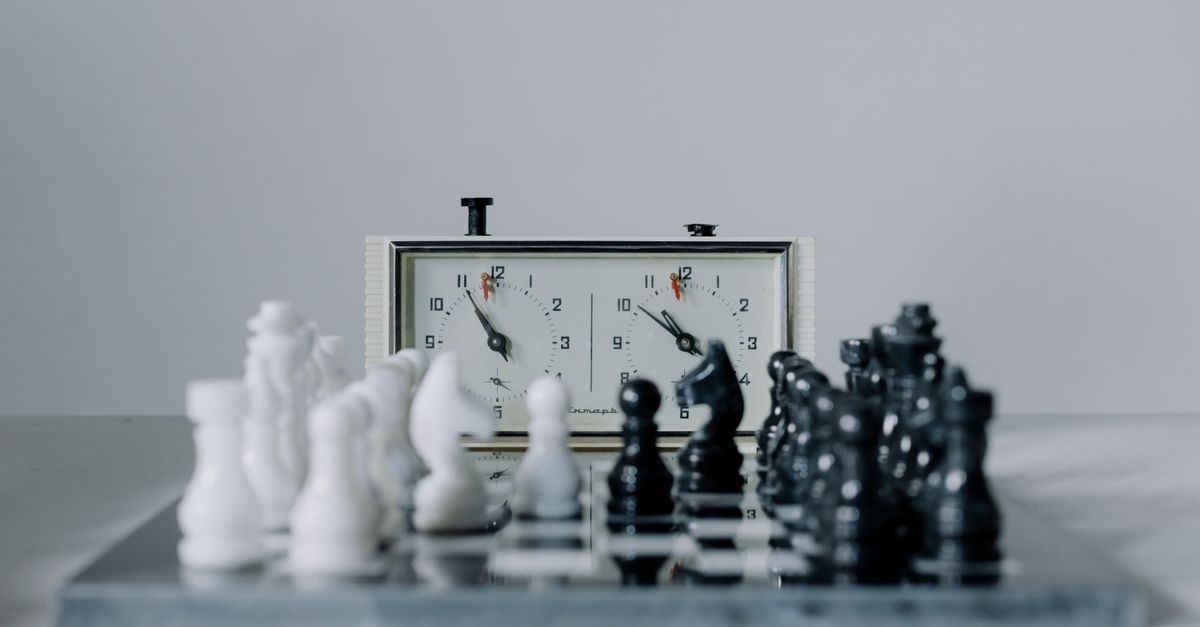
What "Correct" Actually Means at a Chess Clock
A chess clock is "used correctly" when each press follows three rules at the same time: the clock stops the player who just moved, the same press starts the opponent, and a fixed Fischer increment is added only to the player who completed the press. Those three rules come straight from FIDE: the Laws of Chess describe a clock press as stopping the mover and starting the opponent under Law 6.2.1, while the FIDE Equipment rules for electronic clocks describe Fischer increment controls and require the increment before move one under Equipment 3.3.3. A correct two-sided clock enforces those rules through a small state machine with separate white time, black time, an active side, an optional flag, and an elapsed-time anchor rather than by running two independent countdowns and asking the user to do the arithmetic in their head.
The single most common misconception is the timing of the increment. Fischer increment is added to the side that presses, not to both sides, and the credited seconds appear in the player's remaining clock as a bonus that does not show up on the opponent's display. A delay is a different mode and behaves like a small grace period at the start of every move; it is not what a standard increment does. Treating one as the other is the fastest way to lose a clock-centered dispute, which is why a tool that documents which mode it implements, and refuses to silently switch, is the safer choice. If you want a deeper comparison of the two, see the focused guide on Fischer increment versus delay on this clock.
Set Up a Valid Time Control Before Move One
Choosing an initial time and an increment is the first thing you should verify, because the displayed starting value already includes the increment that FIDE requires to be credited before the first move. In the Chess Clock tool, you choose the initial seconds and the Fischer increment before pressing Start, so the two large columns always reflect a value that has already had the increment baked in. Two short examples make that concrete: 5 minutes plus a 3-second increment reads 5:03 before the first move, and 15 minutes plus a 10-second increment reads 15:10. Both sides display the same initial number, and the chosen increment is applied to whichever side completes the next press. A 5+3 control therefore walks through play as 5:03 start, minus a few seconds of thinking, plus a credited 3 seconds back to the player who pressed, then over to the opponent at the same starting value.
| Time control | Initial seconds | Fischer increment | Initial display value |
|---|---|---|---|
| Bullet (1+0) | 60 | 0 | 01:00 |
| Blitz (3+2) | 180 | 2 | 03:02 |
| Rapid (10+5) | 600 | 5 | 10:05 |
| Rapid (15+10) | 900 | 10 | 15:10 |
| Classical (90+30) | 5,400 | 30 | 90:30 |
The tool cannot store a custom delay mode and will not silently interpret an increment entry as delay, so the value you choose is the value your session uses. If your browser's local storage is unavailable, the tool still runs the clock for the current session but shows a clear message that it cannot save history; correct timing still works, and only the private record at the end of the day is missing.
Run the Clock Correctly Step by Step
- Open the Chess Clock in your browser and leave it on the screen between both players so the two-column display is readable from both seats.
- Enter the initial seconds for the time control you want to play (for example, 300 for 5 minutes) and enter the Fischer increment (for example, 3) into the matching fields. Do this before pressing Start so the initial display already includes the increment required before move one.
- Press the Start control for White, or for Black if Black is moving first under the rules you are using. The chosen side becomes the active side and its clock begins counting down; the other side stays on the same starting value plus its own increment until it becomes active.
- After a real move, press the player's side of the clock. That press stops the mover, starts the opponent, and credits the configured increment to the player who completed the press; both remaining times stay visible without any mental arithmetic.
- If play needs to pause, press Pause. The currently running time materializes on the display, both clocks freeze, and you can resume the same game or open a fresh time control without losing the prior state.
- If a player taps the wrong side or bumps the clock by accident, press Undo last press. The full prior clock snapshot (both times, the active side, and that day's press count) is restored, which a generic minus button cannot do because it does not know which side was active or how much increment belonged to that press.
- When a clock reaches 00:00, that side is flagged. The clock stops accepting further presses until you set a new local time control for the next game.
Following those steps keeps every press bound to a real move and keeps the increment attached to the player who earned it, which is the heart of using a chess clock correctly.
Handle Flags, Pauses, and Accidental Presses the Right Way
A flagged clock is part of correct usage, not a failure. When a side's remaining time hits 00:00, the tool marks that side as flagged and prevents further clock presses until you set a new time control. This mirrors the "no further moves without a new control" behavior of tournament clocks and forces a clear end to a timed practice game rather than letting a zero clock pretend to be playable. Trying to keep playing past a flag is one of the surest signs the clock is being used incorrectly, even if everything earlier in the session was clean.
Pause is the other control people often misuse. The correct role of Pause is to materialize the currently running time so both sides freeze at exactly the value they held when play stopped, then resume from that point. It is not a manual "subtract 30 seconds for chat" button and it does not consume either player's time. If the displayed time after a Pause does not match what you expected, the most common causes are pressing Pause on a side that was already stopped, or treating Pause as a delay-style buffer that should not exist on this tool. A focused walkthrough of what to check when the display feels off lives in the guide to correcting a chess clock when the display looks off.
Verify Correctness With Local History and Private Exports
The strongest signal that a chess clock session was used correctly is whether the recorded moves line up with the game. The Chess Clock tool keeps a device-local count of completed clock presses per calendar day, so each confirmed move shows up as one entry in that day's total. That count does not include the initial Start, and Undo last press removes the count for the press it reverses. Reviewing the day's history right after a practice game is the fastest way to confirm that every press really did follow a move and that no accidental taps slipped through.
Exports are deliberately limited and entirely local. PNG export produces a 1080 by 1350 image of the private daily total and the most recent days, with no URL and no player identity, so you can save a screenshot of your own session without uploading it anywhere. CSV export creates one row per saved day with the date and the completed clock press count, ready for a spreadsheet or a personal training log. Both exports run through the browser's own Blob and canvas APIs and stay on your device. No account, cloud sync, or remote chess server is involved, and clearing your browser data clears the saved record. If your browser cannot store data at all, the clock still works for the current session while it tells you, on screen, that history cannot be retained, so you know the limits before you trust the history.
The boundary is intentional: this is a personal local practice clock, not certified tournament hardware, an arbiter workflow, a move recorder, or a result service. Tournament rulings, flagged claims, and corrections belong to the event. Use the tool when a clear two-sided clock with a documented Fischer increment is the useful part: set the time control before starting, press after each move, pause when the practice stops, use Undo for a mistaken press, and export only the private daily history you want to keep.