This chess clock implements Fischer increment only and does not include a delay mode. The distinction matters because Fischer increment and Bronstein delay are two separate time-control systems with different rules for how the clock reacts after each move. Under Fischer increment, the time control has a fixed base plus a bonus that is added to the player's clock after they press; under delay, the player's main clock does not start counting down until a preset waiting period has elapsed. According to the FIDE Laws of Chess (Article 6.2.1), the press is defined as stopping the mover and starting the opponent, and the FIDE Chess Equipment with Electronic Components specification describes increment controls where the bonus is credited before the opponent's clock begins running. This tool follows the add-after model: the initial time shown on the screen already includes the increment required before the first move, every completed press switches the active side after crediting the side that pressed, and there is no waiting period applied to the opponent's clock before it starts ticking.
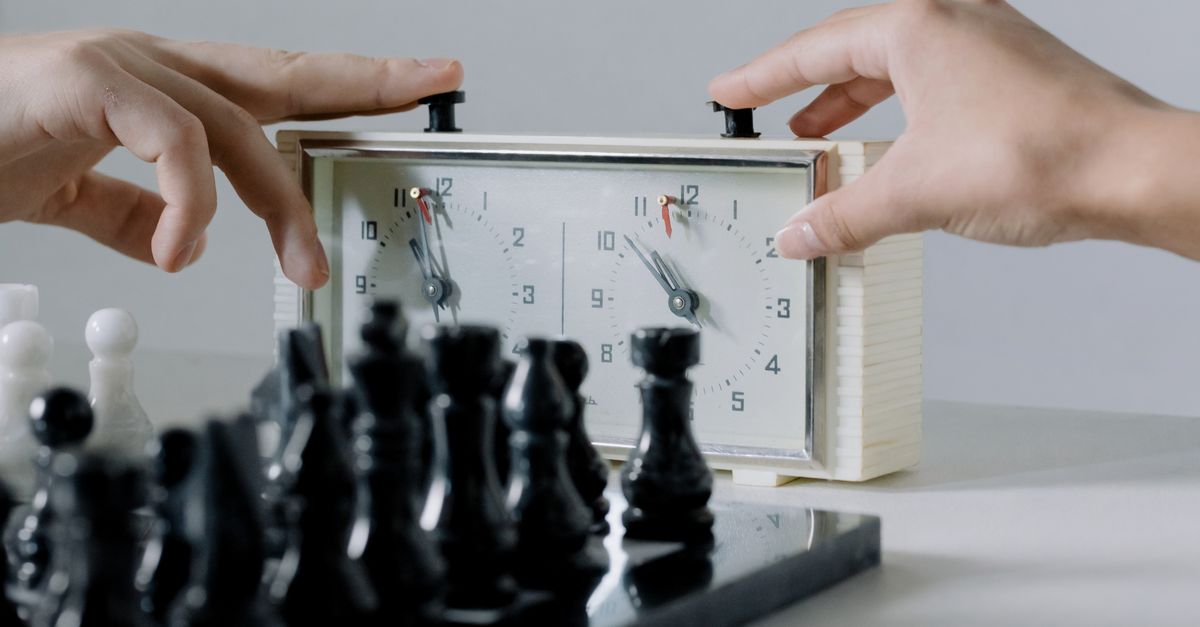
Fischer Increment vs Bronstein Delay
The two time-control methods look similar on a score sheet but produce different behaviour on the clock. Fischer increment is the model used by this tool, and it is the model most online chess platforms default to for rated games. Bronstein delay, by contrast, is the model used by some digital clocks and certain rapid formats. The table below captures the behaviour difference a player would actually feel at the board.
| Aspect | Fischer increment | Bronstein delay |
|---|---|---|
| Bonus handling | Full increment added to the player's clock after the press, even if they had less than that amount left. | Increment only credited up to the time the player actually used; unused delay is forfeited. |
| Opponent's clock | Begins running immediately after the press. | Does not begin counting down until the delay period has elapsed. |
| Initial display | Shows base time plus the increment the first move will receive. | Shows the base time only; the first move is the first to be affected by the delay. |
| Effect on fast play | Each move can effectively add more clock than the player spent thinking. | Fast play wastes clock time within the delay window. |
The model on the right — increment credited up to time used, with the opponent waiting through a grace period — is delay, and it is intentionally not implemented in this clock. The model on the left, where the press transfers active time immediately and adds the full bonus, is what you get from the Chess Clock tool.
How Each Press Credits the Active Side
The clock runs a small state machine with separate white time, black time, an active side, an optional flag, and an elapsed-time anchor. That separation matters because a generic counter cannot represent the part of a chess game where only one player may be thinking at a time. Two independent countdowns running in parallel would each have to be paused when the other side moves, and a single plus-button cannot know which side deserved the increment.
When you press the clock, three things happen in sequence: the side whose turn just ended has its remaining time frozen, the configured Fischer increment is added to that frozen time, and the other side becomes active and starts counting down. The Laws of Chess describe this transfer as a single press that stops the mover and starts the opponent. The FIDE Chess Equipment specification places the increment before the opponent's clock begins, which is why the initial display already shows the increment credited to whoever will make move one. You can verify this by setting a 5-minute base with a 3-second increment: the timers will read 5:03, not 5:00, before any press has happened.
Set Up and Run a Fischer Increment Game
The interface is deliberately small so that the time control, not the controls, is the focus. Follow these three steps to take the clock from a fresh state to a finished practice game.
- Choose the initial seconds and Fischer increment before starting. Enter the base time for each side and the increment that will be credited after every completed press. The displayed initial time already includes the increment required before move one, so a 300-second base with a 3-second increment shows as 5:03 on both timers. Do not start the clock until the values are correct, because the snapshot is captured at start.
- Start White or Black, then press the clock after each move. Tapping the start button for the chosen side begins that side's clock, since that side makes the first move. After every move, the player whose turn just ended presses the clock to credit that player with the increment and switch the active side. Pause materializes the elapsed time and leaves both clocks stopped when the practice game stops.
- Use Undo last press, review local daily press history, and export only when you need a private copy. If a player taps the clock by accident, Undo last press restores the full prior snapshot and removes the associated daily press count. Open the history panel to see how many moves were timed on a given local calendar day, and export PNG or CSV only when you want a record outside the browser.
All three steps run inside the current browser tab. There is no account, no upload, and no remote chess server involved in any of them.
What Happens When a Clock Reaches Zero
When a side runs out of time, that side is marked as flagged and the clock stops accepting new move presses until you set a new time control. This is consistent with how a real tournament clock behaves on a flag, but with one important caveat: the practice interface is not an arbiter. The flagging here is a local state change, not a result. Nothing in the tool declares a win, loss, or draw. Nothing calls an arbiter. Nothing submits a claim form to a tournament organiser.
Setting a new time control — entering new base seconds and a new increment, then starting again — clears the flag and resumes a clean practice session. The practice interface does not try to determine a result from the remaining numbers.
Local History and Private Export
Every completed press also creates a count in the device-local calendar day history. That history is stored under a single browser key scoped to this tool, so the same browser on the same device accumulates a running tally of moves timed on each day. Another device, or another browser on the same device, begins empty. Clearing the browser's site data removes the saved record.
If you want a copy you can keep, the tool offers two private exports. Export PNG creates a 1080 by 1350 image showing the private daily total and recent days, with no URL and no player identity — useful for sharing a day's move count without exposing the rest of your device. Export CSV creates one Date and Completed clock presses row per saved day, ready for a spreadsheet or a personal archive. Both exports use native browser Blob and canvas APIs and never leave the device. If browser storage is unavailable, the clock still runs during the current page session and the page clearly indicates that history cannot be retained.
What the Clock Does Not Replace
This is a personal local practice clock, and the boundary is part of how it stays simple. It is not FIDE-certified hardware, so it cannot be used to support a flag claim at a rated event. It is not a move recorder, so it does not log which piece moved where. It is not a result service, so it does not declare winners, accept resignations, or manage draw offers. It is not a chessboard, so you still need a real board or a separate digital board for the moves themselves.
Tournament rules, time-control selection, clock certification, flag claims, and corrections are controlled by the event, not by the timer. Use the tool when a clear two-sided clock with a documented Fischer increment is the useful part of what you need. If you are looking for an arbiter workflow, a certified tournament device, or a full online chess service, those are different products with different responsibilities.
Related reading: How to Avoid Mistakes When Using a Chess Clock.
Related reading: Online Alarm Clock vClock: How to Ring a Browser Tab.