Fix a chess clock result that looks wrong by pausing both clocks first, then using Undo last press to restore the prior snapshot for the single most recent mistake, and resetting the time control when the wrong setup itself was the cause. A practice clock can always be repaired at the press level because every completed press is stored as a small snapshot with the active side, both remaining times, the configured Fischer increment, and an elapsed-time anchor, and the local daily history only stores the press count. The repair tools are therefore three: Pause to stop both timers, Undo last press to roll back the most recent press, and a fresh time control setup when the original choice was wrong.
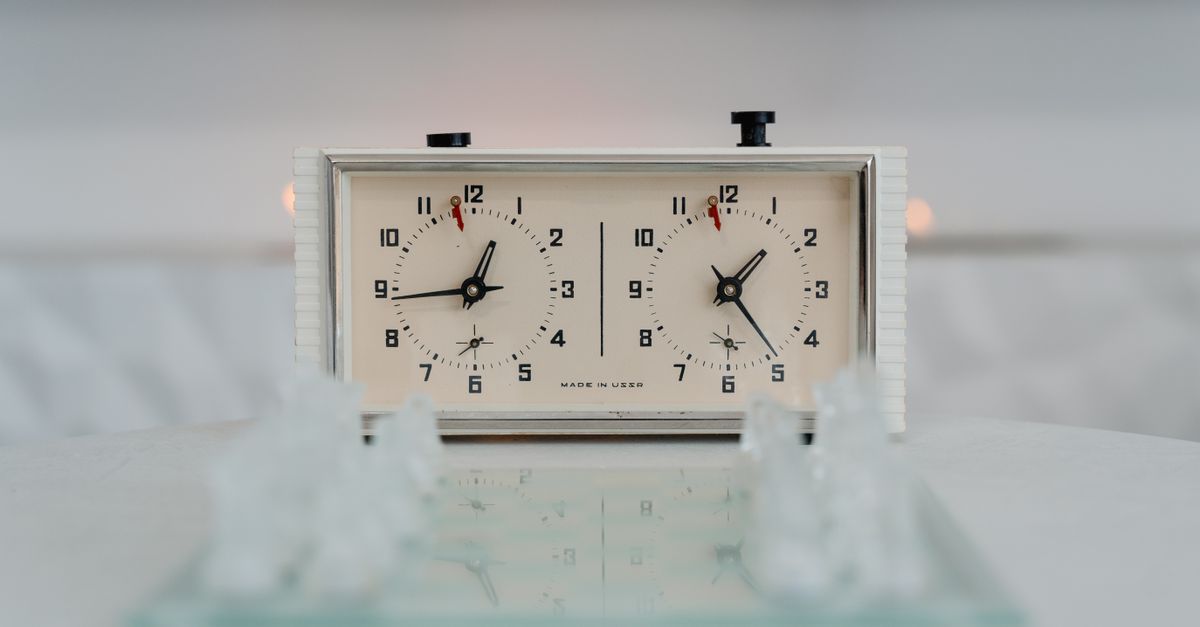
Why chess clock results can look wrong
A result from a practice session can look wrong for several predictable reasons, and recognising the cause is the first step to fixing it. The most common reason is an accidental tap on the clock before the move was completed, which credits the wrong side and switches play prematurely. The second is starting the wrong player, so the clock begins counting down the side that was supposed to be thinking. The third is choosing the wrong time control, then noticing only after several moves that the increment does not match what you intended or that one side is in much less time than expected.
Fischer increment is sometimes confused with delay, and that confusion alone can make a result look wrong. Per FIDE's electronic-clock specifications, a Fischer increment is added after a completed press and credited to the player who just moved. Delay is a separate mode in which a fixed amount of time is added to the start of each turn before the clock begins to count down. The two behave differently, and a clock set to one mode can produce an unexpected result if you were thinking about the other. The Chess Clock implements Fischer increment only; the increment is shown before move one and credited to the side that completes a press.
Another less obvious cause is the press at the very start. When you choose a starting side and press once to begin, that first press should be treated as a setup action rather than as the player's first move. Some players press twice by reflex, which credits the opponent with an extra increment (since the active side had already switched after the first press) and skips the starter's first thinking turn. The opponent's remaining time then reads several seconds higher than expected, because no move has actually been played by that side yet. A flagged clock, where one timer has reached 00:00, can also look like a wrong result; in fact the clock has simply stopped accepting new presses and is waiting for a fresh time control.
How to fix the result with the clock's controls
The clock provides three controls that directly address a wrong result: Pause, Undo last press, and resetting the time control. Use them in this order so you stop the bleeding before you correct it. Pause is safe to press at any time and never destroys state; Undo is a complete state rollback rather than a generic minus button, so it returns the correct active side, both remaining times, and the increment state for that press; resetting the time control wipes the in-progress session and is the right move when the original setup was wrong.
- Press Pause immediately so both clocks stop and the currently running time is materialized. This prevents further time loss while you decide what to do.
- Compare the two remaining times with what you remember from the game. If the discrepancy is small, it may be one missed or extra increment, which Undo can usually repair.
- Press Undo last press to restore the full prior clock snapshot and remove the most recent entry from the local daily press count. The undo is a complete rollback, so it returns the correct active side and both remaining times.
- If the wrong starting side was chosen, Undo will not help because no previous press exists yet. Pause, then set a new time control with the correct starting player before restarting.
- For a wrong initial time control or increment, Pause, change the values, and start over. The local history keeps a record of press counts but does not store the time control used, so resetting the controls is the cleanest correction.
- Resume by pressing the side whose turn it is. The clock will credit that side's increment on the next completed press.
Undo only affects the most recent press. If several wrong presses happened in a row, undoing once will leave the second-to-last wrong press still on the record. Repeat the undo until the displayed state matches what you remember from a specific move. There is no multi-step undo control and no separate rewind beyond the single most recent press, so undoing many presses takes the same number of taps as the number of mistaken presses.
Using daily press history to confirm what happened
Every completed press increments a count in the device-local calendar day history. That history is not a move-by-move record and it does not identify which side pressed; it only records how many moves were timed on a given day. Use it as a sanity check rather than as a primary tool. The history lives under a single browser key for this tool, so it is local to the device and the browser you are using; clearing browser data or switching browsers removes it.
For example, if you remember making 24 moves in a practice game and the history shows 24 presses, the count is consistent with what you recall, even if one of those presses was credited to the wrong side after an undo. If the count is 26, two presses were not undone and you should keep undoing until the count matches the number of completed moves. If the count is 22, two presses were never recorded, which usually means one side is running too fast or the clock was paused before a press happened. Undo removes the undone press from the count, so any mismatch you see today was created by presses you have not undone yet, not by the clock skipping a tick.
If browser storage is unavailable, the clock can still be used during the current page session and the page clearly states that it cannot retain history; in that case, there is nothing to undo beyond the last press and nothing to export. This is the only situation where the daily history is empty after a session.
Exporting a private record when you need proof
Export is the right step when the correction involves more than a single undo or when you want a paper trail of the corrected session. The clock does not provide an official result or an arbiter workflow, but it does give you a private copy you can keep. Export PNG creates a 1080 by 1350 image showing the private daily total and recent days, without a URL or player identity. The image is generated entirely in the browser using native canvas APIs, so nothing is uploaded. Export CSV creates one row per saved day with the date and the completed clock press count, which opens in any spreadsheet. Both formats come from the same local history that undo modifies, so an undone press is removed from the next export.
If you intend to use the export to discuss the result with a coach, study partner, or rules official, export before and after so the change is visible. The PNG cannot show the names of the players or the moves themselves, only the daily counts, so pair the export with notes you keep separately if you need that level of detail. The CSV gives the same data in a form you can filter by date and sum across days.
What this practice clock does not do
The boundary matters when you are trying to fix a result. This is a personal local practice clock. It is not FIDE-certified hardware, a tournament record, a game result service, a chessboard, a move recorder, or an arbiter workflow. It does not judge a chess position, determine a winner, manage move numbers, or replace a human arbiter. The two FIDE references that govern the timing model are the FIDE electronic-clock specifications, which describe Fischer increment behaviour, and the FIDE Laws of Chess, which define a clock press as stopping the mover and starting the opponent.
| Capability | Chess Clock practice tool | Tournament or arbiter workflow |
|---|---|---|
| Two-sided timing with Fischer increment | Yes, local | Yes, on certified hardware |
| Undo a mistaken press | Yes, single last press only | No, controlled by the arbiter |
| Records who moved and what move | No | Yes, in a tournament record |
| Official result or flag claim | No | Yes, by the arbiter |
| Local export of daily press counts | Yes, PNG or CSV | Not applicable |
When the issue goes beyond a single wrong press, such as a disputed result, an interrupted flag, or a claim about the opponent's time, the correction is governed by the event, not the clock. Pause, undo what you can, reset the time control, and resume. For everything else, raise the issue with the person running the practice or the tournament director. Preventing a wrong result in the first place is often easier than repairing one. If you find yourself undoing often, set the time control carefully before starting, decide who starts before the first press, and treat the first press as a setup action rather than a move. For a separate discussion of prevention, see how to avoid mistakes when using a chess clock.
For a deeper look, see How Do I Fix a Days Since Counter Result That Looks Wrong.