The world clock face on Apple Watch displays the local time, weekday, and date for every city you add, with a small sun or moon icon indicating day or night and the exact UTC offset for the instant you are looking at it, and those offsets update themselves automatically through daylight-saving changes. When you open the World Clock app on the watch, each tracked city appears in the order you arranged them, with a sun or moon glyph hinting at the local time of day. Tapping any city reveals extra details such as sunrise, sunset, and that city's precise offset from UTC, which makes it easy to see at a glance whether it is a reasonable hour to call. You can add as many cities as the watch can hold in its list, then move them up or down with the on-watch edit mode. The same list syncs to your paired iPhone through iCloud, so anything you add or remove on one device shows up on the other within moments. When you want every tracked city on one screen larger than a 1.7-inch display can manage, a free World Clock tab in your browser ticks once per second and stays accurate all year.
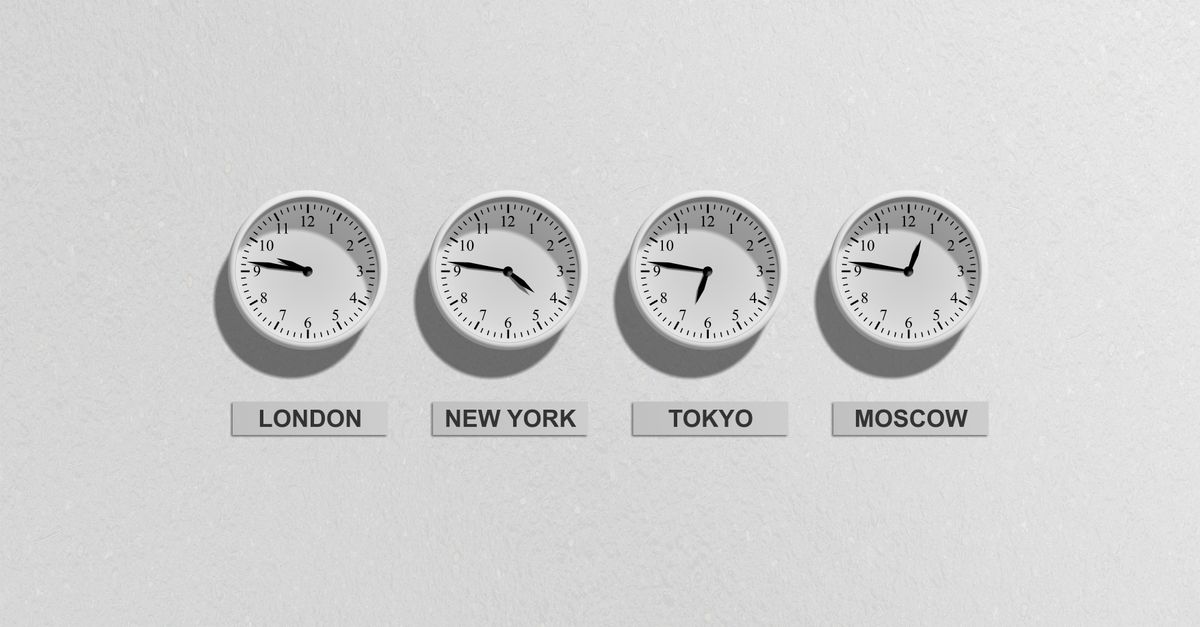
What the Apple Watch World Clock Face Shows You
The World Clock app is one of the built-in watch faces Apple ships with watchOS. Unlike a complication that only hints at the time, the dedicated World Clock face puts a rotating city dial front and center, so the current hour in any tracked location is always one raise of the wrist away. The face uses a 24-hour dial by default, which removes the ambiguity of whether 8 means morning or evening, and a thin sun-and-moon arc traces the daylight hours for the city at the top of the list.
Inside the World Clock app itself, each row carries the same information you would see in a browser tool: the city name, the local time in 24-hour format, the day of the week, the calendar date, and a small sun or moon glyph for day or night. Tapping a row expands it to show sunrise, sunset, and how the day progresses hour by hour, which is handy when you are trying to find an overlap window with someone overseas.
The face also stays correct through daylight-saving transitions because watchOS reads the same time-zone database that browsers use, so a city like New York silently shifts from UTC-5 in January to UTC-4 in July without any manual input on your part. The same applies to London between UTC+0 and UTC+1, Sydney between UTC+10 and UTC+11, and the awkward half-hour and 45-minute zones such as India at UTC+5:30 and Nepal at UTC+5:45.
Add and Remove Cities on Apple Watch
Here is how to build and maintain the list directly on the watch, which is the fastest path when you are away from your phone:
- Press the Digital Crown on your Apple Watch to open the app grid, then tap the World Clock icon (a small clock face with a globe).
- Scroll to the bottom of the city list and tap Add City. The exact label may read "Add City" or show a plus icon, depending on your watchOS version.
- Enter the city name. On Apple Watch Series 7 and later, a full on-screen keyboard is available; on earlier models, tap the microphone icon to dictate the name or use Scribble by dragging the bottom of the screen upward.
- Tap the correct result in the search list. The city appears at the bottom of your World Clock list immediately, with its current local time, weekday, and date.
- To remove a city you no longer need, scroll to it in the list, swipe left across its name, then tap the red X button.
- To reorder your list, firmly press the display to enter edit mode, then drag the handle next to a city up or down. Tap Done when you are finished.
- To see extra details for a city, tap its name to open the expanded view with sunrise, sunset, and a 24-hour timeline of the local day.
Keep Cities in Sync Between iPhone and Apple Watch
Anything you do inside the World Clock app on the watch also shows up in the World Clock section of the built-in Clock app on your paired iPhone, and the reverse is true. The two devices exchange the list through your Apple ID, so if you add Tokyo on the watch while you are out, the same row appears on the iPhone when you sit down at a desk a few minutes later. If a city ever fails to appear on one of the devices, the usual fixes are to make sure both devices are signed into the same Apple ID, both have iCloud Drive enabled, and both are connected to Wi-Fi or cellular long enough for the sync to complete.
The same sync also handles the reverse case: if you curate a long list of cities on the iPhone because the bigger keyboard makes typing faster, every change lands on the watch in the background. This pattern lets the watch stay focused on glanceable read-outs while the iPhone does the typing-heavy setup work, which is common for people who track more than half a dozen cities.
Track Multiple Cities in a Browser Alongside Your Watch
When you want every tracked city on one screen, larger than the watch can manage, a browser-based World Clock gives you the same DST-aware offsets in a tab you can park on a second monitor. The board starts with a sensible default set covering the Americas, Europe, the Middle East, South Asia, East Asia, and Oceania, so a useful global overview is already there the moment the page loads.
Because the watch face and the browser board share the same underlying time-zone data, the numbers line up to the second. That makes it easy to verify the watch is right: if both displays show the same minute for London at the same instant, the watch offset is correct. It also means a quick browser glance can answer "is it too late to call?" without raising your wrist, which is useful during meetings or when the watch is charging on its stand.
If you want that board pinned somewhere it stays visible, the guide on putting a world clock on iPhone home screen in any browser walks through adding the page as a home-screen icon that opens straight to the board, which complements the watch face for desk work.
| Aspect | Apple Watch World Clock | Browser World Clock |
|---|---|---|
| Glanceable reading | Always on the wrist, one raise away | Parked in a browser tab on a monitor |
| Adding cities | Tap, type, dictate, or Scribble | Dropdown plus Add button |
| Removing cities | Swipe left and tap X | Click Remove on the row |
| Day and night indicator | Sun or moon icon | Sun or moon icon |
| Daylight saving handling | Automatic via watchOS | Automatic via browser time-zone data |
| Privacy | Syncs through your Apple ID | Runs 100% locally, nothing uploaded |
| Best for | Quick wrist checks on the move | Side-by-side comparison at a desk |
Set Up the Browser World Clock in Three Steps
The browser tool is intentionally minimal so you can start tracking almost immediately:
- Open the World Clock in your browser. The board immediately starts ticking, showing the current local time, weekday, and date for a default set of major world cities, with the seconds updating once per second.
- To add a city, open the Add a city dropdown, pick any of the two dozen major cities or plain UTC, and press Add. The new row appears instantly with its 24-hour local time, weekday, date, and the exact UTC offset for that moment, such as UTC+9 for Tokyo or UTC-4 for New York during Eastern Daylight Time.
- To remove a city, click Remove on its row. The board rearranges itself and the remaining cities keep ticking without interruption.
Because the entire board runs inside your browser using the standard Intl time-zone database, there is no account to create, no server call to make, and nothing about your list or your location is sent anywhere. The clock keeps working once the page is loaded even if your connection drops, and the cities you add never leave your device.
Why the Browser Clock Stays Correct Through DST Shifts
The twice-yearly daylight-saving shifts are the moments that expose naive time-zone converters. A city like New York sits at UTC-5 in January and silently jumps to UTC-4 in March when Eastern Daylight Time begins, and London alternates between UTC+0 in winter and UTC+1 during British Summer Time. A fixed-offset converter will get that wrong for half the year.
The browser world clock avoids the problem by asking the browser's built-in time-zone database for the offset at the exact instant being displayed, so the offset you see for New York on July 4 is UTC-4 even if the same city reads UTC-5 on January 4. The same approach handles the zones that trip up simpler tools: India stays at UTC+5:30 all year, Nepal stays at UTC+5:45 all year, and Lord Howe Island keeps its unusual UTC+10:30 winter and UTC+11 summer pattern without manual adjustment.
That reliance on the browser's own time-zone data is also why the board agrees with the Apple Watch face down to the second. Both devices consult the same IANA time-zone database through their respective runtimes, which means the offset, the weekday, and the date for any city all agree across the watch, the phone, and the browser tab. You do not have to pick one source of truth and stick with it; you can move between devices and trust the numbers on whichever screen is closest.
Related reading: How to Correct a Chess Clock When the Display Looks Off.