You can put a world clock on your iPhone home screen in about two minutes using a free browser-based tool that runs entirely on the device and stays correct across every daylight-saving shift. The World Clock shows the current local time in major cities around the globe on a single live board, updating every second and pulling each city's offset from your browser's built-in time-zone database, so the numbers never drift even during the twice-yearly DST changes. On an iPhone, you open it in Safari, add the cities that matter to your work or family, and then pin the page to your home screen for one-tap access, with no extra app, no account, and no upload of which cities you chose. Each row shows the time in unambiguous 24-hour format, the weekday and date for that city, the exact UTC offset for the moment displayed, and a small sun or moon icon so you can tell at a glance whether it is a reasonable hour to call. The tool also handles awkward zones like India at UTC+5:30 and Nepal at UTC+5:45 that trip up simple converters.
Why a World Clock on iPhone Home Screen Makes Sense
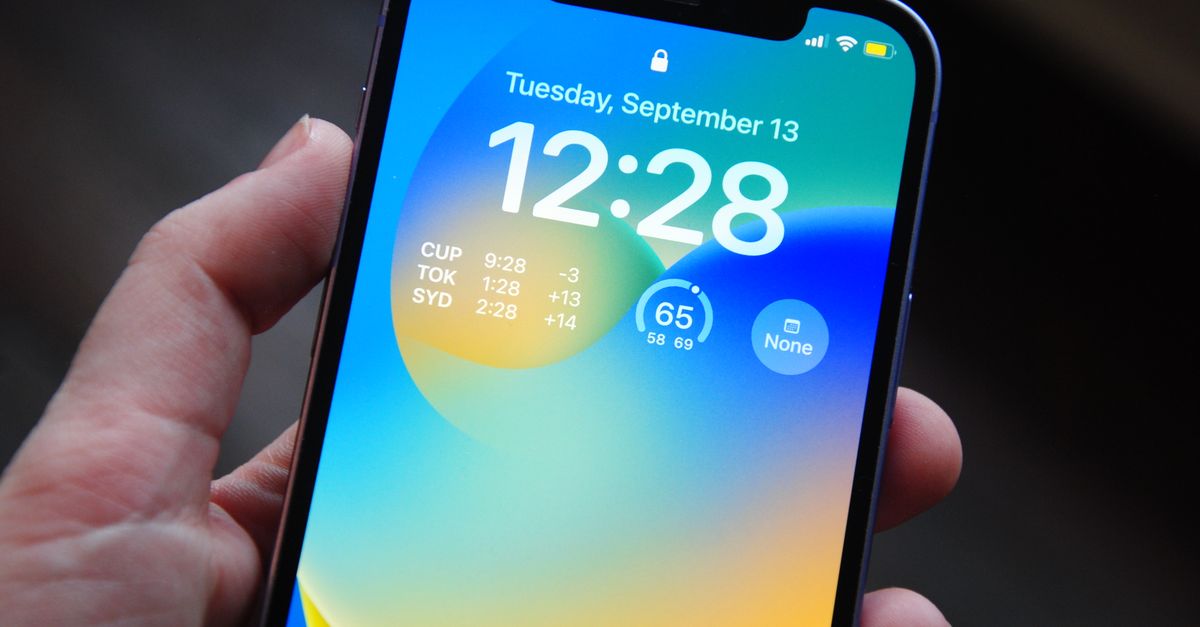
Anyone working across time zones — remote teams, traders watching overseas markets, families scattered between continents, gamers coordinating sessions abroad — already knows the small friction of doing time-zone math on the fly. The iPhone's native Clock app shows world cities, but the information sits two or three taps away from the lock screen, and the on-screen widget options are limited in how many cities and how much detail they show at once. A live, browser-based world clock solves the underlying problem: you want a single glance to answer "what time is it right now over there?" without unlocking the phone, opening an app, or doing math. Because the World Clock runs in the browser, it works on any device that can load a modern webpage. It also keeps working in airplane mode once the page has loaded, since nothing depends on a remote server.
What the World Clock Tool Is
The World Clock is a free online tool that displays the current local time in major cities worldwide on one screen. It is built with plain JavaScript and the standard international date and time formatting APIs that ship with every current browser, which keeps the page tiny, instant to load, and light on battery. The tool uses the Intl time-zone data already inside your browser, so there is no server call, no account, and no tracking: the cities you add and your own location never leave your device. The board comes pre-loaded with a sensible default set of well-known zones spanning the Americas, Europe, the Middle East, South Asia, East Asia, and Oceania. From the dropdown you can add any of around two dozen major cities — Los Angeles, Denver, Chicago, New York, Sao Paulo, London, Paris, Berlin, Moscow, Dubai, Mumbai, Kathmandu, Bangkok, Singapore, Shanghai, Hong Kong, Tokyo, Seoul, Sydney, Auckland, and Honolulu — plus plain UTC.
How to Put a World Clock on iPhone Home Screen
These steps get the World Clock working on your iPhone in a couple of minutes, with a single tap from the lock screen.
- Open Safari on your iPhone and navigate to the World Clock tool.
- The page loads a live board with the current time in the default set of major cities, updating every second. Read each row for the city name, 24-hour time, weekday, date, and UTC offset.
- To track another city, open the Add a city dropdown, pick a city such as Mumbai or Sao Paulo, and press Add. Its local time, weekday, date, and UTC offset appear instantly on the board.
- To stop tracking a city, tap Remove on its row. The board rearranges itself immediately.
- To make the World Clock reachable with one tap from your lock screen, tap the Share icon in Safari, choose Add to Home Screen, name it World Clock, and tap Add. A new icon appears on your home screen that launches the board straight into Safari full-screen.
- Keep the board open in Safari while you work — the times update in place without any refresh — or open the home-screen shortcut whenever you wake the phone.
How the Live Board Behaves
Every city on the board is a live row, not a snapshot. The clock reads the offset for the exact instant being displayed, which means the time shifts naturally as each city crosses midnight, as your own day rolls over, and as DST transitions happen on either side of the date line. Times are formatted in 24-hour style so there is no ambiguity about whether 8 means morning or evening. Each row also displays the weekday and date for that specific city, which matters because two places can be on different calendar days at the same moment: when it is early evening in New York it is already the next morning in Tokyo. The sun or moon icon next to each row is a quick hint of local daylight — useful when you are deciding whether to ping a teammate abroad.
Daylight Saving, Half-Hour Zones, and Why the Time Stays Right
Time zones are not fixed offsets, and this is where simple converters fail. New York sits at UTC-5 in winter and shifts to UTC-4 during Eastern Daylight Time in summer. London moves between UTC+0 and UTC+1 for British Summer Time. The tool reads the offset for the moment it is displaying, so it picks the right number automatically and never asks you to flip a switch in March or November. It also handles the zones that catch naive converters off guard, including the half-hour offset used by India at UTC+5:30 and the forty-five-minute offset used by Nepal at UTC+5:45.
| City | Winter offset (UTC) | Summer offset (UTC) | Note |
|---|---|---|---|
| New York | −5 | −4 | Eastern Daylight Time in summer |
| London | +0 | +1 | British Summer Time in summer |
| Tokyo | +9 | +9 | No DST, offset is fixed |
| Mumbai | +5:30 | +5:30 | Half-hour offset, no DST |
| Kathmandu | +5:45 | +5:45 | Forty-five-minute offset, no DST |
Because the offsets come from your browser's own time-zone database, the table reflects what the live board shows at any given moment — open the World Clock page on your iPhone to confirm the current offset for any city right now.
When the World Clock Saves You a Mistake
The tool is also careful about the details that catch simpler clocks off guard. Dates are rendered per city, so you never accidentally schedule a meeting for what turns out to be the wrong day on the other side of the world. Common use cases are everywhere in modern remote work and personal life: schedule a global standup without waking a teammate at 3 a.m., find a fair overlap window for a call between London, Mumbai, and San Francisco, coordinate a product launch or maintenance window across regions, keep an eye on a stock market open or a live stream happening abroad, or simply know whether it is a decent hour to message a friend before you hit send. Whatever the reason, the board gives a fast, private, and dependable answer that stays correct all year round, including the twice-yearly DST shifts that quietly move offsets by an hour. Open it, add the cities that matter to you, remove the ones you do not, and watch them tick in real time.
Related reading: How Do I Decide Whether I Need a Chess Clock.
Related reading: How to Put a Letterhead on the First Page Only in Word.