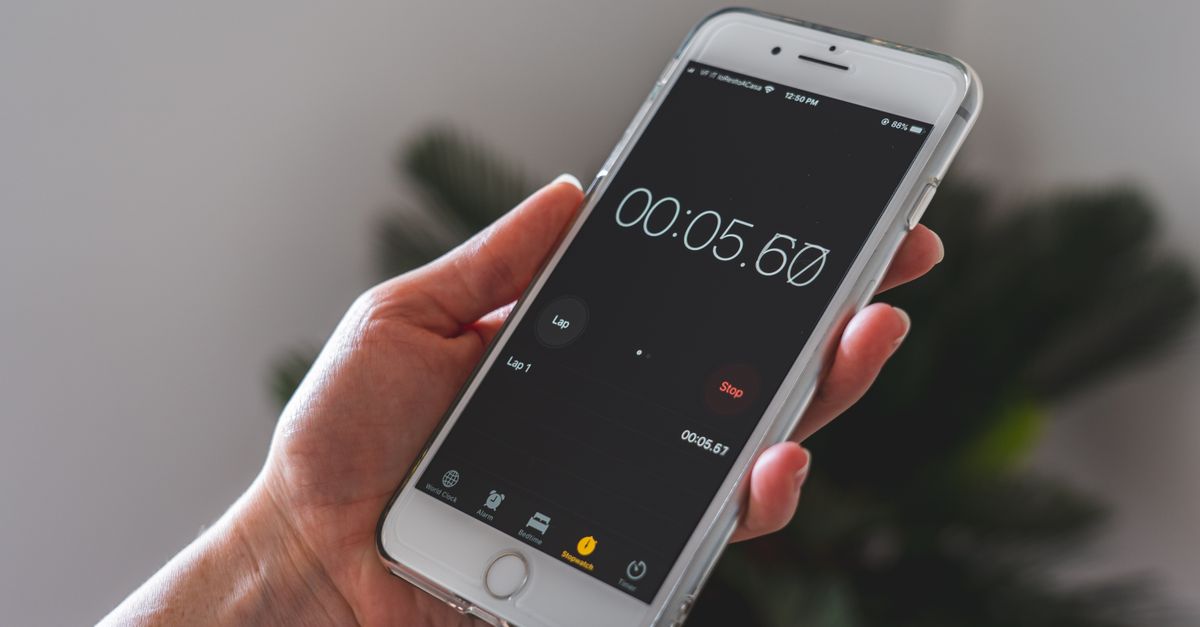
A stopwatch counts up from zero in minutes, seconds, and hundredths of a second until you pause or reset it, which makes it the right tool whenever you need to measure how long an activity actually takes rather than how long you planned for it. To use a stopwatch step by step, you press Start to begin the count, press Lap while it runs to record a split, press Pause to freeze the time and Resume to continue, and press Reset to clear the elapsed time and every recorded lap back to zero. The four controls — Start, Lap, Pause, and Reset — are the entire interface, and once you have practiced them with one timed activity you can apply the same pattern to anything else: timing a run, a study block, a recipe step, or a speech rehearsal. Because a stopwatch has no preset duration, you do not need to decide in advance how long something will take; you simply watch the elapsed time grow until the activity ends, then read the final number off the display or compare the splits you recorded along the way.
What a Stopwatch Measures (and What It Doesn't)
A stopwatch is a count-up timer: the moment you press Start, the display begins at 0:00.00 and climbs for as long as you let it run. There is no target time, no alarm, and no automatic end. The reading simply reflects the real, open-ended duration of whatever you are doing. Because of that, a stopwatch answers a different question than a clock or a countdown timer. A clock tells you what time it is. A countdown timer tells you how much time is left before a set deadline. A stopwatch tells you how much time has passed since you started.
This matters because a lot of everyday activities do not have a known duration in advance. You do not know exactly how long a run will take, how long a focus session will hold, how long a proof of dough needs to rest, or how long a speech rehearsal will run. You only learn the answer by measuring it. That is the gap a stopwatch fills, and it is also why the tool is so widely useful across work, study, fitness, and home tasks.
The Four Controls at a Glance
The interface is intentionally small. Everything you can do with the online stopwatch comes from five button presses across four logical controls. The table below summarizes what each one does and when to reach for it.
| Control | What it does | When to press it |
|---|---|---|
| Start | Begins counting up from zero | The instant the activity starts |
| Lap | Records the current moment as a split without stopping the clock | Whenever a segment ends and the next one begins |
| Pause | Freezes the display at the current elapsed time | When you need to stop briefly but intend to continue |
| Resume | Continues counting from the frozen value | Immediately after Pause, when you are ready to continue |
| Reset | Clears elapsed time and all recorded laps back to zero | When the measurement is finished and you want to start over |
If you only remember one thing about this tool, remember that pair: Pause freezes, Resume continues from exactly the same value. Nothing is lost in between, even if the gap is long, which is what makes pause-and-resume reliable for interrupted work like answering a phone call mid-task.
Using the Stopwatch Step by Step
The numbered walkthrough below takes you from a stopped display to a fully recorded measurement and back to zero. Follow it once on any short activity, and the sequence will feel automatic on the second try.
- Press Start. The large display jumps from 0:00.00 and begins counting up in minutes, seconds, and hundredths of a second. This is your official start reference, so press it at the exact moment the activity begins rather than a second early or late.
- Press Lap whenever a segment ends. Each press freezes the current moment without stopping the timer. The laps list below the display grows by one row showing that segment's split time and the cumulative total since you pressed Start. The newest lap sits at the top.
- Press Pause if you need to stop briefly. The display freezes at the exact elapsed value, so the clock does not keep running while you are away. Press Resume when you are ready to continue; the count picks up from the same number with no jump.
- Press Reset when the measurement is done. The display returns to 0:00.00 and the laps list is cleared, ready for the next activity. Nothing carries over between runs unless you have written the times down yourself.
That is the whole pattern: Start, optionally Lap several times, optionally Pause and Resume, then Reset. Every practical use of this stopwatch is some arrangement of those four moves.
How to Read Lap Splits
Each Lap press records two numbers, and understanding the difference is what turns raw timing into useful data.
- The split is the time for that individual segment — how long it took from the previous lap (or from Start) to this one.
- The total is the cumulative elapsed time since Start, so each total is always greater than or equal to the one before it.
Suppose a runner times two 100-meter sprints back to back. After the first sprint they press Lap, and the lap shows a split of 18.20 seconds and a total of 18.20 seconds. They keep running. After the second sprint they press Lap again; the new row shows a total of 37.85 seconds and a split of 19.65 seconds (37.85 − 18.20). To verify: the two splits, 18.20 + 19.65, add back up to the final total of 37.85. For longer runs with many segments, use the stopwatch tool directly so you do not have to subtract each row by hand.
The most recent split always sits at the top of the list, which is convenient when you want to glance at the latest number without scrolling. Newest-first ordering also matches how people read a measurement: the freshest data point is usually the one you care about most.
Why the Display Does Not Drift
Browser tabs are not perfectly reliable when it comes to keeping time. A background tab may be throttled, a device may sleep, and JavaScript timers are not guaranteed to fire at exact intervals. A naive stopwatch that simply adds 0.01 to the display every 10 milliseconds will fall behind under any of those conditions.
This stopwatch avoids that problem by using anchored timing. Instead of incrementing a counter on every tick, it records a single high-resolution start reference and, on every refresh of the display, recomputes elapsed time as that reference plus the real gap measured from the device clock. Because each frame is recalculated from a true timestamp rather than accumulated from many small additions, the reading stays accurate even when the tab is throttled, the screen sleeps, or you switch away and come back later. When you return to the tab, the display corrects itself to the genuine elapsed time without you needing to do anything.
Once elapsed time passes one hour, the display automatically switches from minutes:seconds:hundredths to hours:minutes:seconds so long sessions stay readable. The precision underneath does not change — the format is just easier to scan for two-digit hours.
Stopwatch vs Countdown vs Pomodoro
A stopwatch is one of three common timing patterns, and picking the wrong one is a frequent source of friction. The table below compares the three so you can pick the right one for the job in front of you.
| Tool | Direction | Has a preset duration? | Best for |
|---|---|---|---|
| Stopwatch | Counts up from zero | No | Measuring open-ended activities whose length you do not know in advance |
| Countdown timer | Counts down to zero | Yes, you set it | Deadlines, boiling eggs, parking meters, time-boxed tasks with a known length |
| Pomodoro timer | Cycles through fixed focus and break blocks | Yes, typically 25/5/15 | Sustained focused work sessions with built-in rest |
If your activity has no fixed end, use a stopwatch. If you have a deadline you are racing against, use a countdown timer. If you want to cycle through repeated focus and break blocks, use a Pomodoro timer. Each tool is optimized for a different mental model, and reaching for the wrong one usually means working against the grain.
Privacy and Offline Use
Everything happens in your browser. There is no account, no sign-in, no server round-trip, and nothing uploaded. Your start time, your laps, your pause-and-resume pattern, and your final reading stay on your device the whole time. Once the page has loaded, the tool continues to work without a network connection, which makes it practical for timing on a laptop in a café, a tablet in a kitchen, or a phone on a track where signal is patchy.
You can also bookmark it for one-tap access on the devices you time things on most often, replacing the stopwatch app on your phone with a distraction-free browser tab that opens immediately, never nags you for permissions, and never needs an update.
Related reading: How to Use a Stopwatch on a Mobile Phone.
Related reading: Online Stopwatch Accuracy: How Precise Can a Browser Get?.