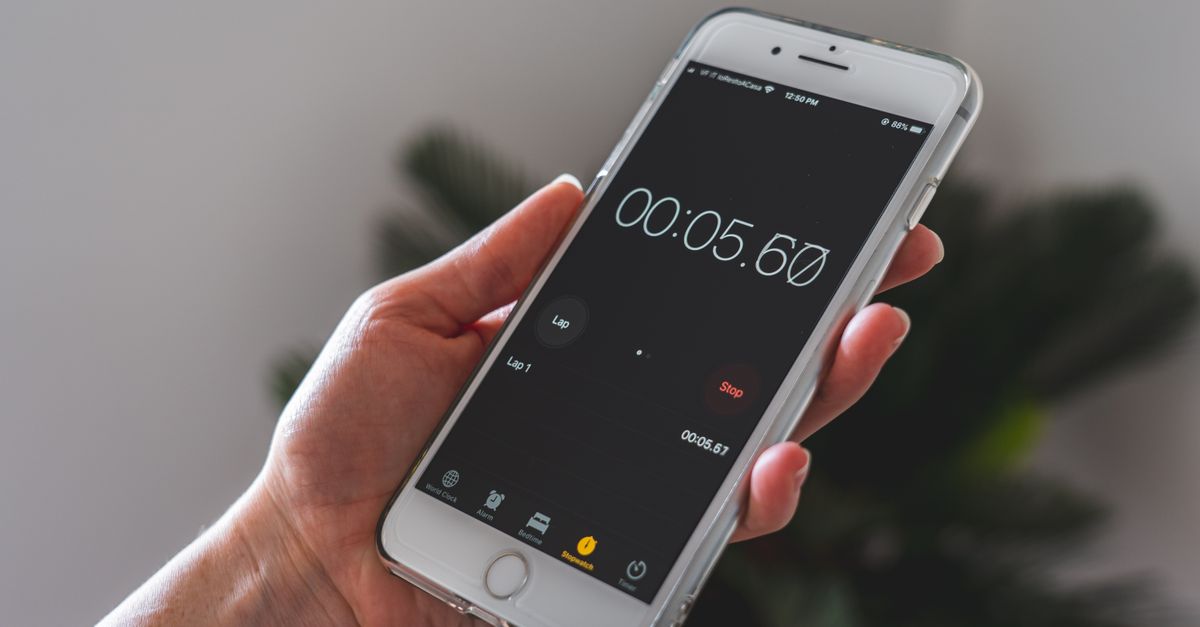
A stopwatch is a timing instrument that counts upward from zero and displays elapsed time with high precision, typically to the nearest hundredth of a second, and it is started, stopped, and reset with dedicated buttons. To use a stopwatch in your browser, open the Online Stopwatch tool, press Start to begin counting up, tap Lap whenever you want to record a split, press Pause to freeze the display, Resume to keep going, and Reset to clear everything for a new run. The large readout shows minutes, seconds, and hundredths, while every lap you record appears in a list with both the segment time and the cumulative total since Start.
Timing shows up everywhere once you start looking for it. A runner wants to know her 400-meter split. A cook wants to know how long the onions have been caramelizing. A teacher wants to time a one-minute silent reading block for thirty students at once. A remote worker wants to measure how long a code review actually took. In all of these cases, the need is the same: a precise count-up display that starts on demand, can be paused mid-run, and can capture intermediate splits without losing the master clock. The Online Stopwatch at /productivity/online-stopwatch/ is built for exactly that workflow.
What a Browser Stopwatch Actually Does
A count-up stopwatch is the simplest of the timing tools. Unlike a countdown timer, which alerts you when a preset duration has elapsed, a stopwatch simply measures how much time has passed since you pressed Start. The display format is almost always minutes : seconds . hundredths, for example 03:47.52, which is detailed enough for sprints, lab work, and most productivity sprints.
Three controls sit at the heart of every stopwatch, and the Online Stopwatch keeps them named the way most people expect:
- Start — begins counting up from 00:00.00. If the timer was paused, Start is replaced by Resume and continues from the frozen value rather than restarting.
- Lap — captures a split. The display keeps running, but a new row is added to the laps list showing that segment's time and the cumulative total since Start.
- Reset — stops the timer, returns the display to 00:00.00, and clears every recorded lap so you can begin a clean measurement.
Because the tool runs in the browser tab using your device's clock, it keeps ticking even if you switch tabs, and nothing is uploaded to a server. That privacy model matters when you are timing confidential work, a job interview practice round, or anything else you would rather not share.
Run a Stopwatch Session From Start to Reset
- Open the Online Stopwatch in your browser. The display reads 00:00.00 and the laps list is empty.
- Press Start. The counter begins advancing to the hundredth of a second.
- Press Lap at any moment to record a split. A row appears in the laps list with the segment time and the total elapsed time since Start.
- Press Pause to freeze the readout. The button label changes to Resume.
- Press Resume when you are ready to keep going. The counter picks up from the exact hundredth where it stopped, with no drift.
- Press Lap again to capture the next split. Laps accumulate newest at the top of the list.
- Press Reset when the run is finished. The display returns to 00:00.00 and the laps list empties, ready for the next measurement.
This is the entire control surface. There are no menus to learn, no modes to toggle, and no settings that change timing accuracy. If you can press four buttons, you can run the stopwatch end to end.
Reading the Display and the Laps List
The main display is straightforward: minutes on the left, seconds in the middle, hundredths of a second on the right after the decimal point. Once you start the timer, only the hundredths move quickly at first; as the run crosses one second, the seconds tick over, and after sixty seconds the minutes roll up.
The laps list answers the question most people actually have: how long did that part take? Each row contains two numbers:
| Lap | Segment Time | Cumulative Total |
|---|---|---|
| 1 | 00:14.38 | 00:14.38 |
| 2 | 00:09.71 | 00:24.09 |
| 3 | 00:11.05 | 00:35.14 |
| 4 | 00:07.92 | 00:43.06 |
The segment time is what you most often care about. The cumulative total is useful when you need to prove when a particular split happened in the overall run, for example when a coach wants to see the 200-meter split inside a 400-meter race.
Reading example: in the table above, lap 4 lasted 7.92 seconds on its own, and the total elapsed time at the moment of that lap was 43.06 seconds. To check that math, add the segment column: 14.38 + 9.71 + 11.05 + 7.92 = 43.06 seconds, which matches the cumulative column exactly.
When a Stopwatch Beats a Countdown Timer
Countdown timers and stopwatches look similar but solve opposite problems. A countdown timer ends at a preset target — useful for cooking, presentations, and Pomodoro work blocks (see the Pomodoro Length guide for the classic 25/5/15 breakdown). A stopwatch simply measures what is happening, so it is the right tool whenever the question is "how long did that take?" rather than "stop me in five minutes."
| Use Case | Better Tool | Why |
|---|---|---|
| Boil an egg for exactly 7 minutes | Countdown timer | The target duration is fixed and you need an alert at zero. |
| Time a 100-meter sprint | Stopwatch | You do not know the finishing time in advance. |
| Run a 25-minute focus block | Countdown timer | The session length is preset and you need a break signal. |
| Measure how long a meeting ran over | Stopwatch | The overrun is unknown, you just record what you get. |
| Cue a stage performer in 3 minutes | Countdown timer | The cue time is fixed. |
| Log lap splits at a track workout | Stopwatch | Each split must be captured without stopping the run. |
If you need both behaviors in the same session, run the stopwatch for measurement and a countdown timer in a second tab for fixed alerts. The two tools do not interfere with each other and each keeps its own accurate clock.
Stopwatch Versus Countdown Timer at a Glance
It helps to compare the two tools side by side when you are deciding which one to open. A stopwatch counts up from zero, has no built-in alert, and shines when the endpoint is unknown. A countdown timer starts from a preset value, counts down to zero, and fires an alert at the end. Both tools use the same precision, the same buttons, and the same browser clock, so you can switch between them without retraining your hands.
| Feature | Stopwatch | Countdown Timer |
|---|---|---|
| Direction of count | Counts up from 00:00.00 | Counts down from a preset value to 00:00.00 |
| Endpoint known in advance | No | Yes, set by the user |
| Alert at the end | None built in | Sound or visual alert when zero is reached |
| Lap or split capture | Lap button records splits | Lap capture depends on the tool |
| Pause and resume | Yes, with no drift | Yes, with no drift |
| Best for measuring unknown durations | Yes | No |
| Best for hitting a fixed deadline | No | Yes |
Think of the stopwatch as a measuring tape for time and the countdown timer as a kitchen alarm. When you want to know how long something took, reach for the stopwatch. When you want something to stop you at a known moment, reach for the countdown timer.
Tips for Cleaner, More Accurate Timing
A stopwatch is only as accurate as the person pressing the button. A few habits make a noticeable difference:
- Start on a clear cue. Clap, whistle, or say "go" out loud so your finger and your eyes land on the button at the same instant.
- Use Lap, not Pause, between intervals. If you are timing repeated efforts like sprints or rest intervals, leave the timer running and tap Lap at the end of each one. Pausing introduces small lost seconds from reaction time.
- Reset between unrelated tasks. Stale laps from a previous run will contaminate the new list and make it harder to read. Reset clears them in one press.
- Keep the tab focused when you can. The timer keeps running in the background, but a hidden tab may be throttled by some browsers after long idle periods, which can affect precision.
- Pair timing with a note tool. For long sessions where you want to label each split with a name, jot the labels in an Online Notepad next to the lap numbers. The autosave keeps your notes from vanishing if the tab closes.
For workouts, the same lap pattern works for rest periods: tap Lap at the end of work, tap Lap at the end of rest, and the segment column tells you the length of each interval. This is the lightest possible way to structure an interval session without buying a dedicated fitness timer.
Common Stopwatch Tasks and How to Handle Them
A few everyday scenarios come up again and again, and each one maps to a short sequence of button presses:
- Time a single event (a run, a presentation, a pasta boil): Start at the beginning, Pause at the end, read the display, Reset.
- Record splits at a race or workout: Start at the gun, tap Lap at every 100 or 200 meters, Pause at the finish line. The lap list now contains every split plus the total.
- Measure how long a task took across interruptions: Start, work, Pause when interrupted, Resume when you return, Pause again at the end. The final display is the true working time, ignoring the breaks.
- Compare two attempts side by side: Run the first attempt, Reset, run the second attempt, then write the two totals into a notepad for comparison.
If you need a hard deadline alongside your running clock — for example, you are timing a speech but must stop at the ten-minute mark — run the stopwatch and a countdown timer in parallel tabs. The stopwatch tells you how long you have spoken; the countdown timer tells you how much speaking time you have left.
Why a Browser Stopwatch Is Often the Right Choice
Phone stopwatch apps require an unlock, an app switch, and sometimes a permission prompt. Hardware stopwatches need a wrist or a pocket and a working battery. A browser stopwatch is one click away, opens in a second, and runs on the device you are already using for the task you are timing. It also sidesteps the data-collection concerns of mobile apps: the timer state never leaves the tab, so the length of your workouts, study sessions, or interview rehearsals stays on your machine.
For anyone who times things daily — coaches, lab workers, developers, writers running sprint sessions — having a stopwatch that lives in the browser removes a small but constant friction. Open the tab, press Start, get on with the work.
Troubleshooting Timing Quirks You Might Notice
Even a simple stopwatch can behave in ways that surprise new users. A few quick checks cover most situations:
- The display seems to skip a hundredth. Refresh the page and start again. Some browsers throttle background tabs after many minutes, which can cause the readout to jump when the tab is refocused.
- Laps appear in the wrong order. The newest lap is always at the top. If you scroll down, you are looking at older splits. Reading top-to-bottom means reading recent-to-old.
- You pressed Lap by accident. Reset clears the laps list, so if the extra row is in the way, the fastest fix is to reset and re-run that segment.
- The timer kept running after I closed the tab. A closed tab stops the count. When you reopen the tool, the display returns to 00:00.00 with no laps. If you need persistence, copy the total into an Online Notepad before closing.
None of these quirks change the underlying accuracy. The browser clock that powers the stopwatch is the same one your operating system uses, so timing within a session is consistent to the hundredth of a second. The friction only shows up at the edges, where a tab loses focus or a session ends.
Related reading: How to Test Mouse Buttons in Your Browser.
Related reading: Web Clock-In in Keka: Use an Online Browser Clock.