A mouse button test confirms which buttons your browser detects and assigns the correct MouseEvent.button codes to each press. The Mouse Tester tool logs every click inside a dashed target, showing the total event count, named button, and raw numeric code (0 for primary, 1 for auxiliary, 2 for secondary, 3 for back, 4 for forward). This lets you verify whether your mouse’s physical buttons match the browser’s expected input, which is essential for gaming, accessibility tools, and custom shortcuts. Unlike system-level mouse utilities, this tool runs entirely in your browser, so it works on any device with a mouse or trackpad—no downloads or admin rights needed.
Many users assume their mouse buttons work as labeled, only to discover that back or forward buttons register as secondary clicks, or that auxiliary buttons go undetected. This mismatch often surfaces when gaming, where a misconfigured button breaks keybinds, or when using screen readers, where undetected buttons limit navigation. The Mouse Tester tool surfaces these issues immediately by displaying the exact button code the browser receives, allowing you to adjust settings or troubleshoot hardware without guesswork. For developers, it’s also a quick way to test how a web app handles non-standard button inputs, such as those from gaming mice with 12+ buttons.
If you’re testing a new mouse or debugging an existing one, pairing the Mouse Tester with a Keyboard Tester can help rule out broader input issues. For timing-sensitive tests, like measuring click speed, the CPS Test tool complements this by tracking clicks per second for the primary button. Together, these tools cover the full range of input testing without leaving your browser.
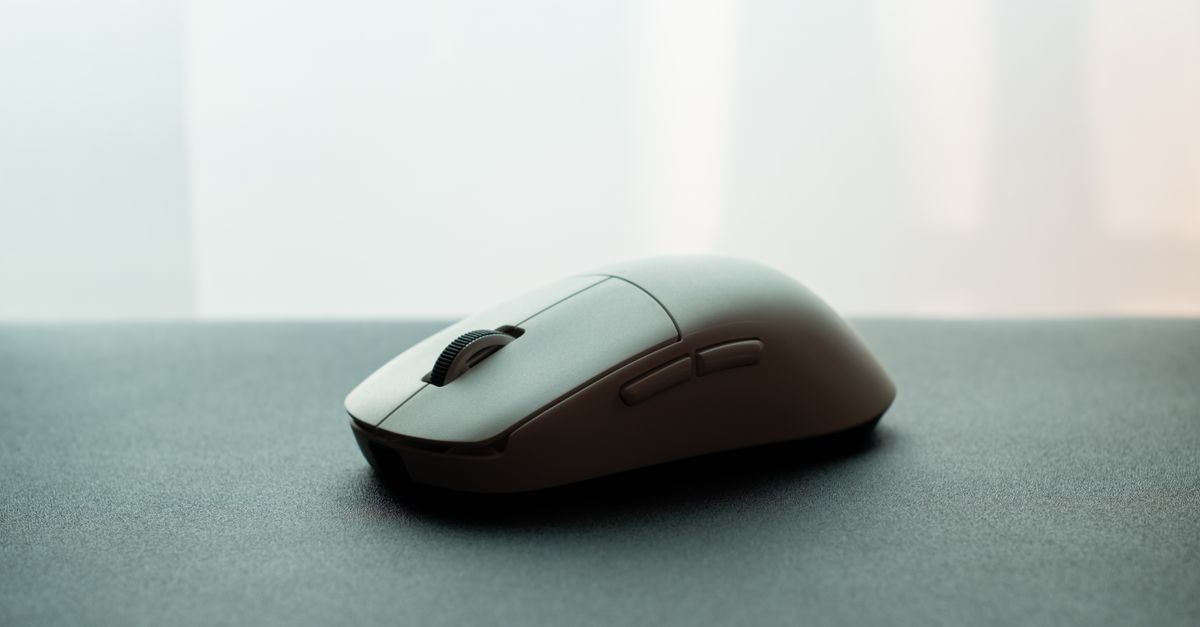
Why Mouse Buttons Might Not Register Correctly
Mouse buttons can fail to register or register incorrectly for several reasons, often tied to hardware, drivers, or browser limitations. The most common issues include:
- Driver conflicts: Outdated or generic drivers may not map auxiliary buttons (like back/forward) to the correct codes, causing them to appear as secondary clicks or go undetected.
- Hardware wear: Physical damage to the mouse’s microswitches can cause buttons to double-click, stick, or fail entirely. This is especially common in high-use buttons like the primary or scroll wheel.
- Browser restrictions: Some browsers block or remap non-standard buttons (e.g., side buttons) for security reasons, particularly in sandboxed environments like kiosks or public computers.
- Custom button mappings: Gaming software (e.g., Logitech G Hub, Razer Synapse) or system utilities (e.g., AutoHotkey) can override default button behaviors, causing them to trigger unexpected actions or no action at all.
- Accessibility settings: OS-level accessibility features, such as sticky keys or mouse keys, can interfere with button detection by delaying or altering input events.
For example, a gaming mouse’s "back" button might be programmed to trigger a keyboard shortcut (e.g., Alt+Left) instead of sending the raw button code (3). In this case, the Mouse Tester would show no event for the back button, even though the physical button works in other apps. Similarly, a worn-out primary button might register as two clicks (a "double-click") instead of one, which the tool would log as two separate events with the same button code (0).
How to Test Your Mouse Buttons with Mouse Tester
- Open the Mouse Tester tool in your browser. No installation or sign-up is required—it runs entirely on your device.
- Place your mouse pointer inside the dashed target area. The tool will only log clicks made within this zone.
- Press each mouse button one at a time, starting with the primary (left) button. Watch for the event to appear in the log below the target.
- Check the log for three details:
- The total event count, which increments with each valid button press.
- The named button (e.g., "Left", "Right", "Back"), which confirms how the browser interprets the input.
- The button code (e.g., 0, 1, 2), which matches the W3C MouseEvent.button specification.
- Repeat for all available buttons, including auxiliary (middle/wheel), back, and forward buttons. If a button doesn’t register, note whether it’s missing entirely or mapped to an unexpected code.
- If you need to retest or clear the log, click the Reset test button. This erases all previous events without refreshing the page.
- For comparison, open the tool in a different browser or application (e.g., a game or text editor) and repeat the test to see if the behavior changes.
Interpreting the Button Codes
The Mouse Tester logs each button press with a numeric code that follows the W3C standard for MouseEvent.button. These codes are consistent across modern browsers (Chrome, Firefox, Edge, Safari) and are defined as follows:
| Button Code | Named Button | Typical Physical Button | Common Use Cases |
|---|---|---|---|
| 0 | Primary | Left button | Selecting text, clicking links, dragging objects. |
| 1 | Auxiliary | Middle button (wheel click) | Opening links in new tabs, panning in maps or CAD software. |
| 2 | Secondary | Right button | Context menus, secondary actions (e.g., "Properties"). |
| 3 | Back | Side button (usually near thumb) | Navigating backward in browsers or file explorers. |
| 4 | Forward | Side button (usually near thumb, opposite back) | Navigating forward in browsers or file explorers. |
If your mouse has additional buttons (e.g., DPI switches, macro buttons), they may not register in the tool if they’re handled by proprietary software rather than the browser. For example, a Logitech G502’s "DPI shift" button might trigger a system-level event that the browser ignores. In such cases, check the mouse’s software (e.g., Logitech G Hub) to see if the button is mapped to a keyboard shortcut or macro, which would explain why it doesn’t appear in the Mouse Tester log.
For developers, these codes are critical when writing event handlers for web apps. For instance, a game might use event.button === 3 to trigger a "back" action, but if the user’s mouse sends a different code (e.g., 2 for right-click), the action won’t work. The Mouse Tester helps identify these mismatches so you can adjust your code or document supported hardware.
Testing Mouse Buttons in Specific Applications
While the Mouse Tester confirms how your browser interprets button presses, some applications (e.g., games, CAD software, or accessibility tools) may handle inputs differently. Here’s how to test mouse buttons in common scenarios:
Gaming (e.g., First-Person Shooters, MMOs)
- Launch the game and open its keybind or control settings menu.
- Attempt to rebind a non-primary button (e.g., back or forward) to an action (e.g., "Reload" or "Jump").
- If the game doesn’t detect the button, note whether it’s missing entirely or mapped to an unexpected action (e.g., the back button triggers the primary action).
- Open the Mouse Tester in a browser tab and press the same button to see if it registers. If it does, the issue is likely with the game’s input handling or your mouse’s software.
- Check the mouse’s software (e.g., Razer Synapse, Corsair iCUE) to ensure the button isn’t remapped to a keyboard shortcut that the game doesn’t recognize.
Accessibility Tools (e.g., Screen Readers, Switch Control)
- Open your accessibility tool’s settings (e.g., Windows Narrator, macOS VoiceOver, or NVDA).
- Navigate to the input or mouse settings and look for options to customize button actions.
- Press a non-primary button (e.g., back or auxiliary) and check if the tool announces the button name or allows you to assign an action to it.
- If the button isn’t detected, open the Mouse Tester and press the same button to confirm whether the browser receives the event. If it does, the issue is with the accessibility tool’s input handling.
- Consult the tool’s documentation for supported button codes or compatibility notes. Some tools may require specific drivers or browser extensions to detect auxiliary buttons.
Productivity Software (e.g., Photoshop, Excel, AutoCAD)
- Open the software and navigate to its preferences or customization menu (e.g., Photoshop’s Edit > Keyboard Shortcuts).
- Attempt to assign a non-primary button to a command (e.g., "Zoom In" or "Undo").
- If the software doesn’t detect the button, note whether it’s missing or mapped to an unexpected action (e.g., the back button triggers a right-click).
- Open the Mouse Tester and press the same button to verify whether the browser detects it. If it does, the issue may be with the software’s input handling or your mouse’s driver.
- Check the software’s documentation for supported input devices or known compatibility issues. Some apps may require specific drivers or plugins to recognize auxiliary buttons.
Troubleshooting Undetected Buttons
If the Mouse Tester doesn’t log a button press, follow these steps to isolate the issue:
1. Verify the Button Works Physically
- Press the button on a physical surface (e.g., a desk) to ensure it clicks audibly and feels tactile. If it doesn’t, the button may be stuck or damaged.
- Test the button in a different application (e.g., Notepad, a game, or your browser’s address bar). If it works elsewhere, the issue is likely with the Mouse Tester or your browser.
2. Check Browser Permissions
- Ensure your browser isn’t blocking mouse input. Some browsers (e.g., Chrome in kiosk mode) restrict non-primary buttons for security reasons.
- Try a different browser (e.g., Firefox or Edge) to see if the button registers. If it does, the issue is with your primary browser’s settings or extensions.
- Disable browser extensions (e.g., ad blockers, script blockers) that might interfere with input events. Restart the browser and retest.
3. Update or Reinstall Mouse Drivers
- On Windows: Open Device Manager, expand Mice and other pointing devices, right-click your mouse, and select Update driver. If that doesn’t work, uninstall the driver and restart your computer to force a reinstall.
- On macOS: Go to System Preferences > Mouse and check for firmware updates. If none are available, reset the System Management Controller (SMC) by following Apple’s guide.
- For gaming mice, install the manufacturer’s software (e.g., Logitech G Hub, Razer Synapse) and ensure the button isn’t remapped to a keyboard shortcut or macro.
4. Test on Another Device
- Connect the mouse to a different computer or device (e.g., a laptop or tablet) and repeat the test in the Mouse Tester. If the button works, the issue is with your original device’s hardware or software.
- If the button still doesn’t work, the mouse itself may be faulty. Try a different mouse on your original device to confirm.
5. Check for System-Level Interference
- Disable accessibility features (e.g., Sticky Keys, Mouse Keys) in your OS settings. These can delay or alter button inputs.
- On Windows: Go to Settings > Accessibility > Mouse pointer and touch and disable all mouse-related options.
- On macOS: Go to System Preferences > Accessibility > Pointer Control and disable all mouse-related options.
- Restart your computer and retest the button in the Mouse Tester.
Advanced: Using Mouse Tester for Development
For web developers, the Mouse Tester is a quick way to verify how a browser handles mouse events, especially for non-standard buttons. Here’s how to use it in your workflow:
Testing Event Handlers
If you’re writing JavaScript that relies on specific button codes (e.g., a game or custom UI), use the Mouse Tester to confirm which codes your target browsers send. For example:
<script>
  document.addEventListener('mousedown', (event) => {
    console.log(`Button pressed: ${event.button}`);
    // 0 = primary, 1 = auxiliary, 2 = secondary, etc.
  });
</script>
Press each button in the Mouse Tester to see the event.button value logged in your browser’s console. This helps you write defensive code that accounts for variations in hardware or browser behavior.
Debugging Cross-Browser Issues
Some browsers (e.g., older versions of Safari or Internet Explorer) may handle button codes differently. Use the Mouse Tester to compare behavior across browsers and adjust your code accordingly. For example:
- In Internet Explorer 8 and earlier, the
event.buttonproperty uses a different bitmask (e.g., 1 for primary, 2 for secondary, 4 for auxiliary). Modern browsers use the W3C standard (0, 1, 2, etc.). - Some mobile browsers or touchscreen devices may not support all button codes, particularly for auxiliary or side buttons.
Documenting Hardware Requirements
If your web app relies on specific mouse buttons (e.g., a CAD tool that uses the middle button for panning), use the Mouse Tester to document which buttons users need to have enabled. For example:
- "This app requires a mouse with a middle button (button code 1) for panning. If your mouse lacks this button, you may need to remap a different button in your mouse’s software."
- "For full functionality, ensure your browser supports the W3C
MouseEvent.buttonspecification. Test your mouse using the Mouse Tester."
By integrating the Mouse Tester into your testing process, you can catch input-related bugs early and provide clearer guidance to users about hardware compatibility.
More on this topic: How to Test Your Keyboard for Dead or Sticky Keys.
For a deeper look, see Web Clock-In in Keka: Use an Online Browser Clock.
For a deeper look, see Teach Online with a Browser Whiteboard in Real Time.