A browser-based alarm clock lets you create a loud, on-screen alarm from scratch—no hardware, no downloads, and no coding required. Instead of buying a physical clock or installing an app, you set the time using a simple time picker, add an optional label, and press a button. The alarm runs in your browser tab, using your device’s local time to ring exactly when you need it, whether for waking up, timing a Pomodoro session, or reminding you of an online meeting. The Online Alarm Clock tool updates the live clock every second, so you always see the current time and how long remains until your alarm goes off. When the alarm rings, a loud sound and a flashing screen ensure you notice it, even if you’re focused on another task.
Building an alarm clock from scratch traditionally means wiring components, writing code, or assembling a kit. For example, creating a digital alarm in C# involves dragging a DateTimePicker, labels, and buttons onto a Windows Form, then writing event handlers to trigger a sound at the chosen time. While this approach works for developers, it’s time-consuming and requires technical skills. A hardware-based alarm clock, like those used in school timekeeping systems, relies on synchronized mother and child clocks to maintain accuracy across multiple locations. These systems are ideal for large campuses but are overkill for personal use. The Online Alarm Clock eliminates these complexities by providing a ready-to-use solution that works instantly in any modern browser, on any device.
If you’ve ever missed a wake-up call because your phone was on silent or your physical alarm clock failed, you know how frustrating it can be. A browser alarm avoids these issues by running independently of your device’s volume settings and relying only on an open tab. It’s also more flexible than traditional alarms—you can set it for any time, label it for clarity, and even snooze it if you need a few extra minutes. For those who prefer a structured approach to time management, pairing the alarm with a Pomodoro Timer can help maintain focus during work sessions. Unlike standalone apps, the Online Alarm Clock doesn’t require installation, updates, or permissions, making it a hassle-free choice for anyone who wants a reliable alarm without the setup.
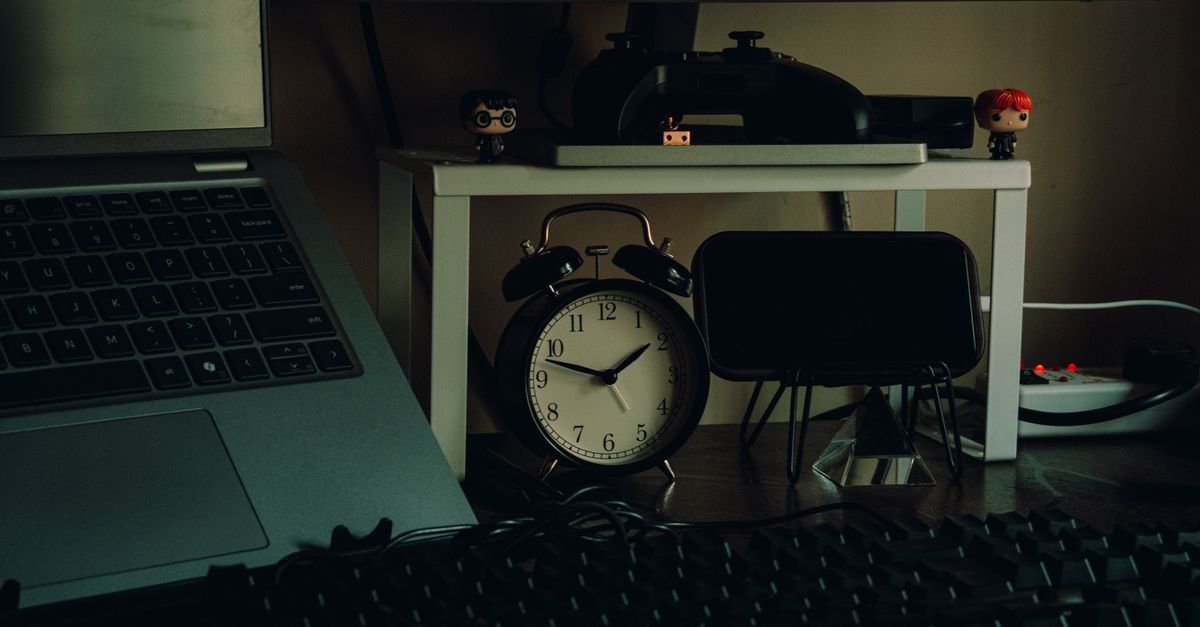
Why a Browser Alarm Works Better Than Traditional Options
Browser alarms solve several problems that physical clocks and mobile apps often create. First, they don’t rely on your device’s battery or volume settings. If your phone dies or is on silent, a traditional alarm won’t ring—but a browser alarm will sound as long as the tab is open and your device is powered on. Second, browser alarms are device-agnostic. You can set one on your laptop, tablet, or even a shared computer, and it will use the local time of that device. This is especially useful for travelers or anyone who switches between devices frequently. Third, browser alarms are private. Unlike mobile apps, which may request permissions for notifications, contacts, or location, the Online Alarm Clock runs entirely in your browser, with no data uploaded or stored externally.
Another advantage is customization. You can label each alarm to remind yourself why you set it—for example, “Team Meeting” or “Take Medication.” This feature is often missing in basic phone alarms, which only display the time. The Online Alarm Clock also includes a live clock at the top of the tool, so you can check the current time at a glance without switching apps or looking at your device’s status bar. For those who need to track time across multiple locations, the World Clock tool complements the alarm by showing live times in major cities, making it easy to coordinate with colleagues or friends in different time zones.
| Feature | Browser Alarm | Physical Alarm Clock | Mobile App Alarm |
|---|---|---|---|
| Requires hardware | No | Yes | No |
| Works on any device | Yes | No | Depends on OS |
| Needs installation | No | No | Yes |
| Uses device’s local time | Yes | Yes | Yes |
| Supports labels | Yes | No | Sometimes |
| Privacy (no data uploaded) | Yes | Yes | Depends on app |
How to Set a Browser Alarm in Seconds
- Open the Online Alarm Clock tool in your browser. The live clock at the top updates every second to show your device’s current local time.
- Use the time picker to select the exact hour and minute you want the alarm to ring. The tool uses a 12-hour format with AM/PM, so make sure to choose the correct period.
- Optionally, type a short label in the text box below the time picker. This helps you remember why you set the alarm—for example, “Lunch Break” or “Call Mom.”
- Press the Set alarm button to arm the alarm. The status line below the button will confirm the target time, such as “Alarm set for 3:00 PM.”
- Keep the tab open and your device awake. The alarm will ring at the chosen time with a loud sound and a flashing screen. If you need to step away, make sure your device doesn’t go to sleep or lock, as this may prevent the alarm from sounding.
- When the alarm rings, press Dismiss to stop it completely, or Snooze to delay it by five minutes. The snooze feature is useful if you need a short extension but don’t want to reset the alarm entirely.
When to Use a Browser Alarm Instead of Other Tools
Browser alarms are ideal for situations where you need a quick, reliable reminder without the overhead of installing an app or setting up hardware. For example, if you’re working from home and need to remember to take a break every 25 minutes, you can set a browser alarm to ring at the end of each Pomodoro session. Unlike a physical alarm clock, which requires you to be in the same room to hear it, a browser alarm will ring as long as the tab is open, even if you’re using headphones or working in another window. This makes it a great choice for remote workers, students, or anyone who spends long hours at a computer.
Browser alarms are also useful for timing short tasks. If you’re cooking and need to check on something in 10 minutes, you can set a quick alarm without fumbling with your phone or a separate timer. The Online Countdown Timer is another option for this use case, but the alarm clock is better for reminders that don’t require a visible countdown. For example, if you’re deep in a writing session and want to remind yourself to save your work every 30 minutes, a browser alarm is less distracting than a countdown timer that constantly displays the remaining time.
Another scenario where browser alarms shine is travel. If you’re in a different time zone and need to wake up at a specific local time, you can set an alarm on your laptop or tablet without adjusting your phone’s settings. The alarm will use the device’s local time, so you don’t have to calculate time differences manually. This is especially helpful for digital nomads or anyone who frequently changes time zones. For those who need to coordinate across multiple time zones, the World Clock tool can help you keep track of the current time in other locations, while the alarm ensures you don’t miss important events.
Troubleshooting Common Issues
While browser alarms are simple to use, a few common issues can prevent them from working as expected. The most frequent problem is the tab closing or the device going to sleep. If the tab is closed or the device locks, the alarm won’t ring. To avoid this, keep the tab open and ensure your device’s power settings don’t put it to sleep too quickly. If you’re using a laptop, plugging it in can help prevent sleep mode from interrupting the alarm. Some browsers also pause tabs that aren’t in use to save battery, so make sure the tab remains active.
Another issue is the alarm not sounding loudly enough. If your device’s volume is muted or set too low, you might not hear the alarm. Before setting the alarm, check your device’s volume settings and make sure the sound is turned up. If you’re using headphones, ensure they’re properly connected and the volume is adjusted. The Online Alarm Clock uses your device’s default alert sound, so if you’ve customized your system sounds, the alarm will use that instead.
Finally, some users accidentally dismiss the alarm without realizing it. If you’re in a noisy environment or wearing headphones, the alarm might ring without you noticing. To avoid this, position the tab in a visible part of your screen so you can see the flashing alert. If you’re using multiple monitors, keep the alarm tab on the screen you’re actively using. If you miss the alarm, the tool doesn’t keep a history of past alarms, so you’ll need to set a new one if you need another reminder.
Alternatives to Browser Alarms for Specific Needs
While browser alarms are versatile, they’re not the best solution for every situation. For example, if you need an alarm that works even when your device is offline, a physical alarm clock or a mobile app is a better choice. Mobile apps like Gentle Alarm or Alarm Clock Plus offer advanced features like sleep cycle tracking, gradual volume increases, and customizable snooze intervals. These features are useful for waking up gently, but they require installation and may request permissions that some users prefer to avoid.
For those who need a visual countdown, the Online Countdown Timer is a better option than an alarm clock. Countdown timers display the remaining time in large, easy-to-read numbers, making them ideal for presentations, workouts, or cooking. Unlike an alarm, which only rings at the end, a countdown timer shows the time remaining at all times, so you can adjust your pace if needed. For example, if you’re giving a presentation and want to keep track of your speaking time, a countdown timer is more effective than an alarm that only rings when time is up.
If you’re managing a team or need to coordinate multiple alarms, a dedicated time management tool like the Pomodoro Timer might be more suitable. The Pomodoro Timer runs a structured 25-minute work session followed by a 5-minute break, with an optional 15-minute break after four cycles. This approach is ideal for maintaining focus and productivity, especially for tasks that require deep concentration. While you can set a browser alarm to ring every 25 minutes, the Pomodoro Timer automates the entire cycle, including the breaks, so you don’t have to reset the alarm manually.
Related guide: How to Set Up a Clean Countdown Timer for OBS.
For a deeper look, see Add a Live Countdown Timer to OBS Without Plugins or Code.
For a deeper look, see Stop a Stopwatch in Your Browser Without Apps or Downloads.
For a deeper look, see Change Your World Clock in Seconds with This Free Tool.