A countdown timer for OBS is a live, on-screen clock that ticks down to zero, helping you manage time during streams, videos, or presentations without installing plugins or writing code. Unlike desktop applications or OBS-specific scripts, a browser-based timer like the Online Countdown Timer opens instantly, runs entirely on your device, and requires no sign-up or downloads. This makes it ideal for creators who need a quick, reliable solution that works across platforms—whether you're on Windows, macOS, or Linux. The timer displays a large, easy-to-read clock that updates every second, and you can overlay it directly in OBS using a browser source. It stays accurate even if you switch tabs, ensuring your countdown doesn’t pause or lag during critical moments. When the timer reaches zero, it triggers a visual alert and an optional sound, giving you a clear signal without relying on external notifications.
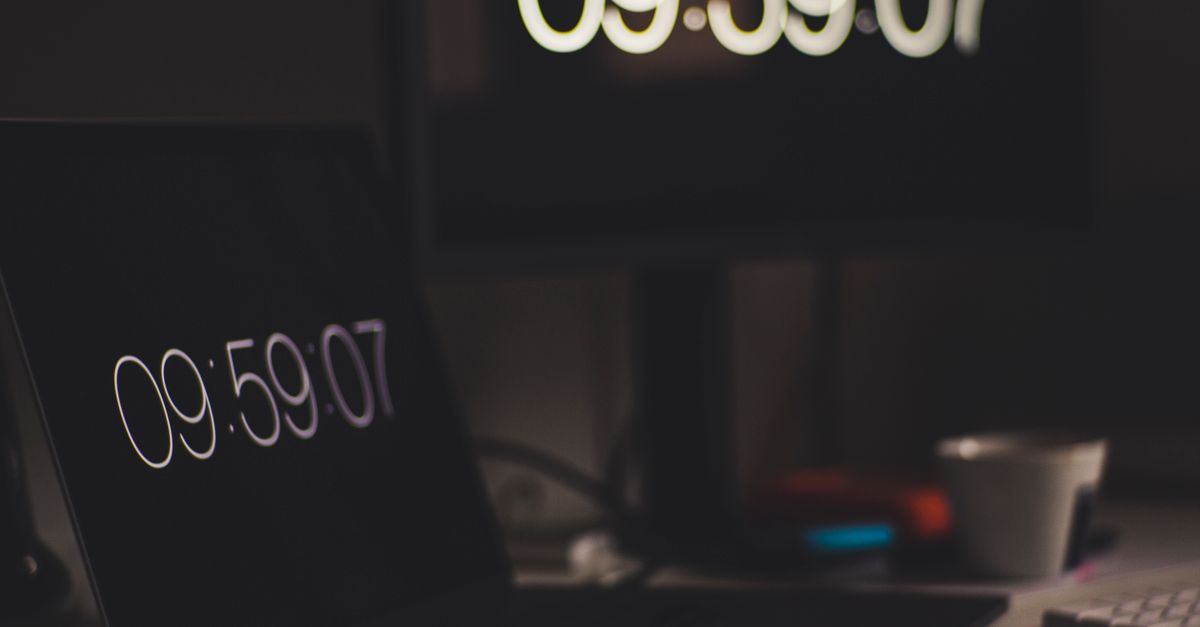
Why a Browser-Based Timer Works Best for OBS
OBS (Open Broadcaster Software) is a powerful tool for live streaming and recording, but adding a countdown timer often means installing plugins, running external applications, or writing custom scripts. These methods can be time-consuming, require technical know-how, or introduce compatibility issues, especially if you switch devices or update your software. A browser-based countdown timer eliminates these challenges by running directly in your browser, which OBS can capture as a browser source. This approach offers several advantages:
- No installation required: Open the timer in your browser, and it’s ready to use—no downloads, no sign-ups, and no risk of malware.
- Cross-platform compatibility: Works on any device with a modern browser, if you're using Windows, macOS, or Linux.
- Instant setup: The timer loads in seconds, so you can start your countdown immediately without configuring software or plugins.
- Privacy and security: Since the timer runs entirely on your device, your data never leaves your computer, and you don’t need to grant permissions or create accounts.
- Reliable performance: The timer continues running accurately even if you switch tabs or minimize your browser, ensuring your countdown stays on track during live streams or recordings.
For creators who need a hassle-free solution, a browser-based timer like the Online Countdown Timer is the simplest way to add a live countdown to OBS. It’s designed to be lightweight, fast, and easy to use, so you can focus on your content instead of troubleshooting technical issues.
How to Add the Countdown Timer to OBS
Adding a browser-based countdown timer to OBS is straightforward and takes less than a minute. The key is using OBS’s "Browser Source" feature, which lets you capture any webpage and overlay it in your scene. Here’s how to do it step by step:
- Open the Online Countdown Timer: Go to /productivity/online-countdown-timer/ in your browser. The timer will load instantly, and you’ll see fields to set hours, minutes, and seconds, along with quick presets for common durations.
- Set your desired duration: Type the hours, minutes, and seconds you need, or click one of the quick presets (e.g., 1, 3, 5, 10, or 15 minutes). For example, if you’re timing a 5-minute break, set the timer to 0 hours, 5 minutes, and 0 seconds.
- Start the countdown: Press the Start button to begin the timer. The display will start ticking down, and you can pause or resume it at any time using the Pause and Resume buttons.
- Open OBS and add a Browser Source: Launch OBS and navigate to the scene where you want to add the timer. Click the + button under "Sources" and select Browser from the list.
- Configure the Browser Source: In the Browser Source settings, paste the URL of the Online Countdown Timer (/productivity/online-countdown-timer/) into the "URL" field. Set the width and height to match your stream’s resolution (e.g., 800x200 for a small overlay). You can also adjust the "FPS" to 30 or 60 for smoother rendering.
- Position and resize the timer: Once the timer appears in your OBS preview, drag it to the desired location on your screen. Use the red handles to resize it, ensuring it’s large enough to be visible but doesn’t obstruct important parts of your stream.
- Test the timer: Start your countdown in the browser, then switch to OBS to confirm the timer is running and updating correctly. If the timer doesn’t appear, double-check the URL and ensure the Browser Source is enabled in your scene.
- Go live or record: When you’re ready, start your stream or recording in OBS. The timer will continue running in the background, and your viewers will see the live countdown on screen.
If you need to reset the timer during your stream, simply press the Reset button in the browser, and the countdown will return to your original set duration. This is useful for repeating segments, such as timed breaks or countdowns between activities.
Customizing the Timer for Your Stream
While the Online Countdown Timer works out of the box, you can customize it to better fit your stream’s aesthetic or functional needs. Here are a few ways to tailor the timer to your setup:
| Customization Option | How to Do It | Use Case |
|---|---|---|
| Adjust the size and position | Resize the Browser Source in OBS by dragging the red handles, or use the "Width" and "Height" fields in the Browser Source settings to set exact dimensions. | Ensure the timer is visible but doesn’t cover important parts of your stream, such as your facecam or gameplay. |
| Change the background color | Use OBS’s "Color Key" or "Chroma Key" filters to remove the timer’s background, or add a solid color source behind the timer for better visibility. | Make the timer stand out against light or dark backgrounds, or match your stream’s color scheme. |
| Add a border or shadow | Use OBS’s "Image Mask/Blend" or "Filter" options to add a border, drop shadow, or glow effect to the timer. | Improve readability, especially if your stream has a busy or colorful background. |
| Sync with other OBS sources | Use OBS’s "Scene Collection" or "Source Grouping" features to link the timer with other elements, such as text or images, so they appear or disappear together. | Create dynamic overlays, such as a "Starting Soon" screen that transitions to a live countdown when your stream begins. |
| Mute or replace the alert sound | Disable the timer’s sound in the browser by muting the tab, or replace it with your own audio file in OBS using the "Audio Source" feature. | Avoid overlapping sounds if you’re already using background music or other audio cues in your stream. |
For more advanced customization, you can also explore OBS’s scripting or plugin options, but these often require technical knowledge. The Online Countdown Timer provides a simple, no-fuss alternative that works for most creators without additional setup.
Common Use Cases for a Countdown Timer in OBS
A countdown timer is a versatile tool that can enhance your streams, videos, or presentations in multiple ways. Here are some common scenarios where a timer can be particularly useful:
- Live streams with scheduled breaks: If you’re streaming for long periods, a countdown timer can help you manage breaks, ensuring you and your viewers know exactly when the stream will resume. For example, set a 5-minute timer during a "be right back" segment to keep your audience engaged.
- Timed challenges or games: Many streamers host challenges, such as speedruns, trivia, or mini-games, where time is a factor. A countdown timer adds tension and structure, making the challenge more exciting for viewers. For instance, you could set a 1-minute timer for a rapid-fire Q&A session or a 10-minute timer for a puzzle-solving challenge.
- Countdowns to special events: If you’re hosting a live event, such as a giveaway, a new product launch, or a community milestone celebration, a countdown timer builds anticipation. For example, set a 1-hour timer before revealing a big announcement, and update your viewers as the clock ticks down.
- Presentations or workshops: For educational streams or workshops, a countdown timer helps you stay on schedule. Use it to time individual segments, such as a 15-minute lecture followed by a 5-minute Q&A. This keeps your presentation structured and ensures you cover all your material without running over time.
- Recording videos with time constraints: If you’re recording a video (e.g., a tutorial, a review, or a podcast), a countdown timer can help you stick to a script or time limit. For example, set a 30-minute timer to ensure your video stays within YouTube’s recommended length for monetization.
- Interactive streams with viewer participation: Engage your audience by letting them vote on how long a segment should last. For example, set a 3-minute timer for a "shoutout segment" and let viewers decide whether to extend it by another minute. The timer keeps the segment dynamic and interactive.
No matter how you use it, a countdown timer adds professionalism and structure to your content. The Online Countdown Timer makes it easy to integrate this tool into your OBS setup, so you can focus on creating great content without worrying about technical details.
Troubleshooting Common Issues
While adding a browser-based countdown timer to OBS is straightforward, you might encounter a few common issues. Here’s how to troubleshoot them:
- The timer doesn’t appear in OBS:
- Check that the Browser Source is enabled in your scene. If it’s disabled, right-click the source and select Enable.
- Verify the URL in the Browser Source settings. Ensure it matches the Online Countdown Timer’s URL (/productivity/online-countdown-timer/) and that there are no typos.
- Refresh the Browser Source by right-clicking it and selecting Refresh Cache of Current Page. This can resolve issues if the timer loaded incorrectly.
- The timer is lagging or freezing:
- Lower the FPS in the Browser Source settings to 30 or 15. High FPS settings can cause performance issues, especially if your computer is already under heavy load.
- Close other browser tabs or applications that might be using system resources. Running too many programs simultaneously can slow down OBS and the timer.
- Restart OBS and your browser. Sometimes, a simple restart can resolve performance issues caused by memory leaks or background processes.
- The timer’s display is cut off or misaligned:
- Adjust the width and height in the Browser Source settings to match the timer’s aspect ratio. For example, if the timer is too wide, reduce the width while keeping the height the same.
- Resize the timer in OBS by dragging the red handles. Ensure the entire timer is visible within the preview window.
- Check the timer’s zoom level in your browser. If the zoom is set to anything other than 100%, it may cause alignment issues. Press Ctrl+0 (Windows) or Cmd+0 (Mac) to reset the zoom.
- The timer’s sound isn’t playing:
- Ensure your browser tab isn’t muted. Right-click the tab and select Unmute Tab if it’s muted.
- Check your computer’s volume settings to confirm the browser isn’t muted or set to a low volume.
- If you’re using OBS’s audio monitoring, ensure the Browser Source’s audio is routed correctly. Go to OBS’s Settings > Audio and verify the Browser Source is assigned to the correct audio track.
- The timer resets when you switch scenes:
- Enable the Shutdown source when not visible option in the Browser Source settings. This ensures the timer continues running even when it’s not visible in your active scene.
- Alternatively, create a separate scene for the timer and use OBS’s Scene Transition feature to switch between scenes without interrupting the countdown.
If you’re still experiencing issues, consider checking OBS’s official documentation or community forums for additional troubleshooting tips. The How to Set Up a Clean Countdown Timer for OBS guide also offers detailed steps for optimizing your setup.
If you're weighing options, Stop a Stopwatch in Your Browser Without Apps or Downloads covers this in detail.
If you're weighing options, Test Keyboard Accessibility in Minutes Without Special Software covers this in detail.
If you're weighing options, Add a Countdown Timer to PowerPoint in Under a Minute covers this in detail.