The standard RGB to HSV chart maps any 8-bit RGB triplet — three integers from 0 to 255 — onto a hue angle between 0 and 360 degrees, a saturation percentage, and a value percentage that together describe the same color in a wheel-based format used by most color pickers. The wheel has six fixed landmarks worth memorizing: red at 0°, yellow at 60°, green at 120°, cyan at 180°, blue at 240°, and magenta at 300°. At those primary and secondary positions, saturation is 100% and value is 100% because one or two channels are fully on. Black sits at hue 0, saturation 0%, value 0%, while a perfectly even middle gray sits at hue 0, saturation 0%, value 50.20% because each channel equals 128 out of 255. Every other RGB triplet falls somewhere between those anchors, and the RGB to HSV Converter resolves the exact angle and percentages for any input rather than forcing you to interpolate from a static table. The converter divides each channel by 255, picks the maximum channel to compute value, derives saturation from the gap between the maximum and minimum, and picks the hue formula branch based on which channel is dominant — wrapping negative degrees into the nonnegative range.
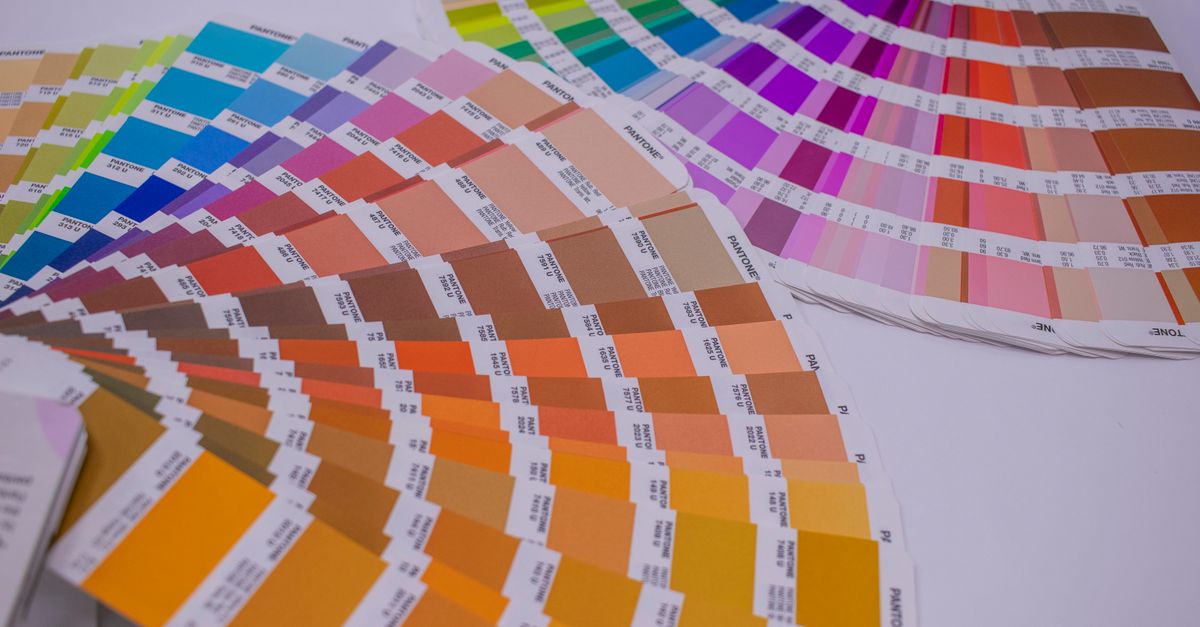
RGB and HSV Describe the Same Color in Different Languages
An RGB triplet states how much red, green, and blue light combine to make a pixel on a screen. Each channel is an integer between 0 and 255, so the full space contains 256³ = 16,777,216 distinct triplets. HSV reorganizes that same triplet around three properties that often feel more intuitive when adjusting a color by hand. Hue is an angle on a color wheel, identifying the dominant tint. Saturation measures how far the color sits from the gray axis at its current brightness. Value records the brightness of the strongest channel after normalization.
This rephrasing is the reason HSV is the default model exposed by color pickers in Photoshop, Figma, Sketch, GIMP, and most browser-based palette tools. Designers can spin a hue slider rather than mentally balancing three intensity sliders. The trade-off is that HSV is just a coordinate transform — no extra information about the color is gained or lost — and the result still represents the same sRGB pixel an RGB triplet would have produced. The same algorithm produces the same chart entries across every conforming implementation.
The Fixed Wheel Values: An RGB to HSV Reference Chart
Any HSV implementation, including the RGB to HSV Converter, produces identical canonical coordinates for the wheel's six landmark positions, plus black and middle gray. These are the values most chart-style references reproduce, because every other input falls on the gradient between them. The table below uses the exact integers 0–255, the standard two-digit lowercase HEX, and the angle, saturation, and value ranges the converter displays.
| RGB triplet | HEX | Hue | Saturation | Value |
|---|---|---|---|---|
| 255, 0, 0 | #ff0000 | 0° | 100% | 100% |
| 255, 255, 0 | #ffff00 | 60° | 100% | 100% |
| 0, 255, 0 | #00ff00 | 120° | 100% | 100% |
| 0, 255, 255 | #00ffff | 180° | 100% | 100% |
| 0, 0, 255 | #0000ff | 240° | 100% | 100% |
| 255, 0, 255 | #ff00ff | 300° | 100% | 100% |
| 0, 0, 0 | #000000 | 0° (placeholder) | 0% | 0% |
| 128, 128, 128 | #808080 | 0° (placeholder) | 0% | 50.20% |
The middle gray row shows why the chart treats value as a percentage rather than a brightness count from 0 to 255. The integer 128 maps to 128/255 ≈ 0.5020, displayed as 50.20%. Anything off the eight canonical rows — a brand orange like (200, 100, 50), for example — does not have a fixed chart entry. Its hue and percentages only appear once you run the algorithm, which is the role the calculator fills.
One quick worked example to show how the algorithm extends past the landmarks. Take RGB (200, 100, 50). Divide each channel by 255 to get (0.7843, 0.3922, 0.1961). The maximum is 0.7843, so value = 78.43%. The difference between maximum and minimum is 0.5882, and saturation = 0.5882 / 0.7843 = 0.7500 = 75.00%. Because red is the dominant channel, hue uses the formula 60 × ((G − B) / delta) = 60 × ((0.3922 − 0.1961) / 0.5882) = 60 × 0.3333 = 20.00°. Reading the RGB to HSV Converter with the same inputs confirms h = 20.00°, s = 75.00%, v = 78.43%.
How to Convert Any RGB to HSV in Three Steps
- Type whole-number red, green, and blue channel values into the three input fields. Each field accepts a finite integer from 0 through 255; decimals, empty fields, negatives, and values above 255 raise an explicit error instead of being rounded or clamped.
- Select Convert to HSV. The result panel shows hue in degrees (0 to 360), saturation as a percentage, value as a percentage, the normalized HSV notation (h, s, v each on the 0–1 scale), the source HEX string, and a visual swatch.
- Read off the hue, saturation, and value. Compare the displayed percentages with what your destination expects before you copy — some applications store hue on a 0–179 or 0–255 integer range, others expect 0–1 fractions, and others display degrees and percentages as shown.
Because the inputs stay visible after a conversion, you can edit a single channel and rerun the calculation to watch how all three HSV components respond. That side-by-side comparison is the practical reason to use a live converter rather than a printed chart, especially when iterating on a palette.
Why Achromatic Colors Always Sit at Saturation Zero
When the three channels are equal — black at (0, 0, 0), middle gray at (128, 128, 128), white at (255, 255, 255), or any gray in between — the maximum and minimum are identical, so the difference is zero. With no difference, the saturation formula collapses to 0/0 at black and 0/max otherwise, both defined as zero. Hue has no visual meaning on a gray because there is no dominant tint to point at on the wheel.
The converter resolves the ambiguity by reporting the conventional placeholder hue of 0°. That choice matches the Android Color documentation for the rgb2hsv function and the R grDevices convention, which are the two implementations the tool has been checked against. Anyone comparing two grays will see matching hue values and saturation 0%, so the placeholder does not interfere with relative comparisons. For a deeper treatment of edge cases like near-achromatic colors and hue wrap-around, the hue scales and edge cases guide walks through more examples.
Degrees, Fractions, or Integers: Picking the Right Output Scale
Three storage conventions for HSV exist in the wild, and the same color often needs a different number depending on the destination:
- Degrees and percentages as shown on this page. Hue 0–360°, saturation 0–100%, value 0–100%.
- Zero-to-one fractions used by many graphics APIs and shader languages. The same color would be stored as hue 0.5, saturation 0.75, value 0.78 in this convention.
- Compact integer ranges used by image-processing libraries. OpenCV stores hue on 0–179, so a hue of 120.00° becomes 60 in its internal Mat.
A saturation shown as 80.90% corresponds to 0.809 in a zero-to-one API, not the integer 80, unless that program specifically expects percentages. If the destination expects HSL instead, route the original RGB through a dedicated HSL converter rather than relabeling the HSV value channel — HSV value tracks the maximum normalized RGB channel while HSL lightness uses the average of the maximum and minimum, so the two are not interchangeable.
What a Static Chart Cannot Show
A printed RGB to HSV chart covers the fixed anchors and a few useful off-anchor examples. The remaining 16,777,208 triplets sit in the long tail, and only a calculator can resolve them on demand. Beyond coverage, a chart also cannot enforce input hygiene: if you mistype a channel as 256 or 25.5, a static table has no opportunity to flag the error. The converter rejects decimal, negative, empty, and out-of-range inputs explicitly, which protects an 8-bit RGB code from silently becoming a plausible but different color.
The conversion also says nothing on its own about readability. A foreground and background that share a hue and saturation at very different values may still fail accessible contrast requirements. Test the actual pair with the Color Contrast Checker against WCAG AA and AAA before relying on a color choice in production UI. If you need a HEX string instead of HSV — for example, to drop the same color into a CSS variable — the RGB to HEX tool covers that direction.
The converter runs entirely in the browser and does not save a history of the colors you try, so the chart approach and the live approach share the same lack of state. Neither will recover a triplet you forgot to copy. For work that requires storing or comparing palette coordinates, the Color Palette Generator accepts a base color and returns coordinated schemes such as complementary, analogous, and triadic, all expressed in formats you can paste directly into CSS.
Related reading: CMYK to RGB Palette Ideas That Translate Print to Screen.