The RGB to HSV Converter turns an sRGB triplet of red, green, and blue channels (0–255 each) into a hue measured on a 0–360 degree circle plus saturation and value shown as percentages, computed entirely in your browser from the same color coordinates. RGB describes a color by the additive amount of red, green, and blue light in each channel, which is what cameras, monitors, and CSS color properties report. HSV reorganizes the identical triplet around a different axis: where the color sits on the color wheel, how far it is from the gray axis, and how strong the strongest channel is. That reorganization often feels easier to tweak when you are picking palette shades, adjusting a graphic, or feeding coordinates into a picker that expects hue, saturation, and value rather than raw channel numbers.
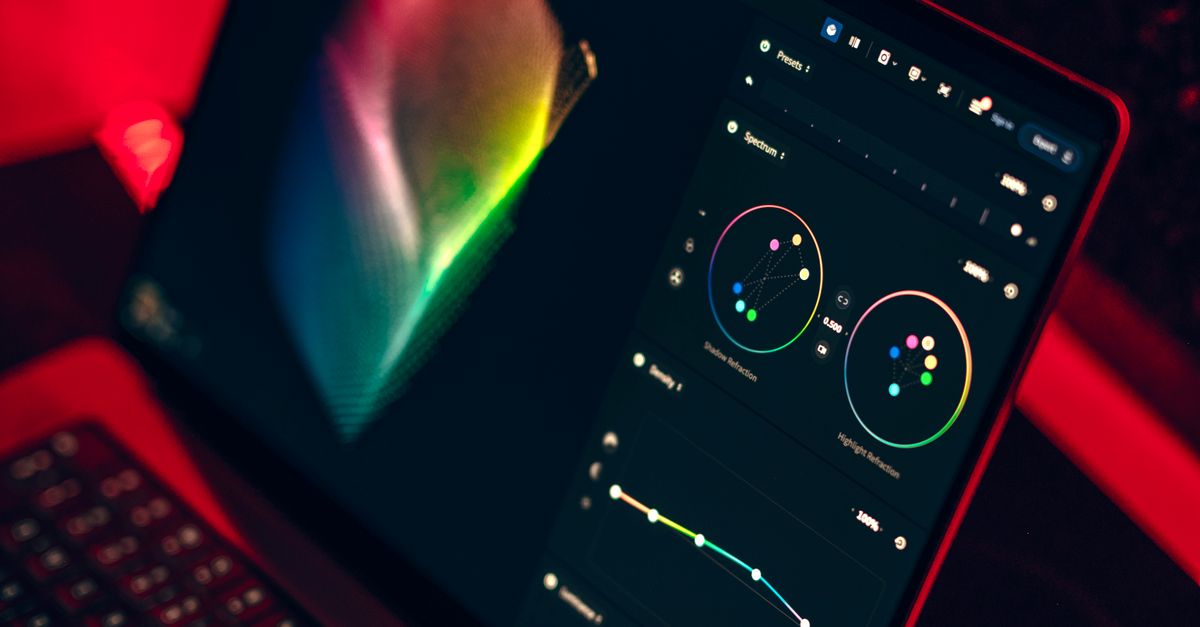
What RGB and HSV actually describe
Both RGB and HSV describe the exact same color — they just emphasize different attributes. RGB reports three independent intensities for the red, green, and blue emitters in a display pixel. Each integer from 0 to 255 controls how much of that emitter contributes to the final mixed color. Mixing R 255, G 255, B 255 produces white because all three emitters fire at maximum; mixing R 0, G 0, B 0 produces black because none of them fire. Everything visible on a screen is some weighted mix of those three emitters, which is why so many systems settle on RGB as a transport format.
HSV reorganizes those same three numbers into a position on a color wheel (the hue), a measure of how far the color sits from a neutral gray (the saturation), and the brightness of the strongest channel (the value). Hue is anchored at red, which sits at 0 degrees, then walks through yellow at 60, green at 120, cyan at 180, blue at 240, and magenta at 300 before returning to red at 360. Saturation runs from 0% (a perfect gray at the current value) to 100% (a fully vivid color at the current hue and value). Value also runs from 0% to 100%, equal to the largest normalized channel. Because it tracks the strongest channel rather than a perceptual midpoint, HSV value is not the same quantity as HSL lightness or measured luminance.
How the converter calculates hue, saturation, and value
The conversion is a fixed, well-documented transformation. Each validated 8-bit channel is first divided by 255 to normalize it into a 0–1 floating point range. The implementation then identifies the maximum channel, the minimum channel, and the difference between them (often called the delta). Value is simply the maximum. Saturation is the delta divided by the maximum, except at black (where the maximum is zero) — in that case saturation is reported as zero to avoid division by zero. Hue uses a piecewise formula that selects one of six cases depending on which channel is the maximum, then computes an angle based on the relative position of the other two channels, wrapping any negative result back into the 0–360 range by adding 360. Formatting happens only after the calculation, so the internal result remains an unrounded number until it is displayed.
To make that concrete, take the pure orange (R 255, G 128, B 0) you might find in a brand swatch. Dividing each channel by 255 gives (1.0, 0.50196, 0.0). The maximum is 1.0 (red), the minimum is 0.0 (blue), and the delta is 1.0. Value therefore equals 1.0, which displays as 100.00%. Saturation equals delta / max = 1.0 / 1.0 = 1.0, also displayed as 100.00%. Because red is the maximum channel, hue is computed as 60 × ((G − B) / delta) = 60 × ((0.50196 − 0) / 1.0) = 60 × 0.50196, which rounds to 30.12 degrees. So the result for that orange is HSV (30.12°, 100.00%, 100.00%). The implementation is independently cross-checked against the R grDevices rgb2hsv convention for typical 0–255 sRGB input, and it follows the Android Color documentation for output ranges. Golden cases cover the six primary and secondary wheel positions, black, and middle gray.
How to convert RGB to HSV in three steps
- Enter whole-number red, green, and blue channel values into the converter, each between 0 and 255 inclusive.
- Select Convert to HSV and read the result: hue in degrees, saturation and value as percentages with two decimal places, the normalized HSV notation, the source HEX code, and a visual swatch.
- Check what scale your destination tool expects — degrees, zero-to-one fractions, or a compact 0–179 or 0–255 integer range — before copying the values into it.
The inputs stay visible on screen so you can change a single channel and immediately see how all three HSV components respond. That comparison view is useful when you are building a palette and want to keep hue stable while nudging value or saturation toward the gray axis or back toward vivid.
Reading the output: degrees, fractions, and integer ranges
The same hue can be written in three or four different numeric scales depending on the software you are feeding it. Web and graphics applications that follow the Android Color documentation use degrees on a 0–360 circle, with saturation and value in a 0–1 range before display as percentages. Other ecosystems use compact integer ranges to fit an 8-bit image buffer. The table below summarizes the most common conventions so you can map the converter's output onto your destination without surprise.
| Ecosystem | Hue range | Saturation range | Value range | Notes |
|---|---|---|---|---|
| Android Color, CSS color pickers, this converter | 0–360 degrees | 0–1 (displayed 0–100%) | 0–1 (displayed 0–100%) | Round trip matches R grDevices rgb2hsv for typical sRGB input. |
| OpenCV (cv2.cvtColor, BGR2HSV) | 0–179 (degrees ÷ 2) | 0–255 | 0–255 | Hue uses half the degrees because the 8-bit unsigned range cannot hold 360. Match the exact OpenCV scale when scripting image processing. |
| GIMP HSV, common paint software | 0–360 degrees | 0–100 (integer) | 0–100 (integer) | Same angle circle as Android but saturation and value are reported as integer percentages rather than 0–1 fractions. |
| Some game engines and shaders | 0–255 normalized | 0–255 normalized | 0–255 normalized | Each component is scaled to fit an 8-bit channel; convert by dividing degrees by 360 and percentages by 100. |
When the converter displays a saturation of 80.90%, that is 0.8090 in a 0–1 API, not the integer 80 unless the destination specifically uses percentages. If your target reads HSV in degrees and a 0–1 fraction for the other two components, copy the percent value and divide by 100 at the call site. Confirming the destination's expected scale first prevents a "looks right, runs wrong" bug in scripts that do not catch out-of-range inputs.
Edge cases to watch for: achromatic colors and primary wheel positions
Two situations come up often enough that they deserve separate treatment: fully achromatic colors and the six primary wheel anchors. An achromatic color — black, white, or any gray — has three equal RGB channels. In that case the difference between the maximum and minimum channels is zero, so the converter reports saturation 0% and the difference step in the hue formula collapses. Hue has no visual meaning for a pure gray, because every angle would describe the same color. To keep the output stable, this tool returns the conventional placeholder hue of 0 degrees and explains the choice rather than silently emitting NaN.
The six primary and secondary anchors behave predictably and are useful as quick sanity checks: pure red (255, 0, 0) is hue 0° with saturation 100% and value 100%; yellow (255, 255, 0) is hue 60°; green (0, 255, 0) is hue 120°; cyan (0, 255, 255) is hue 180°; blue (0, 0, 255) is hue 240°; and magenta (255, 0, 255) is hue 300°. If your conversion returns a different angle for one of these, the input or the formula has drifted somewhere.
The converter enforces strict 8-bit input. Decimal values, empty fields, negative numbers, and any value above 255 raise an explicit error rather than being silently rounded or clamped. That boundary matters when the source is an 8-bit RGB code, because a typo could otherwise become a plausible but different color without any warning. Alpha is outside the tool's scope because transparency does not change the underlying HSV calculation for the three channels — use a separate alpha-aware converter if you need channel-level transparency handling.
When HSV is the right color model
HSV shines when you want to nudge one attribute at a time — rotating around the color wheel to shift hue, pulling saturation toward gray to mute a color, or raising and lowering value to make a series lighter and darker without changing the hue. That makes it a natural fit for color pickers in design tools, palette tuning in graphics applications, and teaching because the three axes map to intuitive knobs. It is also useful when feeding an HSV-based control in a script, where you often have a single hue to rotate through and need to express tints and shades without recomputing RGB by hand.
HSV is the wrong tool when the question is about perception or print. Value tracks the strongest channel, not perceived lightness, so a "50% value" color does not look halfway between black and white to the eye. For perceptual lightness, use HSL lightness or measured luminance instead. For print preparation, RGB and HSV are both screen-oriented and a separate RGB to CMYK conversion is required, and even that will not produce an accurate press result without a real color profile. Finally, conversion says nothing about whether two colors are readable together — pair any foreground and background candidate with a Color Contrast Checker before relying on it in a user interface.
The converter runs entirely in your browser and does not save a color history, so each session starts clean. It produces a coordinate transformation for the three RGB channels and not a subjective color name or a design recommendation, and it does not read embedded image profiles or convert between wide-gamut color spaces. When another application rounds the displayed values differently, treat that as a formatting difference rather than a calculation disagreement and trust the underlying unrounded result.
For a deeper look, see CMYK to RGB on Mac: Preview Without a Color Profile.