CMYK to RGB palette ideas turn printable ink percentages into approximate screen colors using a four-line formula — 255 × (1 − min(1, I × (1 − K) + K)) for each colored channel I — and the result is uncalibrated by design.
The CMYK To RGB tool exposes that formula in your browser, so you can dial in any percentage of cyan, magenta, yellow, and black and immediately see the matching red, green, and blue channels, a six-digit hex code, and a visual swatch — all computed locally. Because no ICC profile is loaded, every preview is a quick screen approximation: ideal for mood boards, interface mockups, and rough palette comparisons, but never a substitute for a profiled press run.
This kind of preview is most useful when you already know the CMYK side of a project — say, a logo recipe from a brand guide or a print swatch from a paper supplier — and you need to translate it for digital mockups without losing the relationship between the inks. The W3C publishes the naive device-CMYK to sRGB rule so that browsers, design tools, and PDF readers can agree on a single reproducible approximation, and that is the rule the tool follows to the letter.
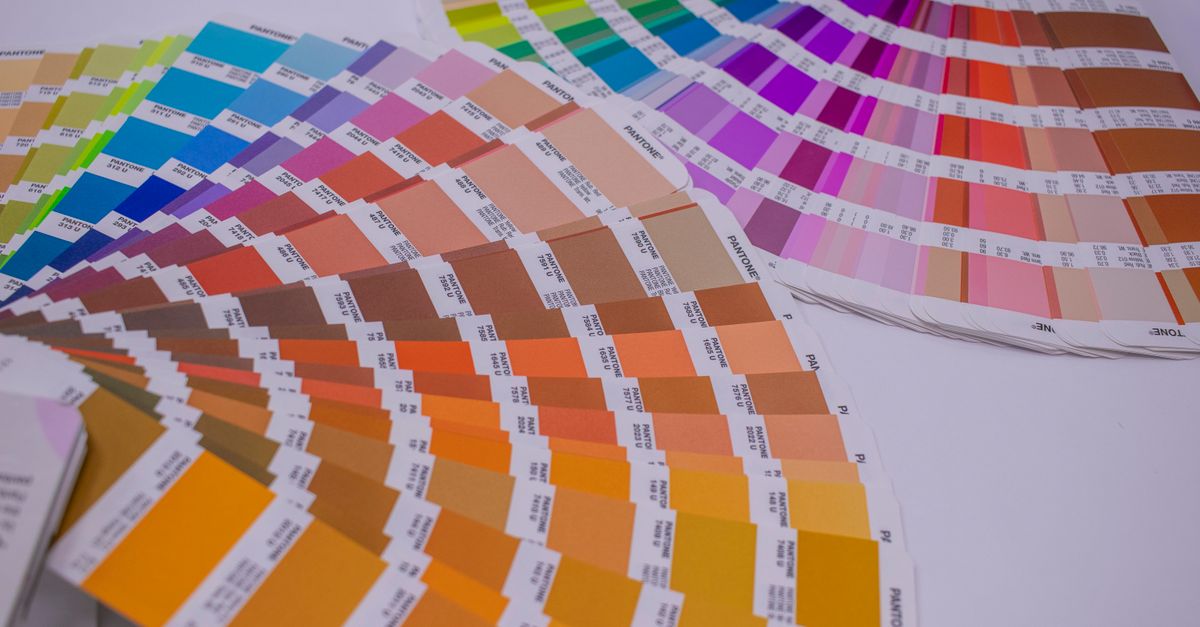
Where CMYK to RGB Palette Ideas Begin
Designers who reach for CMYK to RGB palette ideas usually fall into one of three buckets. Print-first designers want to see what a recipe from a press swatch book will do on a client's laptop. Web designers pick a CMYK target from a brand guideline and need a believable screen value to drop into a Figma frame. Marketers and small operators are building a color system that has to survive both a brochure and a landing page, so they start in CMYK where the final ink is set and work backward to RGB.
In every case the goal is the same: treat CMYK as the source of truth for the printed piece and use a quick RGB conversion for everything digital. The naive device-CMYK to sRGB formula behind this kind of preview is short enough to write down. For each colored ink I in {C, M, Y}, the display channel is 255 × (1 − min(1, I × (1 − K) + K)), where every value is normalized to 0–1. The result is reproducible across browsers, which is why so many palette idea tutorials anchor on it.
Build a Palette Idea With the CMYK To RGB Tool
Once you have a recipe in mind, the fastest path to a screen preview is a few slider moves and a screenshot.
- Open the CMYK To RGB tool in a desktop or mobile browser.
- Move the cyan, magenta, yellow, and black sliders from 0 to 100 percent to match the recipe you want to preview.
- Read the 8-bit red, green, and blue channels and the six-digit hex value that update on the page.
- Screenshot or copy the hex code into your mockup, CSS file, or design system.
- Repeat with a second recipe to start a palette, then a third for an accent or a neutral.
- Replace any single recipe in your print-bound artwork with a profile-aware conversion before sending the file to press.
Five CMYK Recipe Ideas and Their Screen Approximations
A solid starting point is to pick one dominant recipe, one supporting recipe, and one neutral. The CMYK To RGB tool makes that process fast: write down the four percentages, dial them in, and capture the hex. To translate one of those recipes by hand, take C = 0, M = 100, Y = 100, K = 0 — a pure magenta-plus-yellow ink mix. Using the W3C formula 255 × (1 − min(1, ink × (1 − K) + K)) per channel, with values normalized to 0–1: red = 255 × (1 − min(1, 0 × 1 + 0)) = 255 × 1 = 255; green = 255 × (1 − min(1, 1 × 1 + 0)) = 255 × 0 = 0; blue = 255 × (1 − min(1, 1 × 1 + 0)) = 255 × 0 = 0. The browser therefore reads rgb(255, 0, 0), or hex #FF0000, for that recipe. The other four recipes in your palette idea follow the same one-step calculation, so once the formula is in your head you can sketch screen values without leaving the page.
The table below compares the kinds of places designers draw CMYK palette ideas from, so you can pick the right starting point for the project in front of you.
| Source | What you get | Best for | Limitation |
|---|---|---|---|
| Brand or style guide | Tested, pre-mixed CMYK and Pantone values | Logos, recurring campaigns | Often copyrighted, slow to change |
| Press swatch book | Ink recipes as printed on real stock | Print-first collateral | Tied to one paper, one press |
| Photo extraction | Natural harmonies sampled from imagery | Mood boards, editorial layouts | Needs profile-aware sampling |
| Manual CMYK recipes | Fully custom combinations | Hero artwork, packaging | Must be checked on a press proof |
| Spot-to-process swap | Pantone spot converted to a CMYK build | Brand consistency on CMYK presses | Always a perceptual compromise |
The limitation column is worth reading carefully: every source ends with the same caveat that the CMYK To RGB tool prints on screen — what the press actually puts on paper depends on the ink set, paper, dot gain, rendering intent, and ICC profile embedded in the job, none of which a browser preview can replicate.
Why Every Screen Preview Is an Approximation
Even with the right percentages, the hex code on screen is only ever a guess at what the ink will do on a sheet. Real CMYK output is device-dependent: the press, the ink batch, the paper coating, the screening pattern, and the dot gain all shift the final color visibly. ICC profiles — small data files that describe how a specific device reproduces color — are what professional software uses to bridge CMYK and RGB in a controlled way, and that is exactly the workflow the browser tool is built to skip. The page itself tells you, plainly, that the result is not a press proof, a contractual color target, or a replacement for a calibrated display.
There is one more physical limit to keep in mind. A reflective printed page can never reach the brightness of an emissive screen. Even an exact, profile-aware conversion will look slightly duller on paper than the same RGB value looks on a backlit monitor, so palette ideas designed to feel "vivid" on screen often need a small saturation bump before they go to press.
Pairing Palette Ideas With a Color System
A two- or three-color CMYK palette is rarely enough on its own. Most projects also need a complementary accent, a neutral ramp, and a contrast-safe text color. Once the first recipe is dialed into the CMYK To RGB tool, the natural next step is to generate the supporting colors from a base hue — which is what the Color Palette Generator is built for. Drop the hex from your main recipe in as the base, pick complementary, analogous, or triadic relationships, and you instantly have a screen-ready system that sits on top of your CMYK anchor.
For inspiration rather than math, the curated CMYK to RGB examples guide shows several common recipes and their approximate RGB and hex output, which is a fast way to compare what different ink mixes look like before you commit to one in your mockup.
What Trips People Up in CMYK to RGB Translation
A few traps show up over and over when designers turn CMYK palette ideas into screen previews.
Treating the hex code as a print target. The naive formula ignores dot gain, ink limits, and the paper, so the same recipe can shift visibly from proof to press. Keep the original CMYK values for production and use the screen value only for digital mockups.
Treating the slider readout as a Pantone. CMYK is process color. If the brand standard is a Pantone spot, converting it to CMYK and then to RGB with a browser tool drops two layers of accuracy. Verify spot colors with a Pantone bridge and a physical proof instead.
Assuming saturation is preserved. Process CMYK cannot reach the saturation of an sRGB display, so palette ideas that rely on neon pinks or electric cyans will always lose energy when they hit paper. Build a small saturation buffer into your screen preview to plan for that drop.
Reusing the same RGB hex in print and web. RGB and CMYK describe different color spaces, so the same numbers mean different things on screen and on paper. Always keep two parallel values — a CMYK recipe for the printer and an RGB or hex for the screen — and link them in your style guide so the team is not guessing.
The CMYK To RGB tool is built for the screen half of that pair. It is fast, browser-only, and intentionally simple, which is exactly why it is useful for the palette ideas phase of a project — long before the file ever reaches a press.
If you're weighing options, Color Palette Generator on Windows: Use It in Your Browser covers this in detail.