Converting RGB to CMYK is essential for print projects because RGB colors are designed for screens, while CMYK is the standard for professional printing. When you create a design in Canva using RGB, the colors may appear differently when printed due to the limited gamut of CMYK inks. The RGB to CMYK Converter solves this problem by instantly translating your screen colors into print-ready CMYK percentages, ensuring your final product matches your vision. This tool works directly in your browser, so you don’t need to install software or navigate complex settings in Canva or other design programs.
Canva primarily uses RGB for its color system, which is ideal for digital designs but not for physical prints. If you’re preparing a design for business cards, flyers, or brochures, converting to CMYK before sending it to a printer prevents unexpected color shifts. For example, bright RGB blues often turn dull or greenish in CMYK because printers can’t replicate the same range of colors as screens. The converter provides the exact CMYK percentages (Cyan, Magenta, Yellow, and Key/Black) needed to maintain color accuracy, along with a live preview so you can verify the result before finalizing your design.
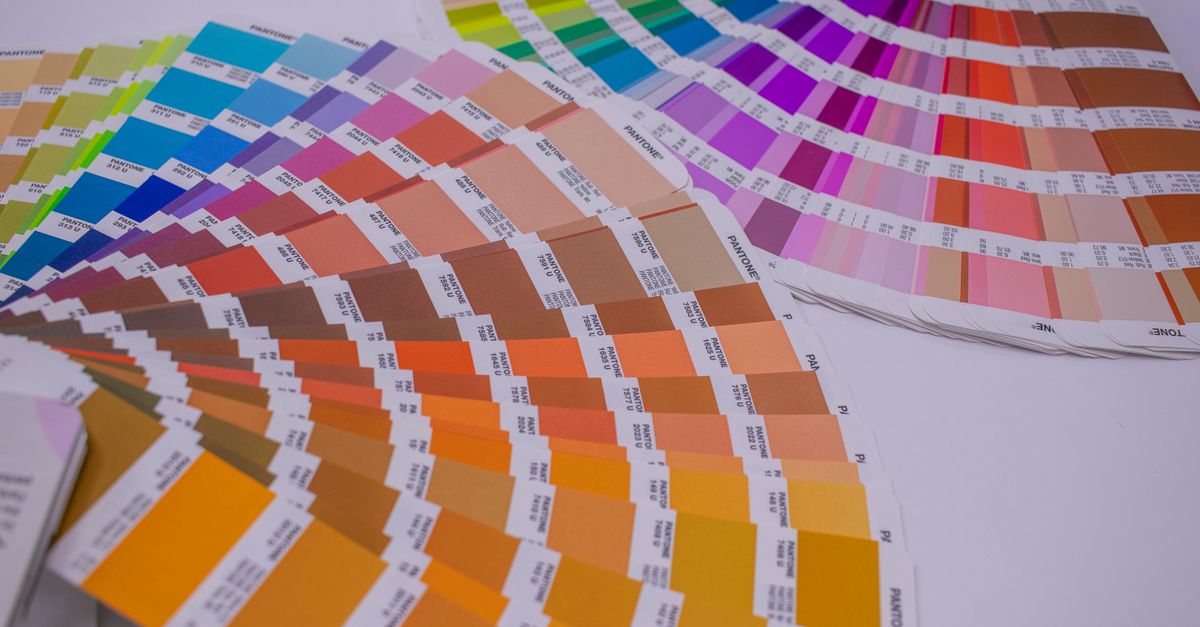
Why RGB and CMYK Matter for Printing
RGB and CMYK are two distinct color models used in design and printing. RGB (Red, Green, Blue) is an additive color model, meaning colors are created by combining light. It’s used for digital displays like monitors, phones, and cameras. CMYK (Cyan, Magenta, Yellow, Key/Black), on the other hand, is a subtractive color model used in printing. Colors are created by layering inks on paper, which absorb light rather than emit it. Because of this fundamental difference, RGB colors often appear more vibrant than their CMYK counterparts.
When you design in Canva, you’re working in RGB by default. If you send an RGB file to a printer, they’ll convert it to CMYK automatically, but this process can lead to color shifts. For instance, a bright red in RGB might print as a muted orange in CMYK. To avoid this, designers convert their colors to CMYK before finalizing their files. The RGB to CMYK Converter simplifies this process by providing the exact CMYK values for any RGB color, so you can adjust your design in Canva or another tool before printing.
| Color Model | Use Case | Color Range | How Colors Are Created |
|---|---|---|---|
| RGB | Digital screens (websites, apps, social media) | Wider gamut, brighter colors | Combining red, green, and blue light |
| CMYK | Professional printing (flyers, business cards, magazines) | Narrower gamut, more muted colors | Layering cyan, magenta, yellow, and black inks |
How to Convert RGB to CMYK in Canva Using the Browser Tool
While Canva doesn’t have a built-in RGB to CMYK converter, you can use the RGB to CMYK Converter to get the exact CMYK values for your design. Here’s how to do it step by step:
- Open the RGB to CMYK Converter in your browser. No installation or signup is required.
- Enter your RGB values. These are typically three numbers between 0 and 255 (e.g., 255, 0, 0 for red). If you’re unsure of your RGB values in Canva, you can find them in the color picker tool.
- View the CMYK percentages. The tool will instantly display the equivalent CMYK values (e.g., 0%, 100%, 100%, 0% for the same red).
- Check the live color swatch. This preview lets you confirm that the converted color matches your original RGB color as closely as possible.
- Click "Copy" next to the CMYK values to save them to your clipboard. You can now paste these values into Canva or another design tool.
- In Canva, open your design and select the element you want to adjust. Use the color picker to manually enter the CMYK values you copied. Note that Canva doesn’t natively support CMYK, so you’ll need to use the closest RGB approximation or export your design as a PDF for professional printing.
Adjusting Your Canva Design for CMYK Printing
After converting your RGB colors to CMYK, you’ll need to adjust your Canva design to ensure it prints correctly. Since Canva doesn’t support CMYK natively, follow these steps to prepare your file for professional printing:
First, use the RGB to CMYK Converter to get the CMYK values for all the colors in your design. Write these down or save them in a separate document. Next, open your Canva design and select each element (text, shapes, backgrounds) one by one. Use the color picker to manually enter the closest RGB approximation of your CMYK values. While this won’t be perfect, it will help minimize color shifts when the printer converts your file to CMYK.
For the best results, export your Canva design as a high-resolution PDF. Most professional printers accept PDF files and can handle the RGB to CMYK conversion on their end. However, providing them with the CMYK values you generated ensures they have a reference for accurate color matching. If you’re working with a print-on-demand service or a local printer, ask them about their preferred file format and color settings. Some printers may request a specific color profile, such as SWOP (Standard Web Offset Printing) or FOGRA39, which you can apply when exporting your PDF.
If your design includes images, ensure they are high resolution (300 DPI or higher) and saved in a print-friendly format like TIFF or PNG. Avoid using low-resolution JPEGs, as they can appear pixelated when printed. For complex designs, consider using a professional design tool like Adobe Illustrator or Photoshop, which offer more control over CMYK settings. However, for most Canva users, the RGB to CMYK Converter combined with a high-quality PDF export will yield excellent results.
Common Color Shifts and How to Avoid Them
When converting RGB to CMYK, some colors shift more dramatically than others. Bright, saturated colors like neon greens, electric blues, and vibrant reds are particularly prone to changes because they fall outside the CMYK color gamut. For example, a bright RGB green (0, 255, 0) might convert to a duller, yellowish CMYK green (100%, 0%, 100%, 0%). To minimize these shifts, use the RGB to CMYK Converter to preview how your colors will look in print and adjust your design accordingly.
Another common issue is with blues, which often take on a purple or greenish tint in CMYK. This happens because CMYK inks can’t replicate the purity of RGB blue light. To avoid this, stick to darker, less saturated blues in your design. Similarly, bright oranges and yellows may appear more muted in print. If your design relies on these colors, consider using a professional printer that offers Pantone spot colors, which can reproduce a wider range of hues than standard CMYK inks.
For designers working on branding or corporate materials, consistency is key. Use the Color Contrast Checker to ensure your text remains readable against background colors after conversion. If you’re designing a logo, test how it looks in both RGB and CMYK to ensure it works across all mediums. The RGB to CMYK Converter makes this easy by providing instant previews and accurate values for any color.
Alternative Tools for RGB to CMYK Conversion
While the RGB to CMYK Converter is the fastest and easiest option for most users, there are other tools and methods for converting colors. Professional design software like Adobe Photoshop and Illustrator offer built-in RGB to CMYK conversion, along with advanced color management features. These tools allow you to adjust color profiles, simulate how your design will look in print, and even soft-proof your work before sending it to a printer. However, they require a subscription and have a steeper learning curve than a browser-based tool.
For Mac users, the built-in ColorSync Utility can convert colors between RGB and CMYK, but it’s less intuitive than a dedicated converter. Online tools like the RGB to HEX Converter can also help you manage color codes, though they don’t provide CMYK values. If you’re working with a print shop, they may offer color conversion services or recommend specific tools for your project. However, for most Canva users, the RGB to CMYK Converter provides everything you need to get accurate, print-ready colors in seconds.
Related guide: Convert RGB to CMYK for Print in Your Browser.
| Tool | Best For | Pros | Cons |
|---|---|---|---|
| RGB to CMYK Converter | Quick, browser-based conversion | Instant results, no installation, free | No advanced color management features |
| Adobe Photoshop/Illustrator | Professional design work | Advanced color profiles, soft-proofing | Subscription required, steep learning curve |
| ColorSync Utility (Mac) | Basic color conversion on Mac | Built-in, no cost | Limited functionality, not user-friendly |
| Print Shop Services | Large or complex print jobs | Expert guidance, high-quality results | Can be expensive, slower turnaround |
If you're weighing options, Convert RGB to HEX and Back in Your Browser Instantly covers this in detail.
If you're weighing options, Create Perfect Color Gradients in Canva with One Tool covers this in detail.
If you're weighing options, Convert RGB to CMYK in Clip Studio for Print-Ready Art covers this in detail.