Converting RGB to CMYK is essential when preparing digital designs for print, as RGB colors (used for screens) and CMYK colors (used for printing) rely on different color models. RGB combines red, green, and blue light to create colors, while CMYK uses cyan, magenta, yellow, and black inks layered on paper. Because these models produce colors differently, a direct conversion can result in noticeable shifts—bright RGB blues may appear dull in CMYK, for example. To avoid surprises when your design goes to print, you need an accurate way to translate RGB values into CMYK percentages. The RGB to CMYK Converter tool solves this by letting you input RGB values (0–255) and instantly see the equivalent CMYK percentages (0–100%), or vice versa. It also displays the color in a live preview, so you can confirm the result matches your expectations before finalizing your print files.
If you’ve ever sent a design to print only to find the colors look completely different, you’re not alone. Many designers work primarily in RGB for digital projects, but printers require CMYK files to ensure accurate color reproduction. The problem arises because RGB can display a wider range of colors than CMYK can reproduce, especially bright greens, blues, and purples. When you convert RGB to CMYK without adjusting for these limitations, your printed materials may appear muted or shifted. For example, a vibrant RGB blue (#0000FF) converts to CMYK 100% cyan and 100% magenta, which can look darker and less saturated in print. Using a dedicated converter helps you catch these shifts early, so you can tweak your design before sending it to the printer. This is especially important for branding materials, where consistent colors are critical.
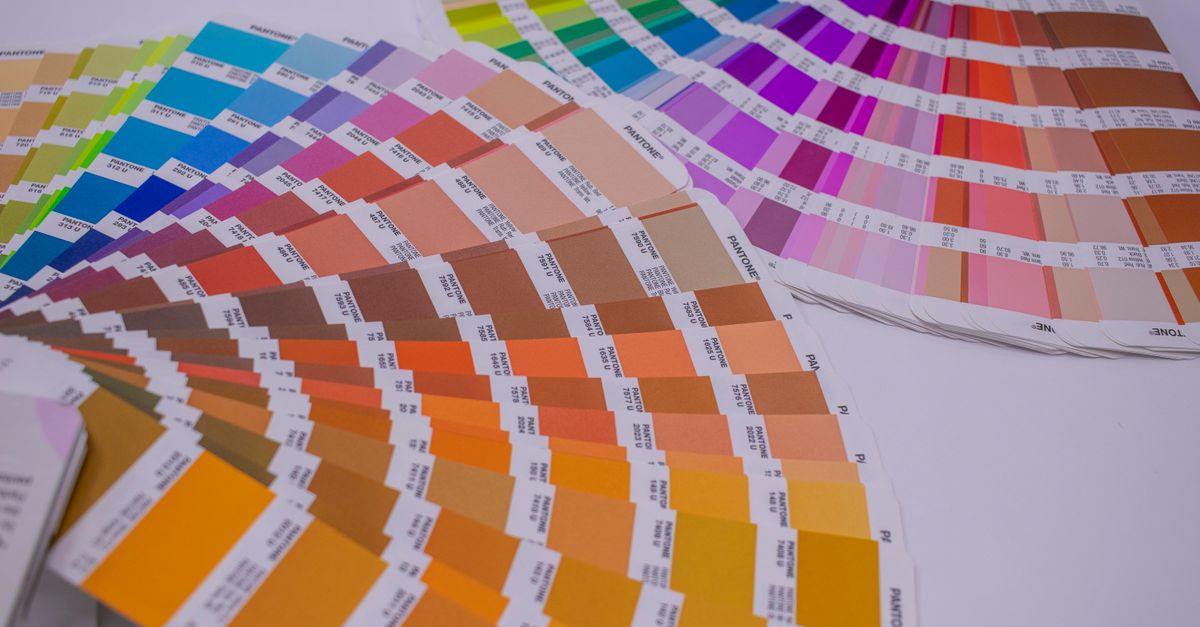
Why RGB and CMYK Are Different
RGB and CMYK serve different purposes because they use fundamentally different methods to create color. RGB is an additive color model, meaning it starts with black (no light) and adds red, green, and blue light to create colors. When all three colors are at full intensity (255, 255, 255), the result is white. This model is ideal for screens, where light is emitted directly to your eyes. CMYK, on the other hand, is a subtractive color model. It starts with white (the paper) and subtracts color by layering cyan, magenta, yellow, and black inks. When all four inks are at 100%, the result is a dark, muddy brown—not true black—which is why black ink (the "K" in CMYK) is added to deepen shadows and improve contrast. This difference explains why colors like bright neon greens or electric blues in RGB often look dull or desaturated when converted to CMYK.
Another key difference is the gamut, or range of colors each model can produce. RGB has a larger gamut than CMYK, meaning it can display colors that CMYK simply cannot replicate. For instance, RGB can produce a pure, vivid cyan (0, 255, 255), but CMYK’s closest equivalent might appear more teal or turquoise. This limitation is why professional designers often adjust their RGB designs manually before converting to CMYK, rather than relying on automatic conversions. Tools like the RGB to CMYK Converter help by showing you the closest possible CMYK match, so you can decide whether to tweak your design or accept the shift. For projects where color accuracy is critical—like logos, product packaging, or marketing materials—this step is non-negotiable.
| Feature | RGB | CMYK |
|---|---|---|
| Color Model | Additive (light) | Subtractive (ink) |
| Primary Colors | Red, Green, Blue | Cyan, Magenta, Yellow, Black |
| Value Range | 0–255 (per channel) | 0–100% (per channel) |
| Best For | Digital screens, web design | Print materials, physical products |
| Gamut | Larger (more vibrant colors) | Smaller (limited by ink) |
How to Convert RGB to CMYK in Your Browser
Converting RGB to CMYK doesn’t require expensive software or complex calculations. With the RGB to CMYK Converter, you can do it in seconds using any web browser. Here’s how:
- Open the RGB to CMYK Converter in your browser. No downloads or signups are needed.
- Enter your RGB values in the fields labeled "R," "G," and "B." Each value should be between 0 and 255. For example, if your color is a bright red, you might enter 255 for R, 0 for G, and 0 for B.
- The tool will automatically calculate and display the equivalent CMYK percentages (0–100%) in the "C," "M," "Y," and "K" fields. You’ll also see the HEX value and a live color swatch preview.
- Review the CMYK values and the color swatch to ensure the converted color matches your expectations. If it looks too dull or shifted, you may need to adjust your RGB values and try again.
- Click the "Copy" button next to the CMYK, RGB, or HEX values to copy them to your clipboard. Paste these values directly into your design software (e.g., Adobe Illustrator, Photoshop, or InDesign) to update your print files.
- If you’re starting with CMYK values and need to convert to RGB, simply enter the CMYK percentages (0–100%) in the "C," "M," "Y," and "K" fields. The tool will display the equivalent RGB values instantly.
When to Use RGB vs. CMYK
Choosing between RGB and CMYK depends on how your design will be used. RGB is the default color model for anything displayed on a screen, including websites, social media graphics, digital ads, and mobile apps. Because screens emit light, RGB can produce a wider range of bright, saturated colors that look vibrant on monitors and phones. If your project is digital-only, you can (and should) stick with RGB to take full advantage of its color range. For example, a social media post or a website banner will look its best in RGB, as the colors will appear exactly as you intended on screens.
CMYK, on the other hand, is the standard for printed materials. This includes business cards, brochures, posters, packaging, magazines, and any other physical product where color is applied via ink. Printers use CMYK because it’s designed to work with the limitations of ink on paper. If you send an RGB file to a printer, they’ll convert it to CMYK automatically, but this can lead to unexpected color shifts. To avoid this, always convert your design to CMYK before finalizing print files. The RGB to CMYK Converter makes this easy by letting you see the converted color in advance, so you can adjust your design if needed. For projects that span both digital and print—like a logo that appears on a website and business cards—you’ll need to create separate files for each medium to ensure consistency.
There are also hybrid scenarios where you might need to use both models. For example, if you’re designing a product label that will be printed but also displayed on an e-commerce website, you’ll need to create two versions: one in CMYK for print and one in RGB for the web. Tools like the Color Palette Generator can help you create matching palettes for both versions, ensuring your brand colors stay consistent across all platforms. Similarly, if you’re working with a team where some members are designing for print and others for digital, using a converter ensures everyone is working with the correct color values.
Common RGB to CMYK Conversion Challenges
Even with a converter, RGB to CMYK conversions can present challenges, especially if you’re new to print design. One of the most common issues is color shifting, where the converted CMYK color looks noticeably different from the original RGB. This happens because CMYK’s smaller gamut can’t reproduce certain RGB colors, particularly bright greens, blues, and purples. For example, a neon green in RGB (e.g., 57, 255, 20) might convert to a duller, more olive-like green in CMYK. To minimize shifts, start with RGB colors that are already within CMYK’s gamut. You can use the RGB to CMYK Converter to test your colors early in the design process, so you can adjust them before finalizing your work.
Another challenge is black handling. In RGB, black is simply (0, 0, 0), but in CMYK, there are multiple ways to create black, each with different results. A "rich black" (e.g., C: 60%, M: 40%, Y: 40%, K: 100%) is deeper and more saturated than a "flat black" (0, 0, 0, 100%), but it uses more ink and may not be suitable for all print jobs. If you’re designing for professional printing, check with your printer to see if they have a preferred black formula. The converter tool can help you experiment with different black values to see how they look in print. For example, you might compare a flat black (0, 0, 0, 100%) with a rich black (60, 40, 40, 100%) to decide which works best for your project.
Finally, color profiles can complicate conversions. Color profiles (like sRGB for RGB or FOGRA39 for CMYK) define how colors are interpreted by devices and software. If your design software and printer use different profiles, the colors in your final print may not match what you see on screen. To avoid this, always use the color profile recommended by your printer. Many converters, including the RGB to CMYK Converter, assume standard profiles (sRGB for RGB and U.S. Web Coated (SWOP) v2 for CMYK), but it’s worth confirming with your printer to ensure accuracy. If you’re unsure, ask your printer for their preferred profile and adjust your files accordingly.
How to Avoid Color Shifts in Print
Color shifts in print are frustrating, but they’re avoidable with the right approach. The first step is to design in CMYK from the start if your project is print-only. While it’s tempting to design in RGB (where colors look more vibrant) and convert later, this often leads to last-minute adjustments when you realize the CMYK version looks dull. Instead, set your design software to CMYK mode before you begin. In Adobe Illustrator or Photoshop, you can do this by selecting "File" > "New" and choosing CMYK from the "Color Mode" dropdown. This ensures you’re working within CMYK’s limitations from the outset.
If you must start in RGB (e.g., for a project that spans digital and print), use the RGB to CMYK Converter early and often. Test your key colors as soon as you choose them, so you can adjust any that shift too much in CMYK. For example, if your brand’s signature blue looks too purple in CMYK, you might tweak the RGB values to something like (0, 102, 204) instead of (0, 128, 255) to get a closer match. The converter’s live preview makes this process quick and visual, so you don’t have to guess.
Another way to avoid shifts is to use a color guide. Many design tools, including Adobe Illustrator and Photoshop, include color libraries that show RGB and CMYK equivalents side by side. These guides are especially helpful for common colors like reds, blues, and greens, where shifts are most noticeable. You can also create your own guide by converting a set of RGB colors to CMYK and saving them as swatches in your design software. This way, you’ll always have a reference for how your colors will look in print. For more advanced control, consider using a Color Contrast Checker to ensure your CMYK colors meet accessibility standards, especially if your print materials include text.
Finally, proof your colors before finalizing your print files. Many printers offer digital proofs or hard-copy proofs (for an additional fee) that show exactly how your colors will look when printed. If you’re working with a high-stakes project—like a product packaging design—this step is worth the investment. Compare the proof to your on-screen design and make adjustments if needed. If you don’t have access to a proof, print a test copy on your own printer (using CMYK settings) to get a rough idea of how the colors will translate. While home printers aren’t as accurate as professional ones, they can still help you catch major shifts before sending your files to the printer.
More on this topic: Convert RGB to CMYK Without Color Shift in Your Browser.
For a deeper look, see Convert RGB to CMYK in Canva for Print-Ready Designs.
For a deeper look, see Convert RGB to CMYK in Clip Studio for Print-Ready Art.
For a deeper look, see Convert RGB to CMYK in Illustrator: Quick Browser Method.