CMYK and RGB are two different languages for describing color: CMYK tells a printing press how much cyan, magenta, yellow, and black ink to lay down on paper, while RGB tells a screen how much red, green, and blue light to fire from its pixels. Because the two systems are built around different physical processes (subtractive ink on a reflective surface versus additive light on a backlit display), there is no single exact mathematical bridge between them, and every conversion is an approximation that depends on which press, ink, paper, and viewing conditions you assume. For a beginner, the most practical way to translate CMYK to RGB is to feed the four ink percentages into a small browser tool that applies the W3C device-CMYK naive formula and immediately shows you the resulting 8-bit red, green, and blue channels, a six-digit hexadecimal value, and a visual swatch. The CMYK to RGB tool does exactly that: move four sliders from 0 to 100 and watch the screen color update, all in your browser, with no upload.
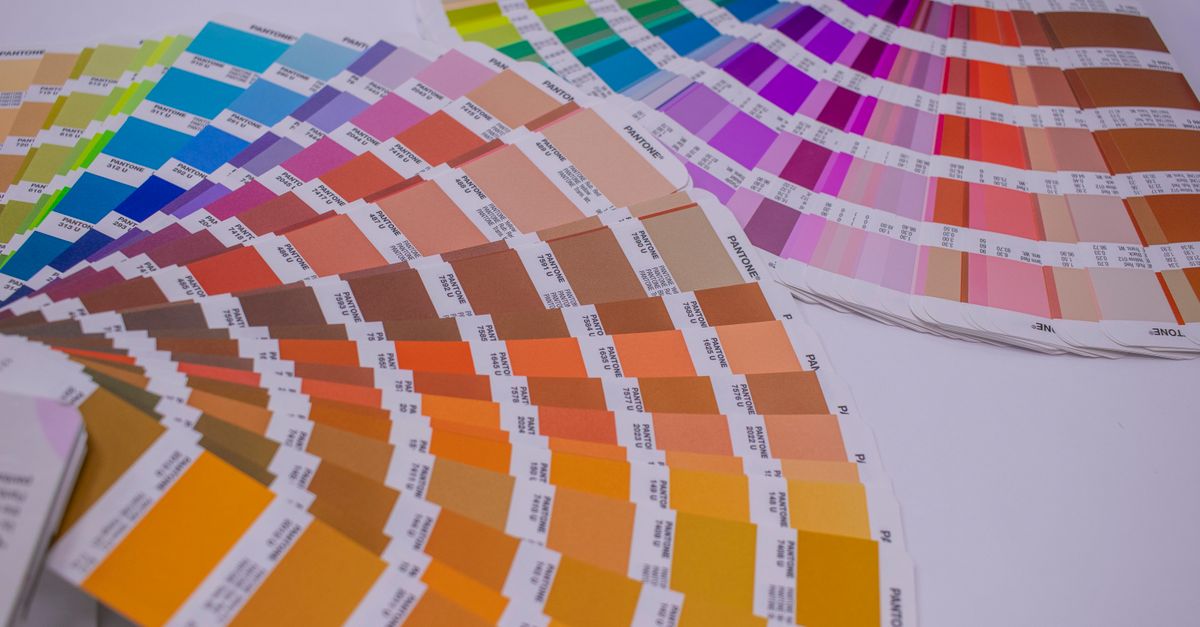
What CMYK and RGB Mean for a Beginner
CMYK is the language of four-color process printing. Each letter is a separate ink tank on a press: Cyan (a blue-leaning ink), Magenta (a red-leaning ink), Yellow, and Key (the printing term for black, chosen so it does not clash with B for blue in RGB). Designers describe a CMYK color as four percentages that describe how much ink the press should put down in each channel. A value of C:0 M:0 Y:0 K:0 means no ink at all, leaving the paper blank. A value of C:0 M:0 Y:0 K:100 means full coverage of black ink on every dot.
RGB is the language of screens. Each pixel is made of three sub-pixels that emit red, green, and blue light, and the screen mixes those three light intensities to produce every visible color. A value of R:255 G:255 B:255 turns all three sub-pixels to maximum, which is white. A value of R:0 G:0 B:0 turns them all off, which is black. The numbers run from 0 to 255 (8-bit channels) and are often shortened to a six-digit hexadecimal code such as #FF0000 for pure red.
The reason this matters for a beginner is that the same named color can look very different in each system. Pure screen red (#FF0000) is a glowing, saturated hue that no ink on paper can match, because ink reflects ambient light instead of emitting it. That gap is exactly why a quick CMYK-to-RGB preview is useful: it gives you a rough idea of how an uncalibrated print recipe will land on a typical sRGB monitor.
The Naive Formula, Plain-English
The browser preview is built on the W3C device-cmyk naive conversion published in the CSS Color Module Level 4 working draft. The idea is simple: each ink covers part of the paper, so the displayed red channel equals the portion of the paper that is not hidden by cyan ink, scaled by the portion that is not already hidden by black ink. The W3C working draft defines each display channel as one minus the minimum of 1 and (colorInk × (1 − black) + black), then scaled to the 0–255 range and rounded to the nearest integer with half-even tie breaking.
In plain English, three things happen in order:
- Normalize. The four sliders (0–100) become fractions between 0 and 1.
- Combine each ink with black. Black is layered on top of the color inks before inverting, so any recipe that includes black ink darkens every channel at once.
- Invert, scale, and round. The fractional result is multiplied by 255 and rounded to a whole number, giving integer R, G, and B channels and a six-digit hex value.
You can read the full derivation in the W3C CSS Color 4 device-cmyk section, and a beginner-friendly walkthrough of the same formula sits in the CMYK to RGB Explained guide. The important point is that this formula is intentionally a naive fallback: it ignores ICC profiles, ink sets, paper, dot gain, and rendering intent.
How to Convert CMYK to RGB in Your Browser
- Open the CMYK to RGB tool in any modern browser.
- Move the cyan, magenta, yellow, and black sliders to the percentages you want to preview. Each slider runs from 0 to 100.
- Read the red, green, and blue channels shown next to the swatch. They update as you drag.
- Copy the six-digit hexadecimal value, for example #B22222, into your screen mockup, CSS, or design file.
- If you only have a hex value to start from and need the CMYK side instead, use the RGB to CMYK Converter to go the other direction.
The calculation runs entirely in the browser, so no color values are sent to a server. That is handy when the recipe came from a client file or an internal palette that you do not want to share.
A Worked Example: Magenta and Yellow to Red
To make the formula less abstract, walk through one CMYK recipe by hand: C:0, M:100, Y:100, K:0. A beginner usually expects this to look red, because in school art class magenta plus yellow makes red. The naive formula agrees.
Step 1, normalize the percentages to fractions: C = 0, M = 1, Y = 1, K = 0.
Step 2, combine each color ink with black, then invert:
- R = 1 − min(1, 0 × (1 − 0) + 0) = 1 − 0 = 1
- G = 1 − min(1, 1 × (1 − 0) + 0) = 1 − 1 = 0
- B = 1 − min(1, 1 × (1 − 0) + 0) = 1 − 1 = 0
Step 3, scale to the 0–255 range and round: R = 255, G = 0, B = 0, giving the hex code #FF0000. That matches pure screen red, which is the exact endpoint the tool promises: full magenta plus yellow with no cyan or black produces red. Drag the sliders in the tool to the same values and you will see the same swatch.
Common Beginner Mistakes
A few habits will save beginners from misreading the preview:
- Treating the hex code as a print target. The hex is a screen color, not a press color. Hand it to a printer and they will translate it back through their own profile, and the press result will not match what you saw on your monitor.
- Assuming the formula respects your real ink. The naive formula ignores which cyan, which magenta, and which paper you actually use. Two presses printing the same CMYK recipe can come out visibly different from each other.
- Rounding in your head. The tool rounds to integer channels with half-even tie breaking. Manually multiplying 0.94 × 255 and rounding by hand can drift by one channel from what the tool displays.
- Forgetting that K touches every channel. Adding black ink darkens red, green, and blue together. It is not just a separate darkness slider sitting next to the color inks.
When a Browser Preview Is Not Enough
The tool is honest about what it is: a quick screen approximation. For any work that will be printed, contractually color-matched, or shown to a client as a press proof, you need a profile-aware workflow. That means the designer works in a calibrated color space, exports with the correct destination CMYK profile, and the printer returns a calibrated proof on the actual paper and stock. Adobe's guide on color conversion and ink management walks through the same idea for PDF workflows, and the Should You Use CMYK or RGB for Print Projects guide gives a beginner-level summary of when each system belongs.
A practical rule of thumb: use the browser preview to compare palette ideas, sketch a UI mockup, or sanity-check that a CMYK recipe lands in roughly the right neighborhood on screen. Keep the original CMYK recipe for anything that goes to press, and let a profile-aware application, not a slider, be the source of truth for the final print.
Quick Reference: Endpoint Checks
| CMYK recipe | Expected screen result | Why it works as a check |
|---|---|---|
| C:0 M:0 Y:0 K:0 | White (#FFFFFF) | All sliders at minimum leave every channel at 255. |
| C:0 M:0 Y:0 K:100 | Black (#000000) | Full black ink forces every channel to 0. |
| C:100 M:0 Y:0 K:0 | Approx. pure cyan | Inverting only cyan leaves blue and green on. |
| C:0 M:100 Y:100 K:0 | Pure red (#FF0000) | Magenta plus yellow with no cyan or black. |
| C:100 M:100 Y:100 K:0 | Approx. dark gray to black | All three color inks stack toward zero on every channel. |
If a recipe you set does not match the endpoint you expect, the most common culprits are a slider that did not quite reach its stop, or a copy-pasted value where one of the four numbers got truncated along the way.