CMYK to RGB conversion uses a simple, device-independent formula that maps four print ink percentages onto the 8-bit red, green, and blue channels a screen can display. For each display channel, the corresponding ink — cyan for red, magenta for green, yellow for blue — is combined with the black channel, inverted, capped at 100%, and scaled to 0–255, following the naive fallback published in the W3C CSS Color specification. The result is fast, predictable, and useful for interface mockups, rough palette comparisons, or any time you need a quick sense of how an unprofiled CMYK recipe might look on an sRGB-style display. The trade-off is that the conversion is explicitly labeled an approximation: real CMYK is tied to a specific press, ink set, paper, dot gain, rendering intent, and ICC profile, so two production devices can produce visibly different colors from the same ink recipe. A browser-based CMYK To RGB tool runs the same naive math entirely on your device so you can preview uncalibrated ink percentages as 8-bit RGB and hex without uploading color values anywhere.
What "CMYK to RGB" Means in Plain English
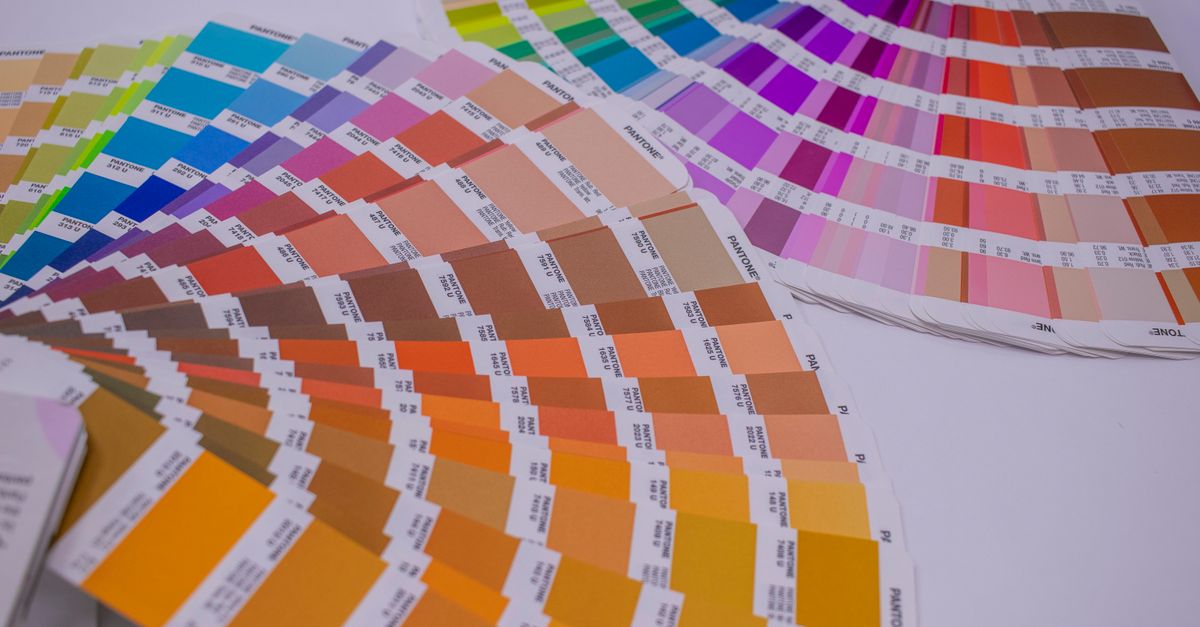
CMYK describes color as four percentages of process ink — cyan, magenta, yellow, and key (black) — that a commercial press layers on paper. RGB describes color as three intensities of light — red, green, and blue — that a monitor emits. The two systems describe the same visual spectrum but in opposite physical terms: CMYK is subtractive and depends on reflected light from ink, while RGB is additive and depends on emitted light from pixels. "CMYK to RGB" is therefore not a one-to-one translation but a best-effort mapping from a four-number ink recipe to a three-number light recipe that an uncalibrated sRGB monitor can render.
When designers, developers, or print buyers ask for a CMYK to RGB conversion, they usually want one of two things: a quick screen preview of an unprofiled ink recipe to drop into a mockup, or a precise translation for production. A naive browser tool can serve the first use case well because the math is deterministic and the endpoints are predictable; it cannot serve the second use case because production-grade color matching requires ICC profiles and a calibrated workflow. Understanding which situation you are in is the first step toward trusting the result.
The Naive Formula Behind the Conversion
The W3C CSS Color specification publishes a naive device-CMYK fallback so that browsers can render CMYK color values without loading a profile. Each display channel is calculated by combining its complementary ink with the black channel, inverting, and clamping the cumulative ink at 100%:
R = 255 × (1 − min(1, C × (1 − K) + K)) G = 255 × (1 − min(1, M × (1 − K) + K)) B = 255 × (1 − min(1, Y × (1 − K) + K))
The percentages are normalized to 0–1 before the formula runs, and the resulting 0–1 values are multiplied by 255 and serialized with half-even rounding so the math lines up with the W3C firebrick reference example. The min(1, …) wrapper is what caps the cumulative ink at 100% so that, for example, a black-only recipe produces zero for every display channel instead of going negative or overflowing. The (1 − K) multiplier scales the colored ink by the remaining "white headroom" after black is layered in, which mirrors how a press subtracts light in stages. You can read the full derivation in the W3C device-CMYK specification.
To see the formula in action, take the recipe (100, 0, 100, 0) — full cyan, no magenta, full yellow, no black. Substituting into the formula:
R = 255 × (1 − min(1, 1.0 × 1 + 0)) = 255 × 0 = 0 G = 255 × (1 − min(1, 0 × 1 + 0)) = 255 × 1 = 255 B = 255 × (1 − min(1, 1.0 × 1 + 0)) = 255 × 0 = 0
The naive output is RGB (0, 255, 0), or hex #00FF00. Cyan ink absorbs red light, yellow ink absorbs blue light, and with no magenta to absorb green, the result is a pure screen green — exactly what you would expect from layering cyan and yellow on paper. The same logic lets you reason about any other recipe: each colored ink subtracts its complementary channel, and black pulls all three channels down together.
What the Approximation Gets Right
Because the formula is closed-form and deterministic, certain well-known CMYK endpoints map to the screen colors you would expect. The following table shows six combinations whose naive RGB output is stable and reproducible, and which the CMYK To RGB tool reproduces without any profile lookup. These are the standard reference inputs you can use to sanity-check any implementation of the formula, and they are exactly what the W3C firebrick example and the tool's primary-endpoint fixtures are designed to verify.
| CMYK (C, M, Y, K) | Naive RGB | What it represents |
|---|---|---|
| 0, 0, 0, 0 | 255, 255, 255 | No ink — paper white |
| 100, 0, 0, 0 | 0, 255, 255 | Full cyan ink |
| 0, 100, 0, 0 | 255, 0, 255 | Full magenta ink |
| 0, 0, 100, 0 | 255, 255, 0 | Full yellow ink |
| 0, 100, 100, 0 | 255, 0, 0 | Magenta + yellow — red |
| 0, 0, 0, 100 | 0, 0, 0 | Full black ink |
These predictable endpoints are why the naive approach is genuinely useful for rough palette work. A designer checking that "full magenta plus yellow with no cyan or black produces red" can verify that intuition in the tool without setting up a color-managed workflow. The implementation also includes independent fixtures for mixed channels beyond the primary endpoints, which is how you can trust the math on recipes like (40, 80, 20, 10) as well as on the textbook cases above.
Why the Result Is Still an Approximation
Real CMYK is not a fixed color space — it is a family of device-dependent spaces whose appearance is shaped by the press, ink set, paper stock, dot gain, rendering intent, and embedded ICC profile of the actual production device. Two presses running the same CMYK recipe can produce visibly different proofs; the same press with different paper can produce visibly different proofs; even the same press and paper with a different rendering intent can shift colors perceptibly. The naive formula takes none of these variables into account, so the resulting RGB is best understood as a starting point rather than a contract.
Profile-aware software handles this by attaching an ICC profile to the source CMYK and another to the destination RGB, then translating colors through a profile connection space. Adobe applications, for example, account for the specific CMYK and RGB color space, the rendering intent, the ink, and the output device when they convert. A browser-based tool that loads no profile will always produce values that diverge from those produced by a calibrated workflow, sometimes by a few RGB steps and sometimes by far more in saturated or near-black regions. That is why the result is deliberately labeled an approximation throughout the W3C specification.
How to Convert CMYK to RGB in Your Browser
- Open the CMYK To RGB tool in any modern browser.
- Adjust the cyan, magenta, yellow, and black sliders, or type the percentages directly, anywhere from 0 to 100.
- Read the live 8-bit red, green, and blue channels, the six-digit hexadecimal value, and the visual swatch on the same screen.
- Copy the hex code or RGB triplet into your interface mockup, color palette, or front-end stylesheet.
- Keep the original CMYK values on hand for any conversation with your printer, who will need them alongside the correct output profile.
The conversion and preview happen locally — no color values are sent to a server, so you can experiment freely with proprietary recipes without exposing client work. Because the page updates immediately as you move a slider, it is a fast way to compare several ink combinations side by side and to spot obvious mismatches between a brand's printed guidelines and a screen mockup. Treat the result as a sanity check on your mockup, not as a press target.
When You Need Profile-Aware Software Instead
A naive browser preview is the right tool for early exploration, palette rough-ins, and quick mockups, but it is the wrong tool the moment color accuracy matters commercially. Press proofs, contractual color targets, packaging dielines, and brand-color reproduction all require ICC profiles, a calibrated display, and physical proofs approved by the print buyer. For those situations, keep the original CMYK values, ask the printer for the correct output profile, and use profile-aware software with a calibrated monitor and a controlled viewing booth. The tool must not be used as a press proof or substitute for a calibrated workflow.
For a deeper read on the trade-offs between working in CMYK versus RGB for any specific print project, the CMYK versus RGB print workflow guide walks through when each model is the safer default. If you need to convert in the other direction — RGB screen colors into CMYK ink percentages — the matching RGB to CMYK Converter runs the inverse math in the same browser without uploading your values.
If you're weighing options, Convert Hexadecimal to RGB Channel Bytes and Alpha covers this in detail.