Use an online metronome when you need a reference pulse set from 30 to 240 BPM to practise scales, rhythm exercises, reading, or a rough tempo. It is most useful when the goal is to follow a beat consistently, rehearse at a chosen pace, or check a passage against an even pulse. The Online Metronome generates clicks locally in the current browser tab, with no microphone access, recording, file upload, account, or server audio involved.
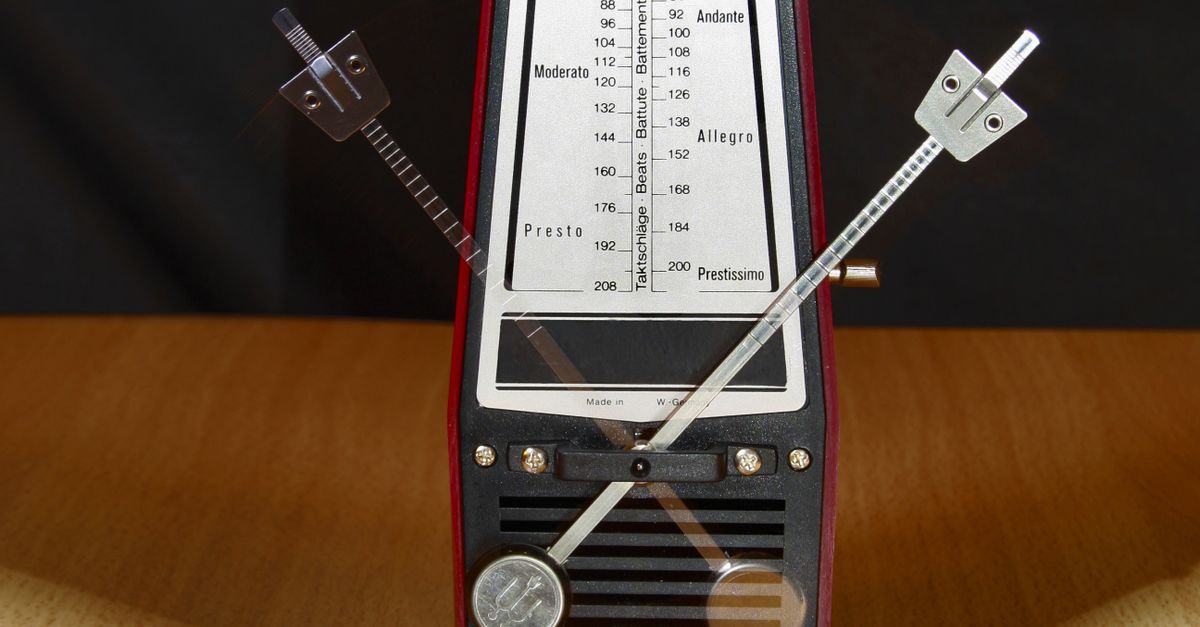
Use it when timing is part of the practice goal
The strongest case for a metronome is a task in which consistency matters more than simply finishing the notes. A regular external click gives you something steady to compare against, whether you are working slowly through a difficult passage or trying to keep a pulse from drifting. An online version is convenient when you want a basic reference in the current browser tab without setting up separate hardware.
It is less suitable when your task depends on precise studio timing or specialized rhythmic features that the browser tool does not provide. The key question is not whether a metronome is always helpful, but whether a simple browser pulse is enough for the result you need.
| Practice task | Why use a metronome | What to focus on |
|---|---|---|
| Scales | Compare each note with a regular pulse | Even starts, releases, and transitions |
| Rhythm exercises | Keep the basic pulse present under the exercise | Consistent entries and coordinated movements |
| Reading | Support a steady beat while moving through notation | Continuity across the passage |
| Rough tempo check | Audition material at a selected whole BPM | Whether the chosen pace suits the passage |
For these ordinary practice goals, choose a tempo that is challenging without making the exercise impossible. Adjust the pulse as your control improves. Because the clicks run locally, using the metronome does not require a microphone or an uploaded recording.
Set up a practice session
- Enter the tempo. Open the Online Metronome and enter a plain whole number from 30 through 240 BPM. The field does not accept decimal points, exponent notation, a BPM unit, signs, surrounding spaces, or a blank value. Numbers below 30 and above 240 fail rather than being rounded or capped.
- Choose the measure length and start. Select one through twelve beats per measure, then select Start. Measure lengths outside that range fail rather than being adjusted to a nearby value.
- Follow the accent. Listen for the higher first-beat click, which marks the beginning of each measure. The remaining clicks in the cycle are lower in pitch, giving you a clear boundary while you practise against the pulse.
- Stop when the session ends. Select Stop before leaving the page. It cancels the next scheduled click, closes the active audio context, resets the visual beat, and returns the tool to a stopped state.
If you edit either the tempo or measure length while the metronome is playing, playback stops before the new value can take effect. Select Start again after making the change.
Match the measure to the exercise
Choose the beats-per-measure setting according to the number of counted beats in one repeating exercise cycle. Each cycle begins with the higher first-beat accent, followed by lower beats for the rest of the selected length. The control records a measure length; it does not create a complete time-signature pattern, secondary accents, subdivisions, swing, or polyrhythm.
| Control | What it does | Supported behavior |
|---|---|---|
| Tempo | Sets the interval between clicks | Whole numbers from 30 through 240 BPM |
| Beats per measure | Defines the length of the repeating cycle | One through twelve beats |
| First-beat accent | Makes the measure boundary easier to hear | Beat one uses a higher pitch |
| Editing a value | Stops the current playback | The new value takes effect after Start |
| Stop | Ends the active sound | Cancels the next click and closes the audio context |
Use the first click to orient yourself at the start of each cycle, then follow the remaining beats without trying to create additional accents yourself. If the exercise uses a different counted cycle, stop playback and restart with the appropriate measure length.
Understand how BPM becomes click spacing
BPM means beats per minute, so the click interval is calculated as 60 divided by BPM. At 120 BPM, the calculation is 60 ÷ 120 = 0.5 seconds per click. A faster tempo creates shorter spacing between clicks, while a slower tempo creates longer spacing.
The browser schedules the next callback from that calculated interval. This makes the tool appropriate as a practical pulse for ordinary practice and tempo reference, but it does not measure or compensate for latency elsewhere in your audio setup.
Use the accent and volume appropriately
The first beat uses a 1320 Hz tone, while later beats use an 880 Hz tone. These frequencies are product cues for distinguishing the measure boundary; they are not claims about a standardized concert pitch, note name, or tuning system.
Actual loudness depends on device volume, speakers, headphones, browser gain, and the listening environment. Begin with the device volume low, especially when using headphones, and raise it only enough to follow the pulse comfortably. The metronome is not hearing protection or a calibrated sound-pressure source, so it should not be treated as one.
Know when browser timing is not enough
The Online Metronome is not a sample-accurate studio clock. Although the browser's Web Audio API supplies the audio tools used to create the clicks, the next click is scheduled through a browser callback. Background tabs, power-saving modes, a busy main thread, Bluetooth latency, browser policies, and operating-system scheduling can all delay the sound you hear.
Keep the metronome tab active and in the foreground when regular timing matters. If the browser is also handling demanding work, the audible clicks may not arrive at perfectly even intervals even though the displayed BPM remains unchanged. A displayed BPM therefore should not be treated as proof of sample accuracy under every condition.
Choose a different workflow if you require DAW synchronization, a MIDI clock, tap-tempo analysis, latency calibration, subdivision patterns, swing, polyrhythm, or recording alignment. The tool does not claim those capabilities. For recording work that depends on exact alignment, use a synchronization method designed for that purpose and verify its timing in the actual recording environment.
Stop cleanly and finish the session
Select Stop before navigating away, even though the same cleanup also runs when the tool leaves the page. A clean stop clears the scheduled timeout, closes the audio context, cancels the next click, resets the displayed beat, and prevents the tool from remaining in a playing state.
If Web Audio is unavailable or the audio startup is rejected, the tool shows an error and does not leave a stale playing state. For ordinary practice, the best workflow is straightforward: choose a manageable tempo, select a measure length that matches the exercise, follow the first-beat accent, and stop when finished. Use the browser metronome when a lightweight reference pulse is enough—not when the task demands a precision synchronization system.
If you're weighing options, Online Metronome vs. Manual Beat: When to Use Each covers this in detail.
If you're weighing options, Why Is Beat One Higher When I Use an Online Metronome? covers this in detail.