Use an online metronome instead of tapping manually when you want a repeating reference pulse for scales, rhythm exercises, or reading. The browser-based Online Metronome generates clicks locally, so you can set a tempo and measure without installing an app, using a microphone, or uploading audio.
The important choice is what you want your attention to focus on. If you must produce every click yourself, you are coordinating the notes and the pulse at the same time. An external click gives you one repeating reference to match. If the goal is to develop an internal sense of time, practicing without that reference can be more useful.
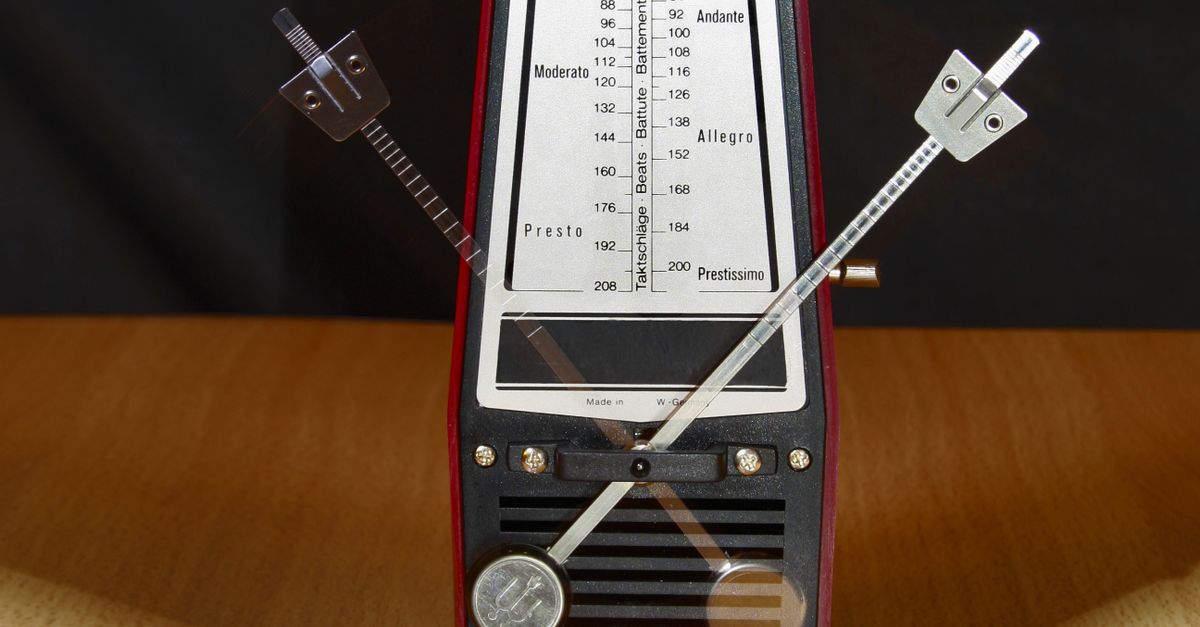
Online click versus manual pulse
“Doing it manually” can mean tapping your foot, patting a surface, clicking an object, counting aloud, or trying to maintain an internal pulse. These approaches place different demands on you. A self-tapped beat adds a motor timing task, while a metronome asks you to listen and respond.
| Decision point | Online metronome | Manual pulse |
|---|---|---|
| Primary task | Listen for and match an external click | Create and monitor your own pulse |
| Tempo | Accepts a whole target from 30 to 240 BPM | Has no fixed numerical setting and can vary |
| Measure | Uses one to twelve beats, with a higher first-beat accent | Requires you to count or mark the downbeat |
| Best training aim | Scales, rhythm drills, reading, and rough tempo checks | Internal pulse, timing independence, and awareness of changes in your own pace |
| Main limitation | Browser scheduling can delay clicks, so it is not a sample-accurate studio clock | The reference can speed up, slow down, or lose its accent with you |
A useful rule is to choose the online method when you know the target tempo but want help remaining with it. Choose the manual method when you are trying to feel the beat from inside rather than follow one. If a live ensemble, teacher, or backing track already supplies the pulse, an additional metronome may only compete with that source unless an external reference is precisely what you want.
Choose the method that matches the practice goal
Choose an online metronome for drills where matching a prescribed pulse is the main objective. It is particularly suitable when you are:
- Working on scales at a chosen whole tempo from 30 through 240 BPM.
- Practicing rhythm exercises and needing a clear start to each measure.
- Reading music while keeping the count of one through twelve beats.
- Checking a rough tempo before attempting a passage.
- Working without a physical metronome and wanting a simple browser-based reference.
Keep the pulse manual when your aim is to become less dependent on an outside sound. Manual practice helps you monitor whether your own tempo stays even, whether you can locate the downbeat, and whether a passage feels balanced without a click. Tapping by hand can also be a deliberate coordination exercise, but it is not an independent timing check: when your taps become uneven, the supposed reference becomes uneven too.
Neither method is automatically superior. The online click is useful for exposing differences between your playing and a reference, while manual pulse work tests whether you can reproduce that timing without assistance. Using both roles in sequence gives you more information than treating either one as a complete test of rhythm.
Set the tempo, meter, and start cleanly
For ordinary practice with the browser tool, configure both values before you begin and use the accented first beat to orient yourself.
- Open the Online Metronome in your browser. Begin with your device volume low, especially when using headphones, because your speakers, headphones, browser gain, and listening environment determine the actual loudness.
- Enter a whole tempo from 30 through 240 BPM. The tempo field accepts untrimmed whole-number entries. Signs, spaces, decimals, exponent notation, units, blank values, and tempos below 30 or above 240 fail instead of being rounded or capped.
- Choose a whole measure length from one through twelve beats. Spaces, signs, decimals, exponent notation, units, blank values, and measure lengths outside the accepted range also fail. This setting controls the repeating cycle; it does not add subdivision, swing, or polyrhythm patterns.
- Select Start. The tool creates a simple repeating click in the current browser tab. Beat one has a higher pitch, making the start of each measure easier to distinguish from the remaining beats.
- Listen for the higher first-beat accent and follow that boundary while you practice. The intended click interval is calculated as 60 ÷ BPM. For example, at 120 BPM, 60 ÷ 120 = 0.5 seconds between clicks.
- If you edit either the tempo or measure length, playback stops before the new value can take effect. Review the changed value and select Start again. Select Stop before leaving the page to close the audio context and cancel the next scheduled click.
What browser timing can and cannot guarantee
The Online Metronome produces short oscillator-based clicks locally rather than streaming an audio file from a server. The W3C Web Audio API provides the browser interface used for this kind of sound generation. The tool requests no microphone access and includes no recording, file-upload, account, or server-audio workflow.
That lightweight design makes the tool well suited to practice and tempo reference, but it also establishes its limits:
- It is not sample accurate. Background tabs, power-saving modes, busy browser main threads, Bluetooth latency, browser policies, and operating-system scheduling can delay audible clicks.
- It is not a studio synchronization source. The tool is not designed or documented for DAW synchronization, MIDI clock, latency calibration, recording alignment, subdivision patterns, swing, or polyrhythm.
- Tap-tempo analysis is not supported. Enter a tempo manually instead of expecting the tool to calculate one from your taps.
- The output is not calibrated. The click is a simple practice cue, not a standardized tuning pitch, a calibrated sound-pressure source, or hearing protection.
- Browser startup can fail. If Web Audio is unavailable or startup is rejected, an error appears and the tool does not leave a stale playing state.
Keep the browser tab active when accurate click timing matters most. If you need exact sample positions, synchronized recording, or advanced rhythmic subdivisions, treat this tool as a lightweight practice aid rather than a substitute for a clock designed for those tasks.
Use both methods without confusing their roles
A short comparison routine can show what the online click is helping you correct:
- Choose a whole tempo within the supported range and a measure length that matches the exercise.
- Start the metronome and play while listening closely to the accented first beat.
- Stop the click and reproduce the pulse manually by clapping, tapping, counting, or maintaining an internal beat.
- Start the metronome again and compare your manual pulse with its target interval and measure boundary.
- Adjust the tempo or measure as needed, then select Start again because editing either value stops playback.
This sequence separates two questions: the online click reveals where your timing differs from the reference, while the manual phase shows how much of that timing you can produce without help. For additional practice structures, see how to use a metronome online for practice.
The best choice ultimately depends on the result you need. Use the online metronome when an external reference will make a drill clearer and more consistent. Use manual pulse work when independence, internal awareness, or deliberate coordination is the goal. Keeping those roles distinct prevents the click from becoming either an unnecessary distraction or an unrealistically precise benchmark.
If you're weighing options, Why Is Beat One Higher When I Use an Online Metronome? covers this in detail.