The peak-column count should equal the smaller of the requested width, 1,000, and the decoded frame count.
When you generate an audio waveform, double-check the source limits, decoded frame count, requested dimensions, colors, reported column count, preview, and downloaded SVG before treating the graphic as final. These checks distinguish a valid rendering from an output that does not match your intended use.
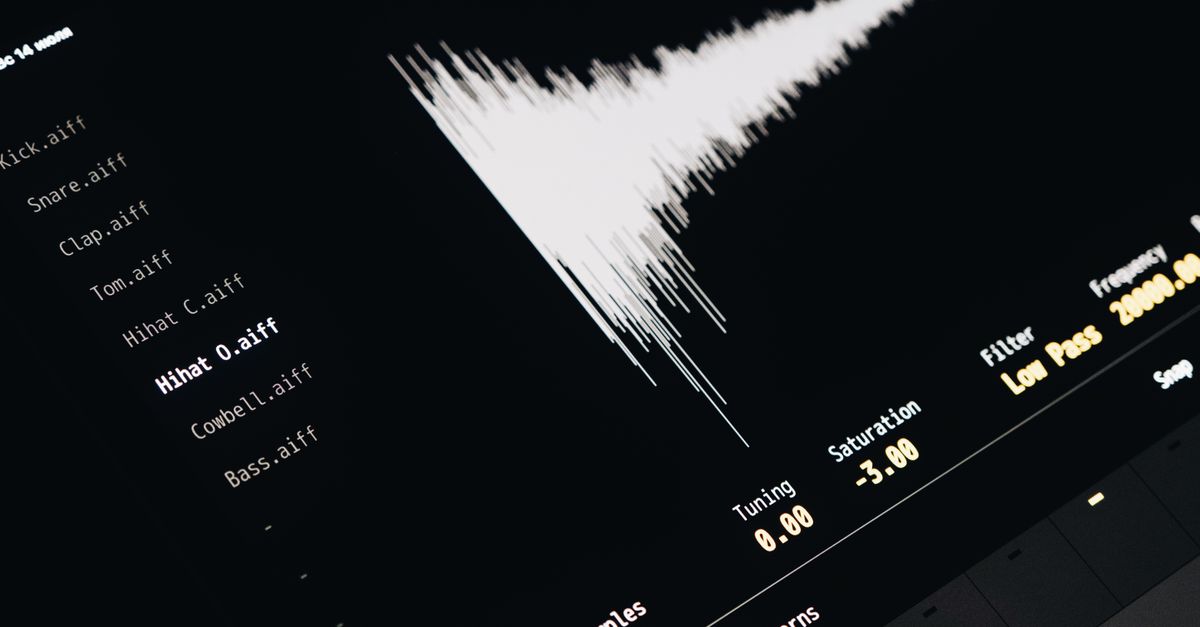
A peak waveform summarizes decoded sample amplitudes over time. It does not measure frequency content, calibrated loudness, phase, beats, notes, or musical structure, so the visual should also be checked against the kind of information you expect it to communicate.
The checks that matter most
Use this short verification pass before downloading or publishing a waveform:
- Source: Make sure the preview represents the one audio file you selected, not a previous selection.
- Eligibility: Confirm that the compressed and decoded audio meet every size, duration, channel, sample-rate, and channel-sample limit.
- Counts: Compare the reported decoded frame count and peak-column count with the expected relationship between frames and output width.
- Appearance: Verify the requested width, height, background color, and waveform color.
- SVG contents: Inspect the generated markup for the expected dimensions, viewBox, colors, background rectangle, and peak lines.
- Interpretation: Check that a combined peak envelope meets your needs and that you are not expecting a spectrogram, channel-separated display, or loudness report.
Confirm the file is eligible for local decoding
The selected file must be decodable by the current browser and operating system. The tool can read MP3, WAV, M4A, AAC, Ogg, WebM, and FLAC, but a supported extension or MIME label does not guarantee that the browser supports the file's real codec. Browser decoding is based on the decoded-frame and channel data represented by the Web Audio AudioBuffer model.
Unsupported, corrupt, empty, or disguised files produce an error. The whole file is also rejected when it exceeds a decoded-data limit; the tool does not quietly create a waveform from only the beginning.
| Item to verify | Accepted range or required behavior |
|---|---|
| Compressed file | At most 50 MiB |
| Decoded duration | No more than five minutes |
| Decoded channels | One through eight |
| Decoded sample rate | 8,000 through 192,000 Hz |
| Decoded audio size | No more than 30 million channel samples |
| SVG width | 320 through 1,600 pixels |
| SVG height | 120 through 600 pixels |
| Colors | Six-digit hexadecimal values from the browser color controls |
| Output | A static, text-based SVG |
| Processing location | Decoding, peak extraction, generation, preview, and download occur in the current browser tab |
Generate and check the waveform in the browser
- Choose one audio file. Open the Audio Waveform Generator, select a supported file, and confirm that it meets the compressed-file and decoded-audio limits. Do not assume that a WAV or MP3 extension alone guarantees successful decoding.
- Set the output dimensions and colors. Choose an SVG width from 320 through 1,600 pixels and a height from 120 through 600 pixels. Select the background and waveform colors using six-digit hexadecimal values.
- Generate the local peak envelope. Start the generation process and wait for the reported frame count, peak-column count, preview, and SVG inspector to appear. The source audio and resulting graphic remain local during this workflow.
- Verify the column count. The number of peak columns should be the smaller of the requested image width, 1,000, and the decoded frame count. A short recording therefore has fewer independent peak measurements, while the upper bound keeps a long recording within a manageable SVG and processing budget.
- Inspect the preview and SVG text. Look for the correct dimensions, background, waveform color, horizontal spacing, and overall amplitude pattern. Open the expandable SVG inspector and confirm that the markup describes the same fixed canvas and peak set shown in the preview.
- Download the exact SVG. Save the generated string and verify that it opens in an SVG-aware editor with the expected pixel dimensions, matching viewBox, one background rectangle, and the peak-line group. The download is SVG text, not PNG, JPEG, video, or audio.
- Regenerate after any change. If you replace the file or alter an option, generate again and recheck the preview and counts. Obsolete object URLs are revoked so an older image cannot appear to represent the new input.
The envelope divides decoded frames into contiguous integer-index ranges. For each range, the generator uses the minimum and maximum finite sample values across every decoded channel, clamps defensive out-of-range values to the interval from negative one through positive one, and draws one vertical line between those extrema. The first range starts at frame zero, the last reaches the final decoded frame, and accepted frames are not omitted between adjacent ranges.
Match the reported counts and geometry to the SVG
The generated geometry is deterministic, so a mismatch is a reason to check the input or settings rather than an expected variation. Compare the reported values with the following defined behavior.
| Check | Expected result | Reason to verify |
|---|---|---|
| Peak-line count | Matches the reported column count and the smaller of the requested width, 1,000, and decoded frame count | Confirms that the expected number of buckets was rendered |
| Canvas | Fixed pixel width and height with a matching viewBox | Keeps the SVG dimensions predictable |
| Horizontal placement | Columns are evenly centered across the requested width | Reveals missing, duplicated, or misplaced columns |
| Vertical center | Half of the requested image height | Provides a consistent baseline for the envelope |
| Full-scale reach | Positive and negative full-scale samples extend 45 percent above or below the center, leaving a five-percent top and bottom margin | Confirms the defined amplitude mapping |
| Colors | Background and waveform colors exactly match the selected hexadecimal values | Prevents an unnoticed color mismatch |
| SVG structure | One background rectangle and a group of peak lines | Shows that the expected static elements were generated |
| Preview and download | Both use the identical generated SVG string | Prevents the saved file from differing from the inspected result |
Read combined-channel output in context
Stereo and multichannel audio is rendered as one combined peak overview. Each bucket takes its minimum and maximum across all accepted channels, so the minimum may come from one channel while the maximum comes from another. The waveform does not preserve channel identity visually, create separate left and right lanes, or average the channels into a new audio signal.
If the project requires separate channel waveforms, use an audio editor that exposes each channel as its own track. The generated SVG also does not rewrite the original audio; it is an independent visualization of the decoded material.
Separate peak information from unsupported conclusions
Time runs from left to right, while each vertical line represents the minimum-to-maximum sample range in its bucket. That makes the result a time-domain peak envelope, not a spectrogram. The vertical position does not represent frequency, and the image does not reveal beats, notes, transients, speech content, or musical structure.
A peak waveform is also not a calibrated loudness meter. Two recordings can have similar visible peaks yet sound different because perceived loudness depends on duration, frequency balance, dynamics, and playback conditions. Do not use the picture to diagnose hearing or equipment problems, establish clipping history, inspect phase, or judge mastering compliance.
Complete the final file and privacy checks
Open the downloaded SVG in an SVG-aware editor and confirm the dimensions, viewBox, colors, background, and peak count. The vector output remains sharp when displayed at another size, but extremely large print or editing workflows may require different stroke widths or more detailed source data than this bounded envelope provides.
If keeping the source private is part of your requirement, the processing model provides a clear answer: the audio file is decoded, the peak envelope is calculated, and the SVG is generated and downloaded in the current tab. Neither the selected audio nor the generated graphic is uploaded to Lizely.
If you're weighing options, What Should I Know Before I Generate an Audio Waveform? covers this in detail.
If you're weighing options, When Should I Generate an Audio Waveform for an SVG? covers this in detail.