Before you generate an audio waveform, check that one file is browser-decodable and remains within 50 MiB compressed, five minutes decoded, 1–8 channels, 8,000–192,000 Hz, and 30 million channel samples. Those preflight checks determine whether a static, time-domain peak SVG can be produced; they also stop you from expecting a spectrogram or a calibrated loudness report.
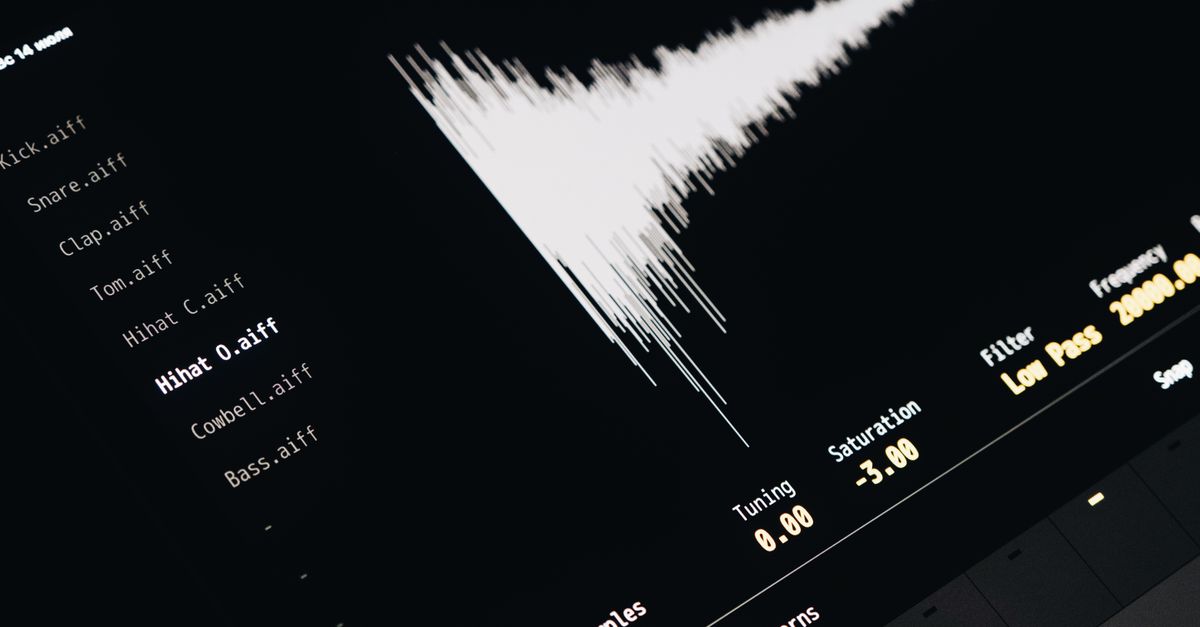
The important distinction is what the picture represents. This tool draws the minimum and maximum decoded sample values over time, not frequency content. That makes it useful as a compact visual overview of an audio file while leaving analysis of loudness, rhythm, notes, and other signal properties to dedicated tools.
Check the File and Browser First
Choose one file, not a batch. The accepted media types are MP3, WAV, M4A, AAC, Ogg, WebM, and FLAC, but the current browser and operating system must support the file’s real codec. A familiar extension or MIME label cannot guarantee that decoding will work. Unsupported, corrupt, empty, or disguised files return an error instead of producing a misleading picture.
| Check | Supported requirement | Practical meaning |
|---|---|---|
| File selection | One browser-decodable audio file | Batch processing is outside this workflow. |
| Media type | MP3, WAV, M4A, AAC, Ogg, WebM, or FLAC | The current browser and operating system must support the actual codec. |
| Compressed size | At most 50 MiB | Larger source files are rejected. |
| Decoded duration | No more than five minutes | The complete decoded recording must fit the limit. |
| Channel count | One through eight | All decoded channels contribute to one combined overview. |
| Sample rate | 8,000 through 192,000 Hz | Rates outside this range are rejected. |
| Decoded workload | At most 30 million channel samples | Highly compressed audio can still exceed this budget. |
All limits are checked against decoded audio as well as the compressed file. A compact file can expand into many more decoded channel samples, so passing the byte-size check does not guarantee that duration, channel count, sample rate, or workload is acceptable. An over-limit file is rejected as a whole; the tool does not silently process only its opening section. Decoding, peak extraction, SVG generation, previewing, and downloading all happen in the current tab, and neither the audio file nor the generated graphic is uploaded to Lizely.
Decide the SVG Size and Appearance Before Generating
Choose dimensions that match the place where the graphic will appear. The supported width range is 320–1,600 pixels, and the supported height range is 120–600 pixels. The output retains the requested pixel dimensions and a matching viewBox. It is a vector file, so it remains sharp when displayed at another size; extremely large print or editing jobs may still call for different stroke widths or more detailed source data.
| Control | Available setting | What to account for |
|---|---|---|
| SVG width | 320–1,600 pixels | Width participates in the upper limit for the number of peak columns. |
| SVG height | 120–600 pixels | The vertical center and full-scale peak positions follow the requested height. |
| Background color | Six-digit hexadecimal value | The background is written as one SVG rectangle. |
| Waveform color | Six-digit hexadecimal value | The color is applied to the generated peak lines. |
Use six-digit hexadecimal values for both colors. The selected background becomes one background rectangle, while the waveform color applies to the generated peak lines. Because the SVG is generated from validated numbers and color values rather than copied from a filename or embedded source metadata, review the visible result and the SVG text rather than expecting file tags to control the appearance.
Understand the Peak-Envelope Method
After decoding, the tool divides all decoded frames into contiguous, equal index ranges. For each range, it finds the minimum and maximum finite sample across every decoded channel, clamps defensive out-of-range values to -1 through 1, and draws one vertical line from that bucket’s maximum to its minimum. The decoded channel data comes from the browser’s Web Audio AudioBuffer, rather than from treating the filename as visual data. The first range starts at frame zero, the last reaches the final decoded frame, and no accepted frame is omitted between adjacent ranges.
The number of peak columns is the smaller of three values: requested image width, 1,000, and decoded frame count. A short clip therefore cannot imply more independent measurements than it contains, while long input remains within a bounded SVG and processing budget. Each column is centered at an evenly spaced horizontal position across the requested width. Full-scale positive or negative samples extend to 45% of the requested height above or below the vertical center, leaving a five-percent margin at the top and bottom.
For stereo and multichannel files, every bucket is combined across all channels. Its minimum may come from one channel and maximum from another. The result is one combined peak overview, not separate left and right lanes, a visual record of channel identity, or an averaged replacement signal. If you need each channel displayed separately, use an audio editor that exposes each channel as its own track. The source audio itself is never rewritten.
Generate the Waveform in the Browser
- Open the Audio Waveform Generator and choose one browser-decodable file that meets the input limits.
- Set the SVG width and height, then choose the background and waveform colors using six-digit hexadecimal values.
- Generate the local peak envelope and let the current tab decode the file and build the SVG.
- Check the reported frame count and peak-column count, then inspect either the preview or the expanded exact SVG text.
- Download the exact scalable SVG. The file is text-based SVG rather than PNG, JPEG, video, or audio, and the downloaded string is identical to the one shown in the SVG inspector.
Replace a file or change a setting before generating again if you want a different result. Selecting a replacement, changing an option, generating again, or leaving the page revokes the obsolete object URL, preventing an older image from appearing to represent the new inputs.
Verify Counts and Inspect the Downloadable SVG
The reported counts are the quickest way to catch an unexpected result. The frame count should correspond to the decoded input, and the peak-column count should agree with the smaller of the requested width, 1,000, and that frame count. If the audio is unexpectedly short, the column count may be limited by the number of decoded frames rather than by the image width.
Open the expandable SVG inspector and check the width, height, viewBox, background color, and peak-line group. The markup contains one background rectangle and a group of peak lines; the download uses the identical SVG string, not a separately rendered image. This makes it possible to open the file in an SVG-aware editor, inspect it, and reuse it as an editable asset. A filename or embedded source tag is not copied into the generated markup, so visual and structural checks are more reliable than expecting metadata to appear in the SVG.
Use the Graphic Only for What a Peak Waveform Shows
A peak waveform is not a calibrated loudness meter. Two recordings can have similar visible peaks while sounding very different because perceived loudness also depends on duration, frequency balance, dynamics, and playback conditions. It is not a spectrogram either: time runs from left to right, but each vertical line shows an amplitude range rather than frequency. The graphic does not calculate frequency content, beats, notes, loudness, speech, transients, or musical structure.
Do not use the image to diagnose hearing, equipment problems, clipping history, phase, or mastering compliance. Use it for what it actually represents: a deterministic, scalable overview of decoded sample peaks over time. That makes it suitable for illustrating a clip, previewing the shape of an audio file, or bringing a vector waveform into an SVG-aware editing workflow. For separate channel lanes or richer signal analysis, use a tool designed for that specific task instead.
Related reading: When Should I Generate an Audio Waveform for an SVG?.