A three-band audio equalizer applies one peaking biquad filter at each of three fixed center frequencies (100 Hz for Bass, 1,000 Hz for Mid, and 10,000 Hz for Treble), measures the resulting peak across every processed sample, and outputs a complete PCM16 WAV with one uniform scale factor applied only when the raw peak exceeds 0.99. Each band uses a Q value of 1 and the peaking-EQ biquad equations published in the W3C Audio EQ Cookbook, so positive values boost energy around a center frequency and negative values cut it. Decoding, filtering, peak measurement, scaling, and WAV encoding all run inside the current browser tab, which means source bytes, decoded samples, EQ settings, filenames, and the final result never leave the device. This page walks through what the three controls actually change, what the downloaded WAV contains, how the safety scale behaves, and how to run the equalizer from start to finish using the Audio Equalizer tool.
What the Three Controls Actually Do
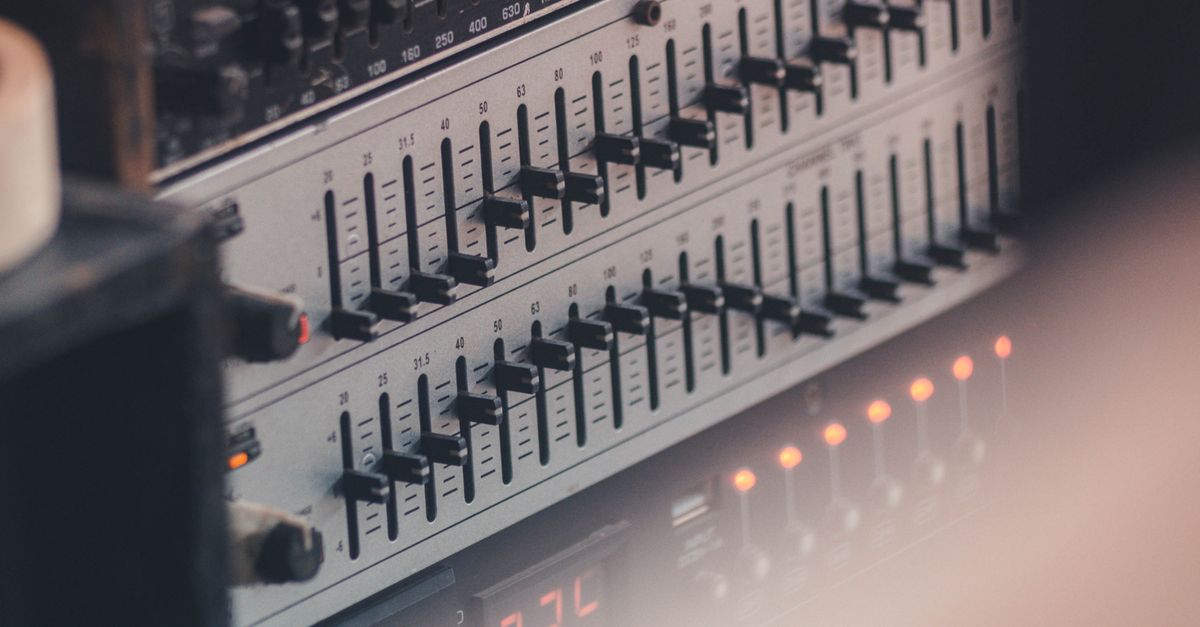
The Audio Equalizer is a compact three-band processor, not a graphic ten-band system or a linear-phase mastering engine. Bass is centered at 100 Hz, Mid at 1,000 Hz, and Treble at 10,000 Hz whenever the decoded sample rate permits those positions. At a low sample rate, the Treble center is reduced to 45 percent of that sample rate so it stays below the Nyquist limit rather than asking an invalid digital filter to operate outside the available spectrum. Each band uses a disclosed Q value of 1, which is a product choice that produces a broad adjustment; Q cannot be changed on the page and is not inferred from the source file.
The page converts each integer decibel gain, from minus 12 through plus 12 dB, into the coefficient parameter defined by the W3C Audio EQ Cookbook. For a peaking filter, the linear amplitude used inside the biquad coefficient formulas is A = 10^(dB/40), so a gain of plus 6 dB produces A = 10^(6/40) = 10^0.15, which works out to roughly 1.413. That amplitude feeds into the standard peaking-EQ biquad equations, which the tool normalizes by a0 and applies as a second-order recursive filter over each decoded channel. The three sections cascade in Bass, then Mid, then Treble order, so the order of application is fixed and identical for every file you process.
What Happens at Zero dB
Setting Bass, Mid, and Treble to zero is a genuine flat path. In that configuration the tool copies the decoded channel samples without running a nonzero filter section, so the output peak equals the raw peak of the source. This is the right baseline for verifying that a transfer behaves correctly, because any change from the source numbers at 0 dB on every control points to a real issue rather than the intended effect of EQ. It also gives you an honest reference level when you A/B compare a boosted version against the original at a similar perceived loudness.
Because cascading peaks can still exceed digital full scale even when the unprocessed source was clean, the safety scale described in the next section can still trigger at 0 dB if the source itself was already above 0.99. Treating 0/0/0 as a reference rather than a guarantee of unchanged output keeps your expectations aligned with how the tool reports its measurements.
How the Safety Scale Changes Output Level
Positive gains can create samples above digital full scale even when the source did not clip. Before the WAV encoder runs, the tool measures the absolute peak across every processed sample and every channel. When that raw peak exceeds 0.99, one uniform scale factor reduces the entire processed result so the largest magnitude lands at exactly 0.99. The interface reports the raw peak, the output peak, and the exact safety scale that was applied, which means you can see numerically whether scaling fired and by how much.
This step prevents the PCM encoder from independently chopping individual peaks, but it can reduce the overall level because the scale is uniform rather than per-band. It is not loudness normalization, and it does not target LUFS, RMS, replay gain, or any streaming-platform specification. If you need loudness normalization to a broadcast target, a full audio editor with a dedicated loudness meter remains the right tool, and you can plan the workflow with the practical guide on how to equalize audio in a practical three-band walkthrough.
What the Downloaded WAV Contains
The download is a brand-new uncompressed PCM16 WAV. It does not keep the original MP3 or AAC bitrate, compression mode, tags, artwork, chapters, loop markers, or any container-specific metadata, because none of those properties survive a decode-and-re-encode round-trip. Float samples are converted to signed 16-bit little-endian PCM and interleaved by frame, and the WAV header records the actual channel count, sample rate, byte rate, block alignment, bit depth, and complete data length. The header format follows the standard layout documented in the Microsoft WAVEFORMATEX reference.
Web Audio may resample while decoding, so the result reports and writes the decoded sample rate rather than claiming the source container rate survived unchanged. Each channel keeps the same number of sample frames, and all accepted channels are filtered independently with identical settings. The following table summarizes what changes and what stays the same between your source file and the equalized output.
| Property | Source file | Output WAV |
|---|---|---|
| Container format | MP3, WAV, M4A, AAC, Ogg, WebM, or FLAC (when the browser supports the codec) | RIFF WAV |
| Encoding | Source-dependent compressed or PCM | Uncompressed PCM16 little-endian |
| Sample rate | Original container rate | Decoded rate reported by Web Audio |
| Channels | 1 through 8 | Same count, same frame length |
| Tags, artwork, chapters, loop markers | Preserved in the container | Not carried over |
| EQ applied | None | Three cascaded peaking biquads with Q=1 |
| Peak handling | Source-dependent | One uniform scale to 0.99 if raw peak exceeded that level |
How to Run the Equalizer Step by Step
The page is designed to be repeatable, so each run starts with a fresh file selection and ends with a fresh download. Follow these steps to go from a source file to a complete PCM16 WAV with the three-band filter applied.
- Choose one browser-decodable audio file. The tool accepts MP3, WAV, M4A, AAC, Ogg, WebM, or FLAC when the current browser and operating system support the actual codec. A familiar extension is not a guarantee, because containers can hold codecs a browser cannot read. A decode failure produces an error and no stale download is presented.
- Confirm the file is within the 50 MiB input cap, the decoded audio is five minutes or shorter, the channel count is between one and eight, the sample rate is between 8,000 and 192,000 Hz, and the total channel samples stay at or below 30 million. The tool rejects an over-limit file before filtering and never silently truncates the end.
- Set Bass, Mid, and Treble to whole decibel values from minus 12 through plus 12 dB. Each control maps to one disclosed peaking filter, so a single integer per band is enough.
- Apply the equalizer locally. The page converts each gain into the coefficient parameter defined by the W3C Audio EQ Cookbook, normalizes every coefficient by a0, and cascades Bass, Mid, then Treble across each decoded channel.
- Check the raw peak, output peak, safety scale, sample rate, and frame count reported in the interface. A safety scale below 1 means the tool applied one uniform reduction to keep the output peak at 0.99.
- Use the in-page preview and the reported numbers as checks rather than as proof of a desirable mix. Listen on the speakers or headphones that matter, compare against the original at a similar perceived level, and avoid judging only from louder output, because strong boosts can emphasize noise, sibilance, rumble, or existing distortion.
- Download the complete PCM16 WAV. The result is a fresh file written from the filtered samples and is not a remux of the source container.
Limits That Affect What You Can Process
The tool enforces its limits to protect the tab from unexpectedly large decoded data and to keep the peak and filename logic operating on inputs it has actually been tested against. Inputs are capped at 50 MiB. Decoded audio must be five minutes or shorter, use one through eight channels, use a sample rate from 8,000 through 192,000 Hz, and contain no more than 30 million channel samples. Anything outside these limits is rejected before filtering rather than silently truncated.
Because every channel keeps the same number of sample frames, a stereo file with 1,000,000 frames produces 2,000,000 total channel samples after the per-channel filter runs. The downstream check that the raw peak does not exceed 0.99 before WAV encoding, and the tested PCM16 encoder that follows it, both operate on the same complete channel data, so the reported numbers and the downloaded bytes stay consistent. After the download, the page revokes any stale Blob URL so an old link cannot resurrect a result you already replaced.
Strong boosts may emphasize noise, sibilance, rumble, or existing distortion, so a cut is often safer than stacking several boosts. When you need precise center frequencies, adjustable Q, spectrum analysis, automation, linear-phase processing, loudness metering, dithering controls, codec selection, or metadata preservation, move to a full audio editor. The three-band processor is meant for a quick, transparent, browser-local adjustment, not for replacing a dedicated workstation.
If you're weighing options, What Beginners Should Know Before They Use Audio Equalizer covers this in detail.