Equalizing audio means changing the loudness of specific frequency bands — usually labeled bass, mid, and treble — so a recording sounds warmer, brighter, clearer, or more balanced against your speakers or headphones. At its core, an equalizer runs narrow adjustments across the spectrum: a peaking filter centered at a chosen frequency either boosts energy in a region around that center or cuts energy there, while leaving frequencies far from the center mostly untouched. A three-band equalizer like the Lizely Audio Equalizer exposes just three of those peaking filters with fixed centers at 100 Hz (bass), 1,000 Hz (mid), and 10,000 Hz (treble). Each control accepts a whole decibel value from -12 to +12; positive numbers raise the band, negative numbers lower it, and zero on all three is a true flat path that copies the original samples through unchanged. Everything happens locally in your current browser tab, so the source file is never uploaded.
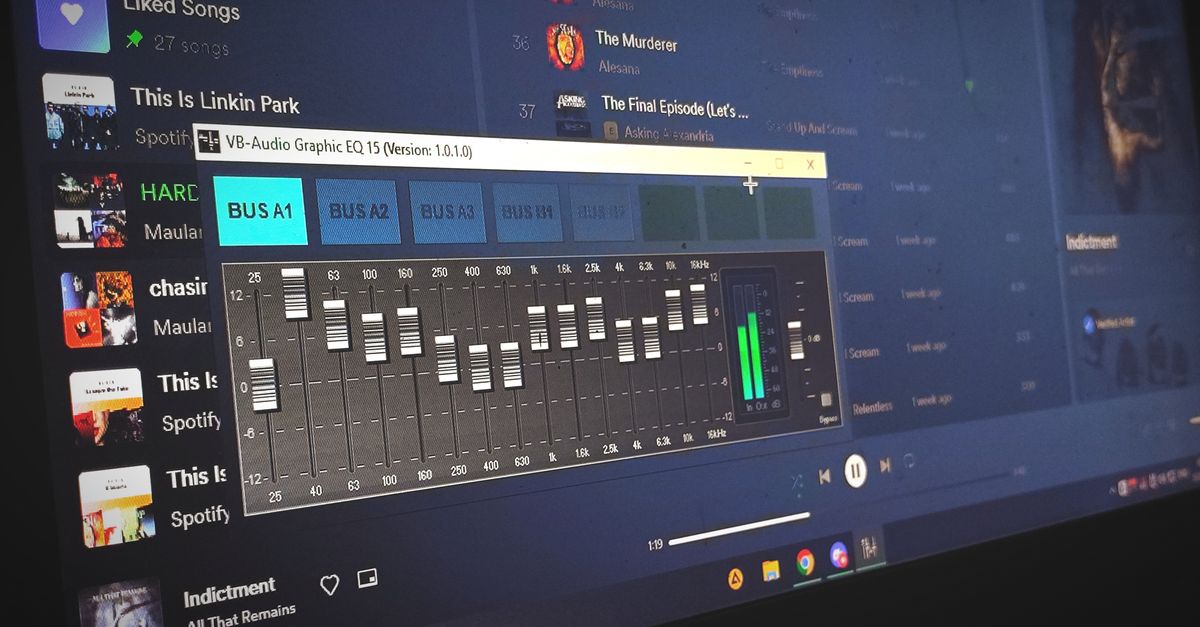
How a Three-Band EQ Shapes Your File
A peaking filter affects a region around its center rather than every frequency below or above a hard boundary. The Lizely Audio Equalizer uses Q=1, a disclosed product choice that produces a broad adjustment. A higher Q would target a narrower region around the same center; a lower Q would smooth across a wider region. Q=1 sits between those extremes — wide enough to be musical, narrow enough to remain useful as a tonal control. With three controls set independently, you can shape warmth, presence, and air simultaneously, then preview the result in real time before committing to a download.
To convert a decibel gain into an approximate amplitude multiplier on a single band, use the formula amplitude = 10^(dB/20). A +6 dB setting on one band is about 10^(6/20) ≈ 1.995 — roughly double the amplitude — while a -12 dB setting on the same band is about 10^(-12/20) ≈ 0.251, or about a quarter of the amplitude. These single-band numbers ignore how the three bands combine in the cascade, which is why the tool reports an actual raw peak after processing instead of trusting the math on individual controls.
| Band | Center frequency | Gain range | Typical audible effect |
|---|---|---|---|
| Bass | 100 Hz | -12 to +12 dB | Adjusts low-end weight, warmth, and rumble |
| Mid | 1,000 Hz | -12 to +12 dB | Adjusts presence of vocals and main instruments |
| Treble | 10,000 Hz, or 45% of sample rate when lower | -12 to +12 dB | Adjusts brightness, air, sibilance, and hiss |
The treble center is normally 10 kHz but is automatically reduced to 45 percent of the decoded sample rate when that rate is low enough that 10 kHz would sit above the Nyquist limit — the highest frequency a digital filter can represent at that rate. The lower center keeps the filter inside the available spectrum instead of asking it to operate on frequencies the sample rate cannot encode.
Equalize Audio Step by Step in Your Browser
- Open the Audio Equalizer in a current browser tab.
- Choose one audio file your browser can decode. The tool accepts MP3, WAV, M4A, AAC, Ogg, WebM, and FLAC when the current browser and operating system support the actual codec inside the container. A familiar extension is not a guarantee: a container can hold a codec the browser cannot read, which produces a decode error rather than a stale download.
- Confirm the file is at most 50 MiB, decodes to five minutes or less, has one through eight channels, uses a sample rate from 8,000 through 192,000 Hz, and contains no more than 30 million channel samples. Files that exceed any of those limits are rejected before filtering rather than silently truncated.
- Set the Bass, Mid, and Treble controls to whole decibel values between -12 and +12 dB. Leave all three at 0 for a flat copy that bypasses the nonzero filtering path. Apply the equalizer; processing runs locally in your tab.
- Read the raw peak, output peak, safety scale, sample rate, and frame count reported under the controls. Preview the processed audio before downloading.
- Download the result as a new PCM16 WAV when the preview sounds right. Listen back on the speakers or headphones you actually use, and compare against the original at a similar perceived volume.
Reading the Raw Peak, Output Peak, and Safety Scale
Cascaded boosts can push individual samples above digital full scale, where the value exceeds the maximum a 16-bit PCM sample can represent. When that happens, a naive encoder chops every offending peak to the maximum, leaving a flat, distorted top on the waveform. The Lizely Audio Equalizer avoids that by measuring the absolute peak across every processed sample in every channel before encoding, and applying one uniform scale factor to the entire processed result if, and only if, that raw peak is greater than 0.99.
The interface reports three numbers so you can see exactly what happened. The raw peak is the largest absolute sample value in the processed audio before any safety adjustment. The output peak is the largest absolute sample value after the safety scale — kept at 0.99 whenever the raw peak crosses that threshold. The safety scale is the exact multiplier that was applied; a value of 1 means no scaling was needed, while a value below 1 means the whole result was reduced so the loudest part sits at 0.99 instead of clipping.
This is not loudness normalization. The tool does not measure LUFS, RMS, replay gain, or any streaming-platform target, and it does not try to make a quiet file sound louder in any perceptual sense. Its single job is to keep the PCM encoder from generating clipped samples on its own.
What the Download Does and Does Not Preserve
The downloaded file is a brand-new uncompressed PCM16 WAV. It contains the actual channel count, sample rate, byte rate, block alignment, bit depth, and complete data length in its header, and every sample is signed 16-bit little-endian PCM interleaved by frame. What it does not carry over is everything tied to the original container or compression format.
| Preserved in the downloaded WAV | Discarded from the original file |
|---|---|
| Channel count, frame count, and sample rate as decoded | Original codec and compression mode |
| Signed 16-bit little-endian PCM samples, interleaved by frame | Tags, artwork, chapters, loop markers |
| WAV header fields built from the actual decoded values | Bitrate, container metadata, source-specific extensions |
Web Audio may resample while decoding, so the reported and written sample rate is the decoded rate rather than the rate printed in the original container. Floating-point decoded samples are converted to 16-bit integers during encoding, which is why the output bit depth is fixed at 16 regardless of how the source was stored. The Microsoft WAVEFORMATEX structure documents the exact header fields the new WAV records.
Practical Tips for Safer Adjustments
A flat setting is the safest baseline: zero on all three controls produces a literal copy of the decoded samples through a path that never runs a nonzero filter section. From there, prefer cuts to boosts when you can. A cut at one band lowers a region that was already loud in the mix, while several stacked boosts can interact unpredictably and force the safety scale to reduce the entire file's level to avoid clipping — so a file that ended up perceptually quieter is a normal outcome of aggressive boosting, not a bug.
Use the preview as a check, not as proof of a desirable mix. Compare the processed file against the original at a similar perceived loudness — not just whatever the new file sounds like in isolation, because a louder result almost always seems better in a quick A/B test even when the balance is worse. Strong boosts in particular can amplify noise, sibilance, rumble, or existing distortion that the original masked at lower levels. The interface never warns that a setting is "too much"; only the raw peak and safety scale reveal what your choices are doing to the signal.
Step up to a full audio editor when the task requires precise center frequencies, adjustable Q values, spectrum analysis, automation, linear-phase processing, loudness metering, dithering controls, codec selection, or metadata preservation. Three bands with fixed centers and Q=1 cover most quick tonal adjustments, but they are not a substitute for dedicated mastering or room-correction software. The decoded audio, the EQ settings, the result, and the filename all remain in the current browser tab; for the broader decoding pipeline the tool relies on, the Web Audio AudioBuffer specification describes how the browser exposes the channel data that this tool then filters and encodes.
If you're weighing options, Convert Audio to Text Free: Local Browser Audio Tools covers this in detail.
If you're weighing options, How to Equalize Audio in Audacity Without Installing It covers this in detail.