A three-band audio equalizer is a compact, browser-based tool that adjusts the bass, midrange, and treble of an audio file using three disclosed peaking filters. The version covered here runs entirely in your current browser tab: Web Audio decodes the file you choose, three peaking biquad filters at 100 Hz, 1,000 Hz, and 10,000 Hz reshape the channel samples using coefficients from the W3C Audio EQ Cookbook, a uniform safety scale keeps the result from clipping when combined boosts push the signal above digital full scale, and you preview and download the equalized result as an uncompressed PCM16 WAV. No bytes leave your machine, so the original recording stays on your drive while you decide whether the new WAV is worth keeping.
What a Peaking EQ Actually Does to a Signal
Equalization gets described in many ways, but a peaking filter has a specific job: it changes the energy around one center frequency and leaves the rest of the spectrum largely alone. The Q value controls how wide that affected region is. A low Q spreads the adjustment across a broad range of frequencies, while a high Q narrows it to a tight slice around the center. With Q fixed at 1, the disclosed three-band audio equalizer applies broad, musical adjustments rather than surgical notches, which is why each control changes the overall tone instead of carving out one specific problem frequency.
The math behind that broad adjustment is published in the W3C Audio EQ Cookbook. Each integer decibel value you set is converted into the coefficient parameter defined in that note, every coefficient is normalized by a0, and the resulting second-order recursive filter runs over each decoded channel independently. The three sections are cascaded in Bass, Mid, then Treble order, so changing one band does not shift the others. Positive gain boosts the energy around the center, and negative gain reduces it.
The Three Bands: Centers, Effects, and Trade-offs
Three fixed centers cover most of the tonal range you would want to address in a single quick pass. The table below summarizes the centers, what each band actually changes, and the most common side effects to listen for.
| Band | Center Frequency | What It Changes | Watch Out For |
|---|---|---|---|
| Bass | 100 Hz | Weight, warmth, and low-end body | Stacking bass boost with an already-heavy kick or sub can mask the vocal and rumble on small speakers |
| Mid | 1,000 Hz | Boxiness, presence, and nasal edge | A strong mid cut can leave a voice sounding distant; a strong boost can sound honky |
| Treble | 10,000 Hz, reduced to 45% of the decoded sample rate at low rates to stay below Nyquist | Air, sibilance, and cymbal sheen | Treble boost exaggerates hiss, room noise, and lip smacks that were already in the source |
Zero on all three controls is a genuine flat path. In that case the tool copies the decoded channel samples through without running a nonzero filter section, which is a useful sanity check whenever you want to compare the EQ against the original at a matched perceived level.
How to Use the Three-Band Audio Equalizer Step by Step
- Choose one browser-decodable audio file within the 50 MiB and five-minute decoded limits. Web Audio decodes MP3, WAV, M4A, AAC, Ogg, WebM, or FLAC when the current browser and operating system support the actual codec inside the container. A familiar extension is not a guarantee, and a decode failure surfaces an error without presenting a stale download.
- Set Bass, Mid, and Treble to whole values from -12 through +12 dB, then apply the equalizer locally. Each value becomes the coefficient parameter from the W3C Audio EQ Cookbook, every coefficient is normalized by a0, and the resulting second-order recursive filter runs over each decoded channel. The three sections cascade in Bass, Mid, then Treble order.
- Check the raw peak, output peak, safety scale, sample rate, and frame count the interface reports, then preview and download the PCM16 WAV. These numbers are sanity checks, not measurements of quality. Listen on the speakers or headphones that matter and compare against the original at a similar perceived level before deciding the new WAV is worth keeping.
Input Limits and Why Each One Exists
The tool rejects an over-limit file before filtering begins and never silently truncates the end. Each limit protects the current tab from unexpectedly large decoded data, and several of them interact so that accepting one property can still leave another limit binding.
| Limit | Value | Why It Matters |
|---|---|---|
| File size | 50 MiB | Caps the raw bytes the browser must read before decoding even starts |
| Decoded duration | 5 minutes or shorter | Bounds the time-domain work regardless of compression ratio |
| Channel count | 1 through 8 | Matches the channel layouts Web Audio can decode; every accepted channel is filtered independently with identical settings |
| Sample rate | 8,000 through 192,000 Hz | Keeps the decoded rate inside a range the biquad math and the WAV header support |
| Channel samples | 30 million or fewer | Per-channel frame budget that catches unusually long or multichannel files before they exhaust tab memory |
If a file passes one limit but trips another, the tool reports the specific reason and stops before any filter coefficients are applied. The frame count and sample rate reported on the result reflect the actual decoded values, not the values claimed by the source container, because Web Audio may resample on decode.
Reading the Peak, Safety Scale, and Frame Numbers
Five numbers deserve attention once the EQ has run, and each one tells you something concrete about the processed file:
- Raw peak is the largest absolute sample value across every processed channel before any scaling. If it sits below 0.99, the tool copies the signal through unchanged.
- Output peak is what the WAV actually contains after scaling. By design this is at most 0.99, which leaves a small safety margin under digital full scale.
- Safety scale is the uniform multiplier the tool applied when the raw peak was above 0.99. A value of 1 means no scaling was needed; a value below 1 means stacked boosts pushed the signal past full scale and the entire processed result was reduced by that factor to keep the PCM encoder from chopping individual peaks.
- Sample rate is the decoded rate the WAV was written at, not the rate advertised in the original container. Web Audio may resample on decode, and the output records the rate it actually used.
- Frame count is the number of sample frames per channel. Every accepted channel keeps the same frame count, and all channels are filtered independently with identical settings.
The safety scale is not loudness normalization and does not target LUFS, RMS, replay gain, or any streaming-platform specification. It is a single uniform gain cut applied only when the processed signal would otherwise exceed 0.99, and it can reduce overall level when many bands are boosted together.
Output Format: What the Downloaded WAV Keeps and Drops
The download is a fresh uncompressed PCM16 WAV, not a re-encoded copy of your source. Float samples are converted to signed 16-bit little-endian PCM and interleaved by frame. The WAV header records the actual channel count, sample rate, byte rate, block alignment, bit depth, and complete data length, following the structure documented in the Microsoft WAVEFORMATEX reference and decoded from the same Web Audio AudioBuffer used to drive the filters. Each accepted channel keeps the same number of sample frames so the interleaved output stays aligned.
Several properties from the original file are intentionally dropped, and it helps to know which ones before you treat the result as a replacement for the source:
- Original codec compression and bitrate, for example an MP3's 192 kb/s mode, are gone.
- Tags, artwork, chapters, loop markers, and any other container metadata are gone.
- The source container's claimed sample rate is gone, since Web Audio may resample on decode and the WAV records the rate it actually used.
If you need those metadata fields, plan to add them back through a tag editor or by re-importing the WAV into a DAW. Use the preview and the reported numbers as checks, not as proof of a desirable mix.
When a Three-Band EQ Is Enough vs. When You Need a Full Editor
Three peaking bands with a fixed Q of 1 cover a wide range of quick-pass work: warming a thin voice, taming a boomy room, lifting spoken-word presence, or rolling off a sharp high end. Strong boosts may emphasize noise, sibilance, rumble, or distortion that was already in the source, so a cut is often safer than stacking several boosts. Listen on the speakers or headphones that matter, compare against the original at a similar perceived level, and avoid judging only from louder output.
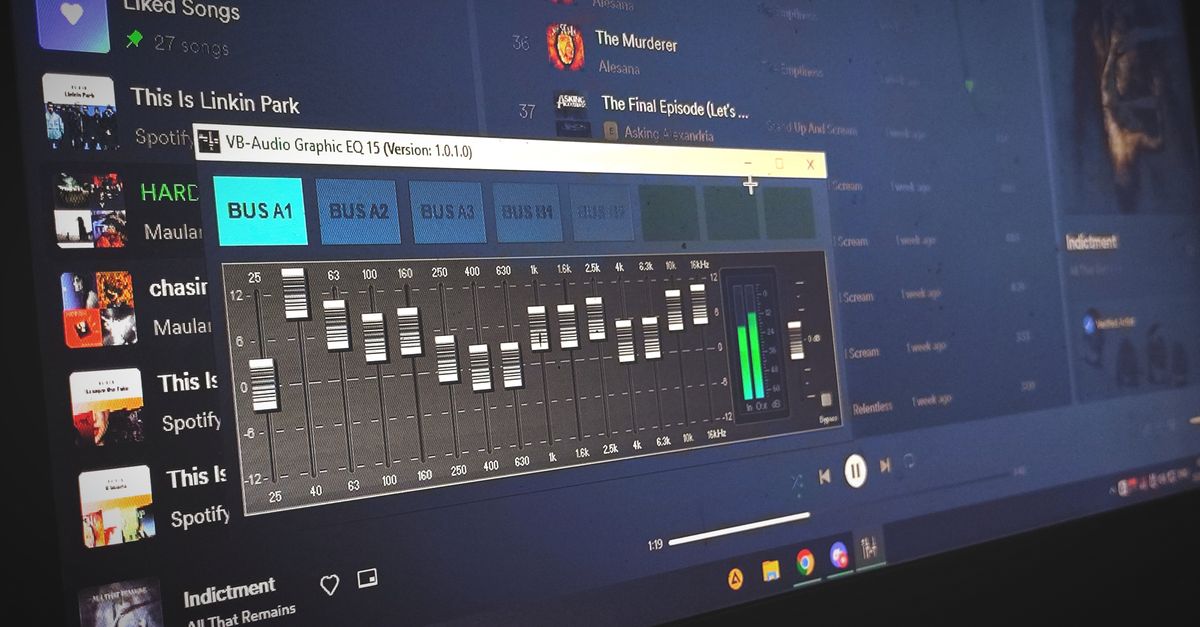
The tool is a compact three-band equalizer. It is not a graphic 10-band system, a linear-phase mastering processor, or an automatic room correction system, and it is not a promise that one setting improves every recording. Move to a full audio editor when you need any of the following: precise center frequencies that fall between 100 Hz, 1 kHz, and 10 kHz; an adjustable Q for narrow notches; spectrum analysis; automation curves; linear-phase processing; loudness metering; dithering controls; codec selection; or metadata preservation. The three-band local path is the quick first pass; the editor is where you finish the job when the mix calls for surgical control.
If you're weighing options, Audio Equalizer for YouTube™: EQ Files Locally covers this in detail.
If you're weighing options, How to Equalize Audio: A Practical Three-Band Walkthrough covers this in detail.