An online metronome with time signature support lets you set 1 to 12 beats per measure at 30 to 240 BPM and hear a higher-pitch click on beat one so the meter is unmistakable. The Online Metronome runs entirely in the current browser tab through the W3C Web Audio API and produces a simple repeating click without microphone access, file upload, server processing, or an account. You type a whole-number tempo, pick how many beats fill each measure, press Start, and the next scheduled click comes in roughly 60 divided by your BPM seconds. Editing either field or pressing Stop cancels the next click and resets the audible pulse to a clean stopped state.
A "time signature" on this kind of tool is simply the count of audible beats inside one repeating group, the upper number of the conventional 3/4, 4/4, or 6/8 fraction. The Online Metronome exposes that count as the beats-per-measure field, which accepts any whole value from 1 through 12, so you can dial in duple meter, triple meter, quadruple meter, or odd groupings like 5, 7, or 11 without switching tools. The lower number of the time signature is handled by the tempo itself: a faster BPM means the pulses feel like eighth notes, sixteenth notes, or any subdivision you want to think in.
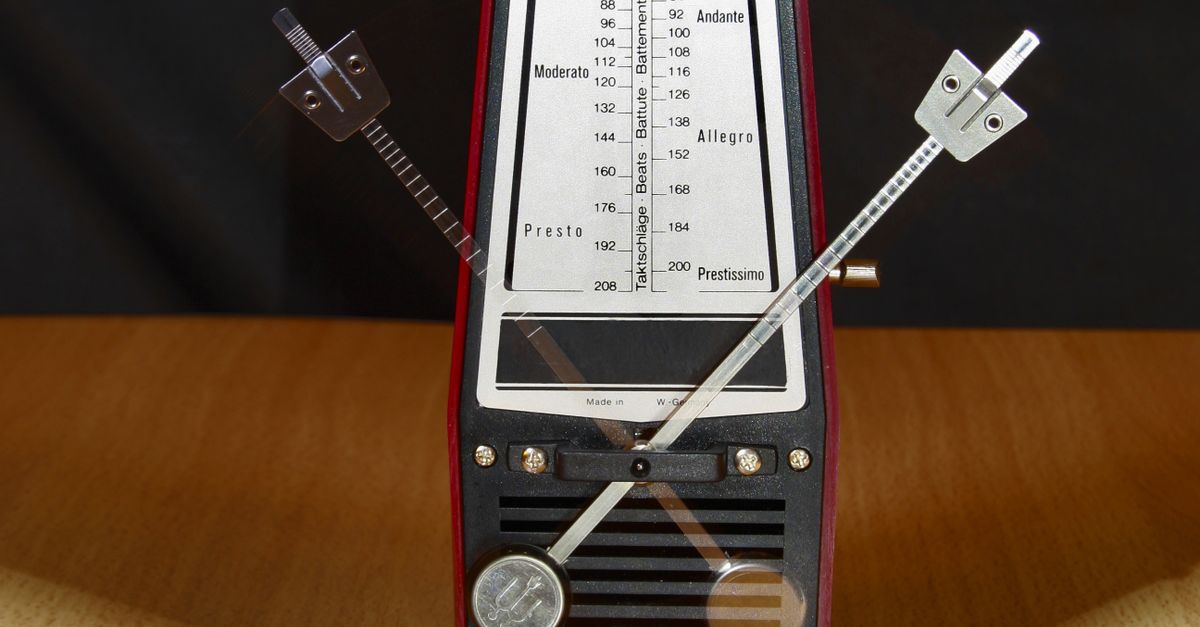
Set Up an Online Metronome With a Time Signature
Once the page is loaded, three inputs and one button are all you need to get a steady pulse with a clearly audible meter:
- Enter a whole-number tempo from 30 through 240 BPM in the tempo field. Decimal points, signs, spaces, units, and blank values are rejected rather than rounded, so type a clean integer such as 80, 100, or 120.
- Choose how many beats fill each measure from 1 through 12 in the beats-per-measure field. Whole decimals outside that range fail validation, which protects the visual counter from drifting away from the audible tempo.
- Select Start. The browser closes any older audio context, opens a fresh one, and schedules the first click immediately so the pulse begins at the same moment you press the button.
- Listen for the higher-pitched click on beat one. Every later beat in the measure uses a lower pitch, so the meter stays audible even when your eyes are on your instrument.
- Select Stop before closing or navigating away. Stop clears the scheduled timer, closes the Web Audio context, resets the visual counter to the first beat, and returns the tool to a clean idle state.
Editing the tempo or beats-per-measure value while playback is running also stops the pulse, so the displayed numbers cannot drift away from the audible interval and the wrap-safe counter always restarts from beat one when you begin again. A synchronous playing guard disables duplicate starts, so a second press of Start while the pulse is already running is ignored rather than restarting the audio context on top of itself.
How the Accent Marks Beat One
The accent is the single feature that turns a plain click into a meter-aware practice tool. Each click is built from a short oscillator and a gain envelope inside the live audio context, and the first beat in every measure uses a higher frequency than the rest. The relationship between the beats is fixed and predictable:
| Position in the measure | Frequency used for the click | What your ear hears |
|---|---|---|
| Beat 1 (accented) | 1320 Hz | A brighter, sharper tick that signals "downbeat" and the start of a new measure |
| Beats 2 through the chosen count | 880 Hz | A lower, softer click that fills the rest of the measure without overpowering the accent |
The frequencies are product cues chosen to be easy to tell apart, not a claim about concert A440, a specific note name, or any standardized tuning system. Loudness is gated by a gain envelope that starts at 0.2, decays exponentially to 0.001 over about 50 milliseconds, and stops the oscillator after roughly 60 milliseconds so old nodes do not pile up in memory. Device volume, headphone level, browser gain, and the room you are sitting in still decide the final loudness that reaches your ears, so begin with the volume low, especially when wearing headphones.
Common Time Signatures and the Beats-per-Measure Setting
Most printed pieces use a small set of conventional meters, and each one maps cleanly onto the beats-per-measure field. Pick the row that matches the time signature on the page and type the corresponding number:
| Conventional time signature | Beats per measure to enter | Typical feel |
|---|---|---|
| 2/4 | 2 | March, polka, simple duple |
| 3/4 | 3 | Waltz, minuet, simple triple |
| 4/4 | 4 | Common time, pop, rock, most jazz standards |
| 5/4 | 5 | Take Five style odd-meter themes, often felt 3+2 |
| 6/8 | 6 | Compound duple, often felt in two with a dotted-quarter pulse |
| 7/8 | 7 | Progressive rock, Balkan folk, asymmetric meter |
| 9/8 | 9 | Compound triple, often felt in three |
| 12/8 | 12 | Compound quadruple, slow blues feel |
If the time signature on your music is, say, 4/4, type 4 and the counter will read "1, 2, 3, 4, 1, 2, 3, 4" with a brighter click on every 1. If the piece is in 6/8 and you want each eighth note counted individually, type 6; if you would rather feel the dotted-quarter pulse underneath the eighths, set the BPM to that pulse value and let the two clicks per measure group the subdivision for you.
How the Click Interval Is Calculated
The tempo field and the audible pulse are tied together by a single formula: the interval in seconds equals 60 divided by BPM. The Online Metronome derives every scheduled click from that number, so the math is worth a quick worked example before you press Start.
Take a tempo of 132 BPM, which is a comfortable practice tempo for many pop and rock grooves. Substituting into the formula gives 60 / 132 = 0.4545 seconds between each click. That means the next scheduled click lands roughly 454 milliseconds after the one before it, the click after that roughly 909 milliseconds in, and so on. Doubling the BPM to 264 would sit above the 240 ceiling and fail validation, but halving the input to 66 BPM doubles the interval to about 0.909 seconds per click, which is a much more relaxed reference pulse for slow scales or breathing exercises.
What Can Affect Timing in Your Browser
The pulse is scheduled from JavaScript timers, not from hardware like a studio clock, so a few real-world conditions can shift when a click actually reaches your ears:
- Background tabs, power-saving modes, and busy main threads can delay callbacks and stretch the interval slightly between scheduled and audible clicks.
- Bluetooth speakers and headphones add their own latency, which is mostly noticeable at fast tempos above 180 BPM where the gap shrinks into the tens of milliseconds.
- Browser and operating-system scheduling policies throttle timers when the tab loses focus, so keep the metronome tab foregrounded for steady timing.
If Web Audio is unavailable or startup is rejected for any reason, the surface shows an error and clears any stale playing flag, so the tool never appears to run when no audio is being produced. The metronome is a useful pulse for scales, rhythm reading, tempo reference, and rough practice, but it is not a sample-accurate studio clock, a DAW sync source, a MIDI clock, a tap-tempo analyzer, a subdivision engine, a swing or polyrhythm generator, or a hearing-protection device.
Putting the Time-Signature Metronome to Work
Once the click is running with the right meter, the tool becomes a lightweight tempo partner for several common practice tasks. Scales and arpeggios benefit from a slow start, say 60 BPM, that gradually rises toward performance tempo. Reading exercises lock in much faster when the downbeat is unmistakable, which is exactly what the 1320 Hz accent provides. Sight-singing and rhythm clapping stay anchored to a steady pulse even in odd meters like 5/4 or 7/8, because the brighter click makes the measure boundary impossible to lose in the middle of a long phrase.
For a focused session, set both values once, leave the tab foregrounded, and use Stop only when you need to change meter or walk away from the keyboard. If you are recording yourself on top of the pulse and the take sounds slightly off, the most likely culprits are Bluetooth audio latency or a backgrounded tab rather than the metronome schedule itself. Starting at a slower tempo, locking the meter, and only then ramping up is the most reliable way to build secure time.
If you want a deeper walk-through of locking in 4/4 common time specifically, the 4/4 common-time practice guide shows how to use the same beats-per-measure field for the most familiar meter in Western music and pairs it with simple daily exercises.
For a deeper look, see Metronome BPM: What It Means and How to Set It.