A metronome's BPM, or beats per minute, is the number of clicks it produces in sixty seconds, and every BPM value maps to a precise click interval that the device schedules between each beat. The relationship is the simple formula 60 divided by BPM, expressed in seconds per click. At 60 BPM the interval is exactly one second, at 120 BPM it drops to half a second, and at 240 BPM it falls to a quarter second. Doubling the BPM halves the gap between clicks, and halving the BPM doubles it, which is why musicians describe the same tempo as "twice as fast" or "half as fast" without changing instruments. Because the math is fixed, a BPM setting is portable: any metronome given the same number produces the same click rate, even if the tone, accent, or visual indicator looks different.
The Online Metronome is a browser tool that turns this formula into audible practice. You pick a whole BPM value, choose how many beats make up one measure, press Start, and the page generates a steady click track directly through the Online Metronome. Beat one of each measure uses a higher pitch than the rest, so you always know where the downbeat is, and a single Stop button ends playback immediately. Everything happens in the current browser tab using the Web Audio API, with no microphone, no recording, and no audio uploaded to a server.
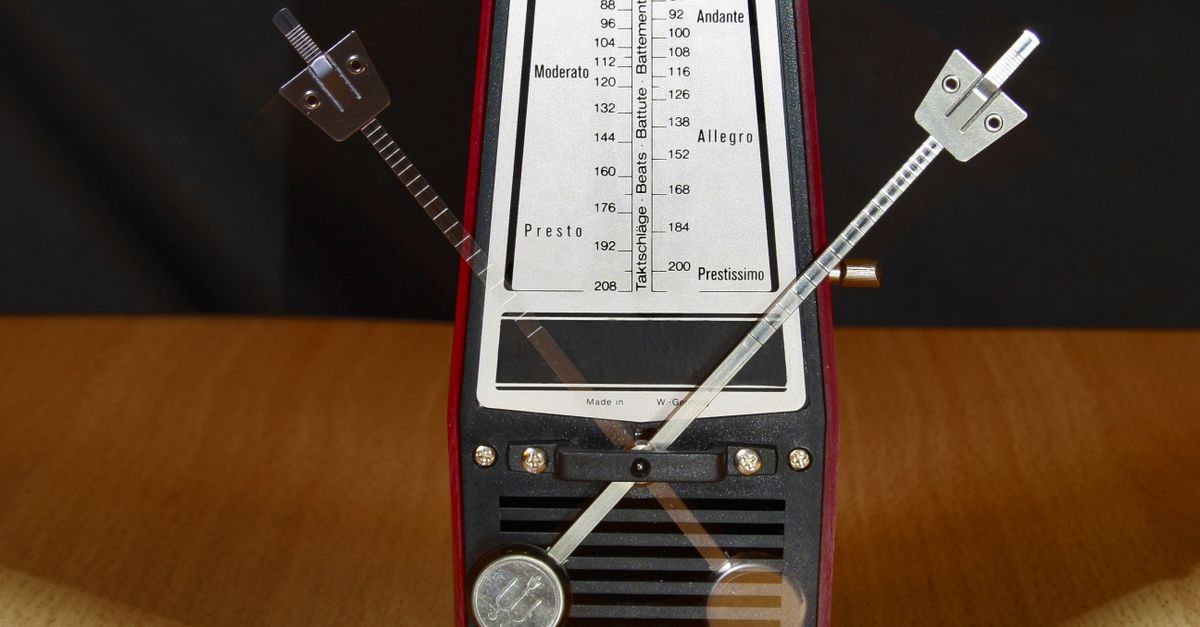
What BPM Means on a Metronome
BPM is a count rather than a duration. The metronome does not "wait" between beats the way a person tapping a foot does; it schedules the next click a fixed number of milliseconds after the previous one. That scheduling interval is the heart of the tool, and it comes straight from the SI definition of the minute as sixty seconds, an interval that is itself documented in NIST SP 330 as the accepted time unit for everyday use.
For the Online Metronome, that interval in moments is 60 divided by BPM. The value is calculated once per Start press and reused for the next JavaScript timer callback. Because BPM is the only input that drives timing, choosing a wrong value produces a wrong tempo, but never a wrong number of clicks: the metronome will happily click all day at 30 BPM or 240 BPM as long as the input is a whole number in the supported range.
Common BPM Reference Points
The Online Metronome supports any whole BPM from 30 through 240. Within that range a handful of values are widely used as reference points because they produce round intervals almost instantly. The table below lists eight values that cover the full range and show how the click rate changes as BPM rises.
| BPM | Seconds per click (60 / BPM) | Typical use |
|---|---|---|
| 30 | 2.000 | Very slow practice, breathing exercises, deliberate scale studies |
| 45 | 1.333 | Slow ballads, largo markings, learning new passages |
| 60 | 1.000 | Heart-rate reference, largo, calm speech cadence |
| 90 | 0.667 | Moderate walking pace, andante, pop song verses |
| 120 | 0.500 | Standard dance, dance-pop, allegro, many metronome defaults |
| 150 | 0.400 | Driving pop, fast rock, quick march |
| 180 | 0.333 | Vivace, fast runs, athletic drills |
| 240 | 0.250 | Maximum supported tempo, very fast technical work |
These values are not magic. They are simply BPM numbers whose intervals happen to be clean fractions of a second, which makes them easy to confirm by ear. The Online Metronome does not round or cap values outside 30 to 240; an out-of-range input is rejected rather than silently nudged toward the nearest supported tempo.
How to Set BPM on the Online Metronome
- Open the Online Metronome page in your browser and find the BPM field.
- Enter a whole tempo between 30 and 240. For example, type 120 to get one click every half second, or type 60 to get one click every full second.
- Choose a beats-per-measure value from 1 through 12. Common choices are 4 for common time, 3 for a waltz feel, and 6 for compound meter.
- Select Start. The page creates a Web Audio context, schedules the first click, and begins counting beats on screen.
- Listen for the higher-pitched downbeat on beat one and the lower tone on every subsequent beat, so the measure boundary is obvious.
- When you finish practicing, select Stop before closing or leaving the page. Stop closes the audio context and cancels the next scheduled click so no sound lingers after the button is pressed.
If you need to change BPM or beats per measure mid-session, simply type the replacement value. Editing either field stops playback before the new value takes effect, which keeps the displayed tempo and the audible clicks from drifting apart. The next Start press uses the freshly entered values from scratch.
Picking a Practice Tempo Within 30 to 240 BPM
The right BPM depends on the passage, the instrument, and the stage of learning. Slow values near 30 to 60 BPM are useful for studying a single phrase, working out fingerings, or locking the inner pulse of a difficult figure without rushing. The same phrase often needs to be played at several increasing tempos before it holds together at performance speed, and a browser metronome makes that progression easy to repeat.
Mid-range values from about 80 to 140 BPM cover most popular music, marches, and the comfortable middle of classical repertoire. If a piece is already familiar, this range is also where players test endurance, articulation clarity, and rhythmic accuracy under realistic load. If you do not know where to start, 120 BPM is a safe default because its half-second interval divides cleanly into a one-second, two-second, or four-second breath, foot tap, or conductor beat.
Fast values from 150 BPM up to the 240 BPM ceiling are useful for technical drills, double-tongue passages, fast runs, and endurance work. Even when the actual performance tempo is lower, brief bursts at higher BPM can stress the weaker links in a passage. The Online Metronome supports any whole value in that range, so you can step the tempo up by one BPM at a time and let the slower practice version grow naturally into the faster one.
Why Browser Click Tracks Are Not Sample-Accurate
The Online Metronome schedules the next click using a JavaScript timer whose delay is set to 60 divided by BPM seconds. Browsers do their best to honor that delay, but they do not promise sample-accurate timing. Background tabs can be throttled, power-saving modes can extend wake intervals, busy main threads can starve the timer, Bluetooth headphones add their own latency, and operating-system scheduling can shift when a callback actually runs. The result is a click track that is steady enough for practice and tempo reference, but not precise enough to serve as a studio clock or to align recorded audio to a fraction of a millisecond.
For a deeper look at how browsers generate tones in this kind of tool, the MDN documentation for OscillatorNode describes the oscillator and gain envelope the metronome uses to shape each click. The Web Audio API specification at webaudio.github.io describes the AudioContext, scheduling model, and timing expectations that a browser-based click track relies on. Both sources confirm that the audible click is produced locally, inside the current tab, with no microphone capture and no audio sent over the network.
Setting Up Beats Per Measure Alongside BPM
BPM defines how fast each beat arrives, but it does not define how the beats are grouped. The Online Metronome accepts a beats-per-measure value from 1 through 12, which covers simple meters like 2/4 and 3/4, common time at 4/4, and longer groupings such as 7/8 or 12/8. Choosing a measure length that matches the music you are practicing makes the higher first-beat accent a useful cue rather than an arbitrary reset.
The page tracks each beat with a wrap-safe integer counter, so the on-screen number stays in step with the audible click. With a measure length of 4 and a BPM of 120, the counter advances one, two, three, four, one, two, three, four, and the higher pitch lands on every new "one". With a measure length of 3 at the same BPM, the pattern becomes one, two, three, one, two, three, which gives a waltz feel. Because BPM and measure length are independent inputs, you can hold BPM fixed while you change measure length, or hold measure length fixed while you change BPM, and the math behind the interval does not move.
For readers who want a guided tour through different meters and practice routines using the same tool, the article How to Use a Metronome Online for Practice walks through several common scenarios that build on the basic BPM and beats-per-measure setup covered here.
If you're weighing options, Online Metronome Accuracy: Timing in a Browser Tab covers this in detail.