An online metronome with sound is a browser tool that produces short, audible click tones using the Web Audio API in your current tab, with no microphone access, no audio upload, and no server-side audio processing. Each click is a single oscillator wrapped in a gain envelope that opens at 0.2 and decays exponentially to 0.001 over 50 milliseconds, and the oscillator is stopped at 60 milliseconds so old audio nodes never accumulate in memory. The first beat of every measure uses a 1320 Hz tone, while beats two through the end of the measure use an 880 Hz tone, which gives the downbeat an audible accent you can hear over the rest of the pattern. Timing is calculated directly from beats per minute: every interval equals 60 divided by BPM seconds, so 60 BPM produces one click per second, 120 BPM produces one click every half second, and 240 BPM produces one click every quarter second. The whole system runs locally in your browser, which means the actual loudness and clarity depend on your device volume, speakers, headphones, browser gain, and the room you are sitting in rather than on any remote audio service.
When musicians search for an online metronome with sound, the underlying concern is practical: they want a real audible pulse, not a silent animation. The Online Metronome delivers exactly that with a percussive click built from short oscillators that start and stop fast enough to feel like a wood block hit rather than a sustained tone. Because the audio is generated on demand with the Web Audio API rather than loaded from a recorded sample file, the first click appears almost immediately after Start, and editing either field stops the current playback before the new value can take effect. That behavior keeps the displayed tempo and the audible pulse synchronized without a separate calibration step or a manual reload.
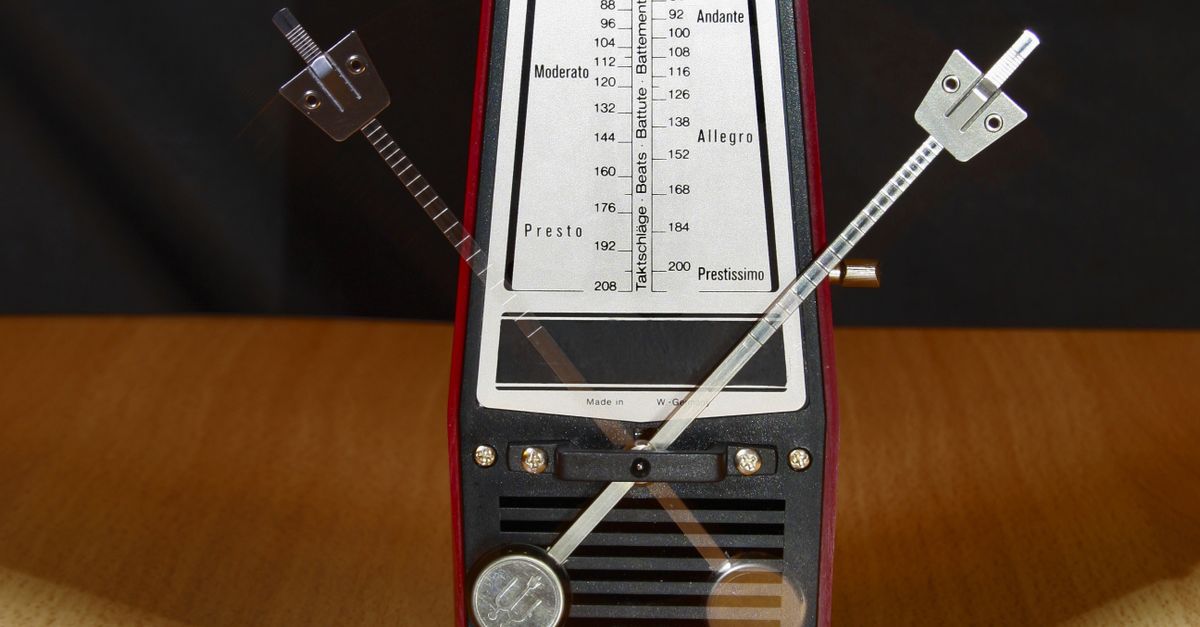
What the Online Metronome Click Sounds Like
The click is intentionally simple. Each beat produces one OscillatorNode paired with a single GainNode that opens with a gain value of 0.2 and decays exponentially to 0.001 over 50 milliseconds. The oscillator is stopped at 60 milliseconds, well before the next scheduled tick, so old audio nodes do not pile up in the audio graph and the browser stays clean even during long practice sessions. The result is a short, dry pip with a clear attack and a soft tail, similar in character to a vintage mechanical metronome's wood block rather than a sustained pitched tone.
The frequencies are fixed by the tool. Beat one of every measure plays at 1320 Hz, which sits well above the 880 Hz used for beats two through the chosen measure length. That pair of frequencies creates a clear pitch contrast on every downbeat, which is the entire reason the accent exists in the first place. You can hear the contrast most clearly at moderate tempos in the 60 to 120 BPM range, where the ear has enough time between beats to register the difference without the next click blurring into the previous one. At very fast tempos above 200 BPM the clicks run close enough together that the pitch jump reads as a brightness change rather than two distinct tones, which is normal for any click-based metronome.
These frequencies are product cues chosen for clarity, not claims about a standardized concert pitch, a note name, a tuning system, or an ideal practice tone. If you need a specific reference pitch for an instrument, use a dedicated tuning tool rather than expecting the metronome to deliver one.
How to Set Up the Click in Your Browser
The full setup for a working click takes two validated fields and a single Start press. Every input has hard limits, and the metronome rejects rather than rounds values that fall outside them, which protects you from accidentally playing back at a tempo the math was not designed for. The validation rules are strict: signs, spaces, decimals, exponent notation, units, blank values, and out-of-range numbers all fail rather than being capped or snapped to the nearest valid value.
- Type a whole-number tempo between 30 and 240 in the BPM field. Do not include signs, spaces, decimals, units, or exponent notation; anything other than a clean whole number fails validation.
- Type a whole-number beats-per-measure value between 1 and 12 in the second field. The same strict integer rule applies.
- Select Start. The metronome closes any older audio context, creates a new one, and begins scheduling clicks from the calculated 60 divided by BPM interval.
- Listen for the higher 1320 Hz click on beat one and the lower 880 Hz clicks on the remaining beats, then select Stop before you leave the page so the audio context closes cleanly.
If you need to change tempo or measure length mid-session, edit either value before pressing Start again. Editing either field stops playback, which prevents the displayed tempo and the active timer from drifting apart. For a quick sanity check that the click is audible before you start serious practice, set 60 BPM with four beats per measure; at 60 BPM the interval is exactly one second, so you can count along with a wall clock and confirm the timing by ear.
Why Beat One Plays a Higher Pitch
The accent is a design choice rather than a quirk. With one through twelve beats per measure, only the first beat is allowed to play the 1320 Hz oscillator; the remaining ticks play 880 Hz. That single change in frequency is enough to mark the start of each measure audibly, even when the tempo is fast enough that the individual clicks are hard to count out loud. The visual beat counter also wraps back to one on the higher tone, so what you see and what you hear stay locked together throughout the measure.
For practice this matters because most meter patterns in Western music lean on the downbeat. A 4/4 exercise, a 3/4 waltz, and a 6/8 compound meter all need the listener to feel where each measure begins, and the ear latches onto a pitch jump far more reliably than onto a change in loudness alone. Every measure you run with this tool starts the same way, which keeps your reference fixed across scales, rhythm drills, and sight reading.
The contract is explicit that these frequencies are not a claim about a concert A, a tuning standard, or an ideal reference tone. Treat the 1320 Hz and 880 Hz values as audible cues for the measure boundary, not as a substitute for a tuning source. If you want to drill in on a specific time signature, the Online Metronome accepts the same 1 to 12 beats per measure range, so you can rehearse any meter from 1/1 through 12/8 without leaving the page.
BPM to Click Interval Reference
The click interval is calculated from BPM with a single formula: interval in seconds equals 60 divided by BPM. The table below lists eight whole-number tempos across the supported 30 to 240 range and the corresponding interval between clicks. Every value is derived from that formula, so the table is consistent with the tool's own internal calculation. Use it as a quick reference when you want to set the metronome by ear to a specific pulse rather than by counting out loud.
| BPM | Interval (seconds) | Typical use |
|---|---|---|
| 30 | 2.000 | Slowest supported tempo |
| 60 | 1.000 | One click per second |
| 90 | 0.667 | Moderate practice pace |
| 120 | 0.500 | Standard tempo reference |
| 150 | 0.400 | Bright, driving pace |
| 180 | 0.333 | Fast single-line passages |
| 210 | 0.286 | Virtuosic tempos |
| 240 | 0.250 | Fastest supported tempo |
The work for 120 BPM is the easiest to verify by hand: 60 divided by 120 equals 0.5 seconds per click, so 120 BPM produces exactly two clicks per second. The same formula gives one quarter second at 240 BPM and one full second at 60 BPM, which is why those tempos are popular sanity checks for a new metronome setup. If you want a guided walkthrough of setting BPM and measure length together, the beginner metronome guide covers the same control set in a slower, step-by-step frame.
What Changes the Loudness and Clarity of the Click
The metronome's gain envelope is conservative on purpose. The click opens at 0.2, well below the 1.0 maximum, and decays to near silence within 50 milliseconds. That envelope prevents harsh clicks on fast tempos where many beats fire in a row, but it also means the audible loudness depends heavily on whatever sits between the browser and your ears. Device volume, external speaker volume, headphone level, browser-level audio gain, and the acoustics of the room all stack on top of that 0.2 starting gain to produce the final loudness you actually hear.
For headphone users, starting with the device volume low is the safer default. Short high-frequency clicks at 1320 Hz and 880 Hz can feel sharper through in-ear monitors than through a laptop speaker, and the exponential decay does not provide the long, soft tail that smooths out transients in a reverberant room. If the click sounds thin or harsh in your current setup, lower device volume before raising the metronome's gain, because loudness is shaped entirely by your device and listening environment.
The room matters too. A small, hard-walled practice space will reflect the high-frequency content of every click and make the accent on beat one sound brighter, while a carpeted room will absorb that same high-frequency content and leave the downbeat sounding only marginally louder than the off-beats. None of this changes the underlying frequency or timing; it changes what reaches your ears.
When Browser Timing Affects the Audible Click
Web browsers do not promise sample-accurate scheduling for general JavaScript callbacks, and the Online Metronome does not try to deliver it. The tool schedules each next tick from the validated 60 divided by BPM interval, which is suitable for ordinary practice, scales, rhythm drills, sight reading, and rough tempo reference. It is not a DAW-synchronized clock, a MIDI clock source, or a substitute for a hardware metronome in a recording session.
Real-world conditions that can delay audible clicks include background tabs being throttled, power-saving mode on laptops, a busy main thread that competes for scheduling time, Bluetooth audio latency, browser-specific audio policies, and operating-system scheduling jitter. The tool states this directly: it is a lightweight pulse, not a calibrated sound-pressure source or a sample-accurate studio reference. If you need a tempo reference inside a recorded take, render the click from your DAW rather than from a browser tab.
The tool also handles edge cases defensively. Start closes any older audio context before creating a new one, a synchronous playing guard disables duplicate starts, and Stop clears the scheduled timeout, closes the audio context, and resets the visual beat counter. If Web Audio is unavailable or the audio context fails to start, an error appears and no stale playing state remains, so the displayed beat does not advance while the tab is silent.
What Beats Per Minute Means for the Sound
Beats per minute is just a count of audible pulses per 60-second window, and the click interval is its mirror image: the smaller the interval, the higher the BPM. At 30 BPM you hear one click every two seconds, which is slow enough to count each tick out loud. At 240 BPM you hear four clicks per second, which feels like a continuous pulse rather than a series of distinct beats. The metronome is designed for the range between those two extremes, so 30 and 240 act as the safety rails on either end of the BPM field and the Web Audio API does the rest.
Every session starts fresh, and you set the tempo and measure length from scratch. That keeps the interface simple and keeps the validation logic obvious: enter a whole number between 30 and 240, enter a whole number between 1 and 12, press Start, and listen. The audible feedback is the entire product, and the loudness, pitch contrast, and timing interval described above are what you can expect every time you press Start.
Related reading: Online Metronome With Subdivisions: What to Know First.