A metronome is a device or application that produces a steady, evenly spaced click at a chosen tempo, measured in beats per minute (BPM), so musicians can lock their playing or practice into a consistent pulse. To use one online, open the Online Metronome, enter a whole tempo from 30 through 240 BPM, choose between one and twelve beats per measure, and click Start; you will then hear a click on every beat with a higher accent on the first beat of each measure, and you can silence everything by clicking Stop before leaving the page. The whole process takes less than a minute and works in any modern desktop or mobile browser without downloads, plugins, or accounts.
Metronomes have been part of music practice for nearly two centuries, but most people today reach for a phone app or a web page rather than the classic wind-up pyramid. Online click tracks give you the same disciplined timing reference, with the added convenience of running in a tab you already have open. The challenge for a beginner is usually not finding a metronome, but knowing which BPM and which beat-count to set for the passage they are about to practice. The Online Metronome keeps those choices simple on purpose: a tempo dial, a beat selector, and two buttons.
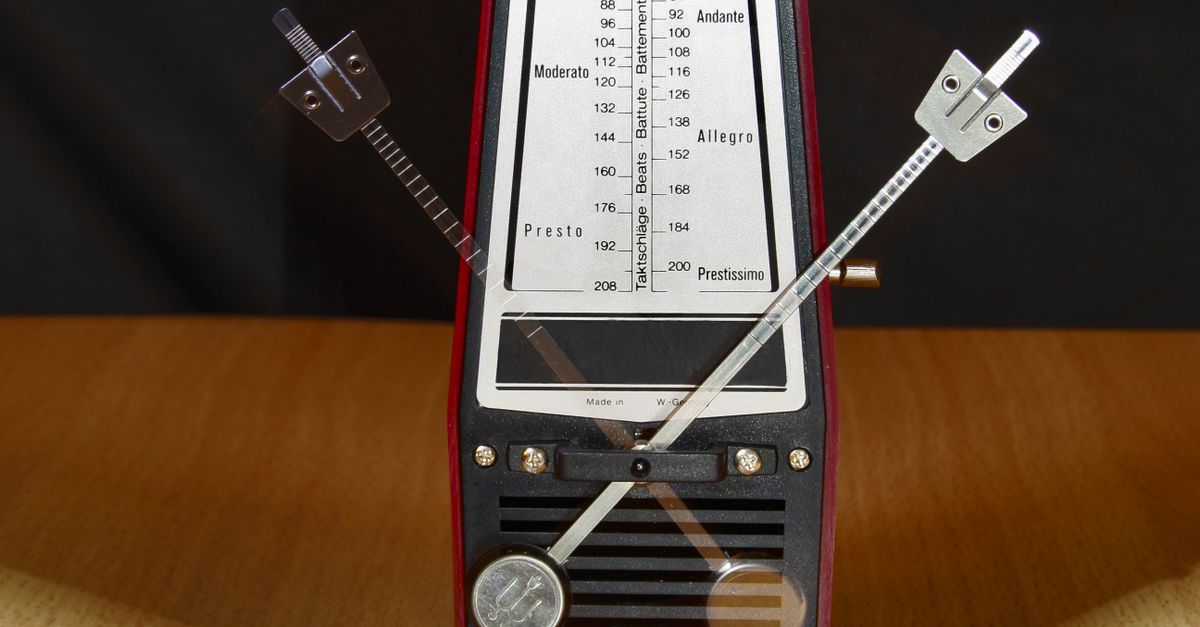
What the Online Metronome Does
The Online Metronome is a single-purpose practice tool that plays an accented click track in your browser. There are no recordings to load, no presets to scroll through, and no audio files to download. The page generates each tick locally using the Web Audio scheduling model described in the MDN Web Docs, which is why the timing stays stable even when other tabs compete for attention.
Three controls matter:
- BPM: a whole-number tempo between 30 and 240 beats per minute.
- Beats per measure: an integer from 1 to 12 that determines how many clicks play before the higher accent repeats.
- Start and Stop: the only two buttons you need once the values are set.
Because the click is generated and scheduled in your own browser, latency depends on your device rather than on a remote server. The audio engine plays the first tick immediately and then schedules every subsequent tick ahead of time, so the long-term tempo does not drift the way a JavaScript timer can.
Setting a Tempo That Fits the Passage
The 30 to 240 BPM range covers everything from a slow funeral march at around 60 BPM up to a presto classical marking near 200 BPM. Most practicing happens between 60 and 160 BPM, but the wider window lets you slow a difficult run to half speed or speed it up to build endurance. The tool only accepts whole numbers, which keeps the math simple: each tick is exactly one minute divided by your chosen BPM.
If you are unsure where to start, slow the passage down until every note is correct, then nudge the tempo up by four or five BPM at a time. Many teachers call this the "slow-to-fast" method, and it works because rhythm mistakes usually hide themselves when the tempo is fast enough to feel exciting. For a clearer picture of how tempo ranges are grouped in common practice, see how to use a digital metronome for practice, which goes deeper into repertoire-specific targets.
Choosing the Right Beats Per Measure
The "beats per measure" setting controls how many clicks happen before the higher accent sounds again. If you set it to 4, you will hear four clicks per bar with the first one louder or higher; if you set it to 3, the pattern repeats every three clicks. This matches the time signature most music is written in: 4/4 uses four beats per measure, 3/4 uses three, and 6/8 is often practiced with two beats per measure where each beat is felt as a dotted quarter.
| Time signature | Beats per measure to set | What you will hear |
|---|---|---|
| 2/4 | 2 | Two clicks, accent on the first |
| 3/4 (waltz) | 3 | Three clicks, accent on the first |
| 4/4 (common time) | 4 | Four clicks, accent on the first |
| 6/8 (felt in 2) | 2 | Two clicks, each dividing into three eighth notes |
| 12/8 (felt in 4) | 4 | Four clicks, each dividing into three eighth notes |
For free-form practice such as a long tone routine, a single beat per measure still works, because the accent simply marks every click and removes the need to count downbeats. Twelve beats per measure is useful when you are practicing a repeating rhythmic cell and want to track every subdivision of a long bar.
Using the Online Metronome Step by Step
Here is the exact sequence to get a click track playing and then silence it again.
- Open the Online Metronome in your browser tab.
- Type or dial a whole tempo between 30 and 240 into the BPM field. Beginners usually start at 60.
- Pick a beats-per-measure value between 1 and 12 that matches the time signature of what you are practicing.
- Click Start. The first click plays immediately, with a higher accent on beat one of every measure.
- Play or sing along, listening for the higher tick so you know where each bar begins without looking at the screen.
- Click Stop when you are done. The audio stops at once and the page resets for the next tempo.
If you want to change tempo or beats per measure mid-session, stop the current click, adjust the values, and press Start again. The new settings take effect from the very next tick.
Working With the Accent
The higher pitch on the first beat is not decoration; it is your anchor. When you cannot watch the screen because your eyes are on sheet music, the accent tells you exactly where each measure begins so you can phrase, breathe, or bow on the right note. Train yourself to listen for the change in pitch rather than counting silently, because counting drifts after a few bars while pitch recognition does not.
If you are practicing a piece in a less common meter such as 5/4 or 7/8, set the beats per measure to the larger number and treat the accent as the downbeat. The metronome does not need to know what the time signature is called; it only needs to know how many beats sit between accents.
Practice Routines That Pair Well With a Metronome
A click track works best when the rest of your practice routine is structured around it. A simple daily plan might look like this:
- Warm-up scales: set the metronome to 60 BPM with 4 beats per measure and play one note per click.
- New passages: drop the tempo to roughly half your target performance speed, then raise it by 4 BPM each successful run.
- Rhythm drills: set 2 beats per measure at a comfortable tempo and clap dotted-quarter patterns against the accent.
- Endurance: loop a short phrase at 80 BPM for several minutes, then push to 100 BPM for the final run-through.
If you want a different texture for warm-ups, the White Noise Generator on the same site can mask distractions while you read music, and the Online Drum Machine is useful when you need to layer a click over a beat pattern.
Troubleshooting Common Issues
If no sound comes out when you press Start, check that the tab is not muted in your browser and that your system volume is up. Some browsers block audio in tabs that have never received a user click; pressing Start counts as that click, so the very first press should always work. If the tempo feels uneven over a long passage, close other audio-heavy tabs so the scheduler has room to run, and confirm that battery-saver mode is not throttling your CPU. For a faster practice reference, bookmark the page or pin the tab so you can pull it up between takes without searching.
Why Browser-Based Click Tracks Beat Phone Apps for Quick Sessions
Phone metronomes are great in a practice room, but a browser page is often closer to hand when you are at a desk, in a hotel room, or sitting at a computer-based recording setup. There is no install, no update prompt, and no permission to grant, which means you can be clicking within five seconds of deciding to practice. Pairing the metronome with other browser tools such as the Audio Cutter lets you trim a reference recording to the section you are studying and then loop it under a click, all on the same machine.
The Online Metronome is intentionally narrow in scope: one tempo dial, one beat selector, two buttons. That simplicity is what makes it reliable as a daily practice companion. Set it, start it, listen for the accent, and stop when you are done.
If you're weighing options, Master the Basics: How to Use a Metronome for Beginners covers this in detail.
If you're weighing options, Delete Volume vs Format: Which One to Use for Audio Files covers this in detail.