An online metronome generates a click track directly in the browser tab using the Web Audio API, where each click fires every 60 ÷ BPM seconds and beat one plays at 1320 Hz while later beats play at 880 Hz, with no microphone, recording, file upload, or account required. That formula controls everything else: at 60 BPM there is one click per second, at 120 BPM one click every half second, and at 240 BPM one click every quarter second. The number of beats per measure you choose simply decides how many clicks happen before the counter wraps and the higher first-beat accent repeats. Because every sound is synthesized locally, the tool stays private and responds instantly, but it also inherits the timing limits of a browser tab. Understanding both the math and the limits is the difference between a click track you can rely on for practice and one that quietly throws you off.
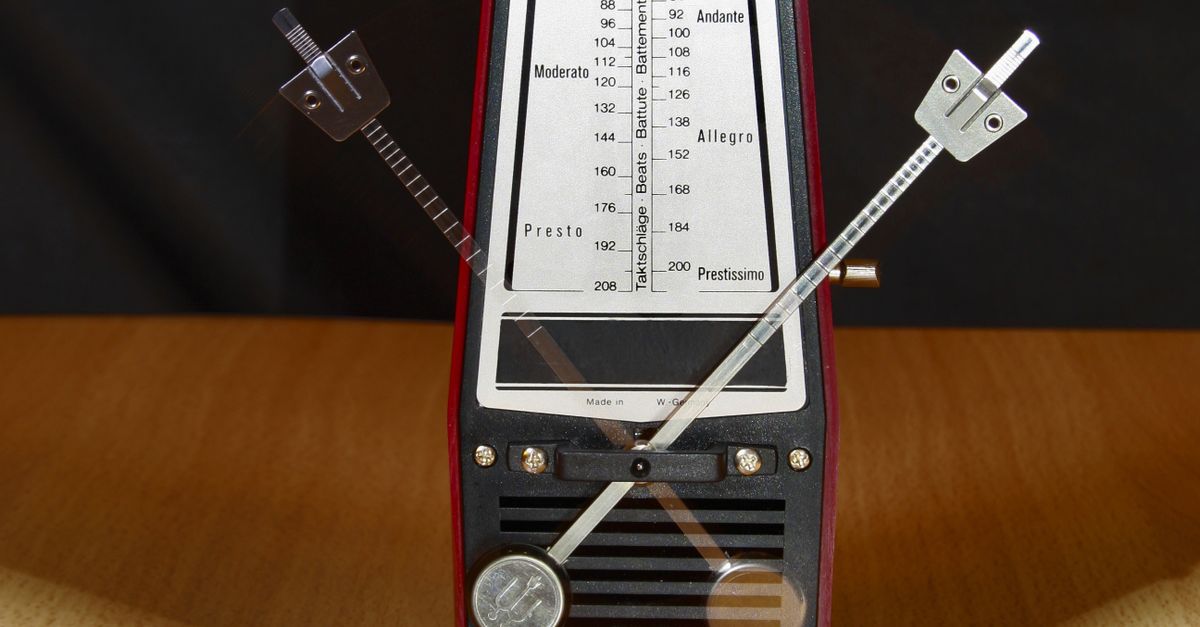
How a Browser Metronome Calculates Each Click
The interval between clicks is defined by the standard beats-per-minute relationship, in which one minute equals 60 seconds. Divide 60 by your chosen BPM and you get the gap between audible clicks. So 60 BPM equals 1.000 s, 120 BPM equals 0.500 s, and 240 BPM equals 0.250 s between each beat. Once that interval is known, a JavaScript callback schedules the next click and the visual counter advances modulo your chosen measure length, so the beat display wraps cleanly from, say, 4 back to 1 in 4/4. For a deeper read on the BPM side, the Metronome BPM guide walks through the same relationship from a more conceptual angle.
Each click itself is built from a short oscillator and a gain node that decays exponentially. According to the W3C Web Audio API specification, an OscillatorNode generates a waveform at a given frequency and stops when explicitly ended, which is exactly what a single metronome click needs. The first beat in every measure uses 1320 Hz, and every other beat uses 880 Hz. Those two pitches give you an audible measure boundary without requiring you to look at the screen. The gain starts at a conservative 0.2 and decays to 0.001 over 50 milliseconds, with the oscillator stopping at 60 milliseconds so old nodes do not pile up in memory.
Tips That Make an Online Metronome Easier to Trust
Most metronome problems come from misreading what a click track is doing, not from the click track itself. These habits make the Online Metronome easier to lean on during practice:
- Pick a tempo that matches the smallest phrase you are working on, not the fastest passage in the piece. Slow, awkward figures need a slow click; the fast section can wait until your brain owns the rhythm at half speed.
- Choose the meter that matches the music: 4 for common time, 3 for waltz, 6 or 12 for compound feel, anywhere from one to twelve beats per measure. The time-signature guide helps if you are unsure which meter fits your piece.
- Anchor yourself on the higher first-beat accent instead of staring at the screen. Playing along without watching the display trains your internal clock.
- Start with device volume low, especially with headphones, and raise it only after you confirm the click is comfortable.
- Edit the tempo or beats field to reset timing cleanly. The tool stops playback before the new value takes effect, so the displayed BPM and the audible click can never drift apart.
- Stop the tool before you close the tab. Stop closes the audio context and cancels the next scheduled click, leaving nothing running in the background.
Common Mistakes When Using an Online Metronome
Even a clean click track can hurt your practice if you set it up carelessly. These are the mistakes that show up most often with browser metronomes:
- Typing a decimal or a unit. The Online Metronome rejects signs, spaces, decimals, exponent notation, units, and blank values rather than rounding them. 92.5 BPM will fail the same way that "120 BPM" will fail, even though many DAWs accept both formats.
- Going outside the supported range. Tempo must be a whole number between 30 and 240 BPM, and beats per measure must be a whole number between 1 and 12. Anything outside those ranges is rejected, not capped.
- Editing tempo mid-playback and trusting the old beat. Changing the BPM field stops the click, which is intentional. If you edit and click Start again, the audible interval and the visual counter reset together. The tool does not smoothly retune a running click.
- Treating 1320 Hz and 880 Hz as a tuning reference. Those two frequencies are product cues that make the first beat audible. They are not a claim about concert pitch, an A440 reference, a named note, or a tuning system.
- Expecting subdivisions, swing, polyrhythm, or tap-tempo. The Online Metronome is a single repeating click with an accent on beat one. It does not claim DAW sync, MIDI clock, tap-tempo analysis, latency calibration, or subdivision patterns.
- Leaving the tab in the background and trusting every click. Background tabs, power-saving modes, busy main threads, Bluetooth audio latency, and operating-system scheduling can delay audible clicks. The tool is suitable for practice and rough tempo reference, not as a sample-accurate studio clock.
- Forgetting to stop. Once you finish, click Stop. Stop clears the timeout, closes the audio context, resets the visual beat, and returns the tool to a stopped state. The same cleanup runs when the component leaves the page.
Set Up the Online Metronome Step by Step
Use this short workflow to get a reliable click track going in a single browser tab:
- Open the Online Metronome in your current browser tab. The tool runs locally, so no account, file upload, or microphone permission is required.
- Type a whole tempo between 30 and 240 in the BPM field. Both bounds are inclusive, and untrimmed whole numbers are the only accepted format.
- Type a whole number from 1 to 12 in the beats-per-measure field. Common choices are 4 for common time, 3 for waltz, and 6 for compound meter.
- Click Start to begin the click track. Start closes any older audio context before opening a new one, so duplicate starts cannot overlap.
- Listen for the higher first-beat accent and play along. Beat one uses 1320 Hz and every other beat uses 880 Hz, giving you an audible measure boundary.
- Click Stop to end the click. Stop clears the timeout, closes the audio context, resets the visual beat, and returns the tool to a stopped state, so nothing keeps running when you leave the page.
What the Tool Will and Won't Accept
Validation is strict by design. The Online Metronome treats any input that does not match the supported format as an error rather than rounding it silently, which is why a careful reading of the inputs prevents most surprises. The table below shows what passes and what fails:
| Input | Example | Result |
|---|---|---|
| Whole tempo inside range | 120 | Accepted, click interval 0.5 s |
| Whole tempo outside range | 25 or 260 | Rejected, not capped |
| Decimal tempo | 92.5 | Rejected, no rounding |
| Signed or exponent tempo | +120 or 1.2e2 | Rejected, signs and exponents fail |
| Beats per measure inside range | 4 | Accepted |
| Beats per measure outside range | 0 or 13 | Rejected, not capped |
| Blank or whitespace | " " | Rejected, blank fails |
| Units or labels | 120 BPM | Rejected, units fail |
Because each rule rejects rather than corrects, the audible click always matches the visual counter, which is the only way the display and the timer stay in sync. Editing either field also stops playback, so the displayed tempo and the active timer cannot drift apart.
When Browser Timing Helps and When It Hurts
A browser metronome is an honest tool once you know what it is good at. It is built around the Web Audio API and a JavaScript timer, which is exactly right for scales, rhythm exercises, reading practice, and a rough tempo reference. The math is straightforward: the click interval equals 60 ÷ BPM seconds, the first beat in every measure is higher, and the visual counter wraps modulo your chosen meter.
It is not a substitute for a studio clock. The same browser that gives you instant clicks can be delayed by load, background throttling, power saving, Bluetooth audio latency, busy main threads, browser policies, and operating-system scheduling. If your session depends on sample-accurate placement against a recorded take, route your metronome from a DAW that owns the audio clock instead. The Online Metronome is also not a hearing protection device, a calibrated sound-pressure source, or a medical device, and a displayed BPM does not promise sample-accuracy under every browser condition.
In practice, the simplest rule is to trust the click for feel, trust your ears for placement, and stop the tool before you leave the tab. Start at a tempo you can hold cleanly, raise it only when the phrase is automatic, and use the higher first-beat accent to keep your place in the measure instead of staring at the screen.