An online metronome is a browser-based tool that produces regular, audible clicks whose interval is 60 divided by the beats-per-minute (BPM) value you set, so you can keep a steady pulse during practice, rehearsal, or rhythm exercises. The meaning of the term covers three things at once: a tempo expressed in beats per minute (BPM), a measure length expressed as beats per measure, and an audible click pattern that marks each beat, with a higher pitch on beat one so the start of each measure is easy to hear. In the Online Metronome, all three are configurable: tempo accepts any whole number from 30 to 240 BPM, beats per measure accepts any whole number from one to twelve, and the click itself is generated by your browser using the Web Audio API rather than a pre-recorded audio file. Nothing is uploaded, nothing is downloaded, and the audio context lives only in the tab that opened the tool. The result is a self-contained practice companion you can start or stop with a single button. Understanding what those numbers mean, and how they map to the sound you hear, is the first step toward using the metronome well.
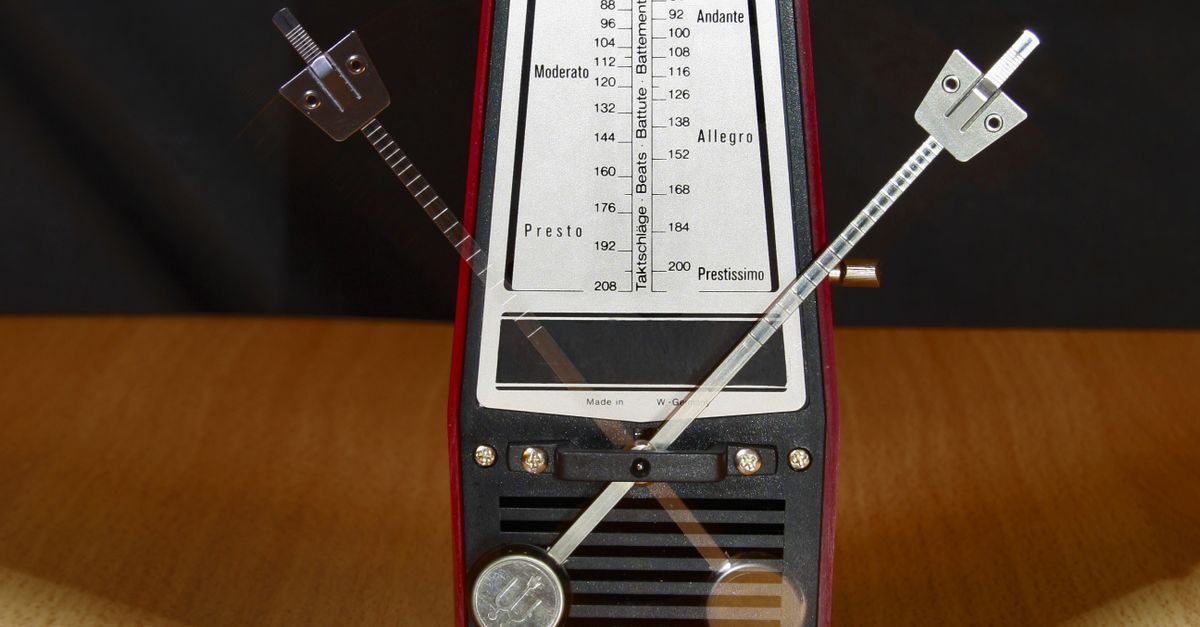
The Two Core Ideas Behind an Online Metronome
Behind the simple interface of any online metronome sit two settings that decide everything you hear. The first is beats per minute, abbreviated BPM. BPM is a count of how many evenly spaced beats occur in sixty seconds, which is the SI definition of a minute used in tempo marking and is documented in the NIST guide to accepted time units. If you set the Online Metronome to 60 BPM, it produces one click every second; at 120 BPM, one click every half second; at 240 BPM, one click every quarter second. The interval between clicks always follows the same formula: sixty seconds divided by the BPM value.
The second setting is beats per measure. A measure, also called a bar, groups a fixed number of beats into one repeating unit, and the meter of a piece of music tells you how many beats are in that unit. Common time is four beats per measure, waltz time is three, and six-eight compound meter is often counted in six. The Online Metronome accepts one through twelve beats per measure, so you can mark the downbeat on every fourth click for pop and rock, every third click for a waltz, or every sixth click for compound meter. The visual beat counter advances one step per click and wraps cleanly back to beat one at the end of each measure, even when the count reaches a measure length that would otherwise look unusual.
How BPM Controls the Click Interval
The interval between clicks is a direct division of sixty seconds by your chosen BPM. You can hear this relationship at the extremes the Online Metronome accepts. At 30 BPM the gap between clicks is two full seconds, slow enough for breathing rhythm and very deliberate practice. At 60 BPM the gap shrinks to exactly one second, which is also the resting heart rate used as a casual tempo reference. At 120 BPM the gap is half a second, the tempo most pop songs sit near. At the upper limit of 240 BPM the gap is one quarter of a second, fast enough for sixteenth-note runs at a brisk 60 BPM equivalent.
Worked example: for 120 BPM, the interval is 60 divided by 120, which equals 0.5 seconds. That is why 120 BPM is the most familiar tempo reference: it lands exactly on the half-second tick of a wall clock, and metronomes at this tempo produce two clicks for every second that passes. A deeper look at what BPM means and how to set it is in the metronome BPM guide.
| BPM | Click interval (seconds) |
|---|---|
| 30 | 2.000 |
| 60 | 1.000 |
| 90 | 0.667 |
| 120 | 0.500 |
| 150 | 0.400 |
| 180 | 0.333 |
| 210 | 0.286 |
| 240 | 0.250 |
The figures above are all derived from the formula 60 divided by BPM, which is how the tool itself schedules each click. If you set a tempo that lands between these values, the tool produces the corresponding fractional gap, and the audible pulse slows or speeds smoothly as you retype the field.
How to Use the Online Metronome
Open the Online Metronome in a fresh browser tab. You will see two number fields and a Start button. Use the steps below to set the tempo, start the click track, and clean up when you finish.
- Enter a whole tempo from 30 through 240 BPM in the tempo field. The tool reads the value as an untrimmed whole decimal number, so leading spaces, signs like a minus, decimal points, exponent notation, or units cause the value to fail rather than being rounded or capped.
- Choose one through twelve beats per measure in the measure field, then select Start. The first click uses a higher pitch so the start of each measure is audible; subsequent clicks use a lower pitch.
- Listen for the higher first-beat accent to confirm the measure boundary, and watch the on-screen beat counter advance from 1 up to your chosen measure length and wrap back to 1.
- Edit either field whenever you need a new tempo or a new meter. Editing stops playback before the new value takes effect, which keeps the displayed tempo and the audible timer from drifting apart.
- Select Stop before leaving the page. Stop closes the audio context, cancels the next scheduled click, resets the visual beat counter, and returns the tool to a stopped state. The same cleanup runs automatically when the component unmounts.
What the Accent Means in Practice
The accent in a metronome is the audible cue that tells you where beat one of each measure begins. Without an accent, every click sounds identical and you have to count silently to know where you are in the bar, which gets harder as the tempo climbs. The Online Metronome solves this by giving beat one a higher pitch than the remaining beats.
Concretely, beat one is rendered as a short 1320 Hz oscillator and beats two through the end of the measure are rendered at 880 Hz. Each oscillator uses the same gain envelope: gain starts at a conservative 0.2 and decays exponentially to 0.001 over 50 milliseconds, and the oscillator is stopped after 60 milliseconds so old audio nodes do not accumulate and slow the page. These frequencies are product cues chosen to make the downbeat unmistakable, not claims about a standardized concert pitch, a particular note name, a tuning system, or an ideal practice sound. The accent behavior is described in more detail in the Online Metronome sound and accent guide.
Device volume, speakers, headphones, browser gain, and the listening environment all determine how loud each click feels. Start with device volume low, especially with headphones. The tool does not provide hearing protection, is not a calibrated sound-pressure source, and is not a medical device, so use it only as a lightweight pulse for scales, rhythm exercises, reading practice, or rough tempo checks.
What an Online Metronome Does Not Do
An online metronome that runs in the browser tab is not the same thing as a sample-accurate studio clock. The scheduling path matters here, because it sets what the timing is suitable for. The Online Metronome schedules the next click from a JavaScript timeout that is computed from the validated interval, which is fine for ordinary practice, but several real-world factors can delay an audible click: a backgrounded tab, power-saving modes that throttle timers, a busy main thread, Bluetooth audio latency, browser autoplay policies, and operating-system scheduling.
The tool also draws a clear line on features it does not claim. There is no DAW synchronization, no MIDI clock output, no tap-tempo analysis, no latency calibration, no subdivision patterns, no swing, no polyrhythm, and no recording alignment. There is no microphone access, no audio file upload, and no server-side audio processing. The audio is generated locally in the current tab using the Web Audio API, which you can read about in the W3C Web Audio API specification. Each click creates one short oscillator and one gain node locally, with no samples to stream and no audio file to download.
If Web Audio is unavailable in your browser or the audio context is rejected on startup, the tool shows an error and does not leave behind a stale playing state. The same safety net runs on Stop, on edits to either input, on a failed start, and on unmount, so the timeout and audio context are always cleaned up. A Start attempt that runs while playback is already active is blocked by a synchronous guard, so you cannot end up with two overlapping click tracks in the same tab.