An online metronome is a browser-based tool that plays a steady click track at a tempo you set in beats per minute (BPM). The Online Metronome produces this click track entirely in the current browser tab, with a whole-number tempo from 30 to 240 BPM and a measure length from one to twelve beats, and the first beat in each measure is accented at a higher pitch so the bar boundary is easy to hear. Unlike a chromatic tuner or pitch detector, the tool does not listen to your instrument — it does not use your microphone, analyze incoming audio, or report how many cents sharp or flat a string is. What it does give you is a reliable reference pulse generated locally with the Web Audio API, with a click interval calculated as exactly 60 divided by BPM. You can use that pulse to keep time during practice, lock in a tempo for scales, or hold a steady beat while you tune by ear against a reference tone. This article walks through exactly how the Online Metronome works, how to set it up step by step, and where its browser-based timing falls short of a studio clock.
What "Online Metronome Tuner" Actually Means
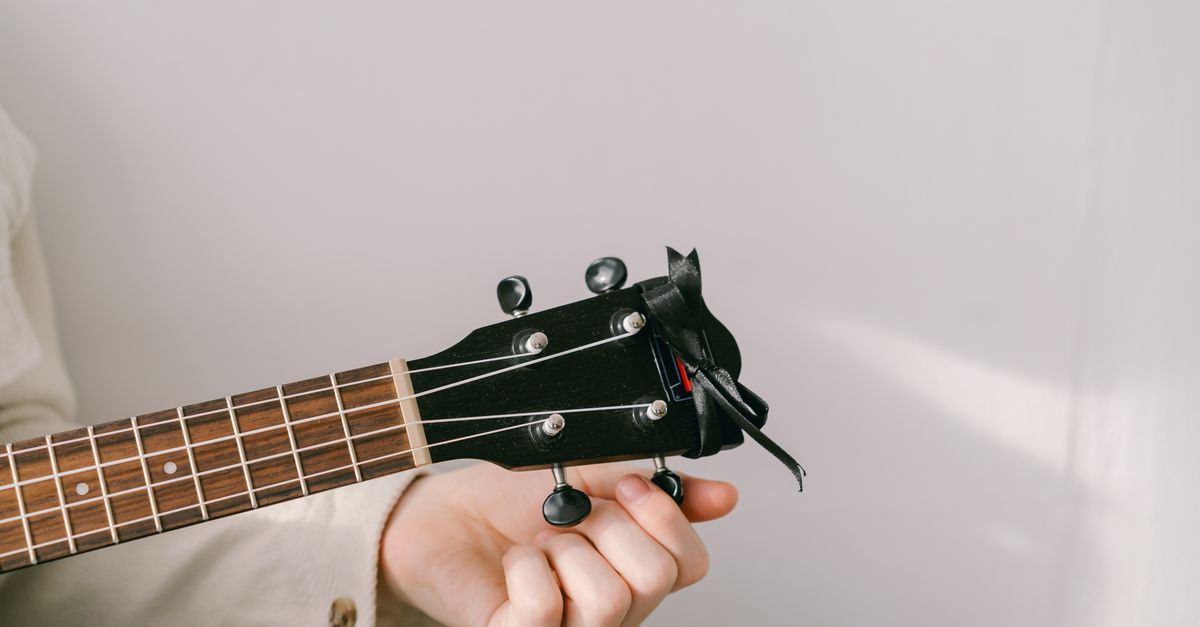
People type "online metronome tuner" into a search box for several different reasons. Some want a single browser page that does both jobs: a metronome to keep time and a tuner to read incoming pitch from a microphone. Others want a click track that helps them tune by ear against a fixed reference. The Online Metronome is firmly in the second group. It plays a click track — that is the entire output — and it never listens to your instrument. If you are looking for a chromatic tuner that reports cents sharp or flat on a played string, you will need a different tool. If you want a steady pulse to practice with, or a reference tempo to tune against, this is exactly that. The mix-up in naming is common because metronomes and tuners often share the same pocket on a musician's desk, but the underlying mechanisms are unrelated, and the Online Metronome only handles the pulse side of that pair.
The accent built into each measure is worth noting up front. The first beat of every measure plays at 1320 Hz, and every subsequent beat in that measure plays at 880 Hz. The pitch difference is large enough that you can hear the downbeat clearly without looking at the screen, which is useful when your attention needs to stay on your hands or your score.
The Two Inputs You Set Before Pressing Start
The Online Metronome accepts exactly two settings: a whole-number tempo and a whole-number beats-per-measure value. The tempo field accepts integers from 30 to 240 BPM and rejects anything outside that range. The beats-per-measure field accepts integers from 1 to 12 and rejects anything outside that range. Both inputs are validated as untrimmed whole decimal numbers, which is a precise way of saying that the tool fails the request rather than rounding or capping when it sees something it does not expect.
| Input | Accepted by the tool? |
|---|---|
| A whole number like 120 | Yes |
| A decimal like 120.5 | No — rejected |
| A negative value like -60 | No — rejected |
| A number with a unit like 120 BPM | No — rejected |
| Scientific notation like 1.2e2 | No — rejected |
| A blank or empty value | No — rejected |
| BPM below 30 or above 240 | No — out of range |
| Beats per measure below 1 or above 12 | No — out of range |
Editing either value while the metronome is running stops playback before the new value takes effect. That guard keeps the tempo you see on screen and the timer actually driving the clicks in lockstep, so a stale 120 never keeps ticking after you have changed the field to 90.
Set Up the Online Metronome in Three Steps
- Enter a whole tempo from 30 through 240 BPM. Type the integer into the tempo field. Common starting points are 60 BPM for slow scales, 80 BPM for moderate exercises, and 120 BPM for typical practice tempos.
- Choose one through twelve beats per measure and select Start. Use 4 for common time, 3 for waltzes, 6 for compound feel, and 1 if you want a simple steady pulse with no accent. Press Start to begin playback.
- Listen for the higher first-beat accent, then select Stop before leaving the page. The downbeat will sound noticeably higher than the rest of the measure. When you are finished, press Stop to close the audio context and cancel the next scheduled click.
That is the entire setup flow on the Online Metronome page. There is nothing to install, no plugin to enable, and no audio file to load before you press Start.
How the Browser Generates Each Click
Each tick you hear is a short oscillator created by the Web Audio API in the same browser tab you are already viewing. The tool never reaches a server for audio, never opens your microphone, and never asks you to upload anything. The first beat of a measure uses a 1320 Hz oscillator, and every later beat uses an 880 Hz oscillator. These frequencies are not a claim about concert pitch, a note name, a tuning system, or an ideal practice sound — they are simple audible cues chosen because the contrast between them makes the bar boundary obvious without any visual aid.
Each oscillator is wrapped in a gain node that starts at a conservative 0.2 and decays exponentially to 0.001 over 50 milliseconds. The oscillator itself is stopped after 60 milliseconds so old nodes do not accumulate and clutter the audio graph. From your perspective this is just a clean click that does not ring on top of the next one. From the browser's perspective it is a steady stream of tiny, well-behaved audio nodes that close themselves off and free their memory.
If you want to read more about how those short oscillators work, the MDN reference for OscillatorNode documents the same Web Audio primitives the tool relies on.
The 60/BPM Formula and One Worked Example
The interval between clicks is derived directly from the definition of beats per minute. Each interval in seconds equals 60 divided by the BPM value. That relationship is simple enough to verify by hand and stable enough to use as a practice reference. Worked through once, with the substitution shown: at 120 BPM the interval is 60 ÷ 120 = 0.5 seconds, so two clicks land every second, and at 240 BPM the interval is 60 ÷ 240 = 0.25 seconds, so four clicks land every second.
That ratio scales the same way across the full accepted range. At 60 BPM the interval is one second, so you hear one click per second. At 30 BPM the interval is two seconds, so you hear one click every two seconds. The further you push the tempo above 120 BPM, the shorter each interval gets, until you reach the 240 BPM ceiling at 0.25 seconds per click.
A useful sanity check: count how many clicks fit into a 30-second window at your chosen tempo. At 60 BPM you should count 30 clicks; at 120 BPM you should count 60. If your count is noticeably off, the discrepancy is almost always coming from the browser side, not the formula.
Why the First-Beat Accent Matters
The pitch gap between the 1320 Hz downbeat and the 880 Hz following beats is the whole reason the measure length setting has audible meaning. A pulse with no accent still gives you tempo, but it does not give you bar lines in your ear. Once the first beat of each measure is higher, you can keep your place in the bar without staring at the screen — a small but real help when you are reading a score, sustaining a long tone, or playing a passage that needs to land on specific beats.
The on-screen beat counter advances through the chosen measure with a wrap-safe integer counter, which is the implementation detail that lets the display stay in sync with the audio even if a click is delayed by a busy main thread. The audio side and the visual side share the same beat count, so the highlighted number and the audible accent always agree.
Where Browser Timing Falls Short
The Online Metronome schedules the next click from the calculated interval using a JavaScript callback. That is suitable for ordinary practice and tempo reference, but it is not the same as a sample-accurate studio clock. Background tabs, power-saving modes, busy main threads, Bluetooth audio latency, browser throttling policies, and operating-system scheduling can each delay an audible click by a few milliseconds — and occasionally by much more. None of these delays change the formula behind the timing, but they can change what you actually hear. If Web Audio is unavailable in your browser or audio startup is rejected, the tool surfaces an error and leaves no stale playing state behind.
The tool does not claim DAW synchronization, MIDI clock output, tap-tempo analysis, latency calibration, subdivision patterns, swing, polyrhythm, or recording alignment. If you need any of those, a browser metronome is the wrong tool for the job. For everything from slow warm-ups to fast technical runs, though, the click is reliable enough to drive a practice session.
If your tabs are throttling the audio, closing other heavy tabs and making sure the metronome page is the foreground tab usually brings the timing back to a tight feel. Device volume, speaker choice, headphone choice, and the room you are in all affect perceived loudness far more than the underlying signal does.
Pairing the Click Track With Tuning Practice
The word "tuner" in the original search query is worth addressing directly. The Online Metronome does not detect pitch, does not report cents sharp or flat, and does not listen to your instrument through the microphone. What it does offer, however, is a stable pulse that is genuinely useful during tuning routines: you can sustain a note, count clicks against a reference tone from a separate source, and train your ear to lock pitch to a steady tempo. Many practice routines that include a tuning step use exactly that pattern — strike the note, hold it under the click, and adjust intonation over the bar.
For a deeper walk through metronome-based practice routines, the guide to using a digital metronome for practice covers how to integrate a click track into scales, long tones, and rhythm exercises. The fundamentals of starting and stopping a click track in the browser are the same whether you are working on timing or on intonation — set the tempo, set the measure, press Start, listen for the accent, press Stop when you are done.
If you find that your tuning work needs more than a steady pulse — for example, you want to record yourself and analyze the result — the rest of the audio toolkit on this site covers recording, slicing, reversing, and reformatting audio files locally, all without uploading anything to a server.
If you're weighing options, Online Metronome With Sound: Frequencies, Accent, and Click covers this in detail.