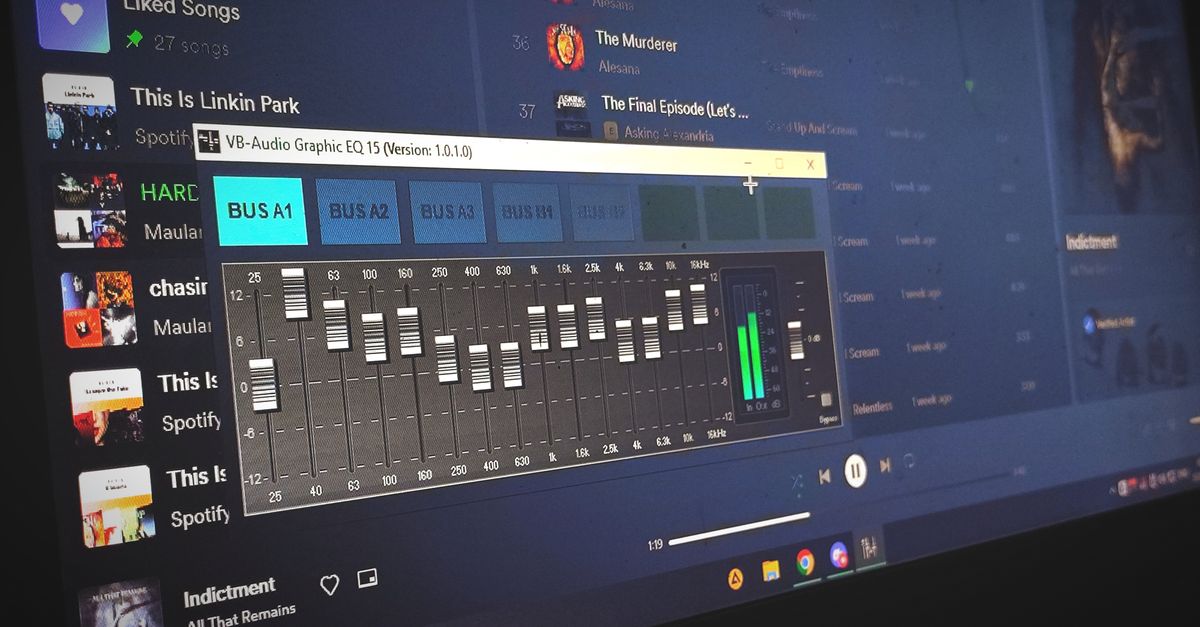
Windows 11 does not ship with a system-wide graphic equalizer that works on every audio device, which is why most users searching for how to equalize audio in Windows 11 end up staring at the driver-dependent "Equalizer" tab inside Sound settings or reaching for a third-party tool. The built-in equalizer only appears when your sound card, USB DAC, or motherboard audio driver reports an audio processing object (APO) that supports it, and the controls inside that tab stay fixed by that driver — usually a small set of preset shapes plus a single fader. Loudness Equalization in the same tab compresses dynamic range so quiet passages become louder, but it is not a custom three-band equalizer. A practical workaround is to load the file into a browser-based three-band equalizer such as Audio Equalizer, set Bass at 100 Hz, Mid at 1,000 Hz, and Treble at 10,000 Hz in whole dB steps between −12 and +12, and download a new PCM16 WAV that any Windows media player can open. Because processing happens locally inside the browser tab, the audio bytes never leave your computer, and the same three controls stay consistent whether you listen on speakers, wired headphones, or a Bluetooth headset.
Windows 11 Built-In Equalization: Where It Sits and Why It Can Vanish
Windows 11 routes its audio enhancements through Settings > System > Sound > More sound settings. When you open the Properties dialog of a playback device, an Enhancements tab shows the toggles your driver supplies: Loudness Equalization, Bass Management, Virtual Surround, and an Equalizer dropdown that lists preset shapes such as Pop, Rock, Classical, and Treble Boost. Realtek and AMD onboard audio typically expose the full set of toggles, while many USB audio interfaces and Bluetooth headsets expose only an empty Enhancements tab, and a handful of drivers hide the tab entirely.
Loudness Equalization acts as a wide dynamic-range compressor, not as an EQ, so it cannot zero in on the 100 Hz rumble that bleeds into your voiceover or the 4 kHz harshness that makes earbuds painful. The Equalizer dropdown selects a preset curve but does not let you drag faders to a specific frequency. When your driver does not advertise the APO support that Windows looks for, the dropdown itself disappears, and you have no native path to a custom curve. That gap is exactly what file-based EQ tools fill: instead of asking the driver to shape playback, they shape the audio file once, and the result plays back the same way on any Windows 11 device.
What a Three-Band Browser EQ Does Differently
Browser-based EQ tools such as Audio Equalizer sit one layer above Windows audio enhancements because they operate on the audio file rather than on the playback stream. You choose a file that your browser can decode — MP3, WAV, M4A, AAC, Ogg, WebM, or FLAC when the matching codec is installed — and the page decodes it locally using the Web Audio API AudioBuffer. The tool then runs three peaking biquad filters in sequence over every channel sample. Bass is centered at 100 Hz, Mid at 1,000 Hz, and Treble at 10,000 Hz, automatically reduced to 45 percent of the decoded sample rate when that rate is too low to hold the 10 kHz center below the Nyquist limit. Each band has a fixed Q of 1, an integer gain between −12 and +12 dB, and follows the W3C Audio EQ Cookbook formulas normalized by a0. With all three gains at zero the page copies the decoded samples straight through to the output buffer — a flat path with zero filtering.
Loading a file instead of modifying playback has three practical consequences for a Windows 11 user. First, the EQ result travels with the file, so an equalized podcast still sounds shaped when you copy it to your phone or burn it to a disc. Second, the same three controls stay constant whether the audio plays through laptop speakers, a USB DAC, or a Bluetooth headset — the driver-dependent Enhancements tab is no longer in the path. Third, the file processor reports exact numbers after every change, so you can verify that a +4 dB treble boost really produced the expected peak shift instead of trusting a visual slider.
Adjust Bass, Mid, and Treble in Your Browser
The fastest custom shaping on Windows 11 when the built-in Enhancements tab is empty or unavailable is to equalize the file directly. The steps below work in Microsoft Edge, Chrome, Firefox, or any other up-to-date browser running on Windows 11. The general workflow is identical regardless of the codec you start with, because the browser decodes everything into a uniform PCM buffer first; for deeper background, see the practical three-band walkthrough that accompanies this tool.
- Open the Audio Equalizer page in Microsoft Edge, Chrome, Firefox, or any browser up to date enough to support the Web Audio API on Windows 11.
- Click the file chooser and select an audio file your browser can decode (MP3, WAV, M4A, AAC, Ogg, WebM, or FLAC) that stays within 50 MiB and a decoded length of five minutes or less.
- Leave Bass, Mid, and Treble at 0 for a flat reference, or set each to a whole number between −12 and +12 dB. A +4 dB bass warms up a thin voice, a −3 dB mid tones down a boxy vocal, and a +2 dB treble adds presence to dull headphone drivers.
- Click Apply Equalizer. The page runs Bass, then Mid, then Treble biquads in sequence on every channel locally; the source bytes never leave your tab.
- Read the five metrics the page reports: raw peak, output peak, safety scale, sample rate, and frame count. A safety scale below 1 means the cascaded boosts pushed above 0.99 and the tool reduced the level uniformly.
- Press Play to preview the result against your usual speakers or headphones, then click Download WAV to save the equalized audio as a fresh PCM16 file on disk.
The Safety Scale and the Numbers the Page Reports
In a peaking-filter cascade the summed dB values do not translate cleanly into an output peak. The actual peak growth depends on the phase relationships between the three biquads and the spectrum of the source file, so even modest +4 dB boosts on all three bands can drive samples above digital full scale when those boosts align constructively in the time domain. A naive PCM16 encoder would simply chop any sample that exceeds 1.0, producing harsh clipping that the encoder cannot undo. The tool avoids that by measuring the absolute peak of the processed buffer — across every sample and every channel — and reducing the entire buffer by the minimum uniform factor needed to land the peak at exactly 0.99.
For example, when the cascaded biquads produce a raw peak of 1.34 (above the 0.99 target), the safety scale becomes 0.99 ÷ 1.34 ≈ 0.739. Every processed sample is then multiplied by 0.739 so the loudest moment lands exactly at 0.99 instead of clipping individual samples. The safety scale field on the page reports that exact factor, so a value below 1 is a direct readout of how much headroom the cascade needed. This is a clipping guard, not loudness normalization: the tool never measures LUFS, RMS, replay gain, or any streaming-platform target, and the quieter passages of your file remain proportionally quieter after scaling.
Two other reported numbers matter for Windows 11 users who want to verify what they actually downloaded. The sample rate is the rate Web Audio actually decoded, which can differ from the rate printed in the source container; the WAV header reflects the decoded rate, following the format defined by Microsoft WAVEFORMATEX. The frame count is the number of sample frames per channel, identical across channels because the tool never truncates mid-file. The interface also rejects over-limit files before filtering, so a 50-minute recording never produces a silently truncated WAV.
Practical EQ Settings for Common Windows 11 Scenarios
Three-band EQ is a coarse instrument, but it covers most laptop-speaker complaints when you pick reasonable starting points. The table below maps common Windows 11 listening scenarios to a default Bass, Mid, and Treble combination. Treat each row as a starting point, then nudge the band whose effect you can clearly hear.
| Common Windows 11 scenario | Bass (100 Hz) | Mid (1 kHz) | Treble (10 kHz) | Why this combination |
|---|---|---|---|---|
| Thin laptop speakers, weak voice | +3 dB | −2 dB | +2 dB | Adds low-end warmth, tames boxy midrange, lifts clarity |
| Muffled Bluetooth headset | +1 dB | 0 dB | +4 dB | Wireless codecs typically roll off the top end |
| Hiss or room rumble in source | −2 dB | 0 dB | −4 dB | Cuts reduce noise; raising bands amplifies it |
| Voiceover or podcast | +1 dB | −1 dB | +2 dB | Cuts muddiness and lifts intelligibility |
| Notification that sounds too sharp | −3 dB | 0 dB | −5 dB | Tones down metallic high-frequency content |
Listen with the speakers or headphones that matter to your final audience, then compare the equalized file against the original at a similar perceived level. Loudness tricks the ear, so adjusting the volume before judging the change is essential. The dB values shown above are starting points only — actual UIs, your room acoustics, and your source recording all shift the result, which is why the page also displays the raw and output peaks so you can see how much headroom each setting uses.
When a Three-Band Equalizer Is Not Enough
The three-band design covers most basic tonal adjustments on Windows 11, but the contract is upfront about its limits. It is not a 10-band graphic equalizer: the center frequencies are fixed at 100 Hz, 1 kHz, and 10 kHz and cannot be moved. It is not a linear-phase mastering processor, so phase relationships across the spectrum are not preserved at all frequencies. It is not loudness normalization — the safety scale is a uniform clipping ceiling, never a target loudness, and the tool never measures LUFS, replay gain, or streaming-platform targets. Decoded audio is bounded at 50 MiB of source size, five minutes of decoded length, one to eight channels, sample rates from 8 kHz to 192 kHz, and 30 million channel samples; longer files are rejected before filtering.
For mastering, room correction, multi-band dynamics, dithering, automation, spectral editing, or metadata preservation, a full audio editor — the desktop version of Audacity, a DAW, or a more specialized Windows audio tool — is the right choice. As intermediate steps inside the same browser-based workflow, you can split long files with the Lizely Audio Cutter, concatenate equalized clips with the Audio Joiner, or apply a separate volume pass with the Volume Changer. Each of those runs locally with the same privacy model, so the file chain stays private from intake to final equalized WAV.
If you're weighing options, Does an Audio Equalizer Work with WAV Files Locally? covers this in detail.