Yes, an audio equalizer works with WAV files in the browser — your WAV is decoded into raw PCM samples, filtered through three disclosed peaking bands, scaled to prevent clipping when needed, and written back as a brand-new uncompressed PCM16 WAV without ever leaving your device. This is true for any WAV your browser can actually decode, which on a modern desktop browser includes uncompressed PCM, most 16-bit and 24-bit recordings, and common broadcast WAV formats. The result is not a modified copy of your original file; it is a freshly encoded WAV whose header, sample data, and bit depth are determined by the tool's output pipeline, not by what was inside your source container.
WAV is a particularly good match for this kind of processing because it stores uncompressed audio. When the browser reads your file, it pulls out channel samples that are already close to the numbers the equalizer needs. There is no MP3 decoding artifact to undo, no AAC bit reservoir to ignore, and no lossy compression that would re-introduce noise on the way back out. That makes WAV the format most people reach for when they want a clean before-and-after comparison of an EQ change.
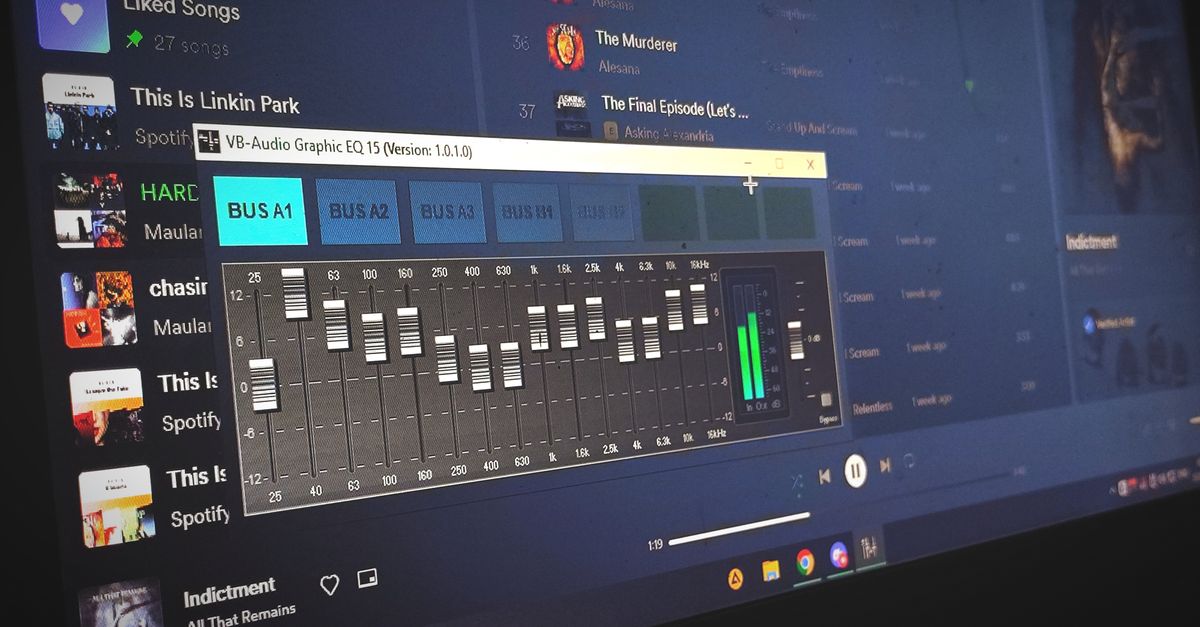
What Happens When You Equalize a WAV File
A browser equalizer that supports WAV follows a fixed pipeline. Your file is loaded into the current tab, decoded by the Web Audio API into an AudioBuffer of float samples, checked against a set of input limits, and then run through three cascaded biquad filters. The processed samples are measured for their absolute peak, scaled uniformly when that peak exceeds 0.99, and finally encoded as interleaved 16-bit little-endian PCM inside a fresh RIFF/WAV container.
For a WAV input, the decode step is essentially lossless in concept — every original sample becomes a float the equalizer can manipulate. Two practical caveats apply. First, the Web Audio API may resample your file during decoding if the source rate is unusual, so the sample rate written into the new WAV header is the decoded rate, not necessarily the rate you see in your source's metadata. Second, the equalizer itself is three peaking filters with a Q of 1, so it shapes energy around 100 Hz, 1,000 Hz, and 10,000 Hz rather than drawing a hard shelf. If you load a 22,050 Hz file, the treble center is automatically reduced to roughly 9,922 Hz so it stays below Nyquist; on a 48,000 Hz file it stays at the nominal 10,000 Hz. These center-frequency choices are made for you and cannot be edited on the page.
You can try the full workflow in the Audio Equalizer tool, which loads browser-decodable audio including WAV, applies the three-band peaking filter set described above, and downloads a complete PCM16 WAV result.
How to Equalize a WAV File in Your Browser
- Open the Audio Equalizer page and click the file picker. Choose one WAV file that is at most 50 MiB and that decodes to no more than five minutes of audio.
- Wait for the browser to finish decoding. If decoding fails — for example because your container holds a codec the browser does not support — the page surfaces an error and no stale download is offered.
- Set Bass, Mid, and Treble to whole numbers between -12 and +12 dB. Zero on all three is a flat path and the page will copy the decoded samples without running a nonzero filter section.
- Click the apply control. The tool runs three cascaded biquad peaking filters in Bass, Mid, then Treble order using the W3C Audio EQ Cookbook equations with Q fixed at 1.
- Read the reported raw peak, output peak, safety scale, decoded sample rate, and frame count. Use the raw peak to see what the filters did before any scaling; use the output peak and safety scale to confirm whether the 0.99 ceiling was reached.
- Preview the processed audio on the speakers or headphones that matter for your decision, and compare it to the original at a similar perceived loudness.
- Download the result. The download is always a brand-new PCM16 WAV regardless of the source format, with header fields written from the actual decoded buffer.
Why the Output Is Always a New WAV
Every download from the equalizer is a freshly encoded PCM16 WAV, even when your source file is a WAV already. The encoded file uses signed 16-bit little-endian samples interleaved by frame, and the RIFF header records the actual channel count, decoded sample rate, byte rate, block alignment, bit depth, and full data length. There is no pass-through mode that copies your original bytes, because the tool has already converted your input to floats for filtering and must convert them back to integers for the WAV container.
This has consequences for what survives the round trip. The audio data itself is faithfully encoded as new 16-bit PCM. What does not survive is anything the new container does not describe: original 24-bit or 32-bit depth is quantized to 16 bits, original sample-rate metadata may change if the browser resampled during decode, and any container-specific fields such as MP3 bitrate, AAC compression mode, ID3 or iTunes tags, embedded artwork, chapter markers, and loop points are not written to the output. For a WAV input the practical effect is smaller — you generally lose tag chunks, broadcast WAV extensions, and any non-PCM chunks — but the file you download is still a newly constructed WAV, not a patched version of the one you uploaded.
For a reference on the WAV header fields the encoder writes, the Microsoft WAVEFORMATEX documentation lists the exact layout used here.
Limits That Affect WAV Files Specifically
WAV files are usually larger than compressed formats, so the input caps matter more often than they do for MP3. The tool rejects over-limit files before filtering and never silently truncates the end of your audio.
| Limit | Value |
|---|---|
| Input file size | Up to 50 MiB |
| Decoded duration | 5 minutes or less |
| Channel count | 1 through 8 |
| Sample rate | 8,000 Hz to 192,000 Hz |
| Channel samples | No more than 30,000,000 |
| Output format | PCM16, signed little-endian, interleaved |
If your WAV is longer than five minutes once decoded, or if it contains more than 30 million channel samples, the page will reject it. Trimming first with a tool such as the Audio Cutter brings the file under the cap without changing its format, and then the equalizer can process the shorter result.
How the Safety Scale Protects Your WAV
Cascading three peaking boosts can drive samples above digital full scale even when the input file did not clip. Before writing the WAV, the equalizer measures the absolute peak across every processed sample and every channel. If that raw peak is at or below 0.99, no scaling is applied and the output peak matches the raw peak. If the raw peak is above 0.99, the tool computes a single uniform scale factor of 0.99 divided by the raw peak and multiplies every sample by it, so the output peak lands exactly at 0.99.
As a concrete illustration, suppose your WAV originally peaked at 0.85 and a Bass +6 dB, Mid +6 dB, Treble +6 dB combination raises the raw peak to 1.02. Because 1.02 exceeds 0.99, the safety scale becomes 0.99 divided by 1.02, or approximately 0.9706, and every sample in the result is multiplied by that factor. The output peak lands at 0.99 and the PCM encoder writes clean 16-bit values with no individual sample chopped. This is a peak-based ceiling, not loudness normalization — the tool does not target LUFS, RMS, replay gain, or any streaming platform's loudness spec, so a quieter overall result is possible whenever boosts stack up.
When a Three-Band EQ Is Not Enough for Your WAV
A compact three-band equalizer is a sensible default for quick tone shaping, but it is not a substitute for a full audio editor. There are no adjustable Q controls, no spectrum analyzer, no per-band center-frequency selection, no linear-phase processing, no automation lanes, no loudness metering, no dithering controls, and no codec selection on the output. If your work depends on any of those — dialogue cleanup, mastering a song to a streaming target, surgical notch filtering, or preserving 24-bit depth — open the result in a desktop DAW instead.
The tool is also explicit about what a peaked filter does and does not do. A peak at 100 Hz affects a region around 100 Hz rather than every frequency below it; a cut at the same center narrows energy around 100 Hz but does not act as a hard high-pass filter. Strong boosts at any band may emphasize noise, sibilance, rumble, or distortion that was already present in the source. Cutting a band is usually safer than stacking several boosts, and the preview is meant to be a check rather than proof that a setting is the right mix. Listen on the speakers or headphones that matter, compare against the original at a similar perceived level, and avoid judging only because the result is louder.
For a deeper walk-through of how the same three-band workflow fits into editing pipelines, the guide Save Equalized Audio as a WAV with a Three-Band EQ extends these steps into practical production cases.
What the Equalizer Does Not Change About Your File
To summarize the format contract: the equalizer accepts a WAV (or another browser-decodable container), decodes it, filters it, and writes a new PCM16 WAV. It does not preserve your original bit depth, your original sample rate if the browser resamples, any tags or artwork, any chapter or loop markers, or any container-specific metadata. It does not retune the file to a loudness target and does not promise that any single setting improves every recording. What it does, deterministically, is run three peaking biquads with disclosed centers and Q, apply one uniform safety scale only when the raw peak crosses 0.99, and hand you back a clean PCM16 WAV whose header describes exactly what is inside the file.
Related reading: Does the Download Keep My Original Codec and Tags?.