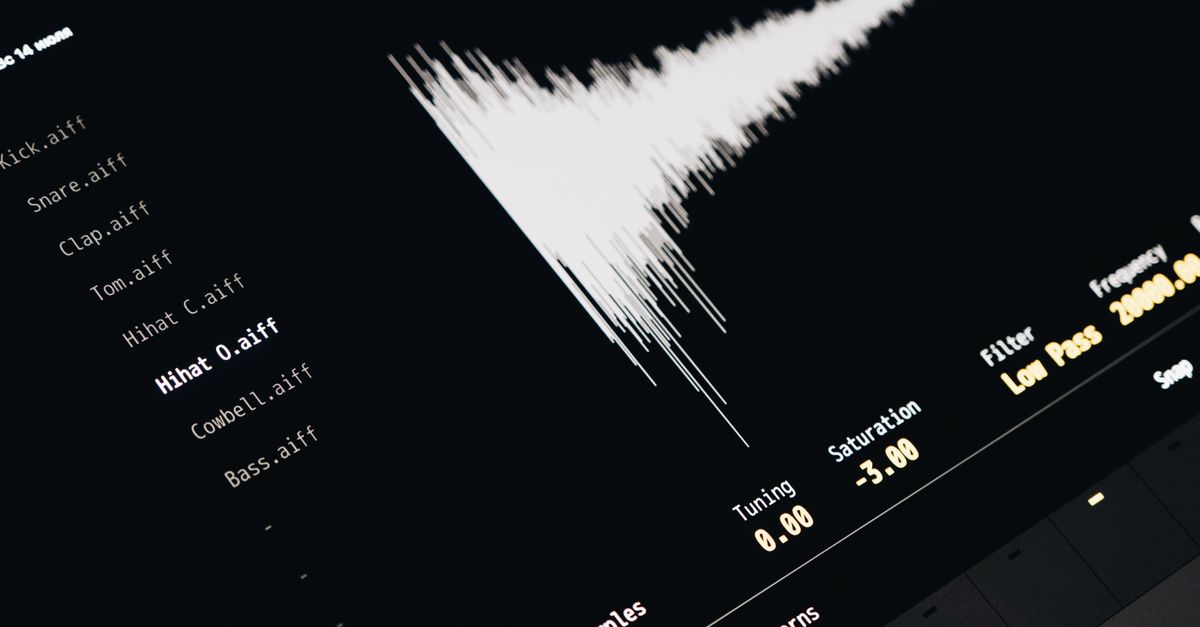
A waveform image is a time-domain picture of where audio samples reach their minimum and maximum values across short slices of a track, and you should generate one when your deliverable is a visual representation of the audio's amplitude envelope rather than the audio itself. The output is a static SVG containing one vertical line per bucket, drawn from the bucket's minimum sample to its maximum sample after the source audio is decoded locally by your browser. Full-scale positive or negative samples extend to 45 percent of the requested height above or below the vertical center, leaving a five-percent margin at the top and bottom. The number of columns is the smaller of the requested image width, 1,000, and the decoded frame count, so a short clip does not invent more independent measurements than it contains and a long clip stays within a bounded SVG budget. A waveform is not a calibrated loudness meter, a spectrogram, or a frequency analyzer, which is why the decision to generate one is really a decision about whether the audience needs to see amplitude over time, not whether they need to hear or analyze the audio.
What Generating an Audio Waveform Actually Means
The output of a waveform generator is a still graphic, not a sound file and not a video. The Audio Waveform Generator decodes a single audio file inside your current browser tab using Web Audio, divides the decoded sample frames into equal index ranges, and draws one vertical line per range from the bucket's minimum sample to its maximum sample. The implementation uses a deliberately simple peak-envelope method that takes the finite, clamped minimum and maximum across every decoded channel for each range, which preserves short positive and negative peaks more honestly than picking one arbitrary sample per bucket. The picture that comes out is a single combined peak overview, and its coordinates are deterministic: vertical center sits at half the requested height, full-scale extends to 45 percent of the height around that center, and columns are evenly spaced across the requested width.
That method has clear limits that should shape your decision. The tool does not calculate frequency content, beats, notes, loudness, speech, transients, or musical structure. It does not display separate left and right lanes, average channels into a new signal, or preserve channel identity visually. The picture is not a spectrogram, even though both are usually called waveforms in casual conversation: time runs left to right, but the vertical line represents sample amplitude range, not frequency. If you want frequency analysis you need a different tool, and if you want a calibrated loudness reading you need a meter designed for that purpose.
Signals That You Probably Need a Waveform Image
You should generate a waveform when the deliverable is a picture of the audio that another person will look at. Common situations include a video editor who needs a still waveform graphic to drop onto a timeline, a slide deck that pairs a quote with a visible recording, a documentation page that explains a sound effect, a podcast website that wants a track preview, and a print or poster workflow that converts a meaningful recording into wall art. The shared property of these situations is that the audience cannot or will not play the audio first, so a static image has to communicate something about it.
The decision gets sharper once you ask two questions. First, does the viewer need to see where the loud parts are, where the silence is, or how the energy rises and falls? Second, do you control the output format, or is the final stage a place that cannot accept a player widget? When the deliverable is the SVG itself, as in workflows that need a file that stays sharp at any display size, a deterministic local generator is often the cleanest source. If the answer to both questions is yes, generating a waveform is the right call.
A third signal is reuse and inspection. SVG output stays sharp when placed at another display size, can be opened in an SVG-aware editor to recolor, restroke, or restyle, and contains one background rectangle plus a group of peak lines with fixed pixel dimensions and a matching viewBox. A reader who needs to verify what is actually in the image can also open the page's SVG inspector and read the exact generated text, because the download uses the identical string.
When You Can Skip Generating a Waveform
Skip waveform generation when the goal is to hear, trim, rearrange, or analyze the audio rather than picture it. Cutting a section from a longer recording is a job for the Audio Cutter, joining several files in a chosen order is a job for the Audio Joiner, reversing every decoded sample is a job for the Reverse Audio tool, and shifting pitch without changing duration is a job for the Audio Pitch Changer. Each of those workflows returns an actual PCM16 WAV file, which is what you need when the final listener will play the result.
Skip waveform generation when the question is about frequency content, beats, or musical structure. A waveform image cannot tell you that a note is an A, that a kick lands on beat two, or that a master is too loud. Those tasks require analysis that this peak envelope deliberately does not attempt. Skip it when the only thing you need is a sanity check during editing: opening the file in any audio editor gives you a richer interactive view than a one-shot SVG, and the editor can scroll, zoom, and overlay meters that a static image cannot.
Skip it when the file itself is the deliverable. The waveform image is a picture derived from the audio, not a replacement for it. If a client needs the recording, send the recording; if they need a transcript, generate one; if they need a visual, then the waveform is on the table.
How to Generate a Waveform Locally in Your Browser
Once you have decided that the deliverable is a still picture, the fastest path is a local SVG generator that does not upload your file. The Audio Waveform Generator follows this sequence.
- Choose one browser-decodable audio file within the stated compressed and decoded limits. Web Audio reads the selected MP3, WAV, M4A, AAC, Ogg, WebM, or FLAC only when the current browser and operating system support its real codec, so a file extension or MIME label cannot guarantee decoding (see the Web Audio API AudioBuffer spec). Unsupported, corrupt, empty, or disguised files return an error.
- Set the SVG width, height, background color, and waveform color, then generate the local peak envelope. Width must fall between 320 and 1,600 pixels and height between 120 and 600 pixels. Colors come from the browser's six-digit hexadecimal color controls, and all SVG markup is generated from validated numbers and those colors rather than copied from filenames or embedded source metadata.
- Check the reported frames and peak-column count, inspect the preview or SVG text, and download the exact scalable SVG. The page shows the generated SVG text in an expandable inspector, and the download uses that identical string. Selecting a replacement file, changing an option, generating again, or leaving the page revokes the obsolete object URL so an older image cannot appear to represent new inputs.
The download is a text-based SVG, not PNG, JPEG, video, or audio. It contains one background rectangle and a group of peak lines with fixed pixel dimensions and a matching viewBox, which is why the file stays sharp when placed at another display size. Extremely large print or editing workflows may still require different stroke widths or more detailed source data, but for most web, slide, and modest print uses the output is ready as is.
Limits to Check Before You Try
The same decoded-data limits used across the site's audio tools apply here, and they are the deciding factor for whether a file will process at all. Confirm these before you load the file.
| Constraint | Accepted Range |
|---|---|
| Compressed file size | At most 50 MiB |
| Decoded duration | At most five minutes |
| Channel count | One through eight |
| Sample rate | 8,000 through 192,000 Hz |
| Channel samples total | At most 30 million |
| SVG width | 320 through 1,600 pixels |
| SVG height | 120 through 600 pixels |
These checks matter because a small compressed file can expand into much larger floating-point channel arrays. Over-limit audio is rejected as a whole, so the waveform is not silently made from only the beginning of the track. If your file fails any of these, the right move is to trim it first with the Audio Cutter, then return to the waveform generator with a shorter version.
Reading the Result Honestly
A peak waveform is a useful picture, but it has a known weakness. Two recordings can show similar peaks while sounding very different because perceived loudness depends on duration, frequency balance, dynamics, and playback conditions. A track with consistent peaks at moderate levels can sound louder than a track with sparser peaks at the same levels, and the static picture cannot show that difference. Treat the SVG as a picture of where the extremes sit, not as a measurement of how loud the track feels.
The picture also cannot diagnose hearing, equipment, clipping history, phase, or mastering compliance. It can show that full-scale samples exist, which often correlates with digital clipping at the source, but it cannot tell you whether clipping happened before or after a particular stage in the signal chain. If any of those questions matter, an audio editor or a calibrated meter is the right tool, not a static SVG. Used within them, the waveform is a clean, deterministic, locally produced graphic that pairs well with playback, editing, and publishing.
If you're weighing options, Document the Steps to Generate an Audio Waveform covers this in detail.
If you're weighing options, Fix a Result That Looks Wrong in Audio Waveform Output covers this in detail.