A waveform that looks wrong after generation almost always traces back to one of four causes: input limits, dimension choices, color contrast, or a stale preview, and the Audio Waveform Generator resolves each by regenerating locally with corrected settings. The tool decodes one browser-supported audio file inside the current tab, divides the decoded frames into equal peak buckets, and draws one vertical SVG line per bucket from the bucket minimum to the bucket maximum. The vertical center sits at half the requested height, and full-scale samples reach 45% of the height above and below that center. Columns are evenly distributed across the requested width, and the column count equals the smaller of the requested width, 1,000, and the decoded frame count. Knowing these rules turns a result that looks wrong into a result that is correct for the input you supplied. Each symptom below has a specific remedy you can apply right away, and nothing in the process touches a server.
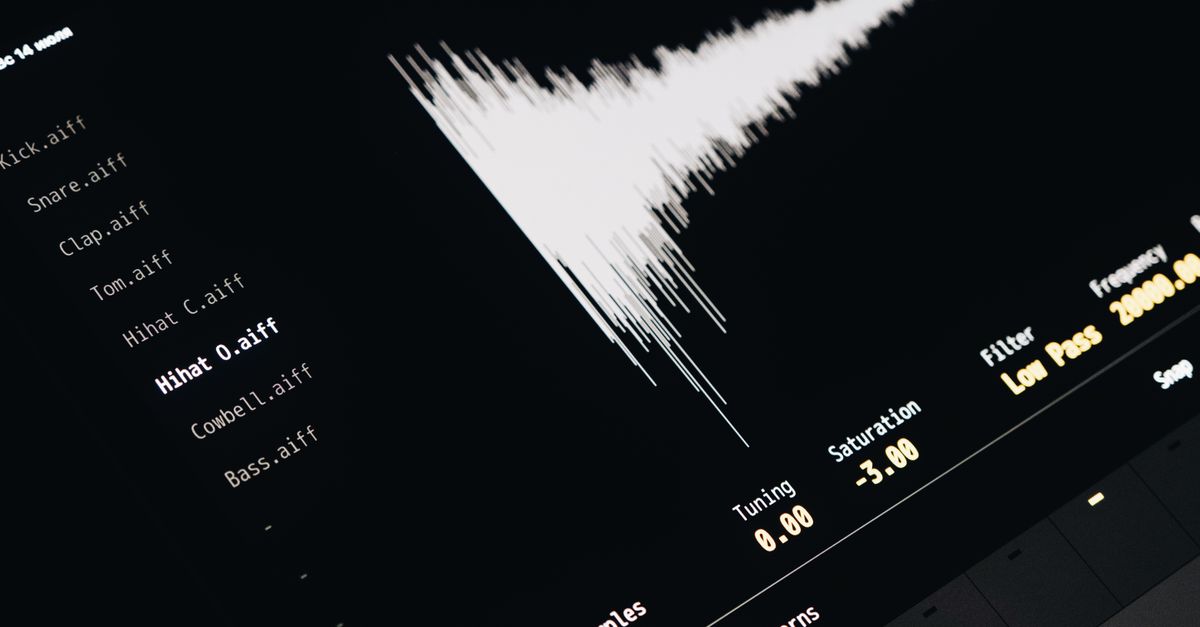
What "Looks Wrong" Usually Means in a Peak Waveform
A peak waveform is a time-domain picture of amplitude, not a spectrogram, a loudness meter, or a musical transcription. When the result surprises you, the cause is usually one of a small list of predictable situations:
- A flat or near-empty image often reflects a silent section, very low amplitude input, or a file that decoded with near-zero samples.
- Clipping flush against the top and bottom 5% margins means the source audio reached or exceeded full scale; the tool maps full-scale peaks to exactly 45% of the canvas height.
- An asymmetric or vertically skewed shape reflects DC offset in the source recording. The tool draws true peaks; it does not recenter them visually.
- Too few visible columns occur when the clip is short, the requested width is small, or both — column count is the smaller of width, 1,000, and the frame count.
- A waveform color that blends into the background makes the peaks invisible against the chosen background color.
None of these are tool malfunctions. They are the predictable outputs of the peak-envelope method, and recognizing them is half the fix.
Confirm the Input File and Decoded Limits
Before adjusting any option, verify that the file fits the supported envelope. If any limit is exceeded, the file is rejected as a whole — the tool never draws a partial or silent waveform as a workaround.
| Limit | Allowed range |
|---|---|
| Compressed file size | Up to 50 MiB |
| Decoded duration | Up to 5 minutes |
| Channel count | 1 to 8 |
| Sample rate | 8,000 Hz to 192,000 Hz |
| Total channel samples | Up to 30,000,000 |
| SVG width | 320 px to 1,600 px |
| SVG height | 120 px to 600 px |
A small compressed MP3 can still decode into a very large floating-point buffer. For example, a 60-second stereo clip at 44,100 Hz produces 60 × 44,100 × 2 = 5,292,000 channel samples, which fits comfortably under the 30-million ceiling; a much longer or higher-resolution file can blow past it without ever crossing the 50 MiB compressed limit. Checking the 30-million-channel-sample budget before generating prevents silent rejection.
Browser codec support also matters. Web Audio reads the selected MP3, WAV, M4A, AAC, Ogg, WebM, or FLAC only when the current browser and operating system can decode it natively; an extension or MIME label cannot guarantee decoding. Unsupported, corrupt, empty, or disguised files return an error message rather than a misleading image.
Regenerate the Waveform with Corrected Settings
The fix path is identical for almost every visual issue. Open the Audio Waveform Generator and apply the following sequence.
- Re-select the audio file. Selecting a replacement file revokes the obsolete object URL so an older preview cannot represent new inputs.
- Set the SVG width between 320 and 1,600 pixels and the height between 120 and 600 pixels. If the previous result looked sparse, raise the width — a longer canvas yields more columns up to the 1,000-column cap.
- Pick background and waveform colors using the six-digit hexadecimal controls. The tool does not infer colors from filenames, so always set them explicitly.
- Generate the local peak envelope. Read the reported frames and peak-column count — when the column count is far lower than the width, the clip is too short for the canvas you chose.
- Inspect the preview and the expandable SVG text inspector. The download writes the identical string shown in the inspector, so what you see is what is saved.
- If something still looks off, change one option and regenerate rather than starting over from scratch.
Each regeneration runs entirely in the current browser tab. The audio file and the SVG never leave the page, so you can iterate quickly without uploading anything.
Match the Symptom to the Specific Fix
The fastest way to repair a wrong-looking result is to identify the symptom first, then apply the matching change.
| Symptom | Most likely cause | Specific fix |
|---|---|---|
| Empty or flat image | Silent section, very low amplitude, or unsupported file | Confirm the file plays audibly, then re-select and regenerate |
| Peaks touching the top and bottom margins | Full-scale samples in the source | Expected behavior; reduce input gain in an audio editor if you need headroom |
| Shape sits off-center vertically | DC offset in the source recording | Expected behavior; use an editor with DC-removal if you want centering |
| Far fewer columns than expected | Short clip relative to a wide canvas | Lower the width or use a longer file — columns equal the smaller of width, 1,000, and frames |
| Peaks invisible against the background | Low color contrast | Pick a waveform color with strong contrast against the chosen background |
| Old image still showing after new options | Stale object URL | Re-select the file or change an option and regenerate — the previous URL is revoked |
| Different look from an audio editor | Different bucket method, channel handling, or scaling | Compare methods before choosing a workflow |
| File rejected outright | Over a limit or unsupported codec | Re-encode, trim, or convert the file, then retry |
If the symptom is that the file will not decode, the cause is almost always a codec or limit issue, not a rendering bug. Re-encoding the file with a known-supported codec, trimming it under five minutes, or converting the sample rate to a supported range usually clears the error.
Why This Result Can Differ from Your Audio Editor
Two tools rarely produce pixel-identical waveforms because peak drawing depends on the bucket count, the channel handling, and the scaling rule. The Audio Waveform Generator uses minimum and maximum peaks per bucket across every accepted channel, scales full scale to 45% of the canvas height, and leaves a 5% margin on each end. An audio editor may take a single sample per bucket, average channels into one waveform, or render at full canvas height without any margin.
Multichannel files are combined into one peak overview rather than displayed as separate lanes. A single bucket can take its minimum from one channel and its maximum from another, so the picture does not preserve channel identity visually and does not average channels into a new audio signal. If you need separate left and right lanes — for checking balance, phase, or per-channel clipping — use an audio editor that exposes each channel as its own track instead. The waveform generator is built for quick, deterministic SVG overviews, not channel-isolated visualizations, and treating it as the latter is the most common source of "looks wrong" complaints.
When the Fix Is Actually a Different Tool
Some complaints signal that the waveform generator is the wrong tool entirely. It is not a calibrated loudness meter, so two recordings with similar peaks can sound very different depending on duration, frequency balance, dynamics, and playback conditions. It is also not a spectrogram: time runs left to right, but the vertical line represents sample amplitude range, not frequency. If your goal is to diagnose clipping history, phase, mastering compliance, hearing, or musical structure, none of those are outputs of this tool.
For situations where the tool simply will not generate, the related guide on browser-level waveform troubleshooting walks through codec support, file size, and tab state. The peak extraction itself runs through the Web Audio AudioBuffer interface, which reads sample data inside the current tab without uploading anything. Stale object URLs are revoked whenever inputs change, so a regenerate step always replaces — never overlays — the previous preview.
If you're weighing options, Start Here: Generate an Audio Waveform in Your Browser covers this in detail.