The Audio Waveform Generator shows stereo and multichannel files as one combined peak overview rather than as separate left/right lanes or per-channel rows. Time still runs left to right across the canvas, but every vertical line on the image represents the minimum and maximum finite sample across every decoded channel inside that time slice. A bucket can take its lowest value from the left channel and its tallest value from the right channel, or vice versa, which means the picture preserves short peaks from any channel without inventing a new audio signal. The original audio is never rewritten, channels are never averaged into a fresh mix, and no channel identity is preserved visually in the SVG. If your task specifically needs separate left and right lanes, you must use an audio editor that exposes each channel as its own track; this generator only produces the combined view. The visualization stays local throughout: Web Audio decodes the file in your current browser tab, the tool computes the envelope, and the SVG is generated and downloaded without uploading anything to a server.
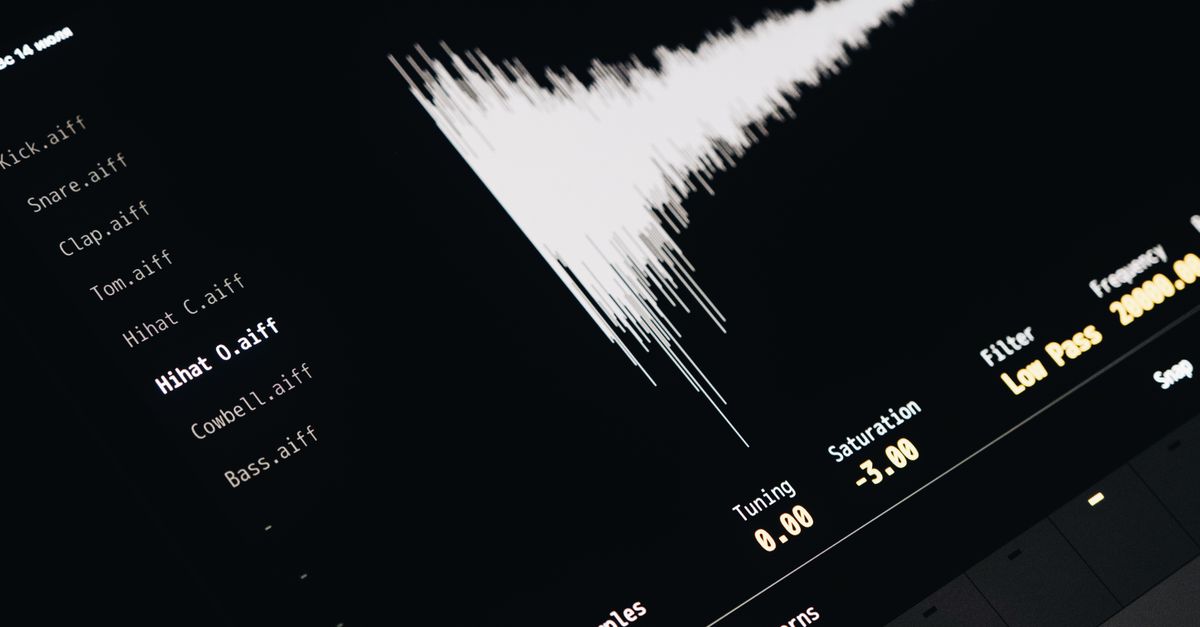
What Stereo and Multichannel Audio Look Like in the Generator
The generator draws exactly one vertical peak line per column on the canvas, no matter how many channels your file contains. For a stereo file, the left and right channels are not stacked top and bottom, drawn side by side, or color-coded into separate lanes. For a file with three, six, or eight channels, the behavior is identical: every channel feeds the same bucket's minimum and maximum, and only one combined range line is drawn per column. Because that range is taken across every decoded channel, the resulting picture represents the widest amplitude swing that any channel produced in that slice of audio.
A quiet lead vocal mixed against loud stereo drums will therefore look as tall as the drum hit even in slices where the vocal is silent — the loudest channel sets the upper edge and the quietest channel sets the lower edge. That trade-off is the reason the tool is described as a peak-envelope view rather than a per-channel visualization, and it is the honest answer to the question of how stereo and multichannel files are drawn when you generate an audio waveform.
How the Combined View Is Calculated
The combined view is produced by dividing every decoded frame into equal index ranges called buckets. The number of buckets is the smaller of the requested image width, 1000, and the decoded frame count, which keeps short clips from being padded with invented measurements and long clips from exceeding a bounded SVG. For each bucket the implementation finds the finite minimum and maximum sample across every channel that contributed audio to that range, then defensively clamps any out-of-range value to -1 through 1 so corrupt or disguised files cannot produce runaway line heights.
The minimum and maximum are then drawn as one vertical SVG line centered horizontally on the bucket. Vertical coordinates are deterministic: the vertical center sits at half the requested height, and full-scale positive or negative samples extend to 45 percent of the height above or below that center. The five-percent margin at the top and bottom is left empty so full-scale audio never touches the edge of the image, and the column centers are evenly spaced across the requested width.
Generate the Waveform for Stereo or Multichannel Audio
- Open the Audio Waveform Generator in your browser and choose one file your browser can decode natively — MP3, WAV, M4A, AAC, Ogg, WebM, or FLAC. Keep the compressed size at or under 50 MiB and the decoded duration at or under five minutes, since over-limit audio is rejected as a whole.
- Set the SVG width between 320 and 1600 pixels, the height between 120 and 600 pixels, the background color in six-digit hexadecimal, and the waveform color in six-digit hexadecimal. The dimensions and colors will be written into the SVG exactly as entered.
- Click generate, then read the reported frame count and peak-column count. Inspect the preview or open the expandable SVG text inspector, confirm the dimensions and line count match your expectations, and download the exact SVG using the download button.
The peak-column count reported by the tool equals the number of vertical lines drawn in the SVG. If your file is shorter than the requested width in frames, fewer columns will be drawn; if it is much longer, the column count is capped at 1000 to keep the SVG bounded. Browsers do not all support every codec, so an unsupported, corrupt, empty, or disguised file returns an error rather than a partial picture. Selecting a replacement file, changing an option, regenerating, or leaving the page revokes the obsolete object URL so an older image cannot appear to represent new inputs.
Input Limits That Apply to Stereo and Multichannel Files
The same decoded-data limits used across the site's audio tools apply to stereo and multichannel inputs, and they matter more than they might appear at first glance. A small compressed file can expand into much larger floating-point channel arrays once decoded, especially when several channels are present, and over-limit audio is rejected as a whole rather than silently truncated to the first few seconds. The tool accepts one through eight channels at any sample rate between 8,000 and 192,000 Hz, provided the total channel samples stay at or below 30 million. The accepted input envelope is summarized below.
| Constraint | Accepted range |
|---|---|
| Compressed file size | up to 50 MiB |
| Decoded duration | up to 5 minutes |
| Channels | 1 through 8 |
| Sample rate | 8,000 to 192,000 Hz |
| Total channel samples | up to 30,000,000 |
| SVG width | 320 to 1,600 pixels |
| SVG height | 120 to 600 pixels |
| Peak columns | min(width, 1000, decoded frames) |
Decoding happens through the Web Audio API, and the resulting float arrays are bounded by the limits listed above before any bucket math runs (see the AudioBuffer specification). If the file decodes successfully but the channel count, sample rate, duration, or total channel samples fall outside the envelope, the entire waveform generation is refused rather than silently truncated.
Reading the Combined Peak Overview Honestly
The combined overview is a peak envelope, not a calibrated loudness meter, and it is also not a spectrogram. Time runs left to right as expected, but the vertical extent of each line represents the amplitude range of the sample bucket, not frequency content. Two recordings can show similar peaks while sounding very different because perceived loudness depends on duration, frequency balance, dynamics, and playback conditions.
The image does not reveal clipping history, phase between channels, speech versus music, beats, notes, transients, or mastering compliance, so it should not be used to diagnose hearing, equipment, or mix issues. Within those limits, the picture is a faithful representation of the widest amplitude swing any channel produced in each bucket, which is exactly what most readers want from a quick visual reference.
When You Need Separate Channel Lanes
The combined overview is the deliberate choice of this generator, and it is not the only way to look at multichannel audio. If your task depends on visually separating the left and right lanes of a stereo recording, or on inspecting a surround mix channel by channel, you need an audio editor that exposes each channel as its own track — for example a desktop digital audio workstation.
Within a browser tab, the simplest path to a per-channel picture is to split the file into single-channel files first using a multitrack editor, then generate a separate SVG for each one with the same generator. Each generated SVG will still be a combined overview of its single channel, but placing them side by side recovers a lane-by-lane view without changing the underlying method. The download is text-based SVG, not PNG, JPEG, video, or audio, so the same SVG can be opened in an SVG-aware program for editing or scaling at any display size.
If you're weighing options, Avoid Mistakes When Generating an Audio Waveform covers this in detail.