Generating an audio waveform from a local audio file without mistakes comes down to respecting the browser's decoding limits, choosing dimensions inside the supported range, and remembering that a peak waveform is a time-domain picture, not a spectrogram. The Audio Waveform Generator builds a deterministic SVG by dividing all decoded frames into equal index ranges, taking the finite minimum and maximum sample across every channel inside each range, and drawing one vertical line per range. Anything that violates a hard limit, confuses a peak envelope with frequency analysis, or reuses an old preview is a mistake the tool surfaces immediately rather than silently approximating.
What the Waveform Generator Does and Does Not Show
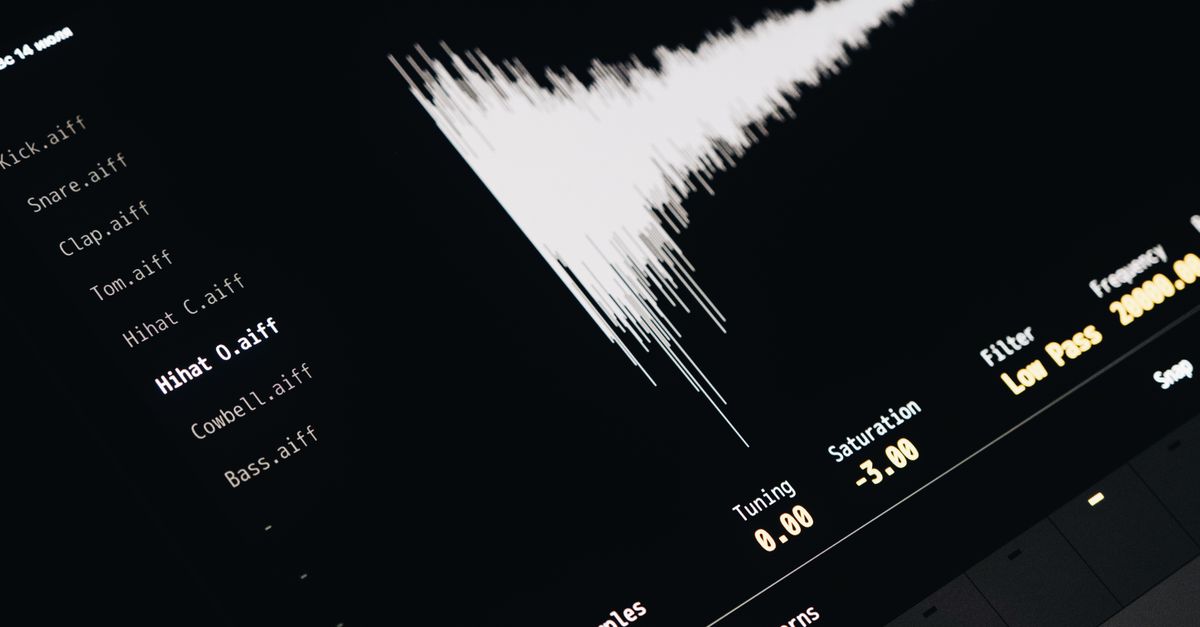
The peak envelope produced by the tool is intentionally simple. Each bucket finds the minimum and maximum finite sample across every decoded channel, clamps defensive out-of-range values to -1 through 1, and draws a single vertical line from the bucket maximum to its minimum. This preserves short positive and negative peaks more honestly than picking one arbitrary sample per bucket. What it does not do is just as important. It does not calculate frequency content, beats, notes, calibrated loudness, speech recognition, transients, or musical structure. A peak waveform is therefore not a loudness meter: two recordings can show similar peaks while sounding very different because perceived loudness depends on duration, frequency balance, dynamics, and playback conditions.
Treat the visualization as a time-domain image where the horizontal axis is time, left to right, and the vertical axis is sample amplitude range, not frequency. Users who read the picture as a spectrogram diagnose the wrong thing. The vertical lines represent the minimum and maximum sample amplitude within each time bucket, not which frequencies were present. If the goal is frequency analysis, clipping history, phase relationships, or mastering compliance, a different tool is required.
File and Decoding Limits That Will Block Generation
Decoding happens through the Web Audio API's AudioBuffer in the current browser tab, which means real codec support depends on the browser and operating system rather than the file extension or MIME label. Supported inputs include MP3, WAV, M4A, AAC, Ogg, WebM, and FLAC, but only when the current environment actually decodes them. An unsupported, corrupt, empty, or disguised file returns an error rather than producing a misleading empty picture.
Before pressing generate, confirm every interacting limit, because missing any one of them causes the file to be rejected as a whole. The waveform is never silently built from only the beginning of an over-limit file.
| Limit | Accepted Range | What Happens If You Exceed It |
|---|---|---|
| Compressed file size | Up to 50 MiB | File rejected; nothing is generated |
| Decoded duration | 5 minutes maximum | File rejected; nothing is generated |
| Channel count | 1 through 8 channels | File rejected; nothing is generated |
| Sample rate | 8,000 Hz to 192,000 Hz | File rejected; nothing is generated |
| Channel samples total | 30,000,000 maximum | File rejected; nothing is generated |
A common pitfall is assuming that a small compressed file is always safe. A short MP3 at 192 kHz can expand into a much larger floating-point channel array during decoding, so the 30 million channel sample ceiling exists separately from the byte limit. If you hit an error on a file that looked reasonable on disk, the decoded length is usually the culprit.
Dimension, Color, and Channel Behavior Mistakes
The supported width range runs from 320 to 1,600 pixels and the supported height range runs from 120 to 600 pixels. Widths and heights outside these intervals are not accepted, so requesting a thumbnail under 320 pixels or a poster over 1,600 pixels produces no output. The vertical center is always half the requested height, and full-scale positive or negative samples extend to 45 percent of the height above or below that center, leaving a five-percent margin at the top and bottom. Columns are evenly centered across the requested width, which means a very wide image with a short clip will look sparse rather than dense.
Colors must come from the browser's six-digit hexadecimal color controls. All SVG markup is generated from validated numbers and those colors rather than copied from filenames or embedded source metadata, so color names, three-digit hex shortcuts, and CSS keywords are not accepted. Pass anything that fails the validation and the tool will not produce an image.
Stereo and multichannel audio deserve special care. Each bucket uses the minimum and maximum across all accepted channels, producing one combined peak overview rather than separate left and right lanes. A bucket can take its minimum from one channel and its maximum from another. The result does not display separate channel lanes, does not preserve channel identity visually, and does not average channels into a new audio signal. If separate channel waveforms are required, an audio editor that exposes each channel as its own track is the correct tool. Forgetting this produces a misleading "mono" picture from a stereo recording.
How to Generate an Audio Waveform Without Mistakes
- Choose one browser-decodable audio file that fits inside the 50 MiB compressed ceiling, the 5 minute decoded ceiling, 1–8 channels, 8–192 kHz, and 30 million channel samples. Confirm the file extension matches what the current browser actually decodes rather than relying on the label alone.
- Set the SVG width between 320 and 1,600 pixels and the height between 120 and 600 pixels, then pick a background color and a waveform color using six-digit hexadecimal values. Avoid three-digit shortcuts, color names, or pasted values from filenames.
- Press generate to build the local peak envelope. The tool divides every decoded frame into equal index ranges and records one minimum and maximum per range across the entire file, with no omitted frames between adjacent buckets.
- Check the reported decoded frame count and the peak-column count. The column count is the smaller of the requested image width, 1,000, and the decoded frame count, so a short clip will not invent more independent measurements than it contains while a long clip stays inside a bounded SVG and processing budget.
- Inspect the preview, open the expandable SVG inspector to read the exact text, and download the identical string as an SVG file. The download is text-based SVG, not PNG, JPEG, video, or audio, so plan any downstream raster conversion accordingly.
- If anything changes, including the source file, a dimension, or a color, generate again before inspecting or downloading. The tool revokes the older object URL so a stale image cannot appear to represent the new inputs.
Reading the Output Without Misreading It
The page exposes the exact generated SVG text in an expandable inspector and the download uses that identical string. Inspecting the markup is the fastest way to confirm what was actually drawn, including the background rectangle, the group of peak lines, the fixed pixel dimensions, and the matching viewBox. SVG stays sharp at any display size, but extremely large print or editing workflows may still require different stroke widths or richer source data than this peak envelope offers.
Two practical safeguards catch most mistakes before they ship. First, open the inspector and verify the dimensions and color values look right before downloading. Second, after downloading, open the file in an SVG-aware editor and confirm the viewBox and line count match expectations. If the picture looks empty, the column count is often near the decoded frame count, which means the clip is short and the buckets are too few to show visible peaks.
Privacy, Processing Location, and Recovery From Errors
No audio file and no generated graphic is uploaded. Browser decoding, peak extraction, SVG generation, preview rendering, and the download all happen in the current tab, which removes an entire class of mistakes around accidental uploads of unreleased audio. If the tool returns an error and you cannot tell which limit caused the rejection, see the browser-side troubleshooting guide for unsupported audio, then re-check the compressed size, decoded duration, channel count, sample rate, and total channel samples. The same decoded-data limits used by the site's audio tools apply here, so confirming the file in another tool on the site tells you whether the rejection is codec-related or budget-related.
For users worried about whether a server sees their audio, the privacy explanation for waveform generation confirms that processing stays local and that the downloaded SVG contains only the visual representation rather than the original audio data. Decoding is performed through the AudioBuffer interface described in the Web Audio API specification, which is what makes the local processing path possible.
Finally, remember that the original audio is never rewritten. A generated waveform is a visualization, not an edited file. If a waveform shows clipping at full scale, that reflects the source recording; it does not mean the tool damaged the file. Diagnosing the underlying audio still requires an audio editor or a calibrated loudness meter.