When "Generate Audio Waveform" silently fails, the cause is almost always a broken decode, a blocked upload, or a stalled rendering engine inside the host application — not the audio itself, and the reliable fix is to decode and draw the peaks entirely in your browser tab. Audio visualisation is, at heart, a simple pipeline: read the file, get numeric samples into memory, walk through them in fixed-size windows, and draw a vertical line for the minimum and maximum sample in each window. Most of the ways that pipeline goes wrong are environmental. The host application cannot decode the codec inside the container, or the workflow depends on an upload to a remote service that is blocked, throttled, or simply offline, or the timeline renderer has cached stale waveform data from a previous edit. None of those problems describe a broken audio file; they describe a fragile pipeline. The fix is to move the pipeline into a tool whose entire job is local decoding, local peak extraction, and local SVG generation — which is what the Audio Waveform Generator is built to do.
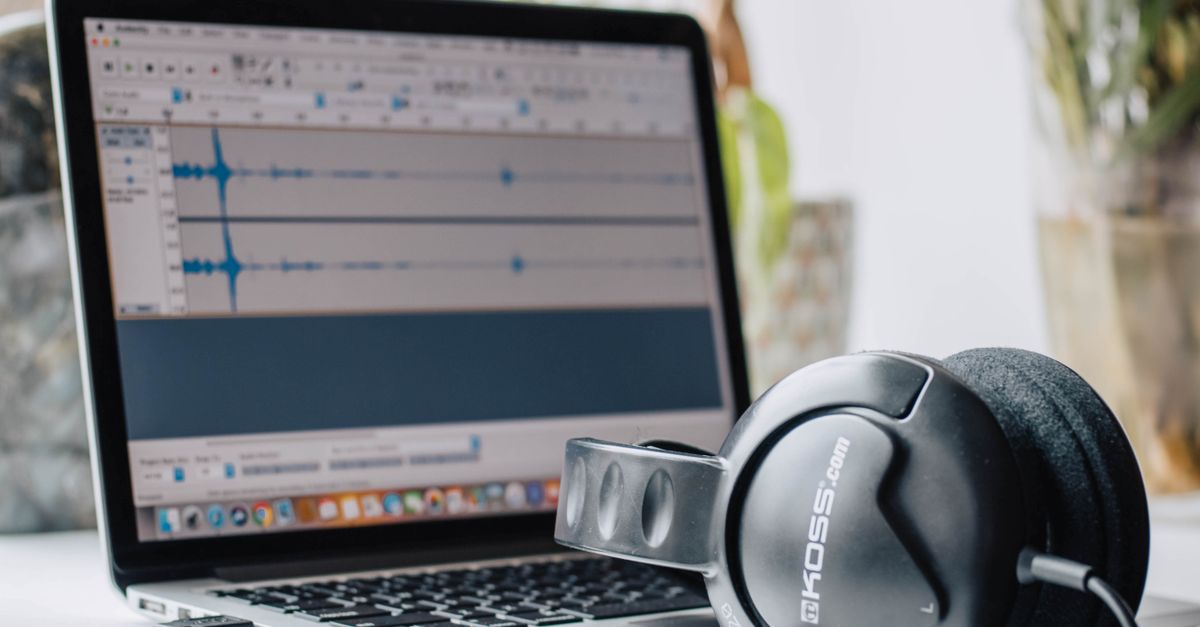
Why "Generate Audio Waveform" Stops Working in Common Tools
Across video editors, subtitle tools, and development environments, the same symptom — the menu item exists, you click it, nothing visible happens — usually traces to one of a small set of causes.
- Codec mismatch. A file labelled .mp3 or .m4a may actually contain a codec the host application does not support, or it may use a feature such as variable bitrate, high bit depth, or embedded artwork that the host's decoder rejects silently. "Generate Audio Waveform" then runs on zero decoded frames and draws nothing.
- Upload or network dependency. Several online tools and even some desktop apps offload decoding to a remote service. When that service is slow, rate-limited, behind a corporate firewall, or simply down, waveform generation appears to hang even though the audio file itself is fine.
- Stale rendering engine. Non-linear editor timelines sometimes cache waveform data per clip; if the cache is corrupt or the audio on disk has been replaced, the command can do nothing without surfacing an error.
- Engine swap required. Some subtitle editors expose a fallback audio engine that must be enabled before waveform rendering works; without it, the menu item is effectively a no-op.
- Unsupported container. Audio inside MKV, MOV, or MP4 wrappers is sometimes demuxed correctly by a media player but not by the waveform module, so the clip plays yet never produces peaks.
In every case above, the audio is fine and the visualisation logic is fine; what is missing is a complete, local decode of the frames into numeric samples. The reliable fix is to use a tool whose only requirement is that your current browser can already decode the file.
How a Local Browser Tool Avoids These Failure Modes
The Audio Waveform Generator sidesteps the whole category of failures by collapsing the pipeline into the browser tab you already have open. Web Audio reads the selected MP3, WAV, M4A, AAC, Ogg, WebM, or FLAC only if the current browser and operating system actually support the real codec — an extension or MIME label is never trusted. Decoded samples stay in memory inside the current page; no audio file and no generated graphic is uploaded to a server. The visualisation uses a deliberately simple peak-envelope method, so there is no timeline cache to corrupt, no remote service to wait on, and no engine to swap. If the file decodes, the waveform renders; if it does not, you get an error and can try a different file. Selecting a replacement file, changing an option, generating again, or leaving the page also revokes the obsolete object URL, meaning an older image cannot appear to represent new inputs.
Generate a Working Audio Waveform Step by Step
Use this three-step flow whenever an in-app "Generate Audio Waveform" command is unreliable, or when you simply need a quick, sharp SVG for a design or editing task.
- Choose one browser-decodable audio file. Pick a single file that your browser already plays. Stay inside the published limits: at most 50 MiB compressed, 5 minutes of decoded audio, 1 to 8 channels, a sample rate from 8,000 to 192,000 Hz, and no more than 30 million total channel samples. A short clip will not invent more independent measurements than it contains, and an over-limit file is rejected as a whole rather than truncated silently.
- Set the SVG dimensions and colours, then generate. Choose a width from 320 through 1,600 pixels and a height from 120 through 600 pixels. Pick a six-digit hexadecimal background colour and waveform colour using the browser's native colour controls. Click the generate action to compute the local peak envelope.
- Inspect the reported counts and download the SVG. Read the reported frames and peak-column count to confirm the math. Open the preview or the expandable SVG text inspector, verify the result visually, then download. The download uses the same exact string as the inspector, so what you see is what you save. Selecting a new file, changing an option, or leaving the page revokes the obsolete object URL.
Inputs the Tool Will and Won't Accept
Because the waveform is built directly from decoded frames, every limit below is enforced at decode time. A small compressed file that expands into a very large floating-point array can still be rejected, and a long file that is small in bytes can also be rejected. The combined budget is what matters, and the same decoded-data limits used by the site's audio tools apply here.
| Parameter | Accepted range | Why it matters |
|---|---|---|
| Compressed file size | Up to 50 MiB | Loads reliably into a browser tab without exhausting memory |
| Decoded duration | Up to 5 minutes | Keeps peak computation inside a bounded processing budget |
| Channel count | 1 to 8 | Matches common mono through 7.1 surround layouts |
| Sample rate | 8,000 to 192,000 Hz | Covers telephone audio through high-resolution masters |
| Total channel samples | Up to 30,000,000 | Stops a small byte file from exploding into huge float arrays |
| Image width | 320 to 1,600 px | Sets the horizontal pixel canvas for the SVG |
| Image height | 120 to 600 px | Sets the vertical pixel canvas and the ±45% peak region |
What the Output SVG Actually Contains
The downloaded file is text-based SVG — not PNG, JPEG, video, or audio. It contains exactly one background rectangle that fills the requested width and height in the chosen background colour, plus a single group of peak lines drawn in the chosen waveform colour. Each line represents one bucket of decoded frames and runs vertically from that bucket's minimum sample to its maximum sample. Full-scale positive or negative samples extend to 45 percent of the requested height above or below the vertical centre, leaving a five-percent margin at the top and bottom so peaks never touch the edges.
The number of peak lines is the smaller of three numbers: the requested image width, 1,000, and the decoded frame count. That ceiling means a short clip is never padded with invented measurements, while a long clip stays inside a bounded SVG and a bounded processing budget. Bucket boundaries use integer frame indices derived from the bucket number and the total frame count; the first bucket begins at frame zero, the last bucket reaches the final decoded frame, and accepted frames are not skipped between adjacent ranges. Columns are evenly centred across the requested width, so SVG coordinates are deterministic and reproducible. For multichannel audio the picture is a combined peak overview rather than separate left and right lanes; a single bucket can take its minimum from one channel and its maximum from another, the result does not average channels into a new audio signal, and the original audio is never rewritten.
A short worked example: a 60-second stereo clip at 44,100 Hz contains 60 × 44,100 = 2,646,000 frames per channel, or 2 × 2,646,000 = 5,292,000 total channel samples, which is well inside the 30,000,000 limit. With a requested image width of 800, the column count is min(800, 1,000, 2,646,000) = 800 peak lines, evenly spaced across the canvas.
When a Peak Waveform Is the Wrong Tool
A peak waveform is not a calibrated loudness meter, and it is not a spectrogram. Two recordings can show similar peaks while sounding very different, because perceived loudness depends on duration, frequency balance, dynamics, and playback conditions. Time runs left to right, but the vertical axis represents sample amplitude range, not frequency. Use the picture for layout, documentation, video thumbnails, blog illustrations, or quick visual reference — and avoid using it to diagnose clipping history, phase, hearing, equipment health, or mastering compliance. The page shows the exact generated SVG text in an expandable inspector, and the download uses that identical string.
For a broader walkthrough of converting audio to a waveform image as a free, local SVG, see Convert Audio to a Waveform Image Free with Local SVG. The Web Audio decoding layer that makes the local pipeline possible is documented in the Web Audio API AudioBuffer reference.
For a deeper look, see How to Convert Audio to Waveform: A Local SVG Method.