A three-band peaking equalizer with center frequencies at 100 Hz, 1,000 Hz, and 10,000 Hz, integer gains from -12 to +12 dB, a fixed Q of 1, and one uniform safety scale that prevents PCM clipping is the simplest way to apply EQ to a browser-decodable audio file locally and download a complete PCM16 WAV. The whole pipeline — decoding, biquad filtering, peak measurement, and PCM encoding — runs in your current browser tab. Lizely does not receive your audio bytes, the decoded samples, the EQ settings, the filename, or the resulting file. Because the interface discloses exactly which peaking filters are applied, in which order, and with which safety mechanism, you can predict what a change to a slider will do before you click apply. A value of zero on every control is a genuine flat path, not a hidden bypass, so you can return to a known starting point at any time. The reported raw peak, output peak, and safety scale tell you whether the tool had to reduce the level to keep the WAV below digital full scale. That combination of disclosed centers, integer gains, a flat baseline, and a single safety scale is what makes the workflow repeatable rather than mysterious.
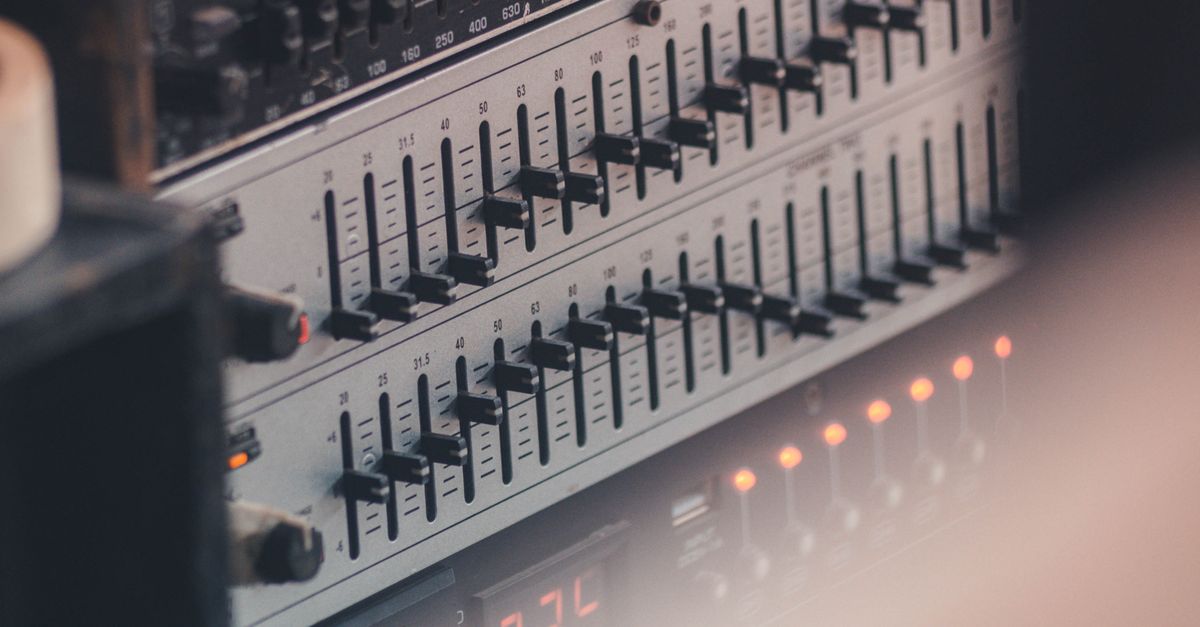
A Straightforward Three-Band Equalizer Workflow
The Audio Equalizer is built around one specific job: apply three peaking filters to a local audio file and write the result as a fresh PCM16 WAV. There is no automatic room correction, no ten-band graphic interface, no linear-phase mastering mode, and no streaming-platform loudness target. The three sliders map directly to three disclosed biquad sections that the page cascades in Bass → Mid → Treble order. Bass is centered at 100 Hz, Mid at 1,000 Hz, and Treble at 10,000 Hz when the decoded sample rate permits. At a low sample rate, the treble center is automatically reduced to 45 percent of that rate so the filter stays below the Nyquist limit instead of being asked to operate outside the available spectrum.
Each band uses a Q value of 1 — a broad adjustment that the tool applies uniformly and does not infer from your file. The dB value you choose is converted to the coefficient parameter defined by the W3C Audio EQ Cookbook peaking-EQ equations, every coefficient is normalized by a0, and the resulting second-order recursive filter runs over each decoded channel. For more detail on what each band actually does to your signal, the three-band explained guide walks through the same three controls with examples of what each one changes in a typical recording.
Run an Audio Equalizer in Five Plain Steps
Follow this sequence and the entire EQ pass is reduced to five concrete actions.
- Open the Audio Equalizer and choose one file that your browser can decode. The page accepts MP3, WAV, M4A, AAC, Ogg, WebM, or FLAC when your browser and operating system actually support the codec inside the container — a familiar extension is not a guarantee. The file must be at most 50 MiB on disk, no longer than five minutes once decoded, contain between one and eight channels, use a sample rate from 8,000 to 192,000 Hz, and stay under 30 million channel samples. Files that exceed any of these limits are rejected before filtering and never silently truncated.
- Set Bass, Mid, and Treble to whole numbers from -12 dB to +12 dB. Whole numbers keep the coefficient math obvious and the result reproducible. Zero on every control is a real flat path; in that case the tool copies the decoded channel samples without running any nonzero filter section.
- Apply the equalizer locally. The page cascades the three peaking biquads in Bass, Mid, Treble order over every channel independently with identical settings, so a mono file and a multichannel file receive the same EQ curve on each channel.
- Read the five reported numbers: raw peak, output peak, safety scale, sample rate, and frame count. The raw peak is the largest absolute sample value found across every processed channel before any scaling. The output peak is the value after scaling. The safety scale is the uniform factor the tool applied — it will only be less than 1.0 when the raw peak exceeded 0.99.
- Preview the result on the speakers or headphones that matter, then download the new file. The download is a fresh uncompressed PCM16 WAV; the original MP3 or AAC bitrate, compression mode, tags, artwork, chapters, and loop markers are not preserved.
Reading the Reported Numbers After You Apply EQ
The reported numbers are the part of the workflow most people skip, and they are the reason the tool can stay simple. Three values deserve attention.
The raw peak is the largest absolute sample anywhere in the processed buffer before any scaling. If your source never exceeded 0.99 and your EQ settings stayed flat, raw peak will equal the source peak. The output peak is the value the WAV actually carries. The safety scale is the single uniform factor — applied to every sample, in every channel — that the tool used to bring the raw peak down to 0.99 when it would otherwise have crossed digital full scale. A safety scale of 1.0 means the tool did not change the level. Anything below 1.0 means cascading boosts pushed samples above full scale and the entire result was reduced by that factor.
A worked example shows why the safety scale exists. A sample sitting at 0.5 with a +12 dB boost becomes 0.5 × 10^(12/20) = 0.5 × 3.981 ≈ 1.99, which is well above the 0.99 ceiling. Cascading three such boosts would push the raw peak even higher. Because the raw peak exceeds 0.99, the tool applies one uniform scale factor: 0.99 ÷ 1.99 ≈ 0.497. Every sample in every channel is multiplied by that factor, so the largest magnitude in the output lands at 0.99 and the PCM16 encoder does not need to clip individual peaks. This prevents the encoder from independently chopping samples, but it can reduce the overall level, which is why a perceived-loudness comparison at matched volume is the right way to judge the result rather than the file size or peak alone.
The sample rate and frame count are sanity checks. Because Web Audio may resample while decoding, the sample rate the tool reports is the rate at which the filter actually ran — not necessarily the rate stamped in the original container. The frame count is the number of sample frames per channel in the output, and it matches the input frame count because the biquad sections keep every channel the same length.
Decisions That Keep EQ Simple and Predictable
Because the tool exposes only three controls, the simplification is mostly about how you choose values for them. A few habits make the workflow faster without sacrificing results.
Start from a flat baseline. With Bass, Mid, and Treble all set to 0 dB, apply the equalizer and download — you now have a verifiable copy of the decoded audio in PCM16 form. From that known starting point, change one slider at a time so you can hear what each band contributes.
Cut before you boost. A peaking filter affects a region around its center rather than every frequency below or above a hard boundary. Cutting a band you want less of lowers the raw peak, which usually means the safety scale stays at 1.0 and the output level is not reduced. Stacking several boosts in a row is what drives the raw peak above 0.99 and forces the safety scale below 1.0. When the safety scale moves, the result is quieter even if it is not clipped.
Listen at matched perceived level. A louder file sounds better before the EQ has actually changed anything, so compare the original and the equalized file at a similar perceived volume rather than judging only from louder output. Strong boosts may emphasize noise, sibilance, rumble, or distortion that was already present in the source.
The tool will not tell you that one setting improves every recording. It is a compact three-band equalizer, not a graphic ten-band system, an automatic room correction system, or a linear-phase mastering processor. If your task needs precise center frequencies, adjustable Q, spectrum analysis, automation, loudness metering, dithering controls, codec selection, or metadata preservation, a full audio editor is the right tool — not this one.
Limits, Formats, and When to Use a Full Editor Instead
Keeping the process simple also means knowing which files the tool will accept and which it will reject before any EQ runs. The reference table below summarizes the three bands and their disclosed parameters.
| Band | Center frequency | Adjustment range | Q value |
|---|---|---|---|
| Bass | 100 Hz | −12 to +12 dB, whole numbers | 1 (fixed) |
| Mid | 1,000 Hz | −12 to +12 dB, whole numbers | 1 (fixed) |
| Treble | 10,000 Hz, or 45% of decoded rate if lower | −12 to +12 dB, whole numbers | 1 (fixed) |
The accepted input is any container that Web Audio in your current browser can actually decode — typically MP3, WAV, M4A, AAC, Ogg, WebM, or FLAC. Decoding itself follows the standard Web Audio AudioBuffer model, and the page enforces its own budget on top of that decode: 50 MiB on disk, five minutes or shorter once decoded, one to eight channels, a sample rate between 8,000 and 192,000 Hz, and no more than 30 million channel samples. A file that fails any of those checks is rejected with an error before filtering, and no stale download is presented.
The output is always a fresh uncompressed PCM16 WAV written with the shared PCM16 encoder. Float samples are converted to signed 16-bit little-endian PCM and interleaved by frame, and the WAV header records the actual channel count, sample rate, byte rate, block alignment, bit depth, and complete data length. What the output does not carry is anything the source file had beyond raw samples: original bitrate, compression mode, tags, artwork, chapters, loop markers, and container-specific metadata are not preserved.
If you need any of those preserved, or you need a graphic interface with more than three bands, adjustable Q, automation, spectrum analysis, loudness metering, dithering, or codec selection, use a full audio editor. The Audio Equalizer is intentionally compact so that the path from a loaded file to a downloaded WAV stays short.
For a deeper look, see How Do I Troubleshoot a Problem When I Use an Audio Equalizer.