Troubleshoot a problem when you use an audio equalizer by reading the raw peak, output peak, safety scale, sample rate, and frame count the tool reports, because each number diagnoses a specific failure mode — clipping from cascaded boosts, an unused filter that left the audio untouched, a decode rejection from an unsupported codec, or a file that exceeded the 50 MiB or five-minute limit. The Audio Equalizer applies three peaking biquad filters in series at 100 Hz (Bass), 1,000 Hz (Mid), and 10,000 Hz or 45% of the sample rate (Treble), using a fixed Q of 1, so the troubleshooting questions are predictable: did any band actually run, did the combined output exceed digital full scale, and was the file decoded in the first place. If the output peak sits at 0.99 with a safety scale under 1, the tool worked correctly and your settings are simply too aggressive. If the file fails to load at all, the problem is the source container or codec, not the equalizer. If every band reads 0 dB, the tool copies the samples without filtering, which is the expected flat-path behavior rather than a bug.
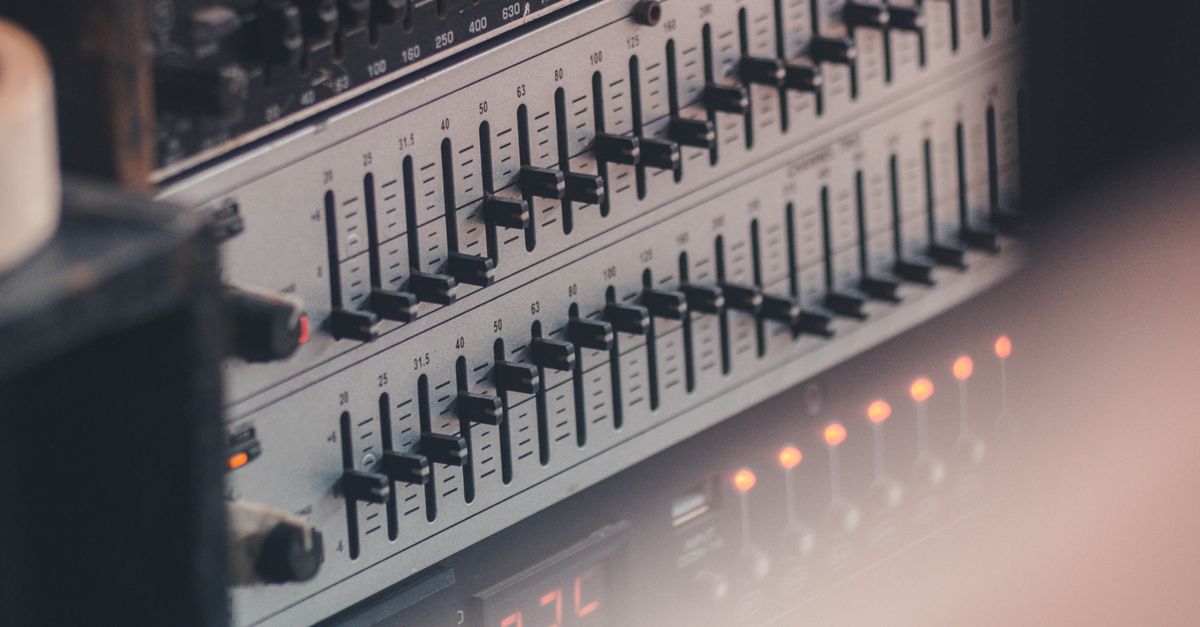
The Three-Band Equalizer Troubleshooting Workflow
Run through these steps in order whenever the equalized result sounds wrong, the file refuses to load, or you are not sure whether a band actually changed anything. The Audio Equalizer surfaces most problems through the numbers it prints after each run, so the workflow is largely about reading those numbers before reaching for bigger fixes.
- Choose one browser-decodable audio file within the 50 MiB and five-minute decoded limits. Note the sample rate and frame count reported once decoding completes.
- Set Bass, Mid, and Treble to whole values between -12 and +12 dB, then apply the equalizer locally in the current tab.
- Read the raw peak, output peak, safety scale, sample rate, and frame count. If the output peak stays below 0.99 and the safety scale is 1.00, no cascade clipping occurred.
- Listen to the preview, then download the PCM16 WAV when the result sounds correct. Stale download URLs are revoked, so always trigger a fresh run.
- If a band produced no audible change at 0 dB, that is the flat-path copy — verify the filter is actually running by moving the slider one step in either direction and re-applying.
What Each Reported Number Reveals About Your Problem
The interface reports five numbers after every run. Each one isolates a different category of issue, so the right first move is to scan them in order before changing any settings. The table below pairs each reported value with what it measures and what it tells you about the problem you are chasing.
| Reported number | What it measures | Troubleshooting implication |
|---|---|---|
| Raw peak | Largest absolute sample value across all processed channels before any safety scale | If raw peak is above 0.99, the combined EQ choices pushed the signal past digital full scale; lower one or more bands and re-apply. |
| Output peak | Largest absolute sample value after the uniform safety scale has been applied | If output peak equals 0.99 with a safety scale below 1, the tool scaled the entire result down to preserve headroom — expected behavior, not a bug. |
| Safety scale | The single multiplier applied to every channel when raw peak exceeded 0.99, otherwise 1.00 | A safety scale under 1 means cascading boosts caused the headroom loss; a safety scale of 1.00 means no cascade clipping happened. |
| Sample rate | Decoded sample rate of the buffer the equalizer actually filtered | If this differs from the rate shown in your source player, Web Audio resampled on decode, a normal consequence of browser decoding rather than an EQ failure. |
| Frame count | Number of sample frames in the decoded buffer, identical across every accepted channel | If frame count matches seconds times sample rate, no truncation occurred; the tool rejects over-limit files before filtering and never silently clips the end. |
Why Cascaded Boosts Create Clipping (and How the Safety Scale Fixes It)
Three peaking filters run in Bass, Mid, Treble order on every accepted channel. Each filter affects a region around its center rather than every frequency below or above a hard cutoff, and a Q of 1 is a broad adjustment — strong positive gains overlap when several bands are boosted at once. Stacked boosts can create samples above digital full scale even when the input itself did not clip, which is the most common source of "the result sounds distorted" complaints and the reason the safety scale exists.
The Audio Equalizer handles that by measuring the absolute peak across every processed sample and every channel before the WAV is encoded. If that raw peak exceeds 0.99, a single uniform scale factor reduces the entire processed result so the largest magnitude becomes 0.99, and the interface prints the exact scale that was used. This is clipping prevention, not loudness normalization — it does not target LUFS, RMS, replay gain, or any streaming-platform specification. You can see the effect directly in the numbers: with a raw peak of 1.18 and a 0.99 ceiling, the safety scale becomes 0.99 / 1.18 ≈ 0.839, and every sample in the download is multiplied by that factor before PCM encoding. A safety scale of 1.00 means the same computation produced a value at or below 0.99 and the entire processed signal was written unchanged.
Decode Failures When the Browser Cannot Read the File
A common troubleshooting report is "nothing happened" — no audio preview, no download, and no obvious error. In most of these cases the file never reached the equalizer because Web Audio could not decode it. Browsers read MP3, WAV, M4A, AAC, Ogg, WebM, and FLAC when the current browser and operating system support the actual codec inside the container; a familiar file extension is not a guarantee. The Audio Equalizer rejects an over-limit file before filtering and never silently truncates the end, so a recording that runs past the five-minute decoded limit produces no output rather than a partial WAV.
The bounds to keep in mind when a decode fails are: input size up to 50 MiB, decoded duration up to five minutes, one through eight channels, sample rate from 8,000 Hz to 192,000 Hz, and no more than 30 million channel samples in total. Any file outside those limits is rejected before the filters run, and stale Blob URLs are revoked rather than served as if the run had succeeded. When the source passes those checks but still produces nothing, the issue is almost always the codec inside the container rather than the equalizer, and re-exporting from a full editor is the right next step.
When the Audio Equalizer Is Not the Right Fix
The Audio Equalizer is a compact three-band equalizer with fixed centers, a fixed Q of 1, no spectrum analyzer, no automation, no loudness metering, and no dithering controls. It cannot move speakers, stop physical rattles, correct severe room modes, or rescue a recording that was already clipped in the source. Use a full audio editor when the troubleshooting points toward any of the following needs: precise center frequencies, an adjustable Q, spectrum analysis, automation curves, linear-phase processing, LUFS or RMS metering, dithering controls, codec selection for a specific delivery format, or preservation of original tags, artwork, chapters, or loop markers.
The download is a brand-new uncompressed PCM16 WAV that records the actual channel count, decoded sample rate, byte rate, block alignment, bit depth, and complete data length. It does not preserve the original MP3 or AAC bitrate, compression mode, tags, artwork, chapters, or container metadata, so a complaint that "the tags disappeared" should route to a tag-aware editor rather than back through the equalizer. If the troubleshooting has narrowed the problem to codec, metadata, or mastering precision, the equalizer has done its job and the next step lives in a different tool. When the diagnosis does land inside the equalizer's own scope, a short follow-up to verify the equalized result against the original closes the loop.
If you're weighing options, Audio Equalizer Mistakes That Hide in Your Boosts and Cuts covers this in detail.