Planning the steps needed to extract a video frame means mapping out the decision points, file checks, and time inputs before you open a browser tool — and the core fact is that a single PNG still can be pulled from a local video in three moves: confirm the file type, enter a time in seconds, and let the browser handle decoding, seeking, and PNG encoding without uploading anything. The plan exists because each of those three moves has constraints that can quietly stop the workflow: the container extension does not guarantee a supported codec, the time you type is a media timeline position rather than a guaranteed numbered source frame, and the file itself must sit inside a 500 MiB / five-minute / 4096-pixel safety boundary. Treating extraction as a planning exercise — rather than a single click — is what turns a confusing error message into a quick fix, because every failure the browser reports maps back to a step you should have confirmed first.
The plan for extracting one still from a short local clip is short on purpose. Three user actions drive the entire workflow: choose one supported local video and wait for its duration and preview to load, enter a frame time between zero and the displayed duration (with decimals when needed), then select Extract PNG frame, verify the still, and download the local PNG. Everything else inside the tool — the seek, the canvas draw, the PNG encoding, the download URL — is implementation detail. Planning well means knowing which inputs you control, which outputs the tool guarantees, and where the boundary lies between "browser will handle this" and "you need different software."
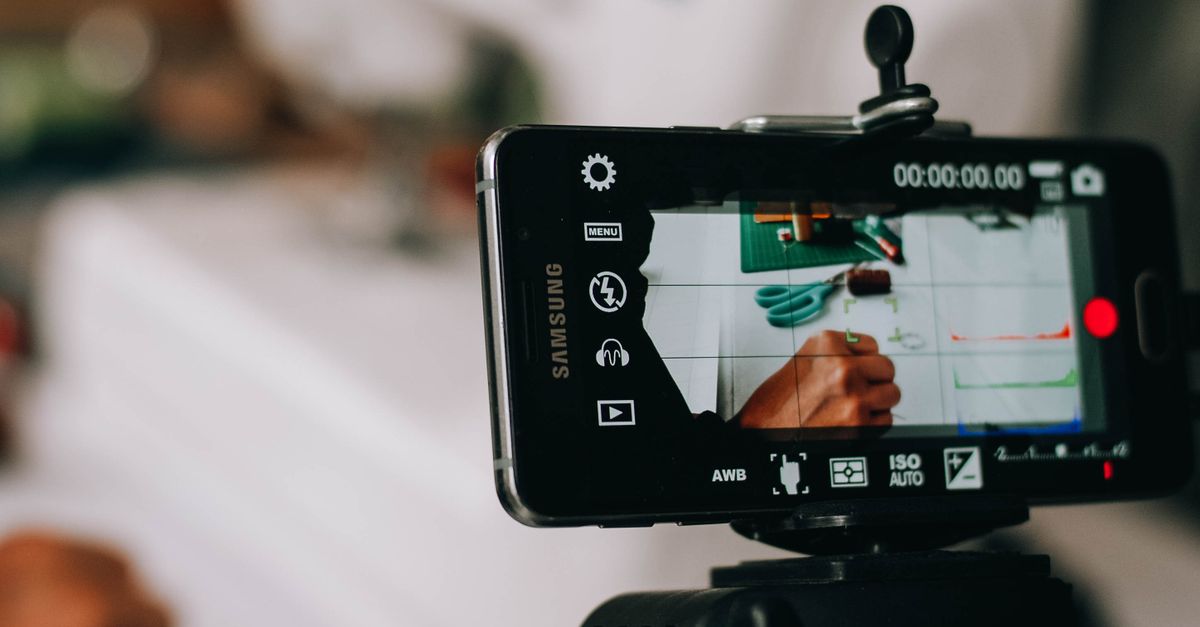
What "Planning the Steps" Actually Covers
A plan for frame extraction is not a checklist of button clicks. It is a short list of decisions you make before the first click so the workflow does not stall mid-way. Five decisions cover almost every case:
- Which file will you open? The tool accepts MP4, WebM, MOV, M4V, or Ogg, but only files whose internal audio/video codec the browser can decode.
- What time do you want? You need a position in moments, with decimals allowed, that sits at or before the reported duration.
- What is the file doing in size and shape? The plan must respect the 500 MiB / five-minute ceiling and the 4096-pixel-per-side / 3840 × 2160 pixel-area ceiling.
- What do you do with the result? Thumbnails, slides, references, and dataset samples are appropriate; frame-accurate editorial work or HDR output is not.
- What is your fallback? If the browser refuses the file, the plan switches to a desktop tool rather than uploading the clip to a server.
Each decision lines up with a step in the tool. The plan succeeds when every decision is answered before the corresponding action runs.
Inputs, Limits, and Decisions to Lock In First
The authoritative product contract pins down a small set of hard limits. They are not suggestions; if any one is violated, the extraction will not produce a valid PNG. Lock them in at the planning stage so you do not waste time on a file that cannot be opened.
| Limit | Value | Why it matters for the plan |
|---|---|---|
| Maximum file size | 500 MiB | Long, high-bitrate source files must be trimmed or re-encoded before extraction. |
| Maximum duration | 5 minutes | Anything longer routes to a desktop workflow. |
| Maximum side length | 4096 pixels | Width or height above this value will not decode. |
| Maximum pixel area | 3840 × 2160 = 8,294,400 pixels | A 4K UHD frame sits exactly at the cap; anything wider or taller exceeds it. |
| Supported containers | MP4, WebM, MOV, M4V, Ogg | Container support does not guarantee codec support — see below. |
| Time field range | 0 ≤ t ≤ reported duration | Fractional seconds are accepted; the value is a media timeline position. |
The pixel-area figure is worth showing as a worked calculation. For a 4K UHD source, width = 3840 and height = 2160, so the area is 3840 × 2160 = 8,294,400 pixels. Because 8,294,400 is at or below the 3840 × 2160 ceiling and neither side exceeds 4096, the file fits inside the safety policy. A 4096 × 2160 source fails by area (8,847,360 is above the cap) — and is in fact rejected by the 3840 × 2160 pixel-area limit even though each side individually passes the per-side test. The plan should treat the stricter of the two checks as binding.
Plan and Execute the Extraction in Order
Once the limits are confirmed, the actual extraction is a short sequence. The Video Frame Extractor runs the browser's HTMLMediaElement seek, draws the current decoded frame onto a same-size canvas, and encodes that canvas as a PNG you can save in the current tab. The plan keeps you out of its way:
- Choose one supported local video — MP4, WebM, MOV, M4V, or Ogg — and wait for the duration and the preview to finish loading. The duration display is the upper bound for the time field.
- Enter a frame time almost instantly between zero and the displayed duration. Use decimals when the moment you want is between whole seconds (for example, 12.500, not 12.5 with hidden trailing digits, and not 0:12).
- Select Extract PNG frame. The browser seeks to the requested position, waits for the seek to complete, draws the decoded frame onto a same-size canvas, and encodes the result as PNG.
- Verify the still in the preview area before downloading. If the still is one keyframe off from what you expected, the source video uses large keyframe intervals or variable frame rate — adjust the time, do not assume a bug.
- Download the PNG. The filename includes the selected time so you can tell two near-identical stills apart on disk.
If the tool reports a decode, seek, canvas, or encoding failure, no empty PNG is produced. Re-read the plan: the failure almost always maps back to the container/codec check, the time range check, or the size and dimension limits.
How Browser Decoding Shapes Your Plan
Frame extraction in the browser is not a black box; the implementation is well documented and worth understanding because it explains every behavior the plan has to absorb. The tool sets the value of the HTMLMediaElement currentTime property to the requested number of seconds, waits for the seek event to fire, draws the current decoded frame onto a matching canvas using Canvas drawImage, and asks the canvas to encode itself as a PNG. Object URLs are revoked when inputs change or the component unmounts so stale jobs do not leak memory.
Two consequences fall directly out of that implementation. First, the time you enter is a media timeline position, not a guarantee that the browser will land on the source frame at that exact number. Browsers may seek to a nearby decoded frame because of keyframes, variable frame rate, edit lists, timestamp rounding, and codec behavior. The displayed time in the tool records the requested position; it does not inspect packet timestamps or identify an exact numbered source frame. Second, "supported extension" and "decodable file" are not the same thing. MP4 is a container, and the browser must also support the specific audio/video codec stored inside it. The plan therefore treats the codec as a separate question from the container and falls back to a desktop tool if the browser refuses the file. For a deeper walk through this decoding layer, the guide on how browser decoding works for video frames pairs naturally with this plan.
Common Planning Mistakes to Sidestep
Most failed extractions trace back to a planning miss rather than a tool bug. Five mistakes show up over and over:
- Assuming the extension is enough. An .mp4 with a codec the browser does not support will not open; renaming the file does not change the codec inside.
- Typing a timecode instead of seconds. Values like 1:30 or 0:12 are not valid; the field expects a number of seconds, including decimals.
- Forgetting the duration ceiling. Requesting 600 seconds on a 73.2-second clip is rejected; always read the displayed duration first.
- Chasing exact frame numbers. The plan cannot promise frame 1,482 because the browser seeks by time, not by frame index. Adjust the time instead.
- Trying to resize or filter in the same step. The tool draws the decoded frame at its native dimensions and encodes a PNG. If the goal is a thumbnail gallery or an HDR export, plan those steps separately.
When the Plan Should Switch to a Desktop Tool
The browser workflow is built for one still at a time from a short local clip. As soon as the plan calls for capabilities the contract does not provide, the right move is to change tools rather than fight the browser. Switch to a desktop video tool when the plan needs:
- Batch extraction of many frames from one file, rather than a single still per run.
- Exact numbered source frames identified by frame index, not by media timeline position.
- HDR or color-managed output with a defined color space, beyond what the browser's decoder hands to the canvas.
- Alpha-channel workflows that depend on transparency being preserved through every stage.
- Files longer than five minutes, larger than 500 MiB, or wider/taller than 4096 pixels, which sit outside the shared safety policy.
- Formats unsupported by the browser, even when the extension looks familiar.
For everything else — thumbnails, slide references, quick stills from media you own or may process — the plan above is the whole plan. The Video Frame Extractor stays inside the browser tab, never uploads the source, and hands back a full-size PNG whose filename already records the time you chose.
For a deeper look, see Repeat the Same Result When You Extract a Video Frame.