You avoid most video frame extraction mistakes by processing the clip locally in your browser, entering a precise fractional time within the reported duration, and accepting that browser seeking lands on the nearest decoded keyframe rather than an exact source frame number. Those three habits — local decoding, fractional seconds, and keyframe awareness — are the foundation of a clean extraction workflow. When you keep them in mind from the start, the small surprises that derail most first-time users disappear.
A video frame extraction is the act of grabbing one still image from a moving clip at a chosen moment. Most people think of it as "take a screenshot of a paused video," but a true extraction pulls the actual decoded frame at its native pixel dimensions rather than whatever your screen is rendering. That distinction matters because screens, players, and zoom levels change what a screenshot looks like. A real frame extraction pulls raw pixels from the video decoder, draws them on a canvas, and saves them as a PNG so the resulting image is exactly what the source frame contained — no resampling, no scaling, no overlay.
The mistakes begin where expectations diverge from how a browser decodes media. A web browser uses its built-in media pipeline (HTMLMediaElement seeking, the video decoder, and a canvas for the final pixel write). Each of those stages has its own constraints, and each is where a typical mistake shows up. Knowing that the operation is local, that seeking is approximate, and that the output is a raw decoded frame lets you skip those mistakes.
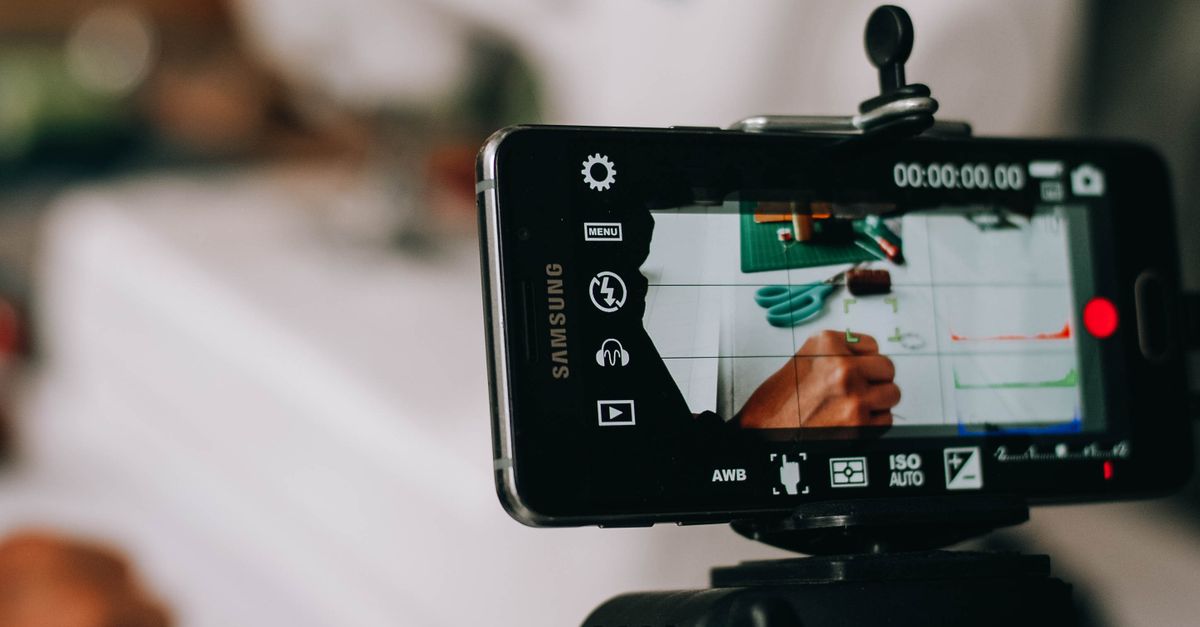
What extracting a video frame actually does
Once you decide to extract a still, the next step is choosing where in the timeline to grab it. Plan your time entry, your output filename, and what you expect the PNG to look like before you click anything. A few practical pointers keep the result predictable:
- The PNG is a brand-new file. The original clip on disk is never rewritten, re-encoded, or modified in any way.
- The PNG dimensions equal the decoded frame's native dimensions. If your clip is 1920×1080, the PNG will be 1920×1080, not a smaller or larger variant.
- The PNG filename includes the time you requested, which makes it easy to keep multiple extractions straight.
- The PNG can only carry an alpha channel if the decoded video frame itself supplies one. Most encoded videos do not.
Common mistakes when you extract a video frame
Frame extraction looks simple, but the same handful of mistakes trip up nearly everyone on their first try. Here is what to watch for and how to side-step each one.
- Uploading the video to a server. The single biggest mistake is sending the original clip to a remote service. Many free frame grabbers do this for convenience, which means your video leaves your machine. A local browser tool decodes the file in your tab and never transmits it. Privacy, bandwidth, and file size all stop being concerns when the processing stays on your device.
- Assuming MP4 will always open. MP4 is a container, not a codec. A file named "video.mp4" can hold H.264, H.265, ProRes, or any number of other codecs. If your browser cannot decode the codec inside the container, the file simply will not load. The extension is a hint, not a guarantee — confirm the codec is one your browser supports before you start.
- Expecting frame-perfect time precision. A time entry of "12.50" does not mean the 12-second-and-50-hundredths source frame. Browsers seek to the nearest decoded keyframe, then decode forward or backward from there. Variable frame rates, edit lists, and codec behavior all influence which decoded frame lands at your requested position. Treat the time field as a media timeline position, not as a frame number.
- Entering a time outside the duration. If the video is 42.7 seconds long, requesting 60 seconds does nothing useful. The browser cannot seek past the end, and you will either get the last decoded frame or an error. Always read the displayed duration and stay within it, including fractional seconds.
- Expecting resizing, cropping, sharpening, or filtering. Frame extraction captures the decoded frame at its native size. If you want a 1080-pixel thumbnail from a 4K clip, you need a separate resize or crop step. Treating extraction as a one-stop shop for image adjustments is a setup for disappointment.
- Assuming alpha or transparency will be preserved. Most encoded videos do not carry meaningful alpha channels. PNG supports transparency, but only if the decoded video frame itself provides one. If your source does not have alpha, the PNG will not magically gain it.
- Picking a file that exceeds the local limits. Local browser tools enforce safety caps on file size, duration, and resolution. A multi-gigabyte, hour-long, 8K clip will be rejected before extraction begins. Stay within the documented limits and you avoid a "stuck" run.
- Confusing display time with source frame number. A 30 fps video has frames at 0, 1/30, 2/30, ... seconds. The browser does not label them. The time you see in the player is a media timeline value, and the frame the browser lands on is whatever decoded frame is closest to that timeline position. The two are not interchangeable.
How to extract a video frame without these mistakes
The fastest way to avoid the mistakes above is to use a local browser tool that decodes the file in your tab. The Video Frame Extractor follows that exact pattern — you choose a file, enter a time, and get a PNG back without uploading anything. Here is the workflow that keeps each step clean.
- Open the Video Frame Extractor in your browser. Confirm the tool decodes locally so the clip never leaves your machine.
- Choose one supported local video (MP4, WebM, MOV, M4V, or Ogg). Wait for the duration and the preview to fully load — the duration is your hard upper bound for the time field.
- Enter a frame time in seconds, using decimals when you need precision. A value like "12.75" works; "12" works too. Stay between zero and the displayed duration.
- Select Extract PNG frame. The browser seeks to the requested time, decodes the nearest available frame, draws it on a same-size canvas, and encodes the result as a PNG.
- Verify the still on screen. If it matches what you expected, download the local PNG. If it is off, adjust the time — by fractions of a second — and re-extract. The output filename includes the time you requested so each save is identifiable.
That is the entire workflow. If you hit a dead end, the most common fix is to nudge the time by a tenth of a second at a time until you land closer to the moment you want. For more on choosing the right time, see Extract Frames from Video: How to Pick the Right Time.
File size and resolution limits you need to respect
Local browser tools enforce safety limits so the tab stays responsive and the canvas pipeline can finish the encode. The Video Frame Extractor uses the shared video safety policy below. Respect these boundaries and you avoid the failure modes that look like "the tool is broken" but are really just over-limit inputs.
| Limit | Maximum value | What happens if exceeded |
|---|---|---|
| File size | 500 MiB | File is rejected before decoding starts |
| Duration | 5 minutes (300 seconds) | File is rejected before decoding starts |
| Longest side | 4096 pixels | File is rejected before decoding starts |
| Frame area | 3840 × 2160 pixels | File is rejected before decoding starts |
If your clip is larger than these caps, you have two clean options: trim it down first using a local trim tool to isolate the segment you need, or use a desktop application designed for large footage. Trying to "force" a too-large file through a browser tool wastes time and produces nothing.
What the tool does and does not change about your clip
Knowing what stays the same and what changes is its own form of mistake prevention. The PNG you download is a new file. The source video on disk is not touched. Here is a side-by-side of what to expect.
| Aspect | Behavior |
|---|---|
| Source video file | Unchanged — no re-encode, no rewrite, no metadata edit |
| Frame dimensions | Matches the decoded frame's native dimensions (no resize) |
| Frame content | Whatever the browser decodes at the requested time, keyframe-snapped |
| Color and tone | Decoded as-is; no sharpening, no filters, no color-managed output |
| Transparency | Preserved only if the decoded frame carries an alpha channel |
| Audio | Not included — the output is a still image, not a video |
| Filename | Includes the requested time so multiple runs are easy to tell apart |
When a browser frame extractor is not the right choice
A local browser tool is the right pick for thumbnails, reference stills, lecture slide captures, sports-frame candidates, and quick images from media you own. It is the wrong pick when the task itself goes beyond what the browser pipeline can deliver. Switch to a dedicated desktop video tool if you need any of the following:
- Frame-accurate editorial work where the exact source frame number matters (broadcast, color grading, legal evidence).
- HDR or color-managed output with a specific gamut and transfer curve.
- Alpha workflows where the source really does have a meaningful transparency channel.
- Batch extraction of dozens or hundreds of frames in one run.
- Long footage well beyond the 5 minute / 500 MiB cap.
- Container or codec combinations the browser does not support natively.
If your goal is "get a clean still from this short clip I already have," a local browser extractor is faster, simpler, and safer than installing software. For everything in the list above, treat it as the wrong tool for the job and reach for a desktop application or command-line tool designed for that workload. The internal browser pipeline used for frame extraction is described in the MDN documentation for HTMLMediaElement currentTime and Canvas drawImage — the two browser APIs that do the seeking and the final pixel write.
Related reading: How to Verify a Video Frame Extraction Result.