Extracting a frame from a video means asking the player to stop at a specific moment on the timeline and saving the picture it shows as a still image. The Video Frame Extractor follows that recipe: it takes one short local video, seeks to a time value you enter, and downloads the resulting still as a full-size PNG — all inside your browser tab, without uploading the clip or re-encoding it. The tool captures one frame at a time and uses the browser's built-in video decoder, so the output keeps the decoded dimensions of the original. That makes it well suited to thumbnails, slide references, social media stills, and quick grabs from media you already have on disk. It is not a batch extractor, an editor, or a frame-perfect capture tool, and the limits described later in this article matter when you plan a workflow around it.
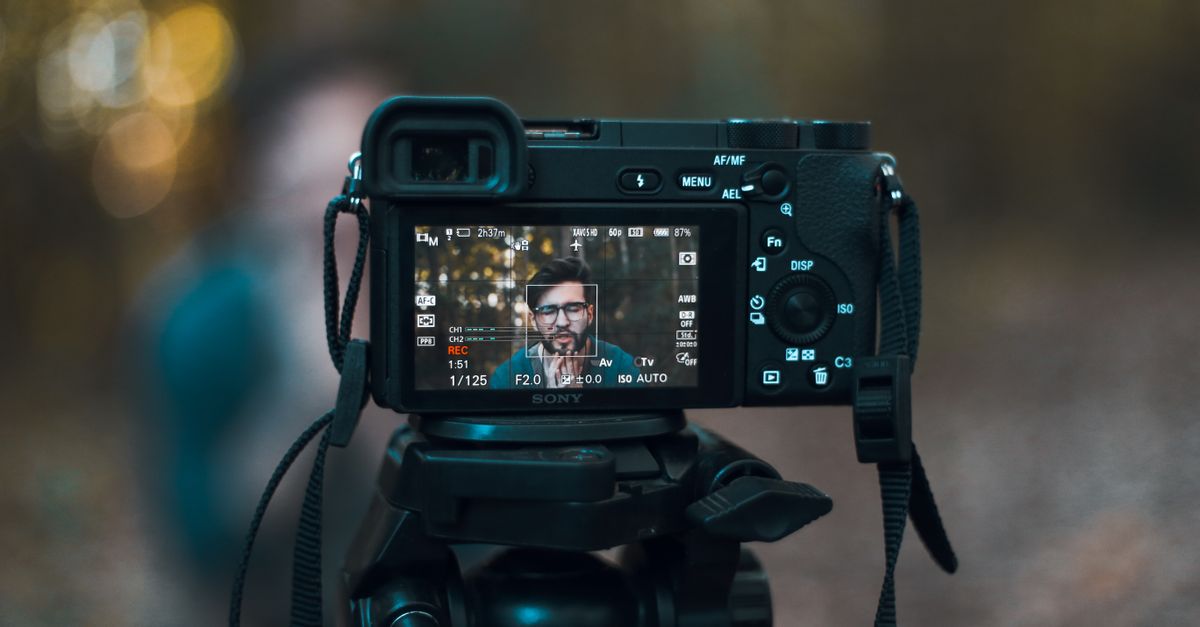
What "extracting frames" actually means
A video is a sequence of still images shown in rapid order. "Extracting frames" is the act of pulling one or more of those stills out of the sequence and saving each as its own picture file. The most common variations are:
- Grabbing a single hero still — for a thumbnail, blog header, or reference shot.
- Building a contact sheet by capturing many frames at fixed intervals — every one second, every ten seconds, or every Nth frame.
- Picking specific moments — the instant a ball is struck, a slide changes, or a face appears on screen.
The Video Frame Extractor handles the first and third cases. You open one video, enter a time, and download one PNG that matches the decoded dimensions of the frame at that moment. For contact sheets and bulk exports, you repeat the workflow for each frame you need, or you move to a desktop tool with batch support.
Why run this in a browser without uploading
The shared safety policy behind this tool keeps the file on your device. Decoding, seeking, canvas drawing, and PNG encoding all happen in the current tab. Nothing is sent to a server, the source video is not modified, and there is nothing to install. That has three practical consequences:
- Privacy. Footage that cannot leave the building — unreleased product shots, internal recordings, medical or research imagery — stays on the local disk.
- Speed. There is no upload or download round trip; the only transfer is the small PNG you save yourself.
- No re-encoding. The browser does not transcode the video. The frame is captured at the decoder's native pixel dimensions and saved once.
These benefits also set the boundary of the tool. Because it depends on the browser's media stack, your output is constrained by what the browser can decode, and by the seek precision the HTMLMediaElement currentTime property gives you.
How to extract one frame from a local video
The workflow is the same whether you are grabbing a thumbnail, a reference still, or a single teaching moment from a longer clip. Open the Video Frame Extractor and follow these steps.
- Choose one supported local video (MP4, WebM, MOV, M4V, or Ogg) and wait for its duration and preview to load.
- Enter a frame time between zero and the displayed duration, including decimals when needed — for example 0.000, 0.5, 3.2, or 60.000.
- Select Extract PNG frame, verify the still in the preview, and download the local PNG. The filename includes the time you requested, so you can identify the still when you repeat the process.
If the preview never loads, the container opened but the codec inside it is not decodable in your browser — see the format section below. If extraction fails, the tool reports the decode, seek, canvas, or encoding error instead of producing an empty download.
Picking the right time: frame rate and timestamps
The time field accepts any finite value from zero up to the video's reported duration, including fractions of a second. The trick is mapping a moment you remember to a number you can type. Three approaches work in practice:
- Eyeball it. Scrub the preview, pause when the moment looks right, and read the displayed time back into the input.
- Use the frame rate. If the clip is 30 fps and you want the still at frame 90, the time is 90 ÷ 30 = 3.000 seconds.
- Use an external player. Open the same file in VLC, mpv, or QuickTime, step frame by frame, and copy the timestamp.
The Video Frame Extractor records the position you asked for in the output filename. It does not guarantee that the saved image came from the exact numbered source frame, because browsers seek to the nearest decoded frame. Keyframes, variable frame rates, edit lists, and timestamp rounding all push the result off by a frame or two. For quick stills, references, and social posts, that gap is invisible. For frame-accurate editorial work, expect to verify the result or to use a tool that can step on packet timestamps.
Supported formats and codec gotchas
The tool accepts the container, not necessarily the codec inside it. This is the single biggest reason a file that "looks fine" refuses to load.
| Container | Typical contents | Browser support | Common gotcha |
|---|---|---|---|
| MP4 | H.264 / H.265 video, AAC audio | Widely supported | HEVC (H.265) needs a capable browser; older versions lack it |
| WebM | VP8 / VP9 / AV1 video, Opus audio | Widely supported | AV1 decoding varies by browser version |
| MOV | Often ProRes or H.264 | Partial | ProRes and other professional codecs are usually not decodable |
| M4V | H.264 video, AAC audio | Similar to MP4 | DRM-protected M4V files will fail |
| Ogg | Theora video, Vorbis audio | Partial | Less common on phones; missing codec support is the norm |
Per the MDN documentation on Canvas drawImage, the canvas captures the image data at the moment you draw it. If the underlying video element has not actually decoded your requested time, the canvas will draw whatever is on screen instead — which is one reason this tool waits for the seek to complete before encoding.
Limits, errors, and what this tool does not do
The Video Frame Extractor is intentionally narrow. Knowing its limits up front saves you from an empty download or a still that does not fit your use case.
- One frame per run. There is no batch mode. Repeat the workflow for each frame you need.
- No resize, crop, sharpen, interpolate, or filter. The output keeps the decoded dimensions of the source frame as the browser reports them.
- No HDR or color-managed output. The PNG reflects whatever the browser delivers, with transparency only if the decoded frame provides it.
- Time, not frame number. A requested time is a media timeline position. The tool does not inspect packet timestamps or identify an exact numbered source frame.
- File size cap. The shared video safety policy limits inputs to 500 MiB and five minutes, no more than 4096 pixels per side, and no greater than 3840 × 2160 pixels in area.
Failures during decode, seek, canvas, or PNG encoding are reported inline rather than silently producing a blank PNG. If you see a clear error message, treat it as the tool refusing to fabricate output.
When a desktop tool is the better choice
For one-off stills from short clips you already have on disk, the browser workflow is the fastest path. For anything that pushes against the limits above, plan on a dedicated desktop application.
| Workflow need | Best fit |
|---|---|
| Single PNG from a short clip you own | Browser-based Video Frame Extractor |
| Batch extraction or contact sheets | Desktop NLE or FFmpeg with frame filters |
| Exact source-frame numbering | FFmpeg with packet-aware flags, or NLE that steps on frames |
| HDR or color-managed output | Desktop tool with a proper decode pipeline |
| Long footage (over five minutes) | Desktop tool with full disk decode |
| Formats the browser cannot decode | Desktop tool with FFmpeg or a commercial decoder backend |
If you want a closer look at the frame-rate to timestamp mapping, the guide on getting a video frame at a specific frame rate and time walks through the math with concrete examples. For a privacy-first framing of the same workflow, the article on extracting frames from a video without uploading covers the local-processing angle in more detail.